

Did you know that the July 2026 price hikes increased Microsoft 365 Business Basic costs by 16 percent, yet most organizations still lose 35 percent of their budget to "ghost" licenses? It's a frustrating reality for IT leaders who manage complex departures. You likely recognize that every day an inactive account remains open, your organization faces unnecessary security vulnerabilities and compounding financial waste. Implementing a precise microsoft 365 user offboarding checklist is no longer just an IT task; it's a vital financial audit that protects your bottom line.
This guide provides a standardized, zero-risk framework for 2026. You'll learn how to secure critical data, revoke persistent session tokens, and reassign Copilot assets before they vanish. We'll show you how to turn a routine administrative task into an automated workflow that recovers wasted spend immediately. This approach ensures your technical operations remain both secure and lean while providing total clarity over your License Health Score. Follow these steps to transform your offboarding from a manual burden into a precise engine for spend recovery.
Key Takeaways
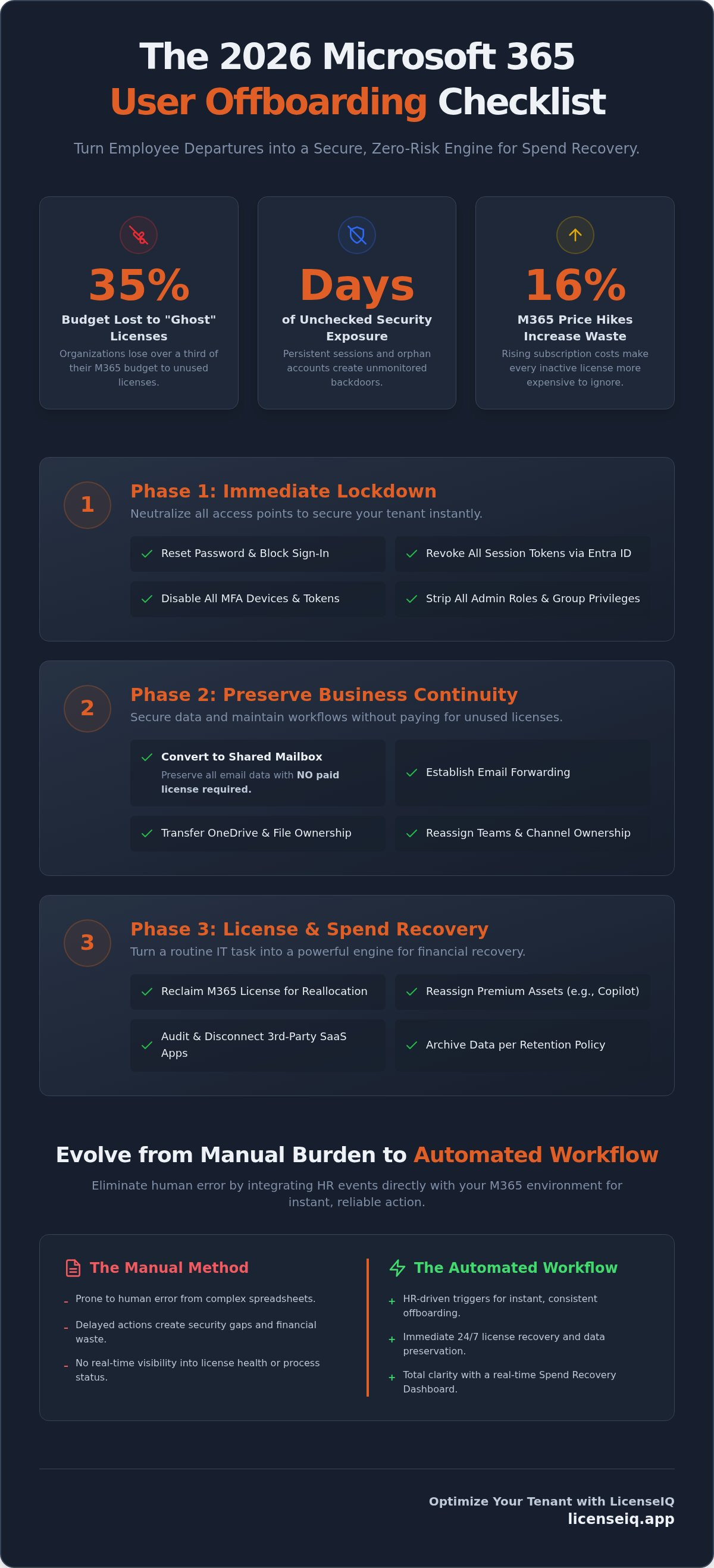
- Secure your tenant immediately by revoking active refresh tokens and mobile sessions via Entra ID to prevent unauthorized post-departure access.
- Preserve business data without ongoing costs by converting departing user mailboxes to Shared Mailboxes and establishing automated email forwarding.
- Standardize your IT workflow with a comprehensive microsoft 365 user offboarding checklist designed to eliminate human error during complex employee transitions.
- Transition from manual spreadsheets to Automated Governance Workflows that integrate HR events directly with your M365 environment for instant action.
- Reclaim up to 35% of wasted subscription spend by identifying "ghost" licenses and inactive users through the LicenseIQ Spend Recovery Dashboard.
The Immediate Lockdown: 4 Essential Steps to Secure Access
Security isn't a suggestion; it's a requirement. The Employee offboarding process starts with a complete digital lockdown. You can't afford to leave doors cracked open. This first phase of your microsoft 365 user offboarding checklist focuses on neutralizing access before data preservation begins. Speed is your greatest asset here. Every minute an account remains active is a minute of exposure.
Start by resetting the user's password immediately. This prevents new logins while you execute the remaining steps. Next, block the sign-in status in the Microsoft 365 Admin Center. This action freezes the account and prevents any further authentication attempts. You must also disable all Multi-Factor Authentication (MFA) devices and hardware tokens associated with the identity. Leaving these active creates a backdoor for account recovery that bypasses your security perimeter. It's a common oversight that leaves tenants vulnerable to credential replay attacks.
Revoking Global Session Tokens
A password change alone is insufficient. Active sessions can persist for hours or even days due to refresh tokens. To kill these connections, navigate to Users > Active Users in the Admin Center and select the departing employee. Initiate the "Sign out of all sessions" command. This action terminates active browser sessions, mobile app access, and desktop client connections across the entire tenant. It's a decisive move that ensures the user's current access is revoked instantly.
Don't ignore SaaS sprawl. Many users authorize third-party applications via OAuth permissions. You must manually disconnect these integrations to ensure the user can't access company data through external platforms. It's a meticulous process, but it's necessary for total oversight. Vigilance at this stage prevents data leaks that occur outside your primary M365 environment.
Disabling Entra ID (Azure AD) Access
Precision in Entra ID is vital. Beyond blocking sign-in, you must strip the user of all elevated privileges. Remove the account from every security group and administrative role, such as Global Administrator or Billing Administrator. This prevents accidental inheritance of permissions if the account is ever re-enabled for data retrieval. It also keeps your directory clean and audit-ready.
Orphan accounts represent a critical security vulnerability in 2026, serving as unmonitored entry points for lateral movement within your corporate network. By following this microsoft 365 user offboarding checklist, you eliminate these blind spots. If you want to ensure your environment remains lean and secure, consider using Automated Governance Workflows from LicenseIQ to handle these technical steps without human error. Automation ensures that no step is forgotten, regardless of how many users leave your organization.
Preserving Business Continuity: Mailbox and File Management
Data loss is an operational failure. After locking the account, your priority shifts to asset preservation. A robust IT offboarding checklist ensures that institutional knowledge stays within the firm. This is where many organizations stumble. They either delete accounts too early or pay for licenses they don't need just to keep a mailbox alive. Use this microsoft 365 user offboarding checklist to maintain continuity without the overhead.
Email forwarding is a critical bridge. Set up a forwarder to a manager or successor to ensure no client leads or vendor communications drop. This maintains the professional appearance of your organization while the transition occurs. You should also audit Microsoft Teams ownership at this stage. Private channels often become "orphaned" if the sole owner departs. Assign a new owner to every private channel and group to prevent data lockouts and administrative headaches later.
Converting to Shared Mailboxes
Shared mailboxes are the gold standard for data preservation in 2026. They don't require a paid license. This simple transition saves you from the "ghost license" trap where you pay monthly fees just to keep an ex-employee's inbox searchable. It's a key component of a modern Office 365 offboarding checklist 2026.
Follow these steps to convert the account:
- Open the Microsoft 365 Admin Center and navigate to Exchange.
- Select Mailboxes and choose the departing user.
- Click Convert to Shared Mailbox and confirm the action.
Be aware of the 50GB storage limit. If the inbox exceeds this, you must retain a license or archive data elsewhere. For enterprise environments, managing these thresholds manually is inefficient. You can use Automated Governance Workflows to flag over-limit mailboxes before you unassign the license, ensuring you never lose data to a storage cap.
OneDrive and SharePoint Data Retention
Microsoft's default retention for OneDrive is 30 days. After this window, the data is purged permanently. You must grant OneDrive access to a supervisor before this timer expires. Navigate to the OneDrive admin center to adjust this retention period if your compliance policy requires a longer window. This is a vital step in your microsoft 365 user offboarding checklist to prevent the loss of personal work files.
For long-term storage, move critical files to a SharePoint Document Library. This centralizes the data and removes it from a user-centric silo. It's a strategic move that aligns with an Office 365 offboarding checklist 2026. This ensures that project files remain accessible to the remaining team members even after the personal account is deleted. Centralization creates transparency and eliminates the "where is that file?" scramble after an employee leaves.
License Recovery: Turning Offboarding into Spend Recovery
Offboarding is a financial audit as much as a security procedure. Once you've secured the account and preserved the data, you must stop the bleeding. Many IT departments fail at this stage by leaving unassigned licenses active in the tenant. Following a strict microsoft 365 user offboarding checklist ensures that you don't just move users; you recover capital. Every unused license represents a direct hit to your department's efficiency, especially with the July 2026 price increases hitting hard across Business and Enterprise SKUs.
Analyze the financial impact of "Ghost Licenses" left in your tenant. These are seats that have remained unassigned or inactive for over 90 days. In a typical organization, these obscured details account for a significant portion of wasted SaaS spend. You should also audit redundant add-on licenses like Visio, Project, or Power BI Pro. These high-cost items often stay attached to a user profile even after their primary license is removed. Vigilance here is the difference between a bloated budget and a lean, optimized environment.
The Difference Between Unassigning and Deleting
Precision matters in the billing portal. Unassigning a license from a user profile merely returns that license to your "available" pool. It does not stop Microsoft from billing you for that seat. An unassigned license is a recurring donation to Microsoft. To stop the charges, you must adjust the total seat count in the Microsoft billing portal. This is a common point of failure where organizations think they've saved money, yet their monthly invoice remains unchanged. Always verify that your subscription count matches your actual headcount needs after every departure.
Identifying Underutilized Tiers During Offboarding
Use the offboarding event as a trigger to evaluate your license tiers. Don't simply pass an E5 license to a successor who only requires E3 functionality. This is the ideal time to consult the Microsoft 365 License Types guide to determine if a lower-cost tier meets the new user's requirements. By right-sizing the seat before reassignment, you proactively eliminate waste before it starts.
Integrating this step into your microsoft 365 user offboarding checklist allows you to improve your License Health Score instantly. If you're looking for a systematic way to execute this, refer to our playbook on how to reduce M365 subscription costs. Recovering up to 35% of your spend is achievable when you treat every departure as an opportunity for total transparency. Use the Spend Recovery Dashboard to track these gains in real-time, transforming IT from a cost center into a driver of financial health.
Building a Scalable Offboarding Workflow for 2026
Implementing "Just-In-Time" license reclamation ensures that your organization maximizes spend recovery. Instead of waiting for a monthly audit, the system identifies and unassigns licenses the second they are no longer needed. We recommend establishing a standard 90-day "Cooling Period" before final account deletion. This window allows for unforeseen data retrieval needs while the account remains in a non-billed, shared-mailbox state. This structured approach protects your data without inflating your subscription costs or cluttering your tenant with inactive users.
Automated vs. Manual Governance
The time cost of manual offboarding averages approximately 2 hours per user when performed thoroughly. In contrast, automated systems complete the same tasks in minutes. Automation provides the security benefit of instant, script-based session revocation across all devices, leaving no room for oversight. This transition is essential for Mastering the M365 License Management Lifecycle. It removes human error from the equation and ensures every security protocol is followed every time, regardless of the administrator's workload.
Standardizing the Compliance Audit Trail
Compliance demands total transparency. Your workflow must generate a detailed offboarding report for SOC2 or HIPAA audits to prove data integrity. This report should verify that all legal holds were applied to departing executive accounts and that data was handled according to corporate retention policies. Maintaining a clean License Health Score serves as a real-time metric for IT efficiency and governance health. It provides specialized leadership with the immediate clarity needed to make data-driven decisions about resource allocation.
If your current process feels fragmented, it's time to centralize your oversight. You can automate your governance workflows with LicenseIQ to ensure every departure is handled with surgical precision. This shift from organizational disorder to total clarity is the hallmark of a high-performing IT department that prioritizes financial health and security.
Optimizing Your Tenant with LicenseIQ
Visibility is the final step of the microsoft 365 user offboarding checklist. You have secured the account, preserved the data, and unassigned the license. However, manual oversight often misses the obscured details that lead to financial leakage. Connecting the LicenseIQ Platform to your tenant provides the immediate clarity required to maintain a lean environment. It functions as a vigilant digital auditor, uncovering "ghost" licenses and inactive accounts that manual spreadsheets simply cannot track. This proactive approach ensures your resources are always monitored by a precise system.
The License Health Score serves as your primary metric for financial hygiene. This score measures the efficiency of your M365 deployment in real-time, highlighting areas where waste persists. By using AI-native intelligence, the platform identifies redundant licenses and underutilized tiers across your entire organization. It transforms raw data into actionable insights, allowing specialized leadership to make data-driven decisions that protect the company's financial health. You don't just manage licenses; you master them.
The 5-Minute License Audit
Efficiency is the cornerstone of our service. The connection process is direct and secure, allowing you to launch a comprehensive audit in minutes. Once connected, the Spend Recovery Dashboard scans your environment to identify users who haven't logged in for 30, 60, or 90 days. These are prime candidates for license reclamation that were likely missed in previous offboarding cycles. It's a fast-paced, highly structured way to uncover hidden savings without the cognitive load of manual log analysis.
This audit uncovers the 35% average savings on M365 subscriptions that many organizations leave on the table. It provides a logical, step-by-step view of every unassigned or redundant license in your tenant. Stop guessing about your license utilization and start seeing the truth. You can start your 5-minute audit with LicenseIQ today to reclaim your budget instantly.
Continuous Spend Recovery
Offboarding is merely one component of a continuous optimization strategy. A one-time audit provides a snapshot, but true financial health requires ongoing oversight. LicenseIQ provides the infrastructure for Automated Governance Workflows that trigger every time a user profile changes or a license remains inactive. This relentless focus on waste elimination distinguishes high-performing IT departments from those plagued by organizational disorder. It's about moving from a passive tool to an active participant in your company's growth.
By adhering to the M365 License Optimization Pillar, you ensure that your tenant remains optimized long after the initial offboarding is complete. The platform delivers specific solutions to complex challenges, ensuring your microsoft 365 user offboarding checklist remains a vital guardian of corporate resources. Maintain total transparency and secure your financial future by automating the discovery of wasted spend across your entire SaaS ecosystem.
Mastering Your Tenant Security and Financial Health
Effective offboarding is a standard for operational excellence, not a series of isolated tasks. By implementing this microsoft 365 user offboarding checklist, you've secured your tenant perimeter and preserved vital institutional knowledge. You've transitioned from manual spreadsheets to a structured, audit-ready framework that eliminates "ghost" licenses immediately. This shift ensures that every employee departure becomes a catalyst for efficiency rather than a source of financial leakage. You've successfully turned a routine administrative burden into a precise engine for spend recovery.
Achieving total transparency across your entire deployment is the next logical step for specialized leadership. LicenseIQ provides an AI-native software intelligence platform that uncovers obscured details in real-time. You can identify wasted spend in under 5 minutes and save up to 35% on M365 subscriptions by reclaiming unassigned seats. Don't let inactive accounts drain your IT budget or compromise your security posture. Stop wasting money on inactive M365 users with LicenseIQ and maintain a lean, high-performing environment. You're now equipped to lead with precision and total clarity.
Frequently Asked Questions
How long does Microsoft keep data after a user is deleted?
Microsoft retains user data for exactly 30 days after account deletion. This grace period allows administrators to restore the account and its associated files if a mistake occurs. Once this window closes, the data is permanently purged from Microsoft servers. You must ensure all critical files are migrated to SharePoint or a manager's OneDrive before this timer expires to avoid permanent data loss.
What happens to a Microsoft 365 license when a user is offboarded?
The license returns to your tenant's pool of available seats but remains active on your billing profile. It does not stop incurring costs automatically. It stays in your "Unassigned" pool, waiting for reassignment to another user. Including this step in your microsoft 365 user offboarding checklist ensures you don't overlook these seats, which can quickly inflate your monthly SaaS spend.
Can I reuse a license from a former employee for a new hire?
You can immediately reassign a license from a former employee to a new hire. Once unassigned from the departing user, the seat becomes available in your tenant for any other account. This is the most efficient way to manage headcount changes without purchasing new subscriptions. Always evaluate if the new hire's role requires the same license tier to avoid unnecessary over-provisioning.
Is it better to block a user or delete them in Microsoft 365?
Blocking a user is the superior first step for security and data preservation. Deleting a user immediately triggers the 30 day deletion clock for OneDrive and mailbox data. By blocking sign-in, you freeze the account while maintaining full access to the data for as long as necessary. Only delete the account after you've successfully converted the mailbox and moved all critical files.
How do I preserve a former employee’s Teams chat history?
Preserving Teams chat history requires Microsoft Purview or a dedicated backup solution. Shared mailboxes do not automatically store private Teams chats. You must use Content Search or eDiscovery tools to export this data for compliance or continuity. This is a critical step in a modern microsoft 365 user offboarding checklist to ensure institutional knowledge isn't lost during the employee transition.
What is the most common mistake in M365 offboarding?
The most common mistake is failing to reduce the subscription seat count after unassigning a license. IT managers often assume that unassigning a license stops the billing, but Microsoft continues to charge for every seat in the subscription. This oversight creates "ghost" licenses that drain budgets for months. Vigilant oversight and regular audits are necessary to identify and eliminate this recurring waste.
Do I still get billed for unassigned licenses in my M365 tenant?
Yes, you are billed for every license seat in your subscription regardless of its assignment status. Microsoft's billing model is based on the number of seats you've committed to, not the number of active users. To stop the charges, you must manually reduce the seat count in the Microsoft 365 Admin Center. This distinction is vital for maintaining a healthy License Health Score.
How can I automate the M365 offboarding process?
You can automate the process using Automated Governance Workflows that connect your HR system directly to M365. These workflows trigger password resets, session revocations, and license unassignments the moment an employee's status changes. This replaces manual effort with precise, script-based execution. It ensures every security protocol is followed instantly, minimizing human error and maximizing spend recovery across your entire organization.


