

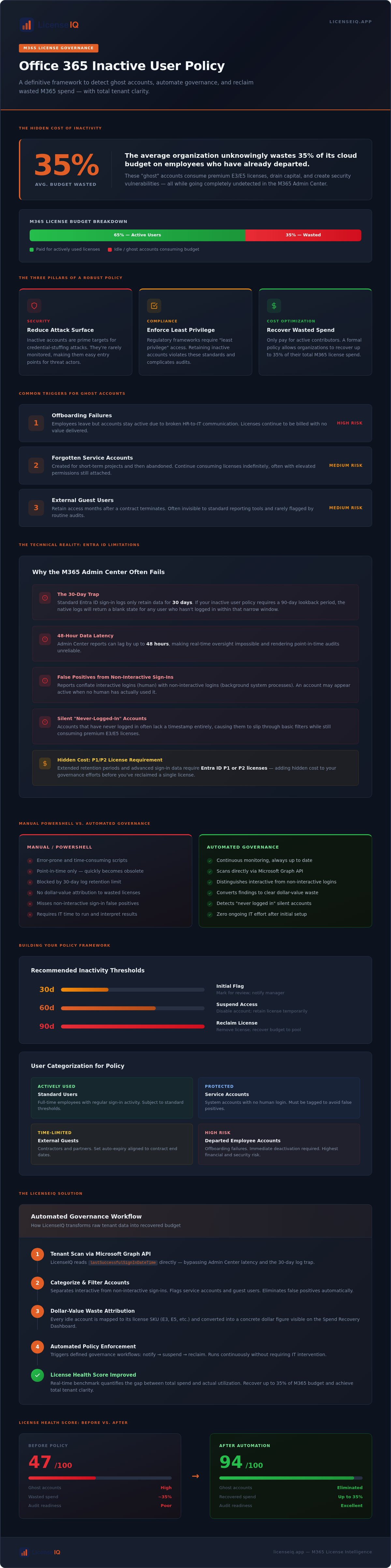
The average organization unknowingly wastes 35% of its cloud budget on employees who have already departed. You likely suspect your tenant is cluttered with "ghost" accounts, yet the M365 Admin Center often provides stale or inaccurate data. Implementing a rigorous office 365 inactive user policy is not just a routine cleanup. It's a high-stakes financial strategy designed to stop revenue leakage and close security gaps. You shouldn't pay for idle licenses that increase your attack surface.
Managing these resources manually is inefficient and prone to error. This guide provides a definitive framework to automate your governance and restore operational transparency. You'll learn how to define inactivity with precision, deploy automated governance workflows, and use the LicenseIQ Spend Recovery Dashboard to reclaim your budget. We'll show you how to transition from organizational disorder to a state of total clarity. Follow this roadmap to improve your License Health Score and secure your organization’s financial health with expert-level oversight.
Key Takeaways
- Define a rigorous office 365 inactive user policy that bridges the gap between technical sign-in data and actual financial waste.
- Identify the limitations of standard Entra ID logs and bypass the "30-day trap" to maintain long-term tenant hygiene.
- Replace high-risk manual PowerShell scripts with automated governance to eliminate human error and secure your license environment.
- Build a scalable framework by setting precise inactivity thresholds and categorizing users to protect vital service accounts.
- Leverage LicenseIQ’s Automated Governance Workflows to recover up to 35% of wasted spend and monitor progress via a real-time License Health Score.
What is an Office 365 Inactive User Policy?
An office 365 inactive user policy is more than a simple PowerShell script or a list of last sign-in dates. It's a structured governance framework that identifies, validates, and removes access for users who no longer provide value to the organization. While Microsoft provides raw data points through Entra ID, they don't provide the logic to act on them automatically. You're often left with a list of names but no native mechanism to reclaim the high-cost E3 or E5 licenses attached to them.
Technical inactivity is merely a metric; financial waste is the consequence. A user might not have signed in for 90 days, but if they still hold an expensive license, that's a direct hit to your bottom line. Modern FinOps teams treat inactivity tracking as a core pillar of cloud hygiene. It transforms IT from a cost center into a department that actively recovers capital. Without a formal policy, your tenant becomes a graveyard of "ghost" accounts that drain resources and invite risk.
The Three Pillars of a Robust Policy
Common Triggers for Inactivity
Relying on manual oversight is a losing game. You need a system that acts as a digital auditor, uncovering these hidden costs and enforcing discipline across your tenant. By moving beyond manual spreadsheets, you gain total clarity into your license health and financial standing.
The Technical Reality: Detecting Inactivity in Microsoft Entra ID
Identifying idle accounts requires digging into the Microsoft Graph API. The core metric is the lastSuccessfulSignInDateTime property. This timestamp provides the most accurate record of when a user last authenticated. However, extracting this data manually is complex. Most administrators rely on the Azure portal, which presents a significant hurdle: the "30-day trap."
Standard Entra ID reporting only retains sign-in logs for 30 days. If your office 365 inactive user policy requires a 90-day lookback period to ensure accuracy, the native logs will fail you. You'll see a blank state for any user who hasn't logged in within that narrow window. To access longer retention periods or advanced sign-in data, Microsoft requires Entra ID P1 or P2 licenses. This adds a hidden cost to your governance efforts before you've even reclaimed a single license. It's a classic barrier that prevents many organizations from achieving total clarity.
Why Admin Center Reports Often Fail
The M365 Admin Center reports suffer from significant latency. Data can lag by 48 hours, making real-time oversight impossible. There's also a critical distinction between interactive and non-interactive sign-ins. Interactive logins involve a human entering credentials. Non-interactive logins are background processes or system refreshes. Standard reports often conflate the two, leading to "false positives" where an account appears active but isn't being used by a person. Additionally, accounts that have never logged in often lack a timestamp entirely. These "silent" accounts slip through basic filters while still consuming premium licenses.
Leveraging Software Intelligence Platforms
Shifting from raw data to actionable insights requires a vigilant auditor. LicenseIQ bypasses these manual reporting hurdles by scanning your tenant directly to uncover obscured waste. Instead of point-in-time audits that quickly become obsolete, you need continuous monitoring. The License Health Score serves as a definitive metric for tenant hygiene, quantifying the gap between your total license spend and actual resource utilization. This score provides an immediate benchmark for your policy's success. By using a Spend Recovery Dashboard, you can transform technical logs into clear dollar-value recommendations. This proactive approach ensures your office 365 inactive user policy remains effective without the need for expensive Entra ID upgrades or manual PowerShell maintenance. You gain the momentum needed to eliminate waste permanently.
Manual PowerShell vs. Automated Governance: The ROI Gap
PowerShell is often the first tool IT teams reach for when enforcing an office 365 inactive user policy. It feels free because the license is already paid for. However, this is a financial illusion. Senior engineers spend hours writing, testing, and debugging scripts. When you calculate the hourly burden of high-level technical talent against the potential license savings, the "free" script often results in a net loss. It's an inefficient use of specialized leadership.
Manual workflows also introduce unacceptable risks. A single syntax error in a deletion script can wipe out active accounts, causing massive operational downtime. For a growing SMB, these manual processes simply don't scale. You need a solution that acts as a vigilant auditor, not a fragile set of commands that requires constant babysitting. Automated Governance Workflows provide the precision required to manage a modern tenant without the risk of human error. They deliver immediate clarity in complex operational environments.
The Problem with Custom Scripts
Custom scripts are inherently fragile. Microsoft frequently updates the Graph API, which can break legacy PowerShell code without warning. If your script stops working, your office 365 inactive user policy fails, and wasted spend begins to accumulate again immediately. These scripts also rarely leave a comprehensive audit trail. If a license is reclaimed by mistake, tracing the "why" and "when" becomes a forensic nightmare. This lack of oversight creates organizational disorder that threatens your security posture.
The "Single Point of Failure" is another critical risk. Most organizations have one person who understands the custom automation. If that script author leaves the company, the governance system becomes a "black box" that no one dares to touch. This lack of transparency is the opposite of the data-driven decision-making required for healthy financial management. You shouldn't leave your corporate resources in the hands of a single, unmonitored script.
Automated Spend Recovery with LicenseIQ
Transitioning to a dedicated platform eliminates the maintenance burden. LicenseIQ connects to your tenant in minutes, providing an instant audit of your environment. It doesn't just pull raw data; it identifies redundant licenses and inactive users with 100% accuracy. By comparing LicenseIQ vs. manual tracking, the ROI becomes undeniable. You stop paying for IT labor to manage license waste and start recovering capital instead.
Our platform replaces manual spreadsheets with a structured, results-first approach. You gain a real-time License Health Score that benchmarks your success and a Spend Recovery Dashboard that tracks every dollar reclaimed. This proactive participation in your growth ensures that your resources are always optimized. It allows your IT team to focus on high-value innovation instead of repetitive script maintenance.
Building Your Inactive User Policy Framework
A robust office 365 inactive user policy requires more than just a threshold. It needs a cross-departmental framework to ensure financial recovery doesn't compromise operations. You must categorize users by type, such as full-time employees, contractors, or service accounts, to avoid disrupting automated processes. Establishing a multi-step reclamation workflow protects the organization while systematically eliminating waste. Before removing any license, ensure your data retention and backup protocols are active to preserve vital corporate information.
Step 1: Stakeholder Alignment
Effective governance is a shared responsibility. Finance must approve spend recovery goals to validate the ROI of the initiative. HR alignment is equally critical to ensure the policy mirrors actual offboarding timelines. Finally, IT security must audit the automated lockout process to ensure it meets "least privilege" standards without creating service gaps. This alignment transforms a technical task into a strategic business objective, providing immediate clarity for leadership.
Step 2: Defining the Inactivity Window
Setting the right window for your office 365 inactive user policy is a balancing act. While 90 days is the industry standard for identifying truly "obsolete" accounts, your policy must account for edge cases. Sabbaticals, maternity leave, and seasonal staff require specific exclusions to prevent accidental license removal. You should integrate these rules into an Office 365 offboarding checklist to maintain consistency. This ensures your vigilant oversight doesn't negatively impact legitimate temporary absences.
Step 3: Implementation and Communication
Transparency prevents friction with end-users. Start by drafting a "Notice of Inactivity" email to alert users before any action is taken. If no response is received, initiate a "Soft-Lock" phase by disabling sign-in while keeping the license intact. This acts as a final safety net. After a set grace period, move to final reclamation. Converting mailboxes to shared status allows you to retain data without the cost of a premium license. This structured approach eliminates the disorder of manual cleanup.
Manual policy enforcement is a recipe for error. You need a system that monitors these thresholds automatically and provides a clear License Health Score. Scan your tenant with LicenseIQ to implement these governance workflows in minutes and start recovering your budget immediately.
Eliminating M365 Waste with LicenseIQ’s Workflows
LicenseIQ transforms your office 365 inactive user policy from a static document into a self-executing financial engine. While manual frameworks rely on human intervention, our AI-native platform operates as a vigilant auditor that never sleeps. It scans your entire M365 environment to uncover obscured license waste that traditional reports miss. By integrating directly with your tenant, LicenseIQ provides real-time spend recovery insights that translate raw data into actual dollars saved.
Automating the governance lifecycle is the only way to prevent SaaS sprawl in a modern enterprise. You don't just need a one-time cleanup; you need a continuous optimization loop. LicenseIQ monitors every account against your specific inactivity thresholds, ensuring that your resources are always aligned with your actual headcount. This relentless focus on data-driven decision-making allows you to achieve and maintain a perfect License Health Score, signaling total operational transparency to your leadership team.
The 5-Minute Audit
Achieving total clarity shouldn't require a specialized IT degree or weeks of manual analysis. LicenseIQ offers a streamlined audit process that provides immediate visibility into your tenant's health. In just five minutes, the platform identifies every unassigned and inactive license currently draining your budget. You gain a prioritized list of reclamation opportunities sorted by financial impact. Visit the LicenseIQ Homepage to start your scan and see exactly how much capital you can recover today. It's the most efficient way to benchmark your current standing and set a baseline for future growth.
Proactive Governance
Reactive management is the primary cause of organizational disorder. Waiting for an annual review leads to the "End-of-Year" budget shock, where thousands of dollars are lost to accounts that should've been closed months ago. LicenseIQ eliminates this risk through proactive governance. By setting up automated alerts, you're notified the moment a user triggers your office 365 inactive user policy thresholds. This proactive participation ensures your organization remains lean and agile. LicenseIQ acts as the vital guardian of your corporate resources, providing the security and financial oversight necessary for specialized leadership to thrive in complex environments.
Secure Your Tenant and Reclaim Your Budget
Relying on manual spreadsheets and fragile scripts is an operational risk you can no longer afford. A structured office 365 inactive user policy transforms your tenant from a cluttered liability into a lean, secure asset. You've seen how technical logs in Entra ID often obscure the true financial picture. By moving beyond basic timestamps and implementing automated governance, you eliminate human error and ensure every dollar spent on licenses drives actual value. Total clarity is the only standard for specialized leadership.
Don't let "ghost" accounts drain your resources for another billing cycle. LicenseIQ’s AI-native software intelligence connects in minutes to provide a definitive Health Score. You can recover up to 35% of your M365 spend by acting on real-time data instead of guesswork. Take control of your digital environment today and establish the vigilant oversight your organization requires. Start your 5-minute M365 audit and recover wasted spend now and lead your company toward total operational transparency.
Frequently Asked Questions
Does Microsoft 365 have a native inactive user policy?
Microsoft 365 doesn't offer a native, self-executing policy to automatically reclaim licenses from idle users. While the M365 Admin Center provides usage reports, these are static data points rather than active governance tools. You must manually intervene or use a third-party platform to enforce your office 365 inactive user policy. Without an automated layer, your organization remains vulnerable to license bloat and the associated financial waste.
How long should a user be inactive before I remove their license?
A 90-day window is the standard threshold for identifying truly obsolete accounts in a professional environment. This lookback period accounts for typical leaves of absence or project cycles. However, you might set a 30-day limit for external contractors or short-term service accounts. Choosing the right threshold ensures you don't disrupt active contributors while still maintaining a vigilant stance against resource waste and unnecessary spend.
Is there a way to automate inactive user deletion in Entra ID?
Native automation for user deletion or license removal isn't available directly within the Entra ID interface. You can build custom workflows using PowerShell and the Microsoft Graph API, but these require constant maintenance and technical oversight. Most leadership teams prefer a results-first approach using specialized governance platforms. These systems provide the momentum needed to manage lifecycle tasks without the risk of breaking custom code or losing data.
What is the risk of keeping inactive users in my tenant?
Retaining inactive accounts creates two primary risks: financial leakage and security vulnerabilities. Every idle E3 or E5 license represents a direct hit to your bottom line. Beyond the cost, these "ghost" accounts are prime targets for credential-stuffing attacks because they're rarely monitored by the original owners. Closing these gaps is a critical step in maintaining both your financial health and your organization's security posture.
Can I reclaim a license without deleting the user’s data?
You can absolutely reclaim a license while preserving the user's data. The most efficient method is converting the user's mailbox to a shared mailbox, which doesn't require a paid license for up to 50GB of data. Alternatively, you can apply a Litigation Hold to secure the data before unassigning the license. This ensures your office 365 inactive user policy recovers spend without losing vital corporate intelligence or historical records.
How do I generate an inactive user report in the M365 Admin Center?
To generate a basic report, navigate to the M365 Admin Center, select "Reports," and click on "Usage." From there, choose the "Active Users" report to view last activity dates across services like Exchange and Teams. Keep in mind that these reports often suffer from 48-hour latency. For total clarity and real-time insights, a dedicated dashboard is necessary to uncover obscured details that standard reports might miss.
Does LicenseIQ delete users automatically?
LicenseIQ doesn't unilaterally delete user accounts. Instead, it uses Automated Governance Workflows to identify waste and provide actionable recommendations. You maintain full control over the final reclamation process. The platform acts as a digital auditor, flagging accounts that trigger your policy thresholds and allowing you to approve license removals. This ensures your resources are monitored by a precise system without sacrificing essential operational oversight or security.
What is the difference between an inactive user and an unlicensed user?
An inactive user is an account that holds a paid license but hasn't performed a successful sign-in or activity within a set timeframe. An unlicensed user is an account that exists in your directory but has no license assigned to it. While unlicensed users don't contribute to wasted spend, they can still pose security risks if they aren't properly managed. Your governance strategy must address both to ensure total tenant hygiene.


