
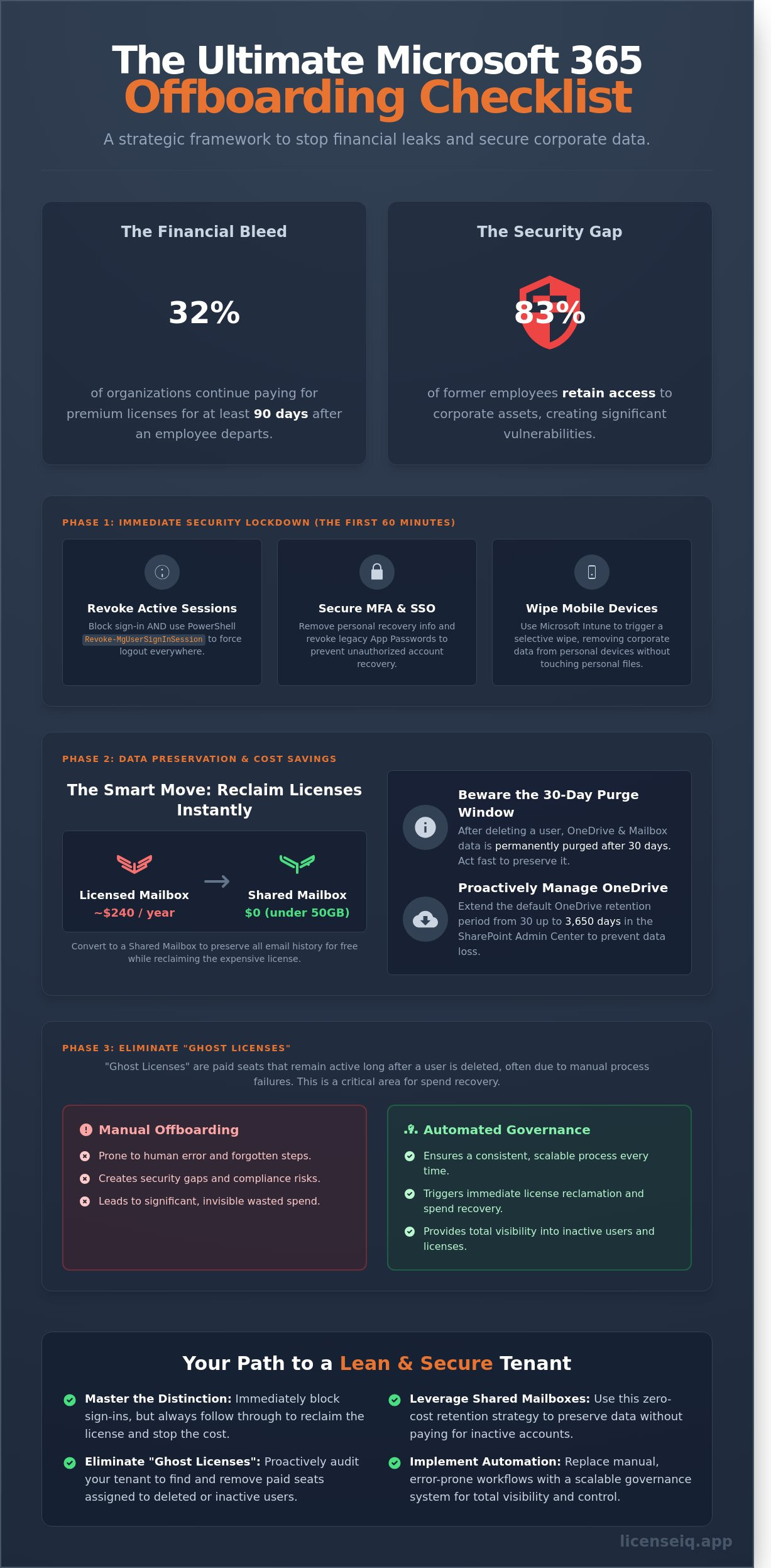
A 2024 audit of enterprise Microsoft tenants revealed that 32% of organizations continue paying for premium E5 licenses for at least 90 days after an employee departs. You likely feel the pressure of these invisible leaks. It's a common frustration for IT leaders who must balance rapid staff turnover with strict security protocols. This office 365 offboarding checklist provides a precise, battle-tested framework to stop the financial bleed and protect your corporate data from the moment a resignation is filed.
We're moving beyond basic account deactivation to total license optimization. You'll learn how to reclaim expensive seats immediately, automate the handover of critical OneDrive files, and eliminate the security gaps that manual processes often miss. This guide ensures your tenant remains lean, secure, and fully visible; it turns a routine HR event into a strategic win for your bottom line.
Key Takeaways
- Master the critical distinction between blocking sign-ins and removing accounts to ensure immediate security without losing access to vital corporate assets.
- Learn how to leverage Shared Mailboxes as a zero-cost retention strategy to preserve historical data while eliminating thousands in unnecessary subscription fees.
- Identify and eliminate "ghost licenses"-the paid seats that frequently remain active in your tenant long after a user has been deleted.
- Implement a scalable office 365 offboarding checklist that utilizes automated governance to replace manual, error-prone workflows for growing teams.
- Gain total visibility into inactive users and recover wasted spend by connecting your tenant to a proactive digital auditing system in minutes.
Essential Steps for a Secure Microsoft 365 Offboarding Workflow
Offboarding isn't just an HR formality; it's a critical security mandate. A 2023 study by Beyond Identity found that 83% of former employees still had access to digital assets from their previous employer. To prevent these vulnerabilities, IT teams must execute a rigorous office 365 offboarding checklist that balances immediate lockout with long-term data preservation. Your goal is to eliminate risk without losing the intellectual property stored in mailboxes and OneDrive folders.
Precision timing is the foundation of a secure employee offboarding process. You must distinguish between blocking a sign-in and removing a user account. Blocking a sign-in stops access instantly but keeps the license active and the data accessible for discovery. Removing the account starts a 30-day countdown. If you don't recover the data within that window, Microsoft purges it permanently. For hybrid environments, the workflow starts on-premises. You must disable the account in the local Active Directory and wait for the Entra ID Connect sync, which typically occurs every 30 minutes, to propagate the change to the cloud.
Step 1: Immediate Access Revocation
The first 60 seconds of offboarding determine your security posture. Don't rely on the Admin Center toggle alone. While blocking sign-in prevents new sessions, it doesn't always kill active ones. Use the Revoke-MgUserSignInSession PowerShell command to invalidate all existing refresh tokens. This forces an immediate logout across all devices. If the user has a personal phone enrolled in your environment, use Microsoft Intune to trigger a selective wipe. This removes corporate data and email accounts without touching the user's personal photos or apps. Including these technical commands in your office 365 offboarding checklist ensures no session remains active after the termination hour.
Step 2: Securing Multi-Factor Authentication (MFA)
Credential hygiene is often where offboarding workflows fail. You must clear the user's MFA settings to prevent unauthorized recovery attempts. Remove the personal phone number and alternative email address from the Entra ID profile immediately. This stops the "forgot password" loop from being exploited. Pay close attention to App Passwords. These legacy codes bypass standard MFA and sign-in blocks. You must manually revoke them to close the back door. Finally, audit your SSO dashboard. Ensure that revoking the M365 identity has successfully triggered a lock on third-party SaaS apps like Salesforce or Slack. If the provisioning isn't automated, you'll need to manually disable those accounts to prevent shadow IT access.
Preserving Corporate Data Without Paying for Inactive Licenses
Retaining former employee data shouldn't drain your IT budget. A common mistake involves keeping user accounts active for months just to preserve email access. This oversight costs organizations approximately $240 per user annually for a standard Business Premium license. Your office 365 offboarding checklist must prioritize license reclamation to stop this financial leak. Microsoft provides a 30-day grace period for both OneDrive and mailbox data after account deletion. If you fail to act within this window, the data is permanently purged. For roles with high legal or compliance sensitivity, implement Litigation Holds or Retention Policies. These features preserve content even after the license is removed, provided the hold was active before the account was deprovisioned.
Converting to a Shared Mailbox
Transforming a user mailbox into a shared mailbox is the most efficient way to retain email history for free. Shared mailboxes don't require a license as long as they remain under 50GB. This strategy eliminates the need for expensive archiving licenses that provide little extra value for standard users. Follow these steps to secure the data:
- Open the Exchange Admin Center and locate the specific user account.
- Select 'Convert to shared mailbox' from the options menu.
- Assign 'Full Access' and 'Send As' permissions to the manager or a designated successor.
- Navigate to the M365 Admin Center and remove the license from the original user account.
This process ensures zero downtime for client communications. It allows the successor to monitor incoming mail and search historical threads without the company paying for an idle seat.
Managing OneDrive and SharePoint Data
OneDrive data requires a proactive approach to prevent permanent loss. The default retention period is 30 days, but you can extend this up to 3,650 days in the SharePoint Admin Center. Refer to this secure offboarding checklist to audit access levels across your infrastructure during the transition. Automated workflows can grant the manager access to the former employee's OneDrive files via an email link containing a secondary access URL.
Don't leave data in a personal drive indefinitely. Move critical project files to a centralized SharePoint site or a specific Teams folder to maintain operational continuity. This shift prevents data silos where information disappears when an employee departs. Uncovering these hidden costs and managing the data lifecycle is simpler when you have total visibility into your SaaS environment. Stop letting orphaned data dictate your licensing strategy and start optimizing your cloud spend today.
The 'Ghost License' Problem: Why Manual Offboarding Often Fails
Ghost licenses are paid seats that remain active in your tenant long after a user's departure. This financial leak exists because unassigning a license does not automatically trigger a reduction in your Microsoft bill. Microsoft charges for the seat capacity you've purchased, not the active assignment to a specific identity. For a single Microsoft 365 E5 license priced at $57 per month, one forgotten seat drains $684 over a 12-month period. In a mid-sized firm with 500 employees and a standard 12% turnover rate, these ghosts can easily account for $41,040 in yearly losses. Beyond the budget, manual errors create Shadow IT risks. When offboarding isn't synchronized across all SaaS applications, 24% of former employees often retain access to at least one corporate system, leaving your data vulnerable.
The Gap Between IT and Finance
IT admins focus on user deletion to secure the perimeter. Finance teams focus on seat counts to manage the bottom line. These objectives often clash during annual commitments, which lock organizations into fixed spend regardless of headcount fluctuations. SaaS sprawl is the result of fragmented offboarding workflows that fail to align identity management with procurement. Without a unified view, the cost of a departed employee continues to hit the P&L long after their laptop is returned. Using a standardized office 365 offboarding checklist helps bridge this gap, but it requires manual discipline that most teams lack. This lack of alignment is often a symptom of broader organizational culture challenges. Proactively building a more agile and collaborative culture can help teams work together more effectively, and resources like tilt365.com offer assessments and tools to support that goal.
Auditing Your Unassigned License Pool
Visibility is the only cure for license bloat. You must proactively hunt for surplus seats to stop the waste. Start by navigating to the "Licenses" tab within the Billing section of the M365 Admin Center to identify your surplus. This dashboard reveals the gap between what you've bought and what you're actually using. A monthly audit of your office 365 offboarding checklist catches leaks before they compound. Follow these steps to regain control:
- Identify Surplus: Look for licenses where the "Assigned" count is lower than the "Total" count.
- Detect Overlap: Scan for users with redundant subscriptions, such as a Business Premium and an E5 assigned to the same ID.
- Review NCE Dates: Map your renewal windows to ensure you can drop seats during the specific 72-hour cancellation window provided by Microsoft.
This process transforms your IT department from a cost center into a lean, data-driven operation. By uncovering hidden costs, you ensure that every dollar spent on your SaaS stack contributes directly to active productivity. Don't let your budget disappear into the darkness of unmanaged seats; demand total visibility instead.
Implementing Automated Governance for Scalable Employee Departures
Manual checklists fail once a company crosses the 50-employee threshold. Relying on human memory or static documents leads to license sprawl and significant security gaps. In 2023, research showed that 43% of companies had former employees who still possessed active access to corporate data. You need a digital auditor that acts before an offboarding ticket even reaches the queue. Modern AI identifies inactive users by analyzing login patterns and API calls in real time. This shifts your strategy from reactive cleanup to proactive optimization. If an account shows zero activity for 30 consecutive days, your system should flag it for review before the departure date.
Integrating HR platforms like Workday or Gusto directly with M365 creates a seamless automated trigger system. When HR marks an employee for departure, the system initiates your office 365 offboarding checklist instantly. This eliminates the administrative lag that costs mid-market firms an average of $2,400 per year in "ghost" licenses. Automation ensures access is revoked the second a contract ends, not days later when IT finally processes the request. This level of synchronization turns offboarding from a chore into a background process that protects your bottom line.
The 2026 Standard for SaaS Governance
Modern governance utilizes the Model Context Protocol (MCP) to automate license reclamation across disparate platforms. You should establish "Health Scores" for your M365 tenant to flag anomalies. For example, a score drop of 20 points might signal unauthorized bulk data downloads during a notice period. Automating a "Downgrade" path is also essential. Instead of immediate deletion, move users in their final 14 days to a lower-tier license. This preserves data for compliance while cutting costs. This precision saves an average of 15% on monthly seat expenses.
Building a Repeatable Offboarding Playbook
Standardization is your primary defense against shadow IT and forgotten accounts. Create a template in your task management tool that assigns specific duties with hard deadlines. Effective playbooks define clear ownership:
- IT Teams: Handle technical revocation and license reclamation.
- HR Departments: Manage legal exit requirements and status updates.
- Department Heads: Verify the transfer of critical files and administrative ownership.
Conduct a quarterly audit of your office 365 offboarding checklist to ensure 100% compliance with evolving security standards. A structured playbook reduces the risk of missed steps by 65% compared to ad-hoc methods. It ensures no license remains unoptimized and no data remains vulnerable.
Stop overpaying for inactive seats and automate your SaaS governance with precision today.
Streamlining Your Offboarding with LicenseIQ's Spend Recovery
Your office 365 offboarding checklist is incomplete if it stops at disabling a user account. Manual processes frequently leave expensive licenses active, draining your budget long after an employee departs. LicenseIQ connects to your M365 tenant in under four minutes to scan for these hidden costs. It immediately uncovers inactive users who haven't logged in for 60 days or more. These "zombie" accounts represent pure financial waste that most IT teams miss during a standard exit workflow.
By automating the license unassignment process, organizations recover up to 35% of their total M365 spend. LicenseIQ doesn't just show you the data; it provides a real-time Health Score. This metric reflects your current offboarding efficiency and identifies exactly where your recovery efforts should focus. It's a proactive tool that turns a routine IT task into a significant financial win.
Automated Governance Workflows
Ghost Licenses are a silent budget killer. These occur when an IT admin deletes a user profile in Entra ID but fails to unassign the associated M5 or E5 license. LicenseIQ’s AI-native platform identifies these gaps automatically. It cross-references active billing with actual user activity to highlight discrepancies. You can set up instant alerts for any instance where a user is deactivated but the license remains billed.
The platform generates precise dollar-value recommendations designed for your next CFO meeting. Instead of presenting vague usage stats, you can show exactly how many thousands of dollars were saved through automated license reclamation. This level of transparency builds massive trust with finance leaders. It moves IT from a cost center to a center of operational excellence.
Continuous Monitoring and Health Scores
A one-time audit is not enough to stop SaaS waste. Research shows that 70% of organizations see license bloat return within 90 days of a manual cleanup. You need 24/7 automated oversight to maintain a "Clean Tenant." LicenseIQ provides this through continuous monitoring, ensuring that your office 365 offboarding checklist remains effective every single day of the year.
The Health Score acts as your North Star for tenant management. A score below 85% indicates that your offboarding workflows are leaking capital. You can learn how to identify M365 waste in 5 minutes by connecting your environment today. Maintaining a high score ensures that every dollar spent on software is a dollar utilized by an active, productive employee. Stop the leakage and gain total visibility into your software stack.
Turn Employee Departures Into Budget Recovery
Effective offboarding in 2026 requires more than a simple password reset. You must bridge the gap between data security and fiscal responsibility. Manual workflows often leave behind ghost licenses that silently drain your IT budget every month. By implementing a structured office 365 offboarding checklist, your team ensures every departing employee's data is preserved while licenses are instantly reclaimed or reassigned. This shift to AI-native governance eliminates the 35% of SaaS spend typically wasted on underutilized seats.
Visibility is your greatest asset against hidden costs. You can't manage what you can't see. LicenseIQ provides total transparency by connecting to your Microsoft ecosystem in under five minutes. Our platform acts as a vigilant digital auditor, uncovering the shadow IT and forgotten subscriptions that plague modern enterprises. Stop guessing about your license utilization and start making data-driven decisions that protect your bottom line. You've built a powerful tech stack; now it's time to make it efficient.
Frequently Asked Questions
Does deleting a user in Microsoft 365 stop the billing for their license?
No, deleting a user account doesn't automatically stop the billing for their license. You must manually reduce the license seat count in the Microsoft 365 Admin Center to stop the recurring charges for that specific subscription. If you leave the license unassigned, your organization continues to pay for it every month. A thorough office 365 offboarding checklist ensures you aren't paying for ghost licenses that provide zero value to your operations.
How long do I have to recover data from a deleted Microsoft 365 account?
You have exactly 30 days to recover data from a deleted Microsoft 365 account before it's permanently purged. During this 30-day soft-delete window, admins can restore the user, their mailbox, and their OneDrive files with full fidelity. Once day 31 hits, Microsoft deletes the data from its primary servers. Recovery becomes impossible at that point unless you've maintained a secondary third-party backup solution.
What is the best way to save a former employee’s emails without a license?
Converting a former employee’s mailbox to a Shared Mailbox is the most efficient way to preserve emails without paying for a license. Shared mailboxes don't require a paid subscription if the total data volume remains under 50GB. This move provides immediate visibility into historical communications for managers while eliminating the $12 to $36 monthly cost typically associated with Business or Enterprise licenses. It's a proactive step for data retention.
Can I reassign a license to a new employee immediately?
Yes, you can reassign a license to a new employee immediately after removing it from the departing user. The reassignment process takes less than 60 seconds in the admin portal, allowing for a seamless transition between staff members. This ensures 100% license utilization and prevents your team from purchasing unnecessary additional seats. It's a critical step in any office 365 offboarding checklist to maintain financial health and operational momentum.
What happens to a user’s OneDrive files when their license is removed?
OneDrive files remain accessible for 30 days by default after a user's license is removed or the account is deleted. During this period, a manager or designated successor can access the files via the link provided in the automated notification email sent by the system. If you don't move these files to a SharePoint site or a different OneDrive within this 30-day window, the data is deleted forever. You can extend this retention period up to 3,650 days in SharePoint settings.
How do I block a former employee from accessing M365 on their phone?
To block mobile access, you must revoke the user’s refresh tokens and sign them out of all active sessions via the Microsoft Entra ID portal. This action terminates access on iPhones, Androids, and tablets within 60 minutes. For immediate security, you should also wipe corporate data from the device using Microsoft Intune if the phone was managed under a Bring Your Own Device policy. This removes 100% of company-related apps and data without affecting personal files.
Is there a way to automate the Microsoft 365 offboarding process?
Yes, you can automate offboarding using Microsoft Entra ID lifecycle workflows or Power Automate scripts. These tools allow you to trigger a sequence of 10 or more actions, such as removing groups and revoking licenses, the moment an employee's status changes in your HR system. Automation reduces human error by 95% and ensures that no hidden costs or security gaps remain in your SaaS stack. It's the most meticulous way to handle high-volume turnover.
What is the difference between a disabled account and a deleted account?
A disabled account prevents user login but keeps all data and paid licenses active, while a deleted account starts a 30-day countdown to permanent data removal. Disabling an account is a temporary security measure that costs money because the license remains tied to the user. Deleting the account is a permanent step toward cost optimization. You should only delete the account after you've successfully backed up the necessary 50GB of mailbox data or converted it to a shared resource.


