

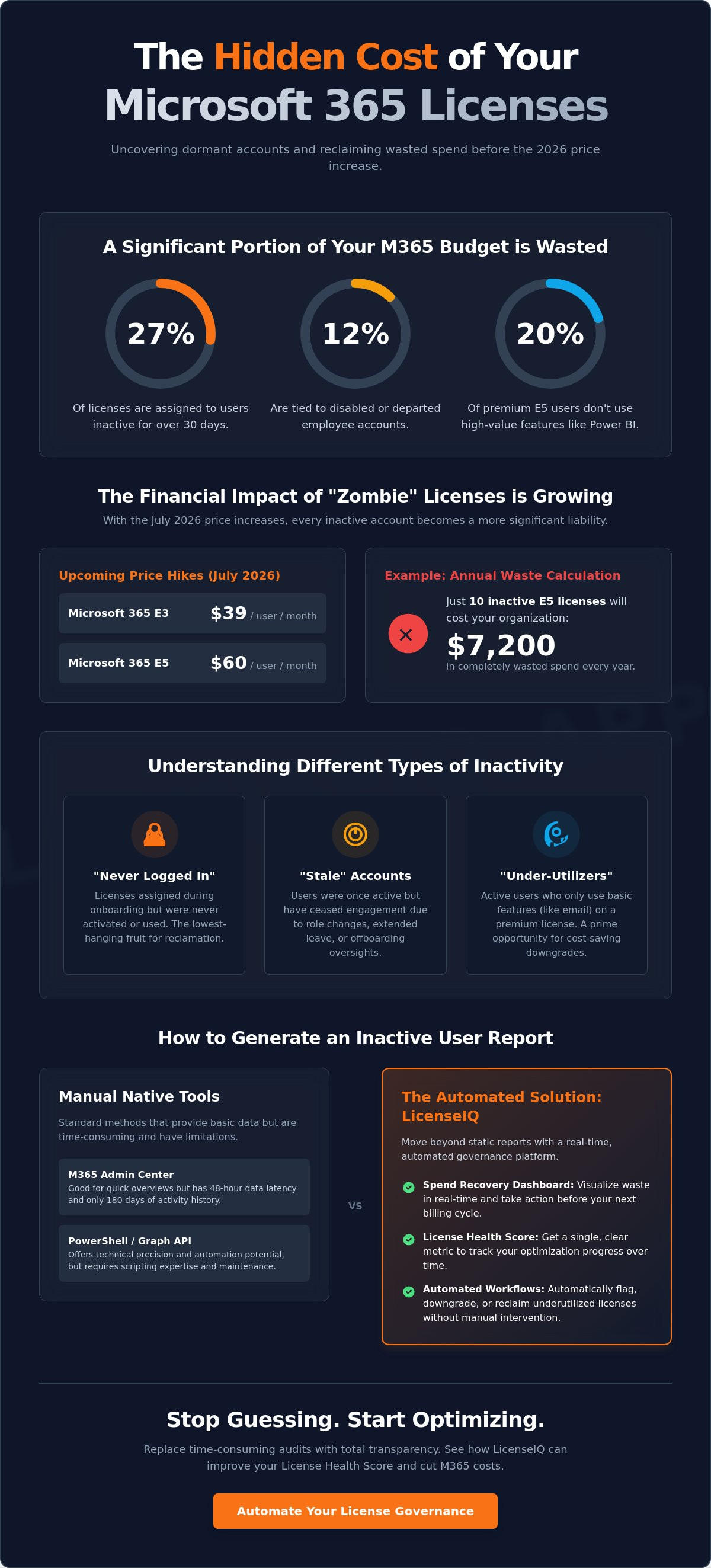
Recent data from LicenseIQ reveals that 27% of Microsoft 365 licenses are assigned to users who haven't logged in for over 30 days. Another 12% are tied to disabled or departed employees. With the July 2026 price increases pushing Microsoft 365 E3 to $39 and E5 to $60 per month, these dormant accounts are a significant financial liability. You need a precise microsoft 365 inactive user report to stop the bleeding before your next renewal cycle hits your bottom line.
You're likely tired of manual reporting that feels outdated the moment it's finished. It's difficult to justify premium costs when 20% of your E5 users never touch tools like Power BI or Defender. This guide will teach you how to master every method for identifying dormant accounts and reclaiming wasted subscription spend. We'll show you how to move beyond static snapshots and implement a Spend Recovery Dashboard that provides total clarity. By the end, you'll know how to use a License Health Score to ensure your organization remains lean, secure, and fully optimized for the 2026 fiscal year.
Key Takeaways
- Differentiate between "never logged in" and "stale" accounts to prioritize your license reclamation efforts effectively.
- Master the technical steps to generate a microsoft 365 inactive user report using the Admin Center, PowerShell, or Graph API.
- Identify under-utilizers who require a license downgrade rather than a full deletion to maintain operational continuity while reducing costs.
- Replace manual, time-consuming audits with automated governance workflows that flag subscription waste in real-time.
- Utilize a Spend Recovery Dashboard and License Health Score to maintain total transparency over your digital resources and budget.
Understanding the Microsoft 365 Inactive User Report
In the 2026 operational ecosystem, inactivity is the primary driver of SaaS spend sprawl. A microsoft 365 inactive user report serves as a forensic tool to identify accounts that have not accessed services within a defined window. These accounts generally fall into two distinct buckets. "Never Logged In" accounts represent licenses that were assigned during onboarding but never utilized. "Stale" accounts belong to users who were previously active but have since ceased engagement, often due to role changes or offboarding oversights.
The risks extend beyond the balance sheet. Dormant accounts act as unmonitored entry points for external threats. Because these accounts are rarely checked by users, suspicious activity often goes unnoticed for longer periods. Organizations must treat inactivity as both a financial leak and a security vulnerability. Precision in identifying these accounts is the first step toward total organizational transparency.
The Financial Impact of Dormant Licenses
Financial hygiene requires a granular look at your subscription costs. Following the July 2026 price hikes, a "zombie" E5 license drains $60 from your budget every month. If you leave just ten of these accounts active for a year, you lose $7,200. This waste is often hidden within the complexity of Microsoft's volume licensing programs, where individual seat costs are obscured by bulk billing. LicenseIQ research shows that 12% of licenses are typically assigned to disabled or departed employees. Identifying these immediate spend recovery opportunities is essential for maintaining a high License Health Score. By using a Spend Recovery Dashboard, leadership can visualize this waste in real-time and take corrective action before the next billing cycle.
Inactivity vs. Adoption: Knowing the Difference
A simple sign-in timestamp is an incomplete metric. Your microsoft 365 inactive user report must look deeper to distinguish between genuine adoption and "license squatting." A user might log in to check email but never touch the premium security or analytics tools included in an E5 tier. In fact, 20% of premium users fail to utilize the high-value features they're paying for. You must define what "inactive" means for your specific environment. Most efficient organizations set a 30, 60, or 90-day threshold. Once a user crosses this line, they should trigger Automated Governance Workflows. This proactive approach ensures you aren't just generating reports, but actively reclaiming capital by downgrading or removing underutilized seats.
How to Generate Inactive User Reports via Microsoft Admin Center
Generating a microsoft 365 inactive user report starts in the Microsoft 365 Admin Center. Navigate to the Reports section in the left-hand sidebar and select Usage. From the dashboard, locate the Active users card and click "View more." This interface provides a high-level summary of user engagement across the tenant. To extract actionable data, you must customize the view. Click "Choose columns" and select specific activity dates for Exchange, OneDrive, Teams, and SharePoint. This granular approach ensures you don't miss users who are active in one app but dormant in others.
The native UI is useful for quick checks, but comprehensive audits require the "Export" function. This downloads your data into a CSV file for spreadsheet analysis. Be mindful of native limitations. Microsoft typically has a 48-hour data latency. Furthermore, the Admin Center only retains usage activity for 180 days. If your governance policy requires tracking inactivity over a full fiscal year, these native logs will prove insufficient. Manual tracking is often a race against expiring data.
Using the Microsoft Entra ID Portal
For technical precision, the Microsoft Entra ID portal offers deeper sign-in logs. Access the Users blade and select All users. You can filter the list by the "Last interactive sign-in date" property. This is vital for distinguishing between internal staff and guest accounts. Many organizations use these logs to manage inactive users in Microsoft 365 Lighthouse, which centralizes security oversight. Monitoring guest inactivity is especially critical to prevent unauthorized access to sensitive corporate data after a project ends.
Interpreting the Native Data
Interpreting "Last Activity Date" requires caution. A user might sign in to the portal but fail to engage with any specific application. This creates a discrepancy between Entra ID sign-in logs and M365 usage reports. Common pitfalls include relying on a single "last seen" timestamp without verifying app-specific engagement. You'll often find "license squatters" who maintain an active session but provide zero operational value. To eliminate the guesswork of manual audits, you can deploy a Spend Recovery Dashboard that consolidates these disparate data points automatically. This ensures your reclamation efforts are based on precise, multi-vector activity data rather than a single, potentially misleading timestamp.
Advanced Reporting: PowerShell and Graph API Methods
Scaling your oversight requires moving beyond the limitations of the Admin Center UI. For technical leadership, a microsoft 365 inactive user report generated via the Microsoft Graph API provides the level of precision necessary for enterprise-grade spend recovery. The Graph API offers real-time access to user metadata that legacy PowerShell modules often struggle to retrieve with consistency. To begin, your service principal or admin account requires specific scoped permissions: AuditLog.Read.All and User.Read.All. These scopes allow you to query sign-in logs and user profiles across the entire tenant without manual intervention or UI lag.
Using the Get-MgUser cmdlet within the Microsoft Graph PowerShell SDK is the most efficient way to pull sign-in activity at scale. This modern tool allows you to filter users based on their interaction history, providing a clear list of who is actually utilizing their assigned seats. Once your script identifies these dormant accounts, it's a straightforward process to assign or unassign licenses for users based on the hard data. Automating this delivery via scheduled scripts ensures your finance team receives fresh data every Monday morning, eliminating the operational blindness inherent in manual audits.
The 2026 Graph API Advantage
The modern standard for tracking inactivity is the lastSuccessfulSignInDateTime property. Unlike older metrics that only tracked interactive logins, this API-driven property provides a unified timestamp for successful authentication events across all endpoints. For large organizations with thousands of seats, legacy scripts often time out or trigger API throttling. The Graph API solves this through advanced pagination and batching. These features allow you to process massive datasets in manageable chunks, ensuring your microsoft 365 inactive user report is both complete and accurate. It's a vigilant system that ensures no "zombie" account remains hidden due to technical limitations or session timeouts.
Scripting Your Own Cleanup
You can build a custom script to flag users who haven't logged in for 90 days or more. These results can be exported directly to a SharePoint list for stakeholder review, providing a transparent audit trail for department heads. This transparency is vital when justifying the removal of expensive E5 licenses. However, rely on custom scripts with caution. "Script rot" is a persistent challenge as Microsoft frequently updates its API endpoints and security protocols. Maintaining these scripts requires constant developer attention and testing. If your team doesn't have the bandwidth to update code monthly, you might prefer Automated Governance Workflows to handle the heavy lifting. This ensures your spend recovery remains consistent without the ongoing maintenance burden of home-grown tools.
From Reporting to Action: Analyzing Adoption and Waste
Data without action is overhead. A microsoft 365 inactive user report provides the raw numbers, but your strategy must evolve into a comprehensive office 365 adoption report. This transition allows you to move beyond simply deleting accounts. You begin to identify "under-utilizers", users who log in but fail to engage with the expensive features of their assigned tier. Mapping this inactivity to specific departments or regions often reveals systemic training gaps or redundant software purchases. It's a precise way to uncover why certain teams aren't maximizing the tools you've provided.
Effective planning relies on Microsoft 365 budget forecasting. With the July 2026 price increases looming, including the 16% jump for Business Basic and 13% for Office 365 E3, every unoptimized seat is a compounding loss. You must categorize your findings to determine if a license should be harvested for a new hire or downgraded to a more cost-effective tier. This proactive approach ensures your organization stays lean and financially healthy as costs rise across the board.
Right-Sizing Based on Usage Data
Usage patterns often reveal that E5 users aren't touching Power BI or Defender. If 20% of your premium users ignore these tools, you're overpaying. Your decision matrix should be simple: downgrade users who only need core office apps and reclaim licenses from those who haven't logged in for 90 days. This logic forms the core of a modern Microsoft 365 cost management strategy. It ensures that your license pool matches actual operational requirements rather than historical assumptions. Stop paying for features that your workforce doesn't use.
Stakeholder Communication
Presenting your findings to the CFO requires a shift in vocabulary. Don't talk about "inactive users." Talk about the "Cost of Inactivity." Highlight how automated offboarding stops SaaS sprawl by ensuring departed employees don't remain on the payroll as digital ghosts. Standardizing these processes creates a vigilant culture of resource stewardship. If you want to see these savings in a single view, you can deploy a Spend Recovery Dashboard to track your progress in real-time. This level of transparency builds trust with leadership and secures the budget for future technical initiatives.
Automating License Governance with LicenseIQ
Identifying waste is only the first half of the equation. True spend recovery requires a transition from manual observation to automated action. The LicenseIQ platform connects to your tenant in minutes, immediately scanning for the 27% of licenses typically assigned to inactive users. Instead of a static microsoft 365 inactive user report that requires hours of spreadsheet manipulation, you receive a real-time License Health Score. This metric provides specialized leadership with instant clarity on the financial health of their digital ecosystem. You can visualize exactly where capital is leaking and prioritize reclamation efforts based on actual dollar values.
Static reports are often obsolete by the time they reach a stakeholder's desk. LicenseIQ solves this through Automated Governance Workflows. These systems move beyond simple data exports by flagging accounts the moment they cross your inactivity threshold. With Microsoft 365 E5 costs rising to $60 per user in 2026, the ability to reclaim up to 35% of your subscription spend through actionable insights is a vital competitive advantage. You no longer have to hunt for "zombie" accounts. The system uncovers them for you, ensuring your resources remain under constant, vigilant oversight.
Beyond Manual Tracking
In the current high-cost environment, the debate between LicenseIQ vs. manual tracking has a clear winner. Manual audits are labor-intensive and prone to human error, often missing the 12% of licenses assigned to disabled or departed employees. LicenseIQ provides continuous monitoring to prevent waste from accumulating between audit cycles. The platform uses AI-driven recommendations to suggest precise right-sizing opportunities. It doesn't just tell you who is inactive. It tells you which users should be moved to a lower tier to maximize your ROI without impacting productivity.
Implementing Automated Reclamation
Efficiency depends on removing the friction between insight and execution. By implementing Automated Governance Workflows, you can create rules that automatically flag or unassign licenses based on your specific microsoft 365 inactive user report criteria. This ensures financial accuracy and operational transparency without requiring constant IT intervention. You maintain total control while the system handles the repetitive task of license harvesting. It's time to stop the invisible drain on your budget and secure your corporate resources with precision. You can audit your M365 tenant for free with LicenseIQ today to uncover your immediate recovery potential.
Reclaim Your Budget Before the 2026 Renewal
The 2026 price increases make license hygiene a financial necessity rather than a simple administrative task. You've seen how a manual microsoft 365 inactive user report provides a starting point, but true efficiency requires moving beyond static snapshots. By leveraging the Graph API and shifting to adoption-based metrics, you can finally distinguish between active contributors and "license squatters." This clarity is the only way to protect your organization from the compounding costs of seat sprawl and hidden security risks.
Stop letting dormant accounts drain your technical budget. You can scan your tenant in under five minutes to identify immediate savings and recover up to 35% of your M365 spend. With AI-native automated governance, you'll maintain total oversight without the burden of manual IT intervention. Secure your resources today and build a leaner, more resilient digital environment. Your path to total operational transparency is just a scan away.
Stop wasting money on inactive licenses, get your Health Score now
Frequently Asked Questions
How do I find inactive users in Microsoft 365 without PowerShell?
Navigate to the Microsoft 365 Admin Center and select Reports then Usage. Click on the Active Users card to view a list of all assigned seats. You must customize the columns to include specific app activity dates, such as Exchange or Teams, to identify users who aren't engaging with their subscriptions. This interface allows you to filter and export data directly to a CSV for manual review without writing a single line of code.
What is the difference between a disabled user and an inactive user?
A disabled user has their sign-in access explicitly blocked by an administrator, often during the offboarding process. An inactive user still has valid credentials but hasn't logged into the system for a specific window, such as 30 or 90 days. Both account types are problematic because they continue to consume paid licenses. A microsoft 365 inactive user report typically reveals that 12% of licenses are assigned to these departed or dormant accounts.
How long does Microsoft keep sign-in log data for inactive reports?
The Microsoft 365 Admin Center retains usage activity data for 180 days. If you're using the Microsoft Entra ID portal, sign-in logs are kept for 30 days for P1 licenses or 90 days for P2 licenses. Organizations requiring longer retention for year-over-year audits must export this data to a storage account or use a persistent monitoring platform. Relying on native logs alone can lead to data gaps during long-term financial planning.
Can I automate the removal of licenses from inactive users?
Native Microsoft tools don't offer a "one-click" automation for license removal. You must either use complex PowerShell scripts or implement Automated Governance Workflows. These workflows monitor activity thresholds and automatically unassign licenses when a user remains dormant for too long. This proactive approach ensures your License Health Score remains high by reclaiming capital the moment a seat becomes redundant.
Does an inactive user still consume a Microsoft 365 license?
Yes, an inactive user consumes a license until it's manually or automatically unassigned. Microsoft doesn't stop billing for a seat just because the user stops logging in. With E5 licenses costing $60 per month as of July 2026, leaving these accounts unmanaged results in significant financial waste. You must actively harvest these licenses to stop the recurring drain on your technical budget.
How often should I run a Microsoft 365 inactive user report?
You should generate a microsoft 365 inactive user report at least once per month to align with your billing cycle. High-growth organizations often benefit from continuous monitoring to prevent "license squatting" from escalating. Regular audits ensure that your subscription count matches your actual headcount and usage patterns. This frequency allows you to catch waste early and reallocate resources before your next renewal date.
What are the security risks of leaving inactive accounts unmanaged?
Inactive accounts are high-risk entry points for cyberattacks because they aren't monitored by the user. If a dormant account's credentials are compromised, an attacker can maintain persistence within your network without being noticed. Unmanaged accounts often lack updated security policies or multi-factor authentication oversight. Closing these digital backdoors is a critical step in maintaining a secure and compliant operational environment.
How do I generate an Office 365 adoption report for my organization?
Access the Adoption Score section within the Microsoft 365 Admin Center to see how your team uses specific tools. This report provides a breakdown of engagement across communication, content collaboration, and mobility categories. It's a vital companion to your inactivity data because it highlights "under-utilizers" who might need a license downgrade. Use these insights to ensure you're paying for the features your workforce actually needs to stay productive.


