

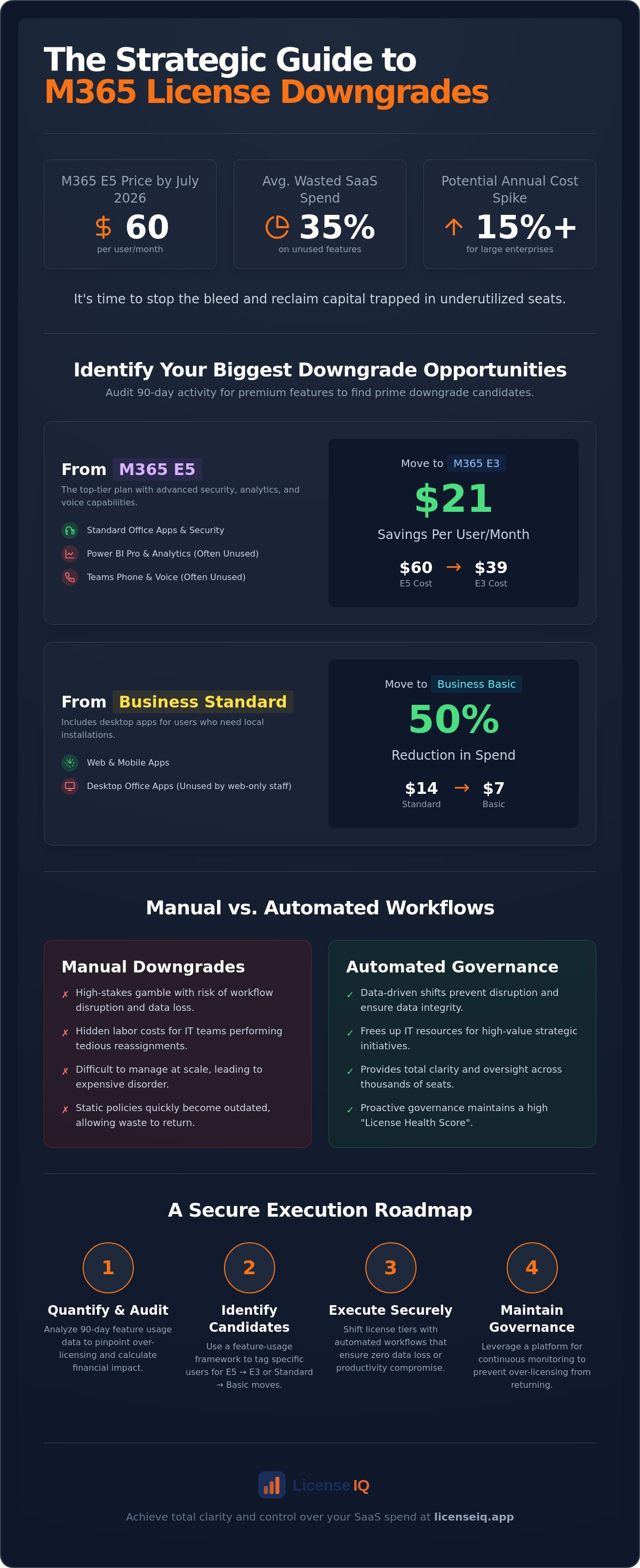
With Microsoft 365 E5 prices climbing to $60 per user as of July 2026, your organization is likely overpaying for security features your team never touches. For a large enterprise, the removal of automatic EA volume discounts combined with recent price hikes can spike annual costs by over 15%. It's time to stop the bleed. Implementing strategic microsoft 365 license downgrades isn't just an administrative task; it's a high-yield financial maneuver to reclaim capital trapped in underutilized seats.
We know that manual license reassignment feels like a high-stakes gamble. One wrong move can disrupt workflows or trigger data loss, while the hidden costs in CSP annual commitments leave many organizations in a state of expensive disorder. This guide will show you how to identify specific downgrade opportunities and execute license shifts that reclaim up to 35% of your total Microsoft 365 spend. You'll learn a clear process for right-sizing your environment and see how automated oversight can provide the total clarity needed to prevent over-licensing from returning to your balance sheet.
Key Takeaways
- Quantify the financial impact of over-licensing and learn why static licensing policies lead to significant capital waste.
- Master a feature-usage framework to identify microsoft 365 license downgrades by auditing 90-day activity for high-cost E5 features.
- Calculate the hidden labor costs of manual license management and discover why automated workflows are essential for enterprise scale.
- Follow a secure execution roadmap to shift license tiers without compromising data integrity or organizational productivity.
- Leverage the LicenseIQ Platform to maintain a high License Health Score through proactive, data-driven governance.
The Strategic Case for Microsoft 365 License Downgrades in 2026
Operational waste is often invisible until it's quantified. In the current fiscal climate, Microsoft 365 has become one of the largest line items in the IT budget. When organizations adopt a "set and forget" approach to licensing, they inevitably drift into over-provisioning. Industry data suggests that enterprises waste an average of 35% of their SaaS spend on unused or underutilized features. This isn't just a minor oversight. It's a significant drain on capital that could be redirected toward innovation or infrastructure.
Effective financial management requires a distinction between software version downgrade rights and subscription tier downgrades. Traditionally, downgrade rights allowed users to run older versions of on-premise software. In the cloud ecosystem, microsoft 365 license downgrades refer to the strategic shift of users from high-cost tiers to more economical plans that still meet their functional requirements. Understanding the nuances of various Microsoft 365 subscription plans is the first step toward reclaiming your budget. Positioning this optimization as a core pillar of your SaaS FinOps strategy ensures that license costs remain aligned with actual business value.
The Cost of Inertia: Why SMBs Overpay
Many organizations fall into the "E5 Trap." They pay $60 per user for the top-tier Enterprise license to access specific security features but leave the rest of the suite's advanced analytics and voice capabilities untouched. This inertia is often reinforced by complex CSP terms and annual commitments that make changes feel risky. IT leaders frequently avoid microsoft 365 license downgrades because they fear disrupting user workflows or losing data. However, the true risk lies in the cumulative cost of inaction. With E3 prices now at $39 per user, the price of maintaining the status quo has never been higher.
Downgrades vs. Reclamation: Choosing the Right Lever
Spend recovery involves two distinct actions: reclamation and downgrading. Reclamation is the total removal of a license from an inactive user. Downgrading is a more surgical approach. It involves moving an active employee to a plan that fits their specific daily tasks. For example, a frontline worker may not need the full desktop suite included in Business Premium. Shifting them to Business Basic or an F-series plan can yield immediate savings without impacting their ability to communicate. To see how these moves fit into a larger strategy, consult our guide on how to reduce M365 subscription costs. Identifying the right lever for each user group is essential for a precise, data-driven recovery plan.
Identifying Downgrade Candidates: The Feature-Usage Framework
Precision in spend recovery starts with a clear definition of a "Downgrade Candidate." We define this as any user who has not utilized tier-specific premium features within a rolling 90-day window. For organizations on Microsoft 365 E5, this means auditing activity for Power BI Pro, Teams Phone, and Advanced Analytics. If an employee only uses standard Office apps and basic security, they are a prime candidate for a shift to E3. This single move recovers $21 per user every month based on July 2026 pricing. Utilizing a License Health Score allows leadership to prioritize these high-value targets immediately, ensuring that optimization efforts yield the highest possible ROI.
The distinction between Business Standard and Business Basic often comes down to a single question: does the user require local desktop installations? Business Standard users pay for the right to install Office apps on up to five devices. However, many remote or seasonal workers operate exclusively within web browsers or mobile apps. Shifting these users to Business Basic reduces the monthly cost from $14 to $7 per user. This 50% reduction in spend is achievable without stripping away essential cloud services like Exchange or OneDrive. To maintain this level of oversight across thousands of seats, many teams monitor their environment through the LicenseIQ Platform to catch over-provisioning in real time.
Tier-Specific Downgrade Triggers
Strategic microsoft 365 license downgrades require identifying specific triggers for each tier. For E5 users, the trigger is the absence of advanced compliance or voice feature usage. For E3 users, look for frontline patterns. If an employee primarily consumes content rather than creating complex documents—a common profile for mobile staff at organizations like Bloomfield Care—shifting them to an F3 plan at $10 per month is a logical step. In the SMB space, moving from Business Premium to Business Basic is triggered when the advanced Intune or Azure Information Protection features included in Premium are not actively managed or required for that specific role.
Data-Driven Auditing: Beyond Inactive Users
Relying on "last login" dates is a deceptive strategy for license right-sizing. A user can log in daily to check email while still being a candidate for a downgrade. True optimization requires tracking feature activation versus actual utility. Does the user have an E5 license but never opens Power BI? Do they have Business Premium but never enroll a device in Intune? Creating a "Downgrade Risk Profile" helps prevent productivity loss by ensuring that users only lose access to tools they don't actually use. This data-driven approach removes the guesswork and provides a secure foundation for aggressive spend recovery.
Manual vs. Automated Downgrade Workflows: A Comparative Analysis
Executing microsoft 365 license downgrades manually is a reactive, labor-intensive process that scales poorly. It typically involves a rigid 7-step sequence: identifying the candidate, auditing their specific feature usage, backing up critical data, unassigning the current license, adjusting the seat count in the CSP portal, purchasing the new SKU, and finally reassigning the license to the user. Each step presents a point of failure. If an admin misses the 72-hour cancellation window for a new license, the organization is locked into unnecessary spend for another term. The "Hidden Labor Cost" of this cycle is immense. IT teams spend hours on administrative data entry instead of focusing on strategic infrastructure projects.
Risk assessment is critical when handling these shifts by hand. Human error during license unassignment can lead to accidental data loss or service interruptions. Microsoft typically provides a 30-day grace period before data is permanently deleted, but the stress of managing this across thousands of users creates significant operational friction. Relying on manual oversight means your financial health is only as good as your last audit. AI-native platforms change this dynamic by automating the discovery-to-recovery pipeline, ensuring that every seat is right-sized without the need for constant human intervention.
The Manual Burden: Why It Fails at Scale
Managing mixed-license environments manually is a recipe for organizational disorder. Tracking who moved from E5 to E3 or Business Premium to Business Basic requires meticulous record-keeping. Most teams fall victim to "spreadsheet rot," where license history data becomes obsolete the moment it's entered. This lack of transparency makes it impossible to report accurate spend recovery to leadership. Furthermore, the complexity of CSP annual commitments means that manual adjustments often happen too late to impact the current billing cycle, leaving potential savings on the table.
Automated Governance: The LicenseIQ Approach
The LicenseIQ Platform replaces manual guesswork with automated governance. By connecting to your tenant in minutes, the system performs an instant scan to uncover obscured details about feature utility. It populates a Spend Recovery Dashboard with clear, dollar-value recommendations for microsoft 365 license downgrades based on real-time data. This proactive approach ensures continuous financial accuracy. Instead of performing quarterly audits, you maintain a high License Health Score through a system that identifies waste as it happens, allowing you to reclaim your SaaS budget with surgical precision.
Execution Roadmap: How to Downgrade M365 Licenses Safely
Safety is the primary concern when executing microsoft 365 license downgrades. A haphazard approach risks data loss and user frustration. Follow this structured roadmap to reclaim your budget without compromising operational integrity. Precision prevents disruption. You don't want to trade minor savings for major downtime.
Step 1: Backup critical data. This is vital for users moving to web-only or frontline tiers. Check current storage usage against the new plan's limits to avoid truncated mailboxes. Step 2: Communicate the change. Users must know they'll lose access to local desktop apps if moving to a basic or frontline plan. Manage these expectations 48 hours before the shift. Step 3: Overlap license assignment. Assign the new, lower-tier license before you remove the existing one. This ensures the user never loses access to their mailbox or files during the transition.
Step 4: Verify access post-migration. Confirm the user can still access their OneDrive and mailbox via the web. Step 5: Finalize the reduction. Once the user is stable on the new plan, reduce the higher-tier seat count in the Microsoft 365 Admin Center to stop the billing cycle. To ensure you're selecting the correct target plan for each role, review our reference on Microsoft 365 license types. For a more efficient approach, you can automate these governance workflows to remove manual risk and human error entirely.
Protecting User Data During the Shift
Storage capacity varies significantly across tiers. Moving a user from an E3 or E5 plan (100GB mailbox) to a Business plan (50GB) or an F3 plan (2GB) requires careful auditing. If a mailbox exceeds the new limit, incoming mail will bounce immediately. Similarly, OneDrive sync issues can occur if local cached files are larger than the new cloud storage allowance. Keep security defaults active throughout the process. A downgrade should never mean a decrease in your security posture or a vulnerability in your data protection.
Post-Downgrade Verification
Execution is only successful if it's permanent. Run a License Health Score check immediately after the shift to confirm the optimization is reflected in your environment. Monitor these users for "Shadow IT" behaviors. If an employee feels restricted by the loss of desktop apps, they may attempt to use unauthorized third-party tools. Vigilant monitoring ensures that microsoft 365 license downgrades remain a financial win rather than a productivity bottleneck. Use your Spend Recovery Dashboard to track the long-term impact of these shifts on your bottom line.
Recovering Your SaaS Budget with LicenseIQ Automated Governance
Traditional auditing is often an autopsy of your budget. It tells you where you overspent after the capital is already gone. In the high-cost environment of 2026, reactive management is no longer sustainable. Proactive spend recovery is a vital survival tactic. The LicenseIQ Platform transforms your approach by moving beyond static reports into a state of continuous oversight. It functions as a vigilant digital auditor, uncovering obscured details that native tools often miss. By automating microsoft 365 license downgrades, you ensure that your licensing costs stay perfectly aligned with your actual operational needs.
The ROI of automated license governance is immediate for SMBs and enterprises alike. Manual tracking fails because it relies on human memory and outdated spreadsheets. Our system connects to your tenant in minutes, performing an exhaustive scan of your environment. It identifies dormant accounts and underutilized premium features with surgical precision. This 5-minute audit provides a roadmap for reclamation that can recover up to 35% of your total M365 spend. You stop paying for the "E5 Trap" and start paying only for the value your team actually consumes.
Actionable Insights vs. Raw Data
Microsoft Admin Center reports provide a mountain of raw data, but they lack financial context. They don't tell you how much money is sitting on the table. The Spend Recovery Dashboard translates technical usage metrics into clear, dollar-value recommendations. It tells you exactly who to move and how much you'll save. This level of transparency positions the platform as a vigilant guardian of your corporate resources. You gain the confidence to execute microsoft 365 license downgrades because the decisions are backed by 90 days of granular usage data.
Continuous Optimization in 2026
Successful SaaS FinOps isn't a one-time event. It's a cycle of continuous optimization. Automated Governance Workflows handle the heavy lifting of the offboarding and reclamation cycle, ensuring that licenses are recovered the moment an employee leaves. This prevents "license creep" and maintains a perfect License Health Score year-round. You no longer have to wait for a quarterly review to find savings. The system identifies opportunities in real time, allowing for immediate action. Take control of your cloud environment today. Scan your tenant and find your Health Score with LicenseIQ to begin your journey toward total financial clarity.
Secure Your Operational Future with Automated Governance
Managing your SaaS budget in 2026 requires more than just occasional oversight. It demands a shift from reactive manual audits to a proactive, data-driven strategy. By implementing microsoft 365 license downgrades based on actual feature usage, your organization can eliminate the "E5 trap" and ensure every seat justifies its cost. This transition from organizational disorder to total clarity protects your capital while streamlining IT operations. You've seen how a usage-based framework and a secure execution roadmap can transform your financial health.
Precision is the only way to combat rising subscription fees and the removal of traditional volume discounts. Our AI-native software intelligence connects to your tenant in minutes to provide instant, actionable insights. You can save up to 35% on M365 subscriptions by right-sizing your environment and maintaining a high License Health Score. Stop guessing and start governing with a system that works as hard as you do. Start your 5-minute M365 audit and recover wasted spend with LicenseIQ.
Take the first step toward a leaner, more efficient digital workplace today. Your resources deserve the protection of a vigilant and precise system that never stops monitoring for waste.
Frequently Asked Questions
Can I downgrade a Microsoft 365 license without losing user data?
Yes, you can downgrade without losing data if you follow the correct sequence. Microsoft provides a 30-day grace period for data retention, but moving to a plan with lower storage limits requires archiving data first. Always assign the new license before removing the old one to ensure continuous service and prevent accidental mailbox deletion.
Is there a direct "downgrade" button in the Microsoft 365 Admin Center?
No, there is no single "downgrade" button in the Microsoft 365 Admin Center. You must manually unassign the existing license, adjust your subscription seat count in the billing section, and then assign the new SKU to the user. This manual process is why many organizations prefer automated governance workflows to manage transitions securely and efficiently.
What happens to a user’s email if I move them from E3 to Business Basic?
The user's email address and history remain intact, but their mailbox capacity drops from 100GB to 50GB. If the user's current mailbox exceeds 50GB, they'll stop receiving new emails until the size is reduced. Additionally, they lose access to desktop Outlook and must use the web or mobile versions to manage their messages and calendar.
How much can a company typically save by downgrading M365 licenses?
Organizations typically reclaim up to 35% of their total M365 spend by identifying underutilized seats. Moving a single user from E5 to E3 saves $21 per month based on July 2026 pricing. These microsoft 365 license downgrades scale quickly across large environments, turning hidden waste into available capital for other strategic IT initiatives and infrastructure projects.
Can I downgrade licenses if I am on an annual commitment or CSP contract?
You can change the license assigned to a user at any time, but your financial commitment to the CSP remains. Most CSP annual contracts only allow seat count reductions during the renewal window or within 72 hours of a new purchase. You should coordinate your technical downgrades with your contract renewal dates to maximize immediate spend recovery.
What are the risks of downgrading to a frontline (F-series) license?
How often should a company audit its M365 licenses for downgrade opportunities?
You should audit your environment at least once a month to prevent "license creep." New employees often receive high-tier licenses by default, and these costs compound if they aren't corrected. Using a License Health Score allows for continuous monitoring, ensuring that microsoft 365 license downgrades happen as soon as usage patterns change rather than waiting for a quarterly review.
Does LicenseIQ actually change the licenses for me?
LicenseIQ identifies optimization opportunities and provides the data needed for recovery, but it doesn't unilaterally change your licenses. It populates a Spend Recovery Dashboard with dollar-value recommendations. You maintain total control over the execution, using the platform's insights to drive your automated governance workflows without risking unauthorized or accidental changes to your tenant.


