

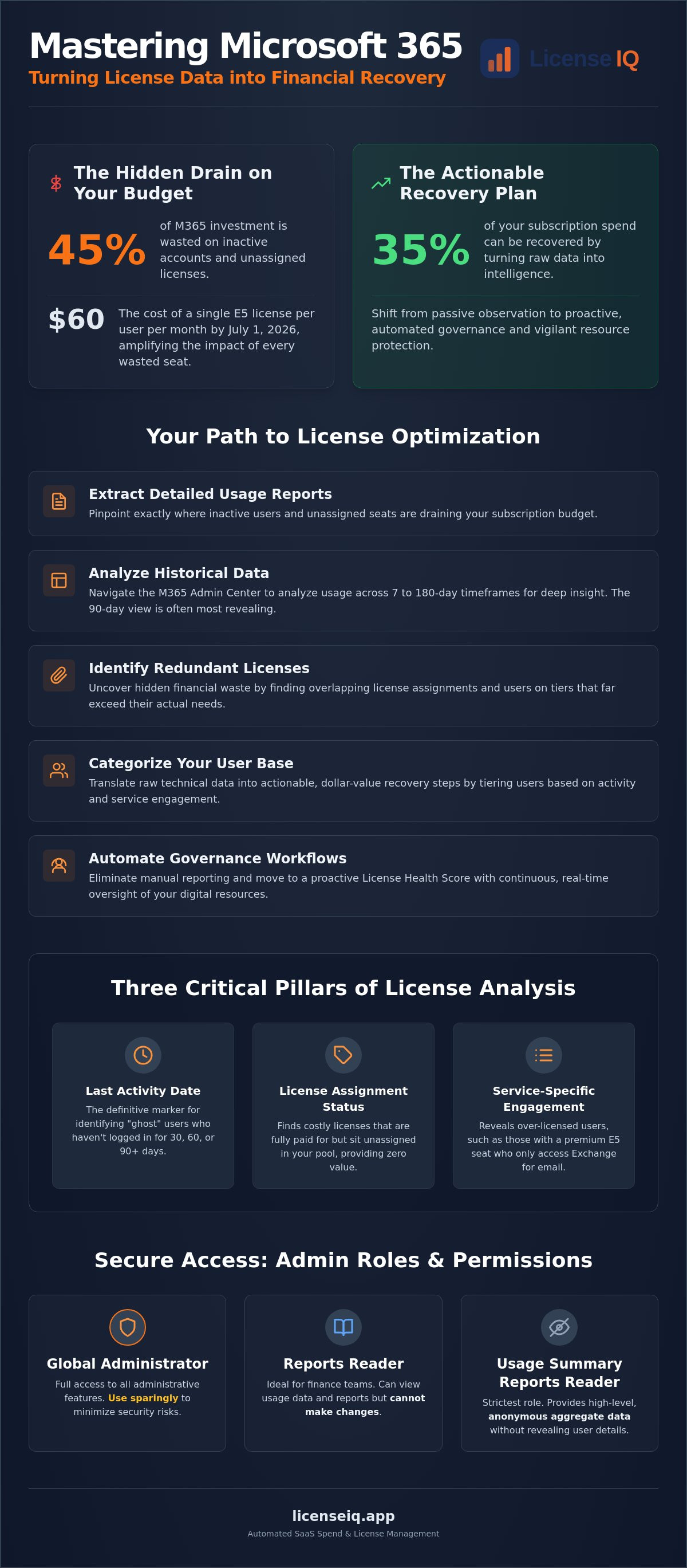
Industry analysis reveals that organizations waste up to 45% of their Microsoft 365 investment on inactive accounts and unassigned seats. With the July 1, 2026 price increases pushing E5 licenses to $60 per user, this inefficiency is a direct hit to your bottom line. You likely recognize that a standard microsoft 365 license usage report is often too static to be useful. It shows activity but lacks the financial clarity needed to stop the budget drain caused by "ghost" users.
We solve this by shifting the focus from observation to action. This guide delivers the framework to recover up to 35% of your subscription spend by turning raw data into actionable intelligence. You'll learn how to extract precise metrics, calculate the true dollar value of waste, and deploy automated governance workflows. We'll move from manual oversight to a proactive License Health Score, ensuring your resources remain under constant, vigilant protection.
Key Takeaways
- Extract a detailed microsoft 365 license usage report to pinpoint exactly where inactive users are draining your subscription budget.
- Navigate the Microsoft 365 Admin Center to analyze usage data across flexible 7 to 180-day timeframes for deep historical insight.
- Identify hidden financial waste by uncovering redundant license assignments that overlap in functionality and cost.
- Categorize your user base into activity tiers to translate raw technical data into actionable dollar-value recovery steps.
- Eliminate manual reporting by implementing automated governance workflows that provide continuous, real-time oversight of your digital resources.
What is a Microsoft 365 License Usage Report?
A microsoft 365 license usage report functions as a high-fidelity diagnostic for your tenant's financial health. It's a comprehensive data summary that reveals exactly how your assigned seats are utilized across the Microsoft 365 product family. Rather than just listing names, this report tracks active versus inactive users, service-specific engagement levels, and precise license assignment dates. It provides the visibility required to distinguish between essential operational tools and dormant subscriptions that drain your capital.
In 2026, maintaining strict financial hygiene is no longer optional. With the July 1 price increases pushing Microsoft 365 E5 to $60.00 per user and Business Standard to $14.00, every unutilized seat represents a measurable loss. The primary goal of a microsoft 365 license usage report is to identify these adoption gaps. By uncovering these discrepancies, leadership can pivot from passive spending to aggressive spend recovery. This oversight ensures that your cloud environment remains lean, efficient, and fully optimized for the current fiscal landscape.
Core Metrics Tracked in Usage Reports
To recover waste, you must look beyond the surface. Effective reports focus on three critical pillars. First is the last activity date. This is the definitive marker for identifying "ghost" users who haven't logged in for 30, 60, or 90 days. Second, the report tracks license assignment status. It's common to find paid-for licenses that sit unassigned in the pool, accruing costs without providing value. Finally, service engagement monitoring reveals usage across Teams, SharePoint, and Exchange. If a user only accesses email but holds a premium E5 license, they're a prime candidate for a cost-saving downgrade.
Why Native Reporting Matters for SMBs
For small and medium businesses, "SaaS sprawl" is a quiet budget killer. Native reporting provides an immediate inventory baseline to halt this disorder. It supports comprehensive Microsoft 365 license optimization by highlighting users on tiers that far exceed their actual requirements. Beyond the financial benefits, these reports ensure your organization meets internal security and financial audit requirements. You can't secure what you don't monitor. Regular usage audits provide the transparency needed to protect corporate resources while maintaining a peak License Health Score.
How to Generate Usage Reports in the Microsoft 365 Admin Center
Generating a microsoft 365 license usage report requires precision and the correct administrative clearance. These reports serve as the primary source of truth for your tenant, providing the visibility needed to execute a spend recovery strategy. The Microsoft 365 admin center usage reports offer a centralized location to monitor how your team interacts with the full suite of services. By accessing this data, you move from guessing about adoption to having a data-driven inventory of your digital assets.
Required Admin Roles and Permissions
Security and data privacy remain paramount when accessing usage data. You don't need to grant Global Administrator rights to everyone. In fact, you shouldn't. A Global Administrator has full access but should be used sparingly to minimize security risks. For finance teams or department heads who only need data without change authority, the Reports Reader role is ideal. If your privacy requirements are even stricter, the Usage Summary Reports Reader role provides high-level data without revealing individual user details. This tiered approach ensures that financial oversight doesn't compromise organizational security.
Navigating the Usage Dashboard
To pull your first microsoft 365 license usage report, follow these direct steps to ensure you're looking at the right metrics:
- Step 1: Log in to the Microsoft 365 Admin Center with the appropriate credentials.
- Step 2: Navigate to the "Reports" section in the left-hand menu and select "Usage."
- Step 3: Select the "Active Users" or "Licensing" card to begin a deep dive into specific user behaviors.
- Step 4: Click the "Export" button to download the raw data for advanced SaaS spend management.
The dashboard allows you to select specific timeframes, including 7, 30, 90, or 180 days. For spend recovery, the 90-day view is often the most revealing. It filters out temporary absences like vacations while highlighting chronic inactivity. You can also filter by specific products like Exchange or OneDrive to isolate which parts of your license bundle are being ignored. While manual exports provide a baseline, organizations seeking real-time oversight often use the LicenseIQ Platform to automate this extraction and maintain a constant state of audit-readiness. This shift from manual to automated reporting ensures you never miss a cost-saving opportunity as your team scales.
The Hidden Costs: What Standard Usage Reports Miss
While the Admin Center offers visibility, it lacks a financial lens. A standard microsoft 365 license usage report tells you if someone logged in, but it doesn't tell you how much that login cost you in lost margin. It treats a user who checked one email the same as a power user. This lack of nuance creates a "transparency gap" where waste hides behind green activity bars. You aren't just managing users; you're managing a significant capital investment that requires constant digital auditing.
The Inactive User Trap
Microsoft defines an active user broadly. Any interaction with a service counts. This metric is deceptive. It masks users who hold premium licenses but never touch advanced security or AI features. Standard reports don't flag users who've been stagnant for 90 days as a financial risk. Inactive users can account for up to 30% of wasted spend. Without a dollar-value overlay, these accounts continue to drain your budget month after month. True oversight requires identifying these dormant seats before the next billing cycle hits.
Redundant and Over-provisioned Licenses
Many organizations suffer from "license bloat." This happens when users are assigned multiple licenses with overlapping features. For example, an employee might have an E5 license while also being assigned standalone security add-ons. Utilizing a license mix optimization framework helps identify these "Mix and Match" errors. It's common to find users on $60.00 E5 plans who only utilize features available in the $14.00 Business Standard tier. This over-provisioning is a silent profit killer that standard reports simply don't highlight.
Offboarding is another critical failure point where spend escapes. When an employee leaves, their account is often disabled, but the license remains assigned to the dormant identity. Standard reporting doesn't prioritize these "orphan" licenses in a way that triggers administrative action. You're essentially paying for a seat that no one can sit in. To prevent this post-employment waste, implement a rigorous Office 365 offboarding checklist to reclaim spend immediately. Uncovering these obscured details is the first step toward total financial clarity and organizational order.
Analyzing Data for Spend Recovery: A Strategic Framework
Raw data is useless without a strategic framework. Your microsoft 365 license usage report contains the evidence, but you need a structured methodology to execute recovery. Stop looking at engagement as a binary "yes" or "no." Instead, translate raw usage percentages into hard currency recommendations. By categorizing your user base into distinct tiers, you create a roadmap for immediate spend recovery. This process moves your IT department from a cost center to a value driver.
We utilize a three-tier categorization model to drive efficiency. "Active" users utilize the core and premium features of their assigned license. "Underutilized" users log in frequently but ignore the premium security, compliance, or analytics features that justify their high-tier cost. "Inactive" users show zero activity over a 90-day period. This categorization allows you to calculate the precise ROI of reclaiming or downgrading specific seats. You're no longer guessing about your budget. You're auditing with surgical precision.
Establishing Your License Health Score
The License Health Score is your primary KPI for operational transparency. It measures the ratio of utilized features to your total subscription cost. A low score signals a high potential for reducing M365 subscription costs. This metric provides immediate clarity in complex operational environments. Use this score for monthly executive reporting to demonstrate IT efficiency and financial discipline. It transforms a mountain of administrative data into a single, actionable indicator of organizational health.
Actionable Spend Recovery Steps
Stop the budget drain with these three tactical maneuvers. They turn your microsoft 365 license usage report into a recovery engine.
- Step 1: Unassign licenses from all accounts disabled for more than 30 days. These are dormant identities that should be offboarded immediately to reclaim capital.
- Step 2: Downgrade E5 users with zero Power BI or advanced security feature usage to E3. With E5 prices at $60.00 and E3 at $39.00, moving a single user recovers $21.00 every month.
- Step 3: Consolidate redundant standalone licenses into bundled suites. Eliminate the "shadow" licenses that often linger after project completion or temporary surges.
Manual spreadsheet analysis is a point-in-time snapshot that quickly becomes obsolete. To maintain these gains, you need a system that monitors your environment continuously. Deploy our Spend Recovery Dashboard to automate these insights and ensure your resources are never wasted again.
Automating Governance: Moving Beyond Manual Reporting
Manual reporting is a static snapshot. It represents a reaction to past waste rather than a proactive defense against future loss. A microsoft 365 license usage report exported as a CSV is obsolete before you even open the file. Your organization is dynamic, with users joining, leaving, and changing roles daily. You need a system that mirrors this movement. LicenseIQ connects to your tenant in minutes to scan every license and user. It replaces manual, error-prone oversight with persistent digital auditing that never sleeps.
The transition from manual to automated governance eliminates the "transparency gap" discussed earlier. While competitors often rely on complex PowerShell scripts or high-maintenance Power BI dashboards, we prioritize immediate clarity. Automated Governance Workflows handle the heavy lifting of reclamation. These workflows identify dormant accounts and unassigned seats, then execute the necessary changes without requiring manual IT intervention. This shift reduces the cognitive load on your team while ensuring your financial health remains protected by a precise, vigilant system.
The LicenseIQ Advantage for SMBs
Most IT leaders lack the time to manage a microsoft 365 license usage report manually every month. We eliminate this technical barrier. The LicenseIQ Platform delivers a 5-minute audit that replaces hours of spreadsheet manipulation. Our Spend Recovery Dashboard shows exactly how much capital you can reclaim today. It doesn't just display data; it provides a results-first approach to management. By automating the offboarding and reclamation lifecycle, you ensure that no license goes to waste when an employee departs. You gain an active participant in your company’s growth that is always one step ahead of organizational disorder.
Implementing Continuous Optimization
Move beyond the era of periodic, quarterly audits. Transition to real-time software intelligence that monitors your environment 24/7. AI-native intelligence identifies waste patterns that manual CSV analysis frequently misses, such as subtle license overlaps or premium features that are paid for but never touched. You can set automated alerts for new inactive users or sudden spikes in unassigned licenses. This ensures your License Health Score remains high and your operational transparency remains absolute. Total clarity is the cornerstone of modern corporate resource management. Ready to see your score? Discover your License Health Score with LicenseIQ.
Secure Your Subscription Future
Maintaining financial hygiene in a cloud-first environment requires more than a passive glance at a dashboard. While a native microsoft 365 license usage report provides a critical baseline, total spend recovery requires active, automated intervention. We've covered the strategic framework for identifying dormant accounts and over-provisioned license tiers. By shifting from manual CSV exports to continuous software intelligence, you eliminate the organizational disorder that quietly drains your corporate resources.
It's time to transition from observation to action. Organizations can recover up to 35% of their subscription spend by deploying Automated Governance Workflows that reclaim dormant seats without manual effort. Gain immediate clarity with AI-native Health Score insights that monitor your tenant 24/7 for unassigned license spikes. Your organization's financial health depends on precise oversight and the relentless elimination of waste. Start your 5-minute M365 license audit with LicenseIQ. Secure your digital inventory today and ensure every dollar spent delivers maximum operational value.
Frequently Asked Questions
How do I find unassigned Microsoft 365 licenses?
Navigate to the Billing section within the Microsoft 365 Admin Center and select Licenses. The summary view displays your total license count alongside assigned seats. Any difference between these two figures represents unassigned inventory. These "ghost" licenses accrue monthly costs without providing any operational value to your organization. Regular monitoring of this delta is the first step in a proactive spend recovery strategy.
What is the difference between a usage report and an activity report?
A usage report tracks the volume of users who are actively utilizing specific services like Teams, SharePoint, or Exchange over time. An activity report provides a more granular look at what those users are actually doing, such as files shared or emails sent. While usage data helps you manage seat counts, activity data is essential for identifying users who are over-licensed for their actual functional requirements.
Can I see the cost of wasted licenses in the Microsoft 365 Admin Center?
No, the native Admin Center does not calculate the financial impact of your inactive or unassigned licenses. It provides technical activity metrics but lacks a built-in dollar-value overlay. To see the true cost of waste, you must manually cross-reference your usage data with your monthly billing statements. Most organizations prefer using a Spend Recovery Dashboard to automate this financial analysis and gain immediate clarity.
How long is usage data stored in Microsoft 365 reports?
Microsoft 365 stores usage data for a maximum of 180 days. You can view historical trends in the Admin Center for 7, 30, 90, or 180-day increments. If your organization requires data retention beyond this six-month window for compliance or long-term financial auditing, you must manually export the data or implement a third-party platform that provides persistent data storage and historical trend analysis.
How do I automate a Microsoft 365 license usage report?
Automation typically requires the Microsoft Graph API or scheduled PowerShell scripts to extract data at regular intervals. These methods require significant technical overhead and ongoing maintenance. A more efficient alternative is to automate your microsoft 365 license usage report through the LicenseIQ Platform. This provides continuous, real-time scanning and automated alerts without the need for manual script management or complex technical configurations.
What happens to a license when I delete a user in Microsoft 365?
Deleting a user account unassigns the license and returns it to your available pool, but it does not cancel the subscription. You will continue to be billed for that seat until you manually reduce your license count in the Billing section of the Admin Center. Failing to reclaim these "orphan" licenses is a primary cause of budget drain during employee offboarding and organizational scaling.
Is there a way to track usage for specific departments or regions?
You can track usage by department or region by utilizing the filter function within the Usage dashboard, provided your Entra ID attributes are accurate. This allows you to isolate activity based on organizational metadata like department, city, or country. This visibility is vital for accurate internal cross-charging and ensuring that regional budgets are aligned with actual software consumption across the global tenant.
How can I identify users who are over-licensed for their actual needs?
Identify over-licensed users by comparing their current license tier against their service-specific engagement in a microsoft 365 license usage report. If an E5 user only utilizes basic Exchange features while ignoring premium security or analytics tools, they are over-provisioned. Downgrading these users to a more appropriate tier, such as Business Standard, immediately reclaims capital and improves your overall License Health Score.


