

Up to 35% of your Microsoft 365 budget is likely disappearing into premium features your team never touches. With M365 E5 prices reaching $60 per user as of July 2026, those "silent" licenses represent a massive leak in your corporate resources. You know you're overpaying, but the fear of losing critical data or disrupting user workflows keeps you locked into expensive tiers. Microsoft’s admin interface is built to encourage upgrades; it doesn't make finding the exit easy or intuitive.
This microsoft 365 license downgrade guide changes that dynamic. You will master the technical and financial steps to safely downgrade licenses and eliminate wasted SaaS spend without a single second of user downtime. We provide a clear technical checklist to navigate the strict 168-hour NCE cancellation window and mailbox storage shifts. You'll learn how to audit your environment for "rightsizing" opportunities and protect your data during the transition. From evaluating your License Health Score to executing precise governance workflows, this guide ensures your organization remains lean, secure, and fully optimized.
Key Takeaways
- Rightsizing is a strategic alignment of Microsoft 365 features with actual employee usage patterns to eliminate "Silent E5" waste.
- Follow this microsoft 365 license downgrade guide to execute manual license swaps that bypass the "upgrade-only" admin interface without service disruption.
- Protect organizational data by verifying storage quotas and litigation hold requirements before finalizing any tier reduction or license removal.
- Use a License Health Score to identify immediate savings and establish Automated Governance Workflows to stop license bloat before it starts.
- Master the 168-hour NCE cancellation window to ensure your financial optimization plans align with Microsoft’s strict contractual timelines.
Understanding the Microsoft 365 License Downgrade Path
Microsoft’s Admin Center is a masterclass in conversion optimization. You’ll find "Upgrade" buttons prominently displayed across the interface, but a dedicated "Downgrade" button is non-existent. This intentional design forces administrators to seek out a microsoft 365 license downgrade guide to navigate the manual complexities of seat reduction. Rightsizing isn't about cutting essential tools; it's about surgical precision in your SaaS spend. Understanding the various Microsoft 365 subscription plans is the first step toward reclaiming your budget. Most organizations default to high-tier licenses like E5 to avoid friction, yet they often leave 35% of that investment on the table through underutilized features.
To fix this, you need total visibility. We use a License Health Score to quantify this waste immediately. This metric reveals the gap between what you pay for and what your team actually uses. Common downgrade scenarios involve moving users from M365 E5 ($60/user) to E3 ($39/user) or shifting "Silent E5" users to Business Premium if they don't require enterprise-grade compliance. These shifts aren't just administrative tasks. They're financial recovery operations.
Why Downgrade? Identifying Wasted Features
The biggest drain on your budget is the "feature-active" gap. An employee might be an "active user" because they open Outlook daily, but they're rarely "feature-active" on premium E5 tools like Power BI Pro or Advanced Audit. If your usage data shows zero engagement with these high-cost components, you're subsidizing Microsoft's profit margins. For a 500-person organization, moving just 20% of the workforce from E5 to E3 recovers $25,200 annually. This capital is better deployed toward growth than dormant software seats.
The Rightsizing Framework for 2026
License rightsizing is the process of matching software tiers to actual employee usage patterns. Effective governance requires segmenting your workforce into clear personas. Frontline workers rarely need the 100GB mailboxes or desktop apps found in E3; an F3 or Business Basic plan is often sufficient. Conversely, your security team requires the advanced threat protection of Business Premium or E5. Map your security and compliance requirements first. Once you define the minimum viable license for each persona, you can execute the downgrade with confidence. This proactive approach transforms your M365 environment from a black box into a lean, transparent asset.
The Technical Challenges of Rightsizing M365 Tiers
Executing a downgrade requires more than just picking a new plan. It demands a technical strategy to avoid service outages. Unlike upgrades, which Microsoft processes instantly, downgrading is a manual, multi-step operation. You must purchase the target licenses before you can reassign them. This "overlap" period ensures users never lose access to their identity, but it requires precise timing to avoid double-billing. A professional microsoft 365 license downgrade guide must prioritize this sequence to maintain operational continuity.
Security policies often break during these transitions. Features like Conditional Access or Advanced Threat Protection (ATP) are tier-dependent. If you move a user to a tier that doesn't support your current security defaults, you risk leaving that account exposed. You must audit your active policies before pulling the trigger on a license removal. Leaders looking for strategies for slashing software licensing costs must treat these technical limits as non-negotiable guardrails.
Navigating NCE Billing Constraints
The New Commerce Experience (NCE) introduced strict billing silos that complicate rightsizing. You have a 168-hour window after purchase or renewal to reduce seat counts. If you miss this seven-day mark, you're typically locked into that cost for the remainder of the monthly or annual term. Successful administrators sync their technical transitions with these contractual anniversaries. Managing these deadlines manually is a high-risk endeavor for SMBs. Utilizing a Spend Recovery Dashboard helps you track these windows across hundreds of users simultaneously to ensure you never miss an optimization opportunity.
Service Limits and Feature Parity
Data loss is the primary fear during a tier shift. When moving from an E5 or E3 plan to Business Basic, mailbox storage drops from 100GB to 50GB. If a user’s mailbox currently sits at 60GB, the downgrade will trigger a sync failure or prevent them from receiving new mail. You must audit storage usage across the tenant before shifting tiers. Similarly, OneDrive storage limits can cause issues if a user exceeds the 1TB threshold common in lower plans. Moving to web-only applications, such as the transition to Business Basic, also requires user training to avoid a sudden drop in productivity when desktop apps stop authenticating.
Protecting Your Data During a License Transition
Data loss is the ultimate failure of any microsoft 365 license downgrade guide. While Microsoft typically provides a 30-day grace period for data associated with removed licenses, this window is a safety net, not a strategy. You must treat every license reassignment as a high-stakes data migration. If your new tier lacks a specific feature, like Advanced Threat Protection or auto-expanding archives, that data becomes inaccessible the moment the license is stripped. Proactive auditing ensures that your cost-cutting measures don't result in permanent information gaps or compliance breaches.
A robust communication plan is your first line of defense. Users moving from Business Premium to Business Basic will lose access to desktop-installed applications. Without prior warning, your help desk will be flooded with tickets about Word and Excel activation errors. Inform users at least 48 hours before the switch. Provide clear instructions for accessing web-based alternatives to maintain productivity. This transparency builds trust and minimizes the perceived friction of rightsizing operations.
DLP and Compliance Considerations
Regulatory requirements don't pause for budget optimizations. Before downgrading, verify if a user is subject to a Litigation Hold or eDiscovery search. Enterprise plans like E5 provide advanced compliance tools that Business tiers lack. If you remove an E5 license from a user on hold, you risk purging data that is legally mandated for retention. Export critical logs from Defender for Office 365 and verify archive mailbox sizes. Plan 2 licenses offer 1.5TB of archive storage, while lower tiers often cap at 50GB. If a user’s archive exceeds the new limit, that data will be truncated or inaccessible.
Post-Downgrade Verification Checklist
Your technical execution ends with verification, not reassignment. Check mobile device sync status immediately after the switch. License changes can occasionally trigger re-authentication loops on iOS or Android mail clients. You must also audit shared mailbox permissions. If a shared mailbox exceeds 50GB, it requires a standalone license to remain functional. Administrators must verify mailbox quotas immediately after a downgrade to prevent incoming mail bounce-backs. Utilizing Automated Governance Workflows can flag these storage discrepancies in real-time, allowing you to rectify issues before they impact business operations. Finalize your audit by confirming that all third-party integrations still have the necessary permissions to access user data under the new license tier.
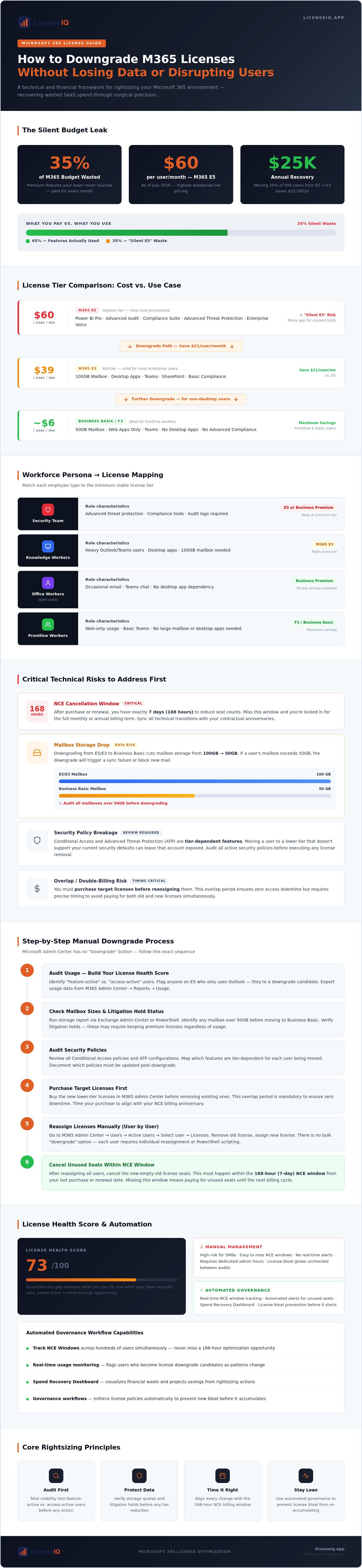
Step-by-Step: How to Manually Downgrade M365 Licenses
Executing a transition requires a specific sequence to avoid service gaps. This microsoft 365 license downgrade guide focuses on the manual path, as Microsoft provides no automated "one-click" solution for tier reductions. Follow these five steps to secure your savings while maintaining operational continuity.
First, purchase the target lower-tier licenses in the Admin Center under "Purchase services." Second, assign these new licenses to your users. They will temporarily hold two licenses simultaneously; this overlap prevents service interruption during the switch. Third, bulk-remove the higher-tier licenses from the user profiles. Fourth, you must navigate to "Your products" and manually reduce the seat count of the original, more expensive subscription. Microsoft continues to bill for unassigned seats until you explicitly lower the total count. Finally, perform a 24-hour audit to verify that all users maintain access to their required tools and that no sync errors have occurred.
Bulk Updates via PowerShell
Manual clicking is inefficient for organizations with more than 25 users. Use the Microsoft Graph PowerShell SDK to automate license reassignment at scale. The Set-MgUserLicense cmdlet allows you to add and remove licenses in a single operation, which minimizes the risk of human error. This method is particularly effective when you need to disable specific service plans within a license bundle without affecting the entire suite. For a comprehensive look at managing user transitions, review our Office 365 offboarding checklist 2026 to ensure your data stays secure during bulk modifications.
Managing Unassigned License Waste
The "Ghost License" problem is a silent budget killer. Many administrators unassign a license from a user but forget to reduce the total seat count in the billing section. You are still paying for that empty seat. Reconcile your monthly invoice against actual user assignments every 30 days to uncover these hidden costs. If your tenant shows a surplus of premium seats, you are bleeding capital. Our How to Reduce M365 Subscription Costs playbook provides deeper strategies for identifying these discrepancies. To stop the leak permanently, use the Spend Recovery Dashboard to visualize exactly where your licensing budget is being underutilized.
Automating License Governance with LicenseIQ
Manual oversight is the greatest weakness in most IT strategies. Spreadsheets can't keep pace with the fluid nature of SMB operations. While this microsoft 365 license downgrade guide provides the technical roadmap for execution, manual auditing remains a reactive process. It identifies waste that has already occurred. You need a proactive system that surfaces optimization opportunities in real-time before they impact your financial health. The LicenseIQ Platform integrates with your Microsoft 365 tenant in minutes. It performs a comprehensive scan of every license and user assignment to establish a baseline of operational efficiency.
By analyzing actual feature usage instead of just login activity, the system uncovers "Silent E5" users who don't utilize premium compliance or security tools. The resulting License Health Score provides immediate transparency. It turns thousands of data points into a single, actionable metric that allows you to prioritize high-value spend recovery. This level of oversight ensures that your resources are being monitored by a vigilant system designed to eliminate organizational disorder. You no longer have to guess which users are over-licensed; the data provides a clear path to rightsizing.
From Discovery to Recovery
LicenseIQ moves beyond simple reporting by providing dollar-value recommendations for every optimization opportunity. It automatically identifies inactive accounts and redundant high-tier assignments that inflate your monthly invoice. This data-driven approach ensures that every downgrade is backed by empirical evidence of underutilization. For a deeper dive into these strategies, see our Microsoft 365 License Optimization: The 2026 Guide. This level of insight transforms license management from a technical chore into a strategic financial advantage, allowing you to reclaim up to 35% of your subscription budget.
Maintaining Financial Accuracy Long-Term
Annual audits are no longer sufficient in the era of strict NCE commitments and the July 2026 price increases. A single missed renewal window or a failure to act within the 168-hour cancellation period can lock you into thousands of dollars of wasted spend for an entire year. LicenseIQ provides continuous monitoring to ensure your tenant remains rightsized every day of the year. By implementing Automated Governance Workflows, you prevent "license creep" before it takes root. These workflows flag new over-licensing events automatically, ensuring your License Health Score stays high and your SaaS spend stays low. Don't let obscured details drain your corporate resources. Get your License Health Score and start optimizing today.
Reclaim Your SaaS Budget with Precision
Effective license management is a financial imperative. You now have the technical roadmap required to navigate the manual complexities of seat reduction and data protection. This microsoft 365 license downgrade guide provides the structure needed to bypass "upgrade-only" interfaces and secure your organization’s financial health. Success depends on identifying "Silent E5" users and aligning your transitions with the strict 168-hour NCE cancellation window. Rightsizing is not a one-time event; it is a continuous operational standard.
Manual audits are reactive and prone to human error. You need a proactive system to sustain these savings long-term. LicenseIQ uses AI-native software intelligence to uncover obscured details in your tenant. You can identify up to 35% in wasted subscription spend in minutes. By implementing Automated Governance Workflows, you stop license creep before it takes root. Start your 5-minute M365 audit with LicenseIQ to gain total clarity over your resources. Take control of your SaaS environment and protect your bottom line today.
Frequently Asked Questions
Will I lose my emails if I downgrade from Microsoft 365 E5 to E3?
You won't lose emails if your mailbox stays under the new plan's storage limit. Moving from E5 to E3 typically maintains a 100GB quota. If you shift to Business Basic, the limit drops to 50GB. Any mailbox exceeding the new threshold will stop receiving incoming mail immediately. This microsoft 365 license downgrade guide recommends auditing all mailbox sizes before removing high-tier licenses to ensure a seamless transition for your users.
Can I downgrade a license mid-contract under the NCE terms?
Mid-term downgrades are restricted under New Commerce Experience (NCE) rules. You have a strict 168-hour window after purchase or renewal to reduce seat counts or lower tiers. Once this seven-day period expires, you're locked into the commitment for the remainder of the monthly or annual term. Successful administrators track these anniversary dates meticulously to ensure they can execute cost-saving changes the moment the renewal window opens.
What happens to OneDrive files if a user moves to a plan with less storage?
OneDrive accounts enter a read-only state if the existing data exceeds the new tier's storage quota. Moving from an Enterprise plan to a Business plan often reduces storage from 5TB to 1TB. Users can still view and download their files, but they cannot sync changes or upload new content. You must ensure users delete or archive excess data before the license switch to prevent a total disruption of their cloud workflows.
How do I identify which users are not using their E5 features?
Identifying underutilized features requires deeper insights than standard login reports. The LicenseIQ Platform connects to your tenant to analyze specific engagement with premium tools like Power BI Pro or Advanced Audit. This scan reveals "Silent E5" users who only utilize basic productivity apps. By surfacing these discrepancies, you gain the data-driven clarity needed to prioritize high-value spend recovery and eliminate unnecessary monthly costs across your entire organization.
Do I need to reinstall Office apps after downgrading a license?
You don't need to reinstall the software, but the apps will change behavior based on the new license. If you move to a tier that includes desktop apps, a simple re-authentication is sufficient. If you downgrade to a web-only plan like Business Basic, the installed desktop applications will enter a reduced functionality mode. Users will lose editing capabilities and must transition to the web-based versions of the Office suite to remain productive.
Is there a way to automate the downgrade recommendation process?
Automation is the most efficient way to maintain financial hygiene. The LicenseIQ Platform provides a License Health Score that automatically identifies rightsizing opportunities across your tenant. Instead of manual audits, you receive specific dollar-value recommendations for downgrades based on real-time usage data. This proactive approach ensures your corporate resources are always optimized, allowing you to focus on growth rather than navigating complex administrative interfaces every month.
Can I mix and match different license tiers within the same tenant?
Mixing and matching tiers is a standard practice for optimized tenants. You can assign M365 E5 to your security team while placing administrative staff on Business Standard or E3. This granular approach is the core of any professional microsoft 365 license downgrade guide. It allows you to pay for premium security and compliance features only where they are strictly necessary, significantly reducing your total monthly SaaS spend without compromising on essential functionality.
What is the "grace period" for data if I accidentally remove a license?
Microsoft provides a 30-day grace period for data associated with a removed license. During this window, the user’s mailbox and OneDrive files are preserved, though the user cannot access the services. If you reassign a valid license within these 30 days, all data remains intact and service is restored. After this period, the data is marked for permanent deletion. Act quickly to rectify accidental removals and avoid irreversible information loss.


