

Did you know that 35% of your company's Microsoft 365 budget is likely wasted on premium features that your employees never touch? With the July 2026 price increases pushing M365 E5 costs to $60 per user, the financial impact of over-licensing is no longer a rounding error; it's a direct hit to your bottom line. You want to downgrade m365 license tiers to recover these costs, but the fear of losing critical user data or breaking a complex NCE commitment often stalls the process.
We understand that manual audits are exhausting and prone to error. It's difficult to identify which users actually require E5 security and which would be perfectly fine on a lower tier. This guide provides the exact technical roadmap to right-size your environment without losing a single byte of data. We'll show you how to navigate the 168-hour NCE cancellation window and use a License Health Score to automate the discovery of savings. By the end of this article, you'll have a repeatable process for license governance that ensures you only pay for the value your team actually uses.
Key Takeaways
- Master the manual workflow required to transition users from high-tier plans like E5 to more cost-effective alternatives.
- Execute a safe downgrade m365 license transition by verifying mailbox and OneDrive quotas to prevent accidental data loss.
- Identify "Silent E5" users by analyzing actual feature engagement rather than just looking at assigned licenses.
- Leverage the LicenseIQ Health Score to automate the discovery of wasted spend and uncover immediate recovery opportunities.
- Navigate the 168-hour NCE cancellation window to ensure your cost-saving measures take effect before the next billing cycle.
Understanding the M365 License Downgrade Framework in 2026
A license downgrade isn't a simple setting in your tenant. It's a strategic shift from high-tier subscriptions like Microsoft 365 E5 to leaner options such as E3 or Business Basic. This process requires precision because the Microsoft 365 Admin Center lacks a dedicated "downgrade" button. Instead, administrators must execute a manual swap: purchase the new SKUs, reassign them to users, and then decommission the old licenses. Understanding the M365 License Landscape is essential here; you aren't just cutting costs, you're re-aligning your digital infrastructure with actual operational needs.
Distinguishing between seat reduction and tier changes is vital for financial health. A seat reduction removes a license entirely, which is often restricted by NCE commitment terms. A downgrade m365 license operation changes the service level while maintaining the user's seat. The primary driver is cost recovery. Why pay for premium security and analytics if your users only access basic email and Word? Eliminating this "Silent E5" waste is the fastest way to improve your License Health Score and stop budget leakage.
The Financial Impact of License Right-Sizing
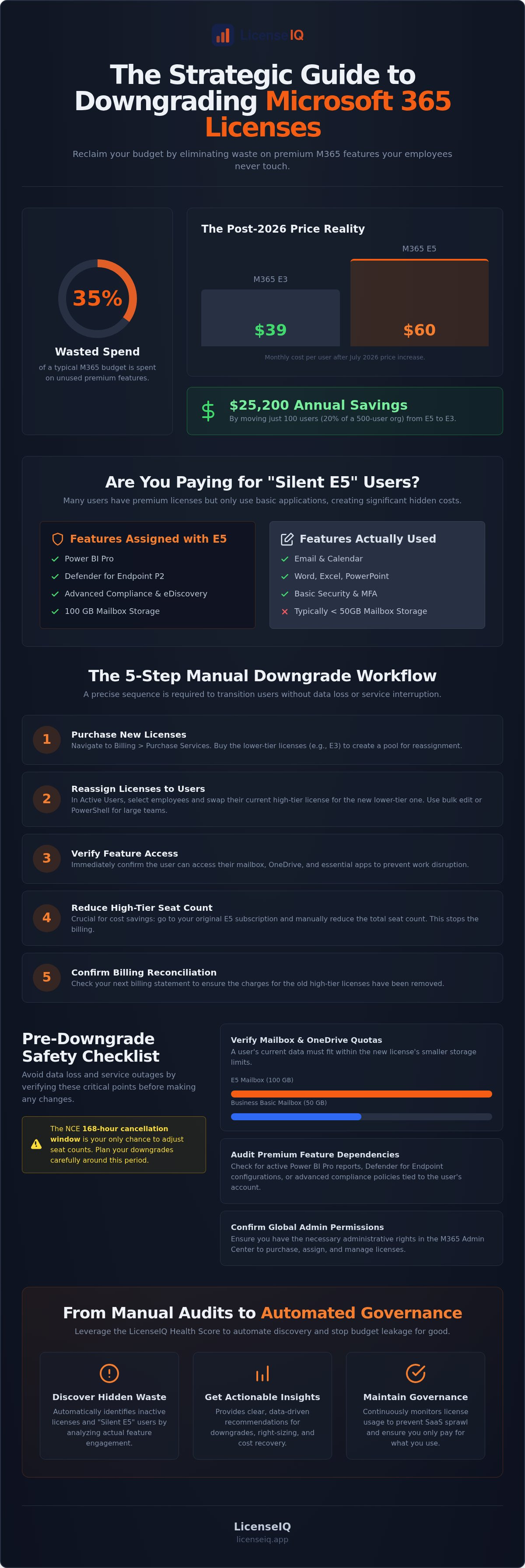
The math is clear. Following the July 2026 price increases, an E5 license costs $60 per user monthly, while an E3 sits at $39. For a 500-user organization, moving just 20% of the workforce from E5 to E3 recovers $25,200 annually. SaaS sprawl often masks these opportunities. Organizations accumulate high-tier licenses during rapid growth but fail to audit them later. This results in a cumulative drain where 20% of E5 users never touch Power BI or advanced Defender features. Precision auditing through LicenseIQ identifies these gaps immediately, turning obscured data into actionable savings.
Technical Prerequisites for a Smooth Transition
You can't downgrade blindly. Technical friction can lead to data loss or service outages. Before you downgrade m365 license tiers, you must audit feature dependencies. Check for active Power BI Pro reports, Defender for Endpoint configurations, and advanced compliance policies. Storage is the most common pitfall. An E5 license provides 100GB of mailbox storage, but a downgrade to Business Basic caps that at 50GB. If a user's mailbox is 60GB, the transition will fail or lead to sync errors. Ensure you have Global Admin permissions and a clear inventory of user storage levels before initiating the swap.
How to Downgrade M365 Licenses via the Admin Center
Executing a downgrade requires a specific sequence of operations to avoid service interruption. Because Microsoft doesn't provide a "one-click" downgrade option, you must manage your license pool manually. Following Microsoft's official guide to changing plans ensures you maintain technical compliance, but you must be diligent with the timing to realize cost savings. The process follows five critical steps:
- Step 1: Purchase the New Licenses. Navigate to Billing > Purchase Services. Buy the lower-tier licenses (e.g., Business Premium or E3) before touching your existing users. This ensures a license pool is ready for reassignment.
- Step 2: Reassign Licenses. Go to Active Users and select the target employees. Swap their current high-tier license for the newly purchased lower-tier option.
- Step 3: Verify Feature Access. Confirm that the user still has access to the essential tools they need. Check mailbox connectivity and document access immediately.
- Step 4: Reduce High-Tier Seat Count. This is the most important financial step. Simply unassigning a license doesn't stop the billing. You must go to your original subscription and manually reduce the seat count to match your new requirements.
- Step 5: Confirm Reconciliation. Check your next billing statement or reconciliation report to ensure the high-tier charges have ceased.
Bulk Reassignment Techniques for Larger Teams
The technical burden increases with your headcount. For teams over 50 users, manual reassignment is inefficient. You can use the "Active Users" bulk edit feature in the Admin Center to change licenses for up to 40 users at once. For enterprise-scale shifts, PowerShell scripts provide the most control, allowing you to swap SKUs across entire departments in seconds. Alternatively, implementing group-based licensing through Microsoft Entra ID automates this by assigning licenses based on group membership, ensuring that any user moved into a "Standard" group automatically receives the correct, lower-cost license.
Navigating NCE and CSP Commitment Barriers
Financial governance is often complicated by the New Commerce Experience (NCE). Most modern M365 subscriptions come with a 168-hour cancellation window. If you purchase a new license or renew a term, you have exactly seven days to downgrade m365 license counts or cancel the commitment. Once this 168-hour window closes, you're typically locked into that seat count for the remainder of the monthly or annual term. To avoid paying for unused "premium" seats, you must align your downgrade strategy with your subscription anniversary dates. To ensure you don't miss these narrow windows, use automated governance workflows to track renewal dates and identify downgrade candidates before the commitment locks in.
Protecting Your Data: The Pre-Downgrade Safety Checklist
Cost recovery shouldn't come at the expense of corporate memory. When you downgrade m365 license tiers, you're often moving between storage limits that are fundamentally different. For instance, an Enterprise E5 mailbox provides 100GB of storage. Moving that user to Business Standard slashes the capacity to 50GB. If the user's mailbox currently holds 60GB, incoming mail will bounce and synchronization will fail immediately. You must audit every candidate's storage footprint before initiating the swap.
Shared mailboxes present another hidden risk. While these are usually unlicensed, any shared mailbox exceeding 50GB requires an Exchange Online Plan 2 or an Enterprise license to remain functional. If your downgrade strategy involves shifting the primary user to a tier that doesn't include these entitlements, you may inadvertently disable access to critical shared assets. Audit your environment for these four pillars before proceeding:
- Mailbox Quotas: Confirm current usage is below the 50GB threshold for Business plans.
- OneDrive Limits: Ensure users aren't exceeding the 1TB limit common in lower-tier subscriptions.
- Compliance Tools: Verify if the user relies on Purview, Advanced Audit, or Insider Risk Management.
- Security Policies: Check if Defender for Office 365 Plan 2 features are actively protecting the user's data.
Mailbox and Archive Preservation
Preserving legal integrity is paramount. If a user is under Litigation Hold or In-Place Hold, moving them to a license that doesn't support these features, such as Business Basic, will release the hold. This action can lead to the permanent deletion of data required for legal discovery. For users exceeding new limits, export PST files or use LicenseIQ to identify if an "Archive" mailbox is active. Enterprise plans offer auto-expanding archives that Business plans lack. Failing to account for this can result in data being truncated during the transition.
OneDrive and SharePoint Access Audits
Security settings often rely on premium entitlements. Sensitivity labels and encrypted documents created under an E5 license may become unreadable if the user moves to a tier without Purview capabilities. Check your external sharing permissions as well. Some advanced sharing controls are exclusive to higher tiers. You must verify that the new license tier supports the specific encryption and sharing policies currently applied to the user's files. While file content generally remains safe, your ability to manage and restore version history can be restricted by the new license's service limits.
Strategic Right-Sizing: Identifying Downgrade Candidates
Identifying the right candidates to downgrade m365 license tiers is a data-driven exercise that requires looking past simple "last active" dates. Many administrators fall into the trap of assuming that if a user is logged in, they need their current plan. This ignores the reality of "Silent E5" users. Analysis shows that 20% of M365 E5 users don't utilize high-value features like Power BI or Defender for Office 365. These users are prime candidates for a move to E3 or Business Premium, yet they remain on premium tiers due to a lack of oversight.
Effective right-sizing differentiates between "Assigned" and "Active" feature usage. Just because a user has an E5 license assigned doesn't mean they're active within the premium ecosystem. You must define internal license tiers based on specific job roles. A frontline worker rarely needs the same security stack as a C-suite executive or a data analyst. Establishing these personas allows you to apply a standard that prevents license creep and ensures your annual budget isn't consumed by unused entitlements.
Decoding Microsoft 365 Usage Reports
The Microsoft 365 Admin Center provides a "License usage" report, but it's often too surface-level for financial auditing. It shows if a user opened Outlook, but it won't tell you if they're leveraging the advanced compliance features that justify a $60 monthly spend. You must cross-reference these reports with specific service activity logs. Look for active usage in Power BI Pro and Defender for Cloud Apps. If these logs are empty for 90 days, the user is a downgrade candidate. Native reporting limitations often hide these opportunities, making a more precise digital auditor necessary.
Establishing a Governance Workflow
Cost recovery is a continuous process, not a one-time event. You need a structured governance workflow that starts with a clear approval process for any license upgrade. Implementing Office 365 offboarding checklists ensures that when a user leaves the company, their license is reclaimed and evaluated before being reassigned. Train your department heads to understand that "just in case" licensing is a measurable waste of corporate resources.
A proactive audit schedule is the only way to maintain a high License Health Score. Don't wait for your annual renewal to look for savings. Connect your tenant to the LicenseIQ Platform to receive immediate dollar-value recommendations and automate the discovery of downgrade candidates across your entire organization.
Automating M365 License Governance with LicenseIQ
Manual auditing is a reactive struggle that often fails to keep pace with rapid organizational changes. Connecting the LicenseIQ Platform to your tenant changes this dynamic instantly. In minutes, the system scans every license and permission to build a comprehensive map of your environment. It doesn't just list users; it highlights exactly where you can downgrade m365 license counts to recover capital. The platform translates complex technical telemetry into clear, dollar-value recommendations. This allows IT leadership to justify changes with financial evidence rather than anecdotal usage reports.
Organizations often lose up to 35% of their subscription budget to underutilized features. LicenseIQ functions as a proactive digital auditor, uncovering the obscured details that native tools miss. By identifying users who don't engage with premium entitlements, the system provides a roadmap for immediate spend recovery. It eliminates the guesswork, ensuring your digital resources remain lean and efficient. You gain total oversight without the administrative burden of manual data cross-referencing.
The LicenseIQ Health Score Explained
Transparency is the foundation of effective governance. The License Health Score provides a real-time benchmark of your tenant's efficiency. It measures your microsoft 365 license optimization efforts against industry standards. This metric serves as a vital KPI for executive leadership, offering a high-level view of ROI and operational hygiene. A high score confirms that your environment is free of waste, while a low score signals immediate opportunities for cost reclamation. It turns organizational disorder into total clarity, proving that your resources are being monitored by a vigilant and precise system.
Automating the Spend Recovery Lifecycle
Static spreadsheets are obsolete in a high-velocity SaaS environment. LicenseIQ simplifies the microsoft 365 license management lifecycle by automating oversight. You can set up instant alerts for inactive users, disabled accounts, and redundant license assignments. These Automated Governance Workflows ensure that your tenant stays optimized 24/7 without manual intervention. This repeatable process eliminates the risk of license creep and ensures your monthly bill reflects actual utility. It's time to stop the budget leak. Start your 5-minute audit with LicenseIQ today to secure your resources and reclaim your spend.
Secure Your Budget with Proactive Governance
Precision in licensing is no longer optional for specialized leadership. You now have the technical roadmap to transition users safely between tiers while protecting critical corporate data. By auditing storage quotas and identifying specific feature dependencies, you can execute a downgrade m365 license strategy that eliminates waste without compromising security or productivity. This structured approach transforms your M365 environment from a source of financial leakage into a lean, efficient operation.
Shift from reactive manual audits to a continuous governance model. LicenseIQ provides the oversight needed to maintain a high Health Score through AI-native automated governance. You can scan your tenant in minutes to receive actionable dollar-value recommendations that justify every IT change. Don't leave savings on the table; ensure your resources are always right-sized for your actual needs.
Recover up to 35% of your M365 spend with LicenseIQ
Take control of your digital resources today and ensure every dollar in your 2026 budget drives measurable value for your organization.
Frequently Asked Questions
Can I downgrade an M365 license mid-contract?
You can reassign a lower-tier license to a user at any time, but reducing your financial commitment is restricted by your NCE terms. Most subscriptions have a 168-hour window after purchase or renewal to reduce seat counts. If you miss this window, you're liable for the high-tier seat cost until the end of the term. Timing your downgrade m365 license actions to align with renewal dates is the only way to ensure immediate spend recovery.
Will users lose their emails if I downgrade their license?
Users won't lose emails as long as their mailbox volume is below the new license's storage limit. If you move a user from a 100GB E5 plan to a 50GB Business Standard plan while they're using 60GB, their mailbox will stop receiving new mail. You must verify storage footprints before the swap to prevent service interruptions. Data remains in the mailbox, but it becomes inaccessible for new incoming traffic until the size is reduced.
What happens to OneDrive files when downgrading from E5 to Business Basic?
Your files remain intact, but the storage ceiling drops to the limits of the new tier. Most Business Basic plans provide 1TB of storage. If an E5 user has utilized more than 1TB of their expanded quota, the account enters a read-only state. You'll need to archive or delete data to restore full write access. Auditing file volumes before the transition ensures that your team maintains seamless document collaboration without synchronization failures.
How long does it take for a license downgrade to reflect on my bill?
Changes typically appear on your next monthly reconciliation report or billing statement. If you successfully reduce seat counts within the 168-hour NCE window, the credit is usually prorated on your next invoice. For annual commitments, the lower price point only takes effect once the current term expires. Using a Spend Recovery Dashboard allows you to track these projected savings in real time before the official Microsoft invoice is generated.
Is there a limit to how many times I can change a user’s license?
Microsoft doesn't impose a technical limit on license SKU swaps. You can change a user's assignment as often as your internal policies allow. However, frequent manual changes increase administrative overhead and can lead to errors in your financial reporting. It's more efficient to use a structured governance workflow that assigns licenses based on job roles. This maintains stability in your environment and ensures that your license assignments remain consistent with actual user needs.
Can I mix and match different license tiers within the same tenant?
You can absolutely mix different license tiers within a single organization. This is a core strategy for eliminating waste, as it allows you to reserve E5 licenses for power users while moving others to Business Premium or Basic. A "one-size-fits-all" approach often results in significant budget leakage. By right-sizing each user based on their specific activity, you ensure that your subscription budget is spent only on the features your team actually utilizes.
What is the most common reason for a failed license downgrade?
The primary cause of a failed downgrade m365 license operation is exceeding the target tier's storage quotas. If a user's mailbox or OneDrive data is too large for the new plan, the system may block the reassignment or trigger immediate sync errors. Other blockers include active Litigation Holds or dependencies on premium features like Power BI Pro. A meticulous pre-downgrade audit is the only way to identify these technical hurdles before they impact your operations.
How can I automate the discovery of users who should be downgraded?
You can automate this discovery by connecting your tenant to the LicenseIQ Platform. The system scans your environment in minutes to find "Silent E5" users who haven't touched premium features in 90 days. It provides a License Health Score and specific dollar-value recommendations for optimization. This eliminates the need for manual spreadsheets and ensures your IT team can focus on strategic tasks while the platform maintains continuous financial hygiene for your organization.


