

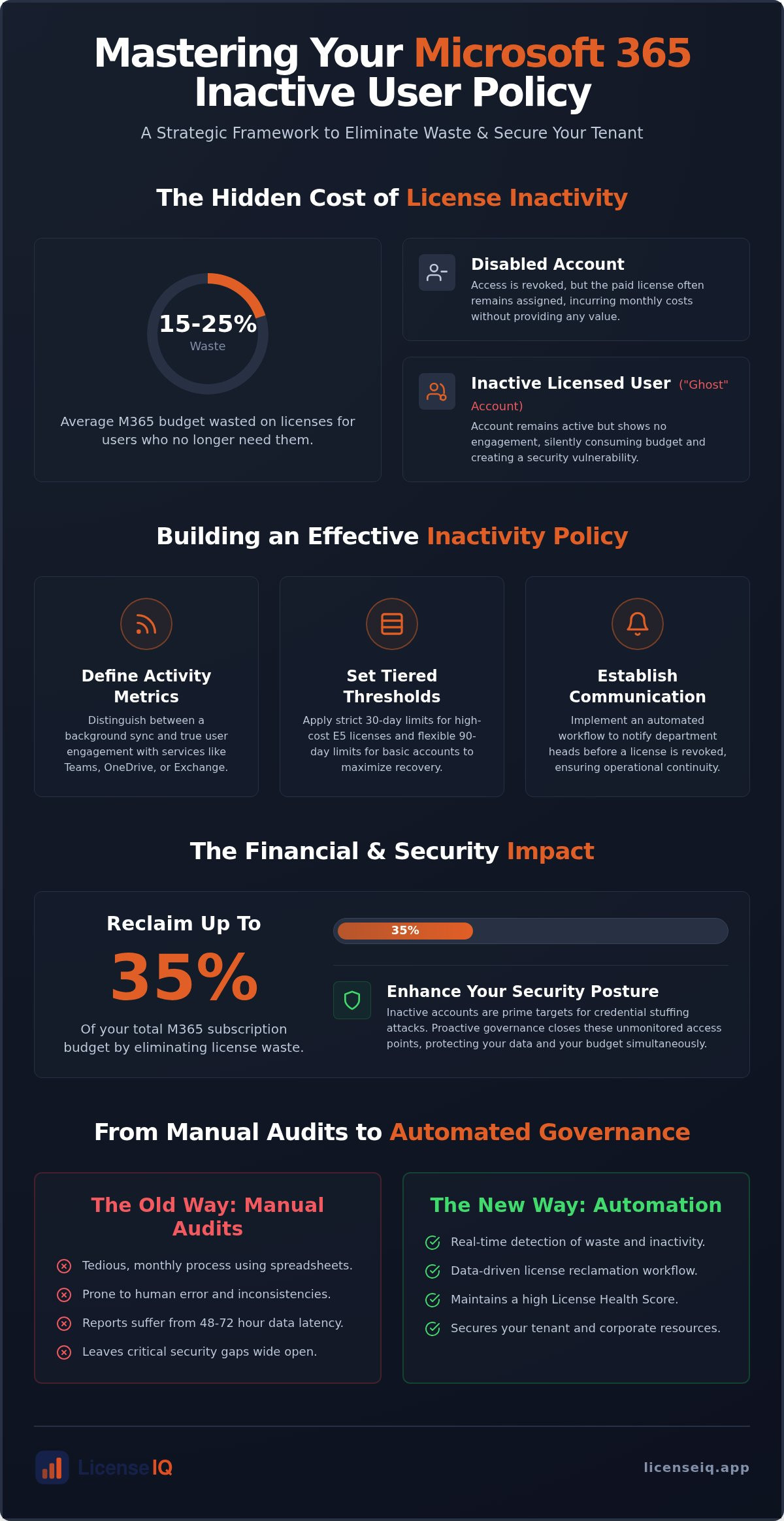
Organizations waste an average of 15% to 25% of their Microsoft 365 budget on licenses for users who no longer need them. Every "ghost" account and former employee still assigned a seat represents a direct hit to your bottom line. You already know that manual auditing is a tedious, monthly grind that often leaves security gaps wide open. Establishing a rigorous microsoft 365 inactive user policy is no longer just an administrative task. It's a strategic financial firewall that prevents subscription waste and secures your digital perimeter.
You can stop the budget bleed and protect your tenant with a precise, automated governance workflow. This 2026 guide provides the exact framework you need to define, identify, and reclaim unused licenses. We'll detail how to implement a License Health Score to measure efficiency and set up automated alerts for inactivity. You'll learn how to transform a chaotic manual process into a streamlined system that identifies waste in minutes. By the end, you'll have a repeatable strategy to ensure your corporate resources are only ever used by active, authorized team members.
Key Takeaways
- Establish a rigorous microsoft 365 inactive user policy to differentiate between disabled accounts and dormant users still consuming paid seats.
- Learn to navigate M365 Usage Reports to uncover high-cost "ghost" accounts and underutilized E5 licenses.
- Reclaim up to 35% of your subscription budget by identifying and eliminating licenses assigned to former or inactive employees.
- Transition from manual monthly audits to an Automated Governance Workflow that detects and recovers wasted spend in real time.
- Implement a License Health Score to maintain total visibility over your tenant and secure unmonitored access points.
What is a Microsoft 365 Inactive User Policy?
A microsoft 365 inactive user policy is a structured governance framework that defines exactly when a user account is considered dormant. It isn't merely a technical preference; it's a financial directive designed to eliminate waste. Many administrators confuse "disabled" users with "inactive" licensed users. A disabled account has its access revoked, yet the license often remains attached, incurring monthly costs. An inactive licensed user is an account that remains active in the system but shows no engagement with the Microsoft 365 subscription plans. Without a clear policy, these "ghost" accounts continue to draw from your IT budget indefinitely.
Industry standards typically categorize inactivity at 30, 60, or 90-day intervals. While Microsoft Entra often defaults to a 90-day threshold, this is frequently too lenient for modern enterprise environments. A written microsoft 365 inactive user policy serves as the essential first step toward an Automated Governance Workflow. It provides the legal and operational justification for reclaiming resources, ensuring that license management is data-driven rather than reactive. By formalizing these rules, you create a baseline for a License Health Score that reflects the true efficiency of your tenant.
The Components of an Effective Inactivity Policy
Effective policies look beyond simple sign-in logs. True activity involves interaction with specific services like Teams, OneDrive, or Exchange. Your policy should include:
- Defined Activity Metrics: Distinguish between a background system sync and active user engagement.
- Tiered Thresholds: Apply 30-day limits for expensive E5 seats and 90 days for basic frontline accounts to maximize recovery.
- Communication Protocols: Establish a workflow to notify department heads before a license is revoked. This prevents operational friction while maintaining fiscal discipline.
Why 2026 Requires a Proactive Governance Approach
Manual audits are obsolete in 2026. SaaS sprawl has made it impossible to track dormant accounts through manual spreadsheets. These unmonitored accounts represent more than just financial waste; they're security liabilities. Inactive accounts are primary targets for credential stuffing attacks because no one is watching their access logs. Moving to a proactive model protects your budget and your data simultaneously. For a deeper look at reclaiming costs, see our Microsoft 365 License Optimization Guide. By implementing these standards, you transform your administration from a cost center into a lean, secure operation.
How to Identify Inactive Users in the M365 Admin Center
Identifying waste requires precise navigation. The Microsoft 365 Admin Center serves as your primary data source, but raw reports require filtering to align with your microsoft 365 inactive user policy. Start by navigating to the Reports section in the left-hand sidebar and selecting Usage. This dashboard provides a high-level overview of active user data across specific services like Exchange, Teams, and SharePoint. You can toggle the timeframe between 7, 30, 90, and 180 days to match your policy thresholds.
To find high-value targets for reclamation, focus on users assigned to premium tiers who show zero activity. Filter your reports by specific products, such as Microsoft 365 E5, to see who is paying for advanced features without using them. You can export this data into a CSV file for manual cross-referencing against your payroll or HR records. This process uncovers "ghost" accounts that still occupy paid seats long after an employee has departed. It's a vital exercise for maintaining your License Health Score.
Using Microsoft Entra ID for Last Sign-In Dates
For more granular forensic data, use the Microsoft Entra ID portal. Navigate to the Users blade and modify your view by adding the Last Interactive Sign-in column. This metric is more reliable than general usage reports because it tracks actual human authentication events. It helps you Learn about inactive mailboxes and accounts abandoned by former staff. Compare this date against "Last App Activity" to identify users who might have background syncs running on a mobile device but haven't opened a work application in weeks.
The Limitations of Native Microsoft Reporting
Native tools have significant drawbacks for license governance. Data latency remains a persistent issue; reports are often 48 to 72 hours behind real-time events. Manual reports also fail to map "Inactive User" status to actual dollar waste. You're left to calculate the financial impact yourself using complex spreadsheets. Background syncs from Outlook or OneDrive can also trick the system into reporting "activity" for a user who hasn't touched their computer in months.
Relying on manual audits is a high-risk strategy that often misses these nuanced details. To gain immediate clarity on your tenant's health, you can use a Spend Recovery Dashboard to bridge the gap between technical logs and financial reality. This ensures your microsoft 365 inactive user policy is backed by accurate, real-time data rather than stale reports that leave your budget vulnerable.
The Financial Impact: Why Inactive Users Cost You 35% More
The July 2026 price increase, which saw Business Basic rise by 16.7% and Standard by 12%, has turned license waste into an urgent financial risk. Organizations lacking a strict microsoft 365 inactive user policy are effectively throwing away capital. "Ghost Licenses" for departed employees account for 12% of typical license assignments. These seats inflate your annual commitment without providing any operational value. This isn't just a minor oversight; it's a recurring charge for zero utility that compounds month over month.
Security risks add a second layer of financial liability. Abandoned accounts are primary targets for credential stuffing. A breach originating from an unmonitored account can result in remediation costs and legal fees that far exceed the annual subscription price. For a 500-user tenant, the "Cost of Inaction" is significant. With a 15% inactivity rate on E5 plans, an organization wastes $51,300 every year. Reclaiming these funds requires a shift from passive observation to active enforcement through a precise governance system.
License Right-Sizing vs. License Reclamation
Reclamation is the process of recovering seats from departed staff or totally dormant users. Right-sizing is more nuanced. It addresses users who are active but over-licensed. Statistics show that 20% of E5 users never utilize advanced tools like Power BI or Defender. Moving these users to a more appropriate tier is a core component of modern license governance. Using a comprehensive Office 365 Offboarding Checklist ensures that every employee exit triggers an immediate financial recovery event.
Understanding Your License Health Score
Your License Health Score is a critical KPI for IT leadership. It measures your governance maturity by comparing active service engagement against total subscription spend. A high score proves that your microsoft 365 inactive user policy is working as intended. Benchmarking this score against industry standards reveals where your tenant stands in terms of SaaS waste. It provides the transparency needed to justify automated governance and ensures your IT budget is optimized for maximum security and performance. A low score serves as a warning of organizational disorder and obscured financial leaks that require immediate intervention.
Building an Automated Governance Workflow for Reclamation
A microsoft 365 inactive user policy only provides real-world value when it's enforced through a repeatable, automated system. Manual PowerShell scripts often break or require high technical overhead to maintain. A modern governance workflow moves through four distinct stages: Detection, Notification, Approval, and Action. By integrating your HRIS data with M365 activity logs, you ensure that users on legitimate medical or maternity leave aren't flagged as inactive. This "soft-offboarding" approach preserves organizational data while securing the tenant against unauthorized access. Centralizing reclaimed seats into a "License Pool" allows you to provision new hires instantly without increasing your monthly commitment.
Automating this process transforms license management from a reactive chore into a proactive financial strategy. You'll stop paying for "ghost" accounts the moment they meet your dormancy criteria. This level of precision is vital in the 2026 pricing environment, where every unassigned seat represents a higher financial leak than in previous years. Establishing this workflow ensures your License Health Score remains high and your audit logs remain clean for compliance reviews.
Detection and Notification Logic
Set your governance system to trigger alerts when a user hits the 60-day inactivity mark. This is the optimal threshold for most corporate environments. The system should automatically send a "Use it or Lose it" email to the end-user. This message provides a frictionless way for them to opt-in to keeping their license by simply clicking a confirmation button or signing into a specific application. If the user doesn't respond within a set timeframe, the workflow escalates to their department head for final approval. This multi-layered approach ensures that critical service accounts or executive users are never accidentally decommissioned.
Safe Reclamation: Preserving Data While Cutting Costs
Cutting costs doesn't mean you have to lose valuable corporate intelligence. Converting inactive mailboxes to shared mailboxes allows you to retain all email history without paying for a recurring license. You can also configure OneDrive retention periods to protect dormant files for years if your industry compliance requires it. Once the data is safely archived, the final step is unassigning the license and updating your Spend Recovery Dashboard. This provides immediate visibility into the exact dollar value saved through your efforts. To streamline this entire process, you can deploy Automated Governance Workflows to handle the technical execution for you. This transition eliminates the need for manual auditing and keeps your tenant in a state of constant optimization.
Eliminating Manual Audits with LicenseIQ
Manual auditing is a liability. It consumes hours of administrative time and often relies on stale data that misses the nuances of user engagement. The LicenseIQ Platform replaces this inefficiency with a vigilant, automated system. It connects to your tenant in minutes to enforce your microsoft 365 inactive user policy without human intervention. By providing immediate clarity, it uncovers every inactive user and unassigned license that traditional reports obscure. This transition from manual spreadsheets to a real-time system ensures that your financial resources are never left unmonitored.
The platform functions as an active participant in your company’s growth. It doesn't just report on waste; it provides the specific data points needed to reclaim it. This level of oversight is essential for maintaining a clean tenant and a high License Health Score. You gain a precise view of your financial health, allowing you to stop overpaying for "ghost" accounts that contribute nothing to your operational goals.
The 5-Minute License Audit
Complexity is the enemy of effective governance. Traditional audits require maintaining fragile PowerShell scripts that often fail as APIs evolve. LicenseIQ removes this technical overhead entirely. Its AI-native engine scans your environment to identify waste across every subscription tier in a fraction of the time it takes for a manual check. You can see the results of this audit on a single Spend Recovery Dashboard that highlights:
- Immediate discovery of dormant accounts within minutes of connection.
- Real-time recovery recommendations with specific dollar-value impacts for each account.
- Clear visualization of all spend recovery opportunities, prioritized by potential savings.
This transparency allows leadership to make data-driven decisions instantly. You no longer need to guess which accounts are safe to reclaim or calculate the ROI of your cleanup efforts manually. The system provides the precise evidence required for confident, high-speed license governance.
AI-Native Governance for SMBs
LicenseIQ functions as a proactive digital auditor that is always one step ahead of organizational disorder. Leveraging the Model Context Protocol, the platform automates your microsoft 365 inactive user policy workflows from initial detection to final reclamation. This continuous monitoring ensures your tenant remains optimized throughout the year, regardless of staff turnover or project shifts. Consistent, automated financial hygiene leads to savings of up to 35% on software subscriptions. By shifting to an AI-native approach, you eliminate the cognitive load of administrative tasks and ensure that your M365 spend is always aligned with actual usage.
Secure Your Tenant and Optimize Your Budget
Implementing a robust microsoft 365 inactive user policy is the only way to safeguard your organization against obscured financial leaks and security vulnerabilities. You've seen how identifying "ghost" accounts and automating reclamation workflows can transform your IT administration into a lean, data-driven operation. By shifting away from manual spreadsheets, you eliminate human error and ensure every paid license drives actual productivity. Maintaining oversight in the 2026 pricing landscape requires more than just periodic checks; it demands constant, vigilant governance.
Total visibility is within reach. You can scan your M365 tenant in minutes with LicenseIQ and uncover wasted spend. Our platform allows you to recover up to 35% of your M365 budget by providing specific recovery recommendations. You'll receive your License Health Score instantly with no complex setup required. This proactive approach ensures your resources are always monitored by a precise system that prioritizes financial health. Start reclaiming your resources today and build a more resilient, cost-effective digital environment for your team.
Frequently Asked Questions
How does Microsoft define an "inactive user" in 365?
Microsoft identifies an inactive user as an account that has not recorded an interactive sign-in or application activity for a specific duration. While Microsoft Entra typically defaults to a 90-day threshold, your microsoft 365 inactive user policy can define stricter windows. Activity includes authenticating into the tenant or using services like Teams, Exchange Online, and SharePoint. Background system syncs generally do not count as active human engagement.
Can I reclaim a license without deleting the user account?
Yes, you can unassign a license while keeping the user account in your directory. This "soft-offboarding" stops recurring billing for that seat immediately. Microsoft retains the associated data for a 30-day grace period after the license is removed. To keep data longer without paying for a license, you should convert the mailbox to a shared mailbox or apply a retention hold before unassigning the seat.
What is the best way to track inactive users across multiple M365 services?
The most effective native method is using the Usage Reports in the Microsoft 365 Admin Center. These reports aggregate data across Teams, Exchange, and OneDrive. For more technical oversight, use the "Last Interactive Sign-in" column in the Microsoft Entra ID portal. Automated platforms like LicenseIQ provide even greater clarity by consolidating these disparate data points into a single Spend Recovery Dashboard for immediate, data-driven action.
How long should I wait before reclaiming an inactive user license?
The optimal waiting period depends on your specific microsoft 365 inactive user policy and the cost of the license. Industry standards suggest 30 days for high-cost E5 seats and 90 days for basic frontline accounts. Waiting too long leads to budget waste, while acting too quickly can disrupt seasonal staff. Most organizations find that a 60-day inactivity threshold balances financial recovery with operational stability.
Is there a way to automate inactive user reports in the M365 Admin Center?
Native automation in the Admin Center is limited to basic scheduled email reports. Advanced automation usually requires custom PowerShell scripts or Microsoft Graph API integrations, which have high technical overhead. For a more efficient approach, LicenseIQ offers Automated Governance Workflows that detect inactivity and trigger reclamation processes automatically. This eliminates manual report generation and ensures your tenant remains optimized without constant, time-consuming administrative intervention.
What happens to a user’s data when their license is removed due to inactivity?
When you remove a license, the user's data enters a 30-day retention period. During this window, the data is fully recoverable if you reassign a license. After 30 days, the data is permanently deleted unless you have a specific retention policy or litigation hold in place. To preserve corporate intelligence without a paid license, administrators should convert mailboxes to shared mailboxes or backup OneDrive files before reclaiming the seat.
Does Microsoft Entra ID show the last time a user actually used Word or Excel?
No, Microsoft Entra ID primarily tracks authentication events and sign-in logs rather than specific desktop application usage. To see engagement with Word or Excel, you must consult the Usage Reports in the M365 Admin Center. These reports provide granular details on which users are actively opening specific Office apps. Combining these usage metrics with Entra sign-in data is essential for identifying users who are over-licensed for their actual needs.
How much can a typical company save by enforcing an inactive user policy?
A typical organization can save up to 35% on its Microsoft 365 subscription costs by strictly enforcing an inactivity policy. Statistics show that roughly 15% to 25% of licenses are often assigned to "ghost" accounts or departed employees. By reclaiming these unused seats and right-sizing over-provisioned users, companies significantly reduce their annual commitment. These savings provide immediate financial relief and ensure the IT budget is allocated only to active resources.


