

Your organization is likely overpaying by $21 per user every month for premium features that 40% of your workforce never touches. Most IT leaders realize the Microsoft 365 Admin Center provides opaque data that makes it difficult to distinguish between a power user and a casual employee. You want to optimize costs, but the fear of accidentally revoking a critical security or analytics feature keeps you paying the E5 premium. This guide on Microsoft 365 E5 to E3: How to Spot the Users Who Should Have Been Downgraded will show you how to identify specific usage patterns to recover up to 35% of your licensing spend. We'll provide a clear list of indicators for downgrade-ready users and show you how to build an automated process to prevent future waste. You'll gain total visibility into your software stack and turn hidden costs into operational capital. Stop guessing about utilization and start managing your budget with precision.
Key Takeaways
- Identify the hidden financial drain of the "E5 Default Trap" and learn how to reclaim over $25,000 annually for every 100 over-licensed users.
- Master the specific usage metrics in Microsoft 365 E5 to E3: How to Spot the Users Who Should Have Been Downgraded to pinpoint exactly where premium features go unused.
- Differentiate between essential productivity tools and premium security pillars to ensure you only pay for high-value features like Power BI Pro when necessary.
- Implement a risk-free transition plan that protects data retention and maintains stakeholder alignment during the downgrade process.
- Shift from manual, point-in-time audits to automated governance to maintain total visibility and stop license drift permanently.
The Financial Impact of the E5 Default Trap
The E5 Default Trap is a frequent financial leak in modern IT departments. It occurs when administrators assign premium licenses to the entire workforce regardless of specific job requirements. While this simplifies provisioning, it ignores the actual needs of the individual. This "one-size-fits-all" approach assumes every employee requires advanced analytics and top-tier security governance. It's a costly assumption that prioritizes administrative convenience over fiscal responsibility.
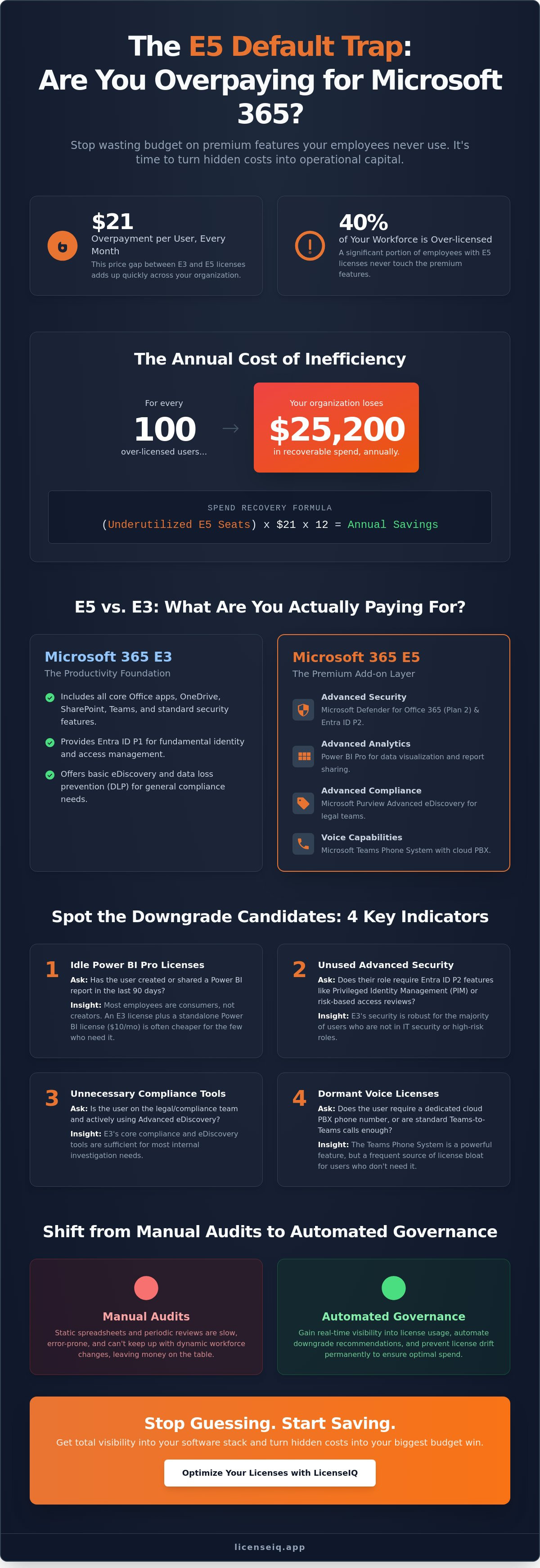
The waste is substantial and immediate. The $21 per user, per month price gap between E3 and E5 tiers creates a massive deficit. For every 100 users who are over-licensed, your organization loses $25,200 annually. Microsoft encourages this behavior by promoting an "all-in" security narrative. This marketing focus often bypasses actual utilization audits, leading companies to pay for capabilities their staff never touch. A thorough Microsoft 365 overview of plan features reveals that many users thrive on the E3 tier without sacrificing core productivity.
To fix this, you must adopt the concept of License Health. This represents a shift from reactive budgeting to proactive spend recovery. It's about identifying waste in real-time rather than waiting for an annual true-up. Mastering Microsoft 365 E5 to E3: How to Spot the Users Who Should Have Been Downgraded is the most effective way to protect your IT budget and ensure every dollar spent drives actual value.
The Hidden Costs of Unused Security Features
Many organizations pay for Entra ID P2 features like Privileged Identity Management (PIM) for users who only require P1 basics. This leads to "Ghost Analytics," where Power BI Pro licenses sit idle because users never open a single report. Manual spreadsheets fail to track these granular usage gaps. They're static, prone to error, and cannot keep up with the dynamic nature of user activity across a large enterprise.
Calculating Your Potential Spend Recovery
Estimating your savings is straightforward. Use this simple formula: (Underutilized E5 Seats) x $21 x 12 = Annual Spend Recovery. Spend Recovery is the reclamation of budget from underutilized SaaS seats. To visualize this waste instantly, LicenseIQ provides a Health Score that highlights exactly where your budget is trapped. It turns dark data into actionable visibility, allowing you to execute Microsoft 365 E5 to E3: How to Spot the Users Who Should Have Been Downgraded strategies with precision.
E5 vs. E3: Identifying the "Killer Features" That Justify the Cost
The core difference between these two tiers is simple. E3 provides the productivity foundation. E5 adds a premium layer of advanced security, compliance, and analytics. For many organizations, the Microsoft 365 E5 to E3: How to Spot the Users Who Should Have Been Downgraded process reveals that most employees only require that foundation. E5 value rests on three specific pillars: Microsoft Defender for Office 365 (Plan 2), Power BI Pro, and Microsoft Purview. These tools are powerful, but they are specialized. Effective Microsoft licensing management requires knowing exactly who uses these features daily.
Analyze your job roles with precision. Security Operations teams need the automated investigation and response capabilities of Defender Plan 2. Data scientists and financial analysts require Power BI Pro to share and collaborate on reports. Legal counsel often depends on Advanced eDiscovery within Purview for high-litigation environments. If a user does not fall into these categories, the "Good Enough" factor applies. Microsoft E3 plus a specific add-on, such as a standalone Power BI license for $10 per month, is often significantly cheaper than paying for the full E5 suite for a user who only needs one premium tool.
Security and Compliance: P1 vs. P2
The jump from Entra ID P1 in E3 to P2 in E5 introduces complex features like Access Reviews and Risk-Based Conditional Access. While these sound essential, many standard users never trigger them. You must audit whether your IT team actually manages these policies or if they remain dormant. Microsoft Purview follows a similar pattern. E3 offers basic eDiscovery, which is sufficient for most internal needs. Most SMB users thrive on E3 security without the added E5 complexity. IT leaders often realize the Microsoft 365 E5 to E3: How to Spot the Users Who Should Have Been Downgraded workflow is necessary when they see P2 features sitting idle for 90 days or more.
Voice and Analytics: The Most Common Sources of Waste
Microsoft Teams Phone is a frequent source of license bloat. E5 includes the cloud PBX system, but many users simply use standard Teams-to-Teams calls or rely on mobile devices. If an E5 user has no PSTN usage history, they are a prime candidate for a downgrade. Power BI Pro is another area where waste hides. You should audit the "Last Activity Date" for Power BI in your admin center. If a user hasn't published or viewed a report in the last 30 days, that $10 monthly value is not being realized. You can find a full breakdown of these feature gaps in our guide to Microsoft 365 License Types. Gaining full visibility into these usage patterns is the first step toward reclaiming your IT budget and eliminating shadow costs.
4 Key Usage Metrics to Spot Downgrade Candidates
Identifying waste requires looking past simple login data. You need to analyze feature-level activity to execute a successful Microsoft 365 E5 to E3: How to Spot the Users Who Should Have Been Downgraded strategy. Focus on these four specific metrics to find immediate savings and eliminate unnecessary spend.
- Power BI Activity: Check the last active date for Power BI Pro features. If a user hasn't interacted with a report or dashboard in over 30 days, their E5 license is underutilized. They're a prime candidate for a downgrade.
- PSTN Call Usage: Review Teams Phone activity. Users with zero external minutes over a 90 day period don't require the Enterprise Voice capabilities bundled in E5. Standard Teams functionality in E3 is sufficient for internal collaboration.
- Advanced Purview Logs: Examine participation in Advanced eDiscovery cases. Most employees never touch these complex compliance tools. If they aren't actively part of a legal hold or investigation, E3's standard Purview features meet their needs.
- Defender for Endpoint Alerts: Analyze the user's threat profile. Standard office workers rarely trigger the advanced remediation actions found in Defender Plan 2. While high-risk roles justify E5, the average worker is well-protected by Plan 1.
How to Pull the Usage Reports via Admin Center
Start by navigating to Reports and then Usage within the M365 Admin Center. You can select the Active Users report and export the data to a CSV file for manual filtering. This process is often painful. It requires cross-referencing multiple spreadsheets to see feature-specific usage across different services. Standard reports also hit a hard 180-day lookback window. If you're trying to spot long-term patterns, this data ceiling prevents you from seeing the full picture of your environment's health.
Automating the Search for Over-Licensed Users
Manual auditing for a mid-sized tenant can easily consume 10 hours of an admin's week. It's a reactive approach that often misses granular details. Modern IT leaders use AI-native platforms to scan for feature-level activity instead of just basic logins. These systems uncover hidden costs by identifying users who only use E3-level tools while paying for E5. For a deeper dive into these strategies, explore this guide on Microsoft 365 License Optimization. Automating this visibility ensures your Microsoft 365 E5 to E3: How to Spot the Users Who Should Have Been Downgraded process stays precise, continuous, and data-driven.
Executing the Downgrade: A Risk-Free Transition Plan
Executing a license shift requires more than a simple toggle in the admin center. When you identify the target profiles through the process of Microsoft 365 E5 to E3: How to Spot the Users Who Should Have Been Downgraded, you must follow a structured migration path to prevent operational friction. Start by verifying data limits. Both E3 and E5 tiers typically offer 100GB mailboxes and 1TB to 5TB of OneDrive storage. Because the core storage remains identical, data deletion is rarely a risk, but feature access is.
Speed is an asset, but precision prevents tickets. IT leaders should notify department heads at least 10 business days before pulling premium features. Use the "Trial Downgrade" method to eliminate uncertainty. Move a pilot group of 5% of your target users first. Monitor their activity for 7 days. If no "feature-loss" complaints emerge, proceed with the remaining population. To ensure these changes stick, update your Group-Based Licensing (GBL) in Microsoft Entra ID. Manual license assignments often auto-revert during synchronization; GBL ensures the E3 assignment is permanent and governed by group membership.
Protecting Security and Compliance Data
Compliance is the highest hurdle in a downgrade. By 2026, Microsoft retention rules for eDiscovery (Premium) will require active E5 licenses to maintain advanced review sets. If you downgrade a user currently tied to an active Premium case, you must export the data or move it to a Standard case to avoid losing metadata. Adjust your Defender for Office 365 policies immediately. E3 still provides Enterprise-grade security, just without the automated remediation of E5. You must ensure that basic anti-phishing and Safe Links policies remain active under the E3 (Plan 1) equivalent to maintain your security baseline.
Handling Power BI and Teams Phone Disruptions
Power BI Pro is often the "hidden" reason users stay on E5. If a user needs to view reports but doesn't create them, move those reports to a Power BI Premium Capacity workspace. This allows E3 users to consume data without a standalone Pro license. This is a critical step to reduce M365 subscription costs across the organization. For Teams Phone users, ensure PSTN features are disabled or ported correctly. Failing to reconfigure the "Phone System" add-on can lead to "Number Unobtainable" errors, which disrupts external communication.
Successful optimization turns hidden waste into visible savings. If you want to stop guessing which users need which tier, analyze your actual utilization with LicenseIQ today.
Automating Governance: Why Manual Audits Are Obsolete
Manual audits are a liability. They provide a "point-in-time" snapshot that expires the moment you close the spreadsheet. Industry data indicates that license drift typically restores a tenant to an inefficient state within 14 to 21 days of a manual cleanup. This is why many organizations struggle with Microsoft 365 E5 to E3: How to Spot the Users Who Should Have Been Downgraded. LicenseIQ replaces these static checks with continuous monitoring. It maintains a real-time Health Score of your entire tenant 24/7. You no longer guess which users are underutilizing their tools. You see the data immediately.
The conversation shifts from vague activity metrics to direct financial impact. Instead of reporting that a user is "inactive," LicenseIQ provides dollar-value recommendations. It tells you that a specific user is wasting $21.50 every month by holding an E5 seat they don't use. We leverage the Model Context Protocol (MCP) to bridge the gap between insight and action. This AI-driven framework allows the system to automate the actual license swapping process. It reduces the administrative burden on IT teams while ensuring the organization stays lean and compliant.
Establishing an Automated Governance Workflow
Efficiency requires automation. You can set specific triggers to handle downgrades without manual intervention. For example, if a user hasn't accessed advanced E5 security or Power BI Pro features for 60 days, the system automatically flags them for a downgrade. This workflow also helps you identify shadow IT and redundant licenses that often hide in large organizations. Proper reclamation is critical during transitions. Our Office 365 Offboarding Checklist provides a clear roadmap for securing data while reclaiming these high-value licenses during employee exits.
The ROI of Software Intelligence
Software Intelligence is the new standard for FinOps and IT Governance in 2026. Our case studies show that SMBs save up to 35% on Microsoft 365 costs by right-sizing their environment through automated tools. You shouldn't pay for premium features your team doesn't use. Finding the right balance in Microsoft 365 E5 to E3: How to Spot the Users Who Should Have Been Downgraded ensures your budget goes toward growth, not waste. Transparency is the only way to eliminate hidden costs and maintain a secure, optimized stack. Get your free M365 Health Score with LicenseIQ today and take control of your SaaS spend.
Take Control of Your M365 Licensing Strategy
Maintaining an E5 license for every user is an expensive oversight that drains IT budgets. You've learned that Microsoft 365 E5 to E3: How to Spot the Users Who Should Have Been Downgraded isn't just about cutting costs; it's about operational precision. Manual spreadsheet audits fail to capture real-time usage data, often leaving 20% or more of licenses underutilized. By focusing on specific metrics for Power BI and advanced security tools, you can identify exactly where the E5 premium is wasted. Transitioning these users to E3 protects your bottom line without compromising productivity.
Stop letting hidden costs accumulate in your tenant. LicenseIQ provides AI-native automated governance that connects to your environment in less than 300 seconds. Our platform helps organizations save up to 35% on their total M365 spend by uncovering these optimization opportunities automatically. It's time to reclaim your budget and ensure every license delivers maximum value.
Stop wasting money on M365; Get your License Health Score in 5 minutes
Take the first step toward a leaner, more efficient IT environment today.
Frequently Asked Questions
What is the main difference between Microsoft 365 E3 and E5?
Microsoft 365 E5 provides advanced security, analytics, and compliance tools that E3 lacks. Specifically, E5 includes Power BI Pro, Defender for Endpoint Plan 2, and Audio Conferencing capabilities. These features represent a price increase of approximately 60 percent over E3 based on Microsoft's current commercial list prices. Organizations often discover that 30 percent of their E5 users never utilize these premium features.
Will users lose their email or files if I downgrade them from E5 to E3?
You won't lose emails or files when performing a Microsoft 365 E5 to E3: How to Spot the Users Who Should Have Been Downgraded transition. Both license tiers provide a 100GB mailbox and at least 1TB of OneDrive storage per user. Data remains intact because the underlying SharePoint and Exchange services are identical. You only lose access to premium security layers and advanced eDiscovery tools.
How can I tell if someone is actually using their Power BI Pro license?
Monitor the Power BI activity reports in the Microsoft 365 Admin Center to verify license utilization. These reports track the last activity date for every user over 7, 30, 90, or 180 day periods. If a user hasn't viewed or shared a report in 90 days, they're a prime candidate for a downgrade. This data-driven approach eliminates guesswork and secures your IT budget.
Is there a way to automate the downgrade of inactive E5 users?
Automate license optimization by using PowerShell scripts or specialized SaaS management platforms like LicenseIQ. These tools scan for inactivity and trigger group-based licensing changes automatically. For example, you can set a rule to move users to E3 if they haven't accessed E5-exclusive apps for 120 consecutive days. This proactive system ensures total visibility and prevents cost leakage across your entire tenant.
Do I need an E5 license to keep my audit logs for more than 90 days?
Yes, Microsoft 365 E5 is required to retain audit logs for up to 1 year by default. E3 licenses restrict audit log retention to 90 days. If your compliance policy requires 365 days of visibility into user activities, you must maintain E5 or purchase a specific long-term retention add-on. Identifying these compliance requirements is the first step in a Microsoft 365 E5 to E3: How to Spot the Users Who Should Have Been Downgraded audit.
Can I mix and match E3 and E5 licenses within the same organization?
You can absolutely mix E3 and E5 licenses within a single tenant to optimize your software spend. Assign E5 to high-risk executives or data analysts while keeping 70 percent of your standard workforce on E3. This hybrid strategy targets resources where they provide the most value. It stops the waste associated with "one size fits all" licensing models that inflate corporate overhead.
What happens to my Defender for Endpoint data after a downgrade?
Downgrading to E3 removes access to Microsoft Defender for Endpoint Plan 2 features like Endpoint Detection and Response. You'll lose the automated investigation and remediation capabilities that typically trigger within 60 seconds of a detected threat. While your basic antivirus protection stays active, the advanced behavioral analytics stop functioning immediately. Ensure your security team reviews these gaps before finalizing any seat changes.


