

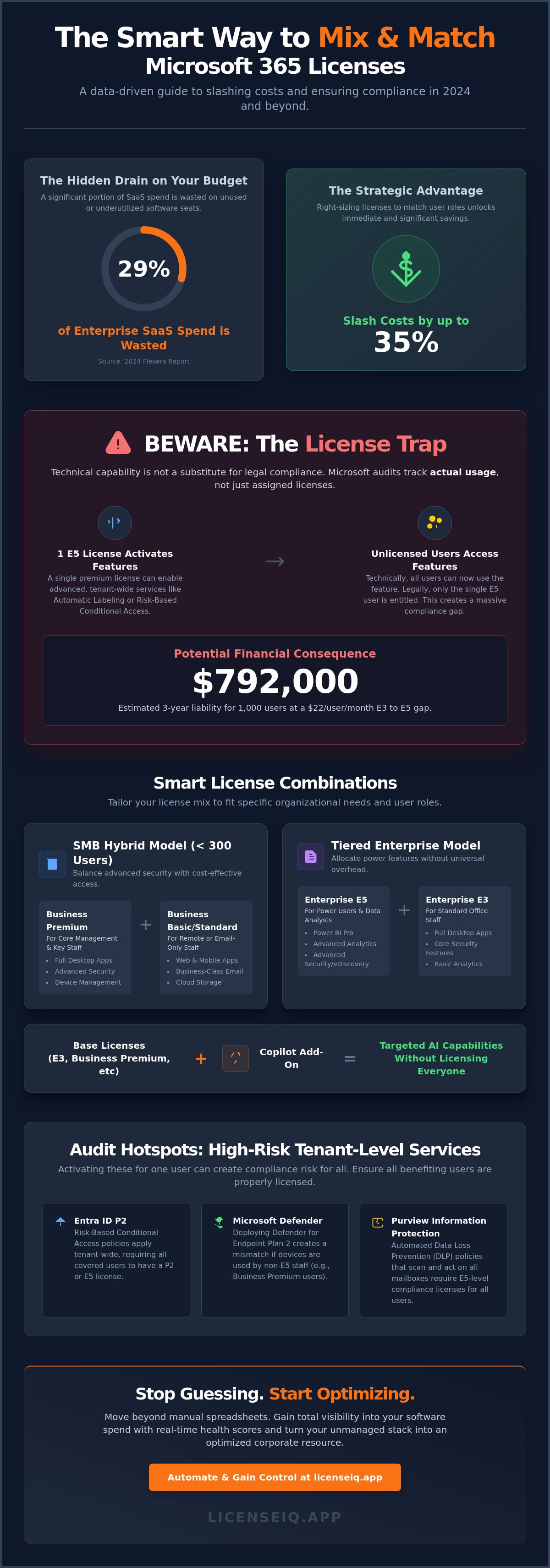
A recent 2024 Flexera report revealed that 29% of enterprise SaaS spend is wasted on underutilized features. For most organizations, this waste is hidden within expensive E5 subscriptions assigned to employees who only need basic email and document editing. You already know that a one-size-fits-all approach to seat assignment is a drain on your bottom line. This guide provides the precision you need to mix and match office 365 licenses effectively. You'll learn how to slash costs by up to 35% without triggering a Microsoft audit or compromising your security posture.
We'll provide a clear framework for combining Business, Enterprise, and Frontline licenses to match actual user behavior. You'll discover how to gain total visibility into your software stack and automate the identification of waste. We're moving beyond manual spreadsheets to a data-driven strategy that ensures every dollar spent on Microsoft 365 delivers maximum ROI for your organization. This is your roadmap to a leaner, more compliant software environment.
Key Takeaways
- Unlock significant cost savings by learning how to mix and match office 365 licenses to align specific user roles with the most cost-effective tier.
- Avoid the "License Trap" by understanding why technical feature access does not grant legal usage rights during a Microsoft audit.
- Navigate the 300-user threshold with a hybrid SMB model that balances Business Premium and Enterprise E3 licenses for maximum efficiency.
- Implement Group-Based Licensing to automate provisioning and eliminate the compliance risks associated with manual tracking and spreadsheets.
- Gain total visibility into your software spend with real-time health scores that turn unmanaged stacks into optimized corporate resources.
Can You Mix and Match Office 365 Licenses? The 2026 Reality
Yes, you can mix and match Office 365 licenses within a single tenant. Microsoft officially supports this flexibility to help organizations align software spend with actual usage. This strategy eliminates the waste of "one size fits all" licensing. Since the early history of Microsoft 365, the platform has evolved to support heterogeneous environments where different users access different toolsets based on their specific roles.
Cost optimization drives the decision to mix and match office 365 licenses. Finance leaders now demand granular visibility into SaaS spend to protect the bottom line. Assigning a high-tier license to a user who only needs basic email creates unnecessary overhead. You manage these varied assignments through the Microsoft Admin Center. This central hub allows for precise allocation, ensuring you stay within the 300-seat limit for Business-class licenses. Specifically, Business Basic, Standard, and Premium tiers each have a 300-user cap. Once you exceed this limit for a specific category, you must transition those users to Enterprise tiers.
Why Organizations Choose a Mixed Licensing Strategy
Effective management requires segmenting users by their functional needs. Power users in finance or legal often require the full desktop suite and advanced security features. Data shows that up to 40% of a typical workforce might only need mobile access or web-based tools. You can reduce spend on seasonal or temporary staff by deploying lower-tier licenses during peak operational periods. Integrating specialized options like the Microsoft 365 F3 license ensures frontline workers stay connected without the high cost of a full Enterprise seat.
Common Mixing Scenarios for SMBs
Many SMBs find success by combining Business Premium for core management and Business Basic for remote or email-only staff. This hybrid approach keeps security tight where it matters most while trimming the budget elsewhere. Larger organizations often mix and match office 365 licenses by combining Enterprise E3 and E5 tiers. This allows advanced analytics users to leverage E5 power while standard office staff remain on E3. You can also layer strategic Add-ons, such as Microsoft Copilot, on top of mixed base licenses to target AI capabilities only where they generate a measurable ROI. This targeted application of resources is the hallmark of a mature 2026 licensing strategy.
Technical Capability vs. Legal Compliance: The License Trap
The ability to mix and match office 365 licenses is a core feature of the Microsoft ecosystem, but it creates a dangerous compliance blind spot known as the License Trap. This trap occurs when a single premium license, such as Microsoft 365 E5, activates advanced features across the entire tenant. Technically, every user can now see or use those tools. Legally, only the user assigned that specific license has the right to do so. Microsoft does not provide "guardrails" to stop you from breaking the rules; it's your responsibility to stay compliant.
Microsoft audits in 2026 rely heavily on automated telemetry. They don't just look at what you bought. They track what your users actually touched. If a firm with 1,000 employees assigns just one E5 license but applies its "Automatic Labeling" features to every mailbox, the financial risk is massive. At an estimated price gap of approximately $22 per user per month between E3 and E5, a three-year back-billing cycle could result in a $792,000 liability. Technical availability is never a substitute for legal entitlement. You can't claim ignorance when the telemetry proves the usage occurred.
Tenant-Level Services and Compliance Risks
Many services operate at the tenant level, making it easy to accidentally over-utilize features without proper coverage. This is where most organizations fail their audits. Common triggers include:
- Entra ID P2: Activating Risk-Based Conditional Access for the whole organization requires every user to have a P2 or E5 license.
- Microsoft Defender: Deploying Defender for Endpoint Plan 2 features to devices used by Business Premium staff creates a licensing mismatch.
- Purview Information Protection: Using automated data loss prevention (DLP) triggers based on sensitive info types often requires E5 compliance licenses for all protected users.
How to Avoid Unintentional Non-Compliance
Visibility is your best defense against audit penalties. You must actively restrict feature access to ensure it aligns with your purchased seats. Don't apply policies to "All Users" by default. Instead, scope Conditional Access and Purview policies to specific security groups containing only licensed individuals. This creates a clear boundary that auditors can verify.
Maintain a "License Assignment Logic" document. This explains why certain groups have specific features, providing a vital defense during a surprise audit. Many leaders also use automated license governance to identify when unlicensed users trigger premium features. Proactive management prevents waste and protects your budget. If you're unsure where your technical gaps are, auditing your current utilization is the first step toward total visibility and security.
Choosing the Right Mix: Business vs. Enterprise Combinations
Microsoft enforces a hard 300-seat limit on all Business-tier subscriptions. Once your headcount hits 301, you aren't forced to migrate the entire organization to Enterprise. Smart IT leaders use a hybrid SMB model to mix and match office 365 licenses. You can maintain 300 Business Premium seats and purchase Enterprise E3 or E5 for every user beyond that threshold. This strategy prevents the immediate budget shock of a full Enterprise migration while maintaining high security standards.
Feature parity is rarely an issue for daily operations. Users on Business Premium and Enterprise E3 collaborate seamlessly in Teams, edit the same SharePoint documents, and share Outlook calendars without friction. The primary friction point is administrative. IT teams must navigate the dangers of mixed licensing regarding security policy application. For instance, if your Business users lack the advanced Entra ID features found in Enterprise plans, your security posture becomes uneven. You must ensure that shared mailboxes and resource accounts, which typically don't require a paid license if under 50GB, are still accessible to users across both tiers.
The Business Tier Mix (Basic vs. Standard vs. Premium)
Optimization starts by segmenting your workforce based on hardware needs. Business Basic is ideal for contractors or mobile-first workers who only require email and web versions of Office. Business Premium should serve as your anchor license for 80% of staff. It provides essential Intune device management and Defender for Office 365. By implementing a 50/50 split between Basic and Premium for a 100-person firm, you reduce annual software spend by approximately $9,600. This shift eliminates waste by removing desktop app licenses from users who never open them.
The Enterprise Tier Mix (E1 vs. E3 vs. E5)
Enterprise environments often suffer from "E5 bloat." Internal audits frequently show that only 10% of a workforce utilizes the advanced Power BI Pro or eDiscovery features included in the E5 tier. For the remaining 90%, E3 provides a robust baseline. You can further optimize by integrating F3 licenses for frontline staff. These workers often only need a 2GB mailbox and mobile access. Transitioning 50 desk-less workers from E3 to F3 can save over $15,000 per year. This granular approach ensures every seat matches the user’s actual workload.
Maintaining visibility over these combinations is the only way to prevent shadow IT and license leakage. Without a centralized view, your "mix and match" strategy can quickly turn into a compliance nightmare. Platforms like LicenseIQ provide the necessary oversight to track utilization across these disparate tiers. We help you identify which users are over-provisioned, allowing you to downgrade licenses and reclaim your budget in real-time.
How to Manage a Mixed Licensing Environment Without Failing an Audit
When you mix and match office 365 licenses, you gain financial flexibility but increase administrative complexity. Microsoft audits often target organizations with inconsistent licensing patterns because these environments are prone to manual errors. You must move away from "best guess" assignments to a data-driven framework that stands up to scrutiny.
- Step 1: Conduct a user persona audit. Analyze app utilization data from the last 90 days. If a user hasn't opened Excel or PowerPoint desktop apps in three months, they shouldn't sit on an expensive E3 or E5 seat.
- Step 2: Implement Group-Based Licensing (GBL). Automate assignments through Entra ID groups. This eliminates the risk of "license creep," where users retain high-tier permissions after moving to departments with lower requirements.
- Step 3: Establish a 30-day review cycle. Industry data shows that up to 22% of SaaS spend is wasted on inactive accounts. Monthly checks ensure you reclaim licenses from departed contractors or dormant users immediately.
- Step 4: Use a Spend Recovery Dashboard. You can't manage what you can't see. Centralize your license counts, usage rates, and costs in a single view to identify where your mix is out of alignment.
Persona Mapping for License Optimization
Effective optimization starts with clear definitions. "Light Users" are often frontline workers or interns who only need web-based email and basic document viewing. These roles are ideal candidates for F3 or Business Basic plans. Conversely, "Heavy Users" in Finance or Legal require E5 licenses for advanced eDiscovery and encryption. You should document these requirements in a Standard Operating Procedure (SOP). This ensures every new hire receives the exact license their role demands, preventing over-provisioning from the start.
Preparing for a Microsoft Audit
Auditors look for gaps between purchased entitlements and active assignments. You should maintain a "License Health Score" above 95% by ensuring every assigned seat is actively utilized. Use this Office 365 offboarding checklist to verify that licenses are reclaimed the moment an employee leaves. Don't wait for a formal notification from Microsoft. Perform a self-audit every quarter to find and resolve discrepancies. This proactive stance turns a potential compliance crisis into a routine administrative check.
A strategy to mix and match office 365 licenses only works if it stays organized. Without automation, the manual workload of tracking different tiers will eventually lead to costly mistakes during a contract renewal or audit.
Optimizing Your License Mix with LicenseIQ: Automation Over Spreadsheets
Manual tracking is a liability. Spreadsheets are the primary enemy of M365 compliance because they are static while your workforce is dynamic. When you attempt to mix and match office 365 licenses using manual tools, you invite human error and financial waste. Industry data from 2024 indicates that 38% of SaaS licenses remain underutilized or completely inactive. LicenseIQ eliminates this risk. Our platform connects to your tenant in minutes, delivering a real-time Health Score that quantifies your optimization potential immediately.
Our AI-driven engine performs a deep-dive analysis of user behavior across your entire organization. It identifies specific users who should be downgraded from premium tiers, such as E5, to more cost-effective options like Business Basic or F3 based on actual feature usage. This automation ensures your strategy to mix and match office 365 licenses is rooted in hard data rather than guesswork. It provides the governance required to remain audit-ready 24/7, transforming license management from a reactive chore into a proactive financial advantage. You gain the precision of a digital auditor without the overhead of manual data entry.
Visibility: The Antidote to SaaS Sprawl
SaaS sprawl thrives in the dark. LicenseIQ provides the visibility needed to uncover inactive users who are squatting on expensive premium licenses. We pinpoint redundant licenses where users possess overlapping subscriptions, a common issue in organizations that have undergone rapid growth or mergers. These insights lead to immediate spend recovery. Our system translates technical utilization data into clear financial reports, showing you exactly where the bottom line is leaking. Transparency is the only way to reclaim your IT budget from unmanaged software stacks.
- Identify users with zero logins in the last 30, 60, or 90 days.
- Detect "Shadow IT" subscriptions that bypass central procurement.
- Consolidate redundant licenses to simplify your billing cycles.
Getting Started with LicenseIQ
Scanning your tenant is the first step toward finding your first 35% in savings. The process is fast, secure, and requires no complex configuration. After the initial audit, you can deploy automated workflows to maintain your license mix. These workflows monitor your environment constantly, ensuring that new hires receive the correct tier and departing employees don't leave behind "ghost" licenses. It's the most efficient way to manage a complex M365 ecosystem while maintaining 100% utilization. Stop overpaying for features your team doesn't use. Start your 5-minute M365 audit with LicenseIQ today.
Future-Proof Your Microsoft Licensing Strategy
Managing a modern workforce in 2026 requires more than just assigning seats. You've learned that the ability to mix and match office 365 licenses is a powerful lever for cost control, provided you maintain strict alignment between technical capability and legal compliance. Manual spreadsheets are no longer sufficient for tracking utilization across complex Business and Enterprise combinations. Organizations that fail to automate these workflows risk significant financial penalties during vendor audits.
True optimization comes from total visibility. You don't have to guess which users are over-provisioned or which licenses are sitting idle. LicenseIQ eliminates the chaos by providing an AI-native Health Score that gives you instant compliance visibility. It's time to transition from reactive management to proactive financial health. By securing your tenant now, you protect your bottom line and ensure every dollar of your software spend is working toward your growth.
Discover how much you can save on M365 with a free LicenseIQ scan. Our platform connects to your tenant in under 5 minutes and identifies opportunities to save up to 35% on Microsoft 365 subscriptions. Take control of your SaaS stack today and build a leaner, more efficient organization.
Frequently Asked Questions
Is it possible to mix Microsoft 365 Business and Enterprise licenses in one tenant?
Yes, you can mix and match office 365 licenses across Business and Enterprise families within a single tenant. Microsoft enforces a 300-seat limit for Business plans, including Business Basic, Standard, and Premium. Enterprise plans like E3 and E5 have no seat maximums. This flexibility allows you to assign high-security E5 seats to executives while keeping task-based workers on cost-effective Business Basic licenses.
What happens if I give a user a Business Basic license but they use E5 features?
Assigning a Business Basic license while allowing access to E5 features creates a licensing compliance gap. Microsoft’s infrastructure often fails to block access to advanced security or analytics features technically, but your organization remains legally liable. During a Microsoft SAM audit, these discrepancies result in back-payments and financial penalties. You must align license assignments with actual feature utilization to eliminate financial risk.
Is there a limit to how many different license types I can have?
There's no technical limit on the number of different license types you can activate in one tenant. You can simultaneously run M365 F3, Business Premium, and E5 licenses. However, the Business family maintains a hard cap of 300 seats per SKU. If your organization exceeds 300 users for a specific Business plan, you must transition those users to an Enterprise tier to maintain service continuity.
Can users with different licenses still collaborate on the same documents?
Users with different licenses can collaborate seamlessly on documents through SharePoint, OneDrive, and Teams. A user on a Microsoft 365 F3 plan can co-author a spreadsheet with an E5 user without friction. The primary differences involve advanced capabilities like Power BI integration or sensitivity labels. While the underlying file access remains consistent, the specific tools available to manipulate that data will vary by license tier.
How does mixing licenses affect my Microsoft 365 security posture?
Mixing licenses often creates security gaps where only a portion of your workforce is protected by advanced identity management. If 20% of your users have E5 licenses and 80% have Business Basic, your environment lacks universal coverage for automated threat response. This fragmentation increases the risk of lateral movement during a breach. You must implement baseline security policies that cover every seat to prevent weak points in your digital perimeter.
Do I need to buy a separate license for shared mailboxes in a mixed environment?
You don't need a separate license for shared mailboxes as long as they remain under 50GB in size. Microsoft allows licensed users to access these mailboxes at no additional cost. If a shared mailbox exceeds the 50GB threshold, you must assign an Exchange Online Plan 2 license to keep it active. Monitoring these storage limits prevents unexpected service interruptions and ensures your mail flow remains optimized without unnecessary spend.
What is the most cost-effective M365 license mix for a company of 100 people?
The most cost-effective strategy for 100 people involves a tiered approach using Business Premium and Business Basic. You should assign Business Premium to the 40% of staff requiring advanced security and desktop apps. The remaining 60% of frontline or deskless workers can function on Business Basic. This mix and match office 365 licenses strategy reduces total spend by approximately 30% compared to a uniform E3 deployment while maintaining robust security.
Can I downgrade a user from E5 to Business Premium without losing their data?
You can downgrade a user from E5 to Business Premium without losing their core mailbox or OneDrive data. The transition is seamless for standard files, but the user will immediately lose access to E5-specific features like Power BI Pro and advanced eDiscovery. You must export any specialized data or reports before the downgrade. Verify that the user's mailbox size is under the 50GB limit to avoid synchronization errors during the license swap.


