

A full Microsoft 365 license isn’t the default answer for every external user. For common collaboration, a guest may be able to access shared Teams or SharePoint resources without one, but the right approach depends on the service and what the person needs to do. Knowing how to manage license assignments for external users starts with checking the scenario, not assigning a license by habit.
External partners need access that supports their work without creating avoidable costs or disrupting projects. The challenge is keeping track of who needs what as projects, permissions, and usage change. This guide explains how to identify when an external user may need a license, distinguish common guest collaboration from more advanced service needs, and assign access deliberately.
You’ll also learn how to review external-user access and create a repeatable process for removing what’s no longer required. LicenseIQ adds visibility into Microsoft 365 users, license data, and potential spend waste, helping teams make ongoing oversight more manageable.
Key Takeaways
- Determine the external user’s sponsor, purpose, target workload, and required access before deciding whether a license assignment is needed.
- Manage assignments with a repeatable workflow that validates access and records accountability.
- Compare direct assignment, group-based assignment, and access without an assigned license to choose an approach that fits the collaboration scenario.
- Use project closure, sponsor changes, role changes, and access reviews as triggers to reassess external-user access and licensing.
- Build durable oversight with documented exceptions, scheduled reviews, and clear visibility into user and license data.
External users in Microsoft 365: when does a license assignment matter?
An external user is someone outside your organization who needs to collaborate with people or access resources in your Microsoft 365 tenant. That identity is not the same as a license entitlement. Microsoft Entra B2B Collaboration is a common way to invite external people into a tenant as guest users, then grant access to selected resources. The invitation establishes an identity and a route to access, but it doesn’t answer every workload’s licensing question.
Microsoft 365 brings together services with different capabilities and licensing terms. The Microsoft 365 Wikipedia page offers a general overview of the suite, but administrators should use current Microsoft licensing guidance when making decisions about specific services. An external identity alone does not determine whether a particular service or feature requires a license.
Guest users and external identities are not the same as license decisions
In Entra ID, a guest identity generally represents someone invited from outside the organization; a member identity usually represents someone treated as part of the tenant. These labels describe identity and directory status, not a universal rule for license entitlement. For example, inviting a partner as a guest to view a shared file doesn’t by itself mean they need a full Microsoft 365 license. Their entitlement depends on the service and the capabilities they’ll use.
Keep three questions separate: who is the person, what resources can they access, and what license does the intended workload require? That distinction is central to how to manage license assignments for external users. It prevents an invitation from being mistaken for approval to assign a license, while helping avoid access problems when a workload does require one.
Which Microsoft 365 workloads change the licensing question?
Start with the user’s actual task. In Teams, external access can mean federation for chat and calls, while guest access can bring someone into your tenant to use shared resources. These are different access patterns. SharePoint Online sharing also has its own settings and requirements. Basic collaboration features commonly don’t require a separate Microsoft 365 license for a guest, but advanced capabilities can change the answer.
Other workloads need their own review. Certain Power Platform capabilities or administrative roles, for example, may require a specific license. Don’t apply a conclusion from Teams or SharePoint to another service. Check current Microsoft terms for the exact workload, feature, user type, and activity involved. For a broader overview of license entitlements, consult the Microsoft 365 license types guide.
A sound decision also makes ownership visible. Record the external user’s sponsor, business purpose, target workload, and approved access. Without that context, teams can assign licenses unnecessarily, leave someone unable to complete approved work, or lose track of who should review access. Unreviewed assignments can add avoidable spend. Tie each assignment to a defined need, then revisit it when that need changes.
How to manage an external user’s Microsoft 365 license assignment
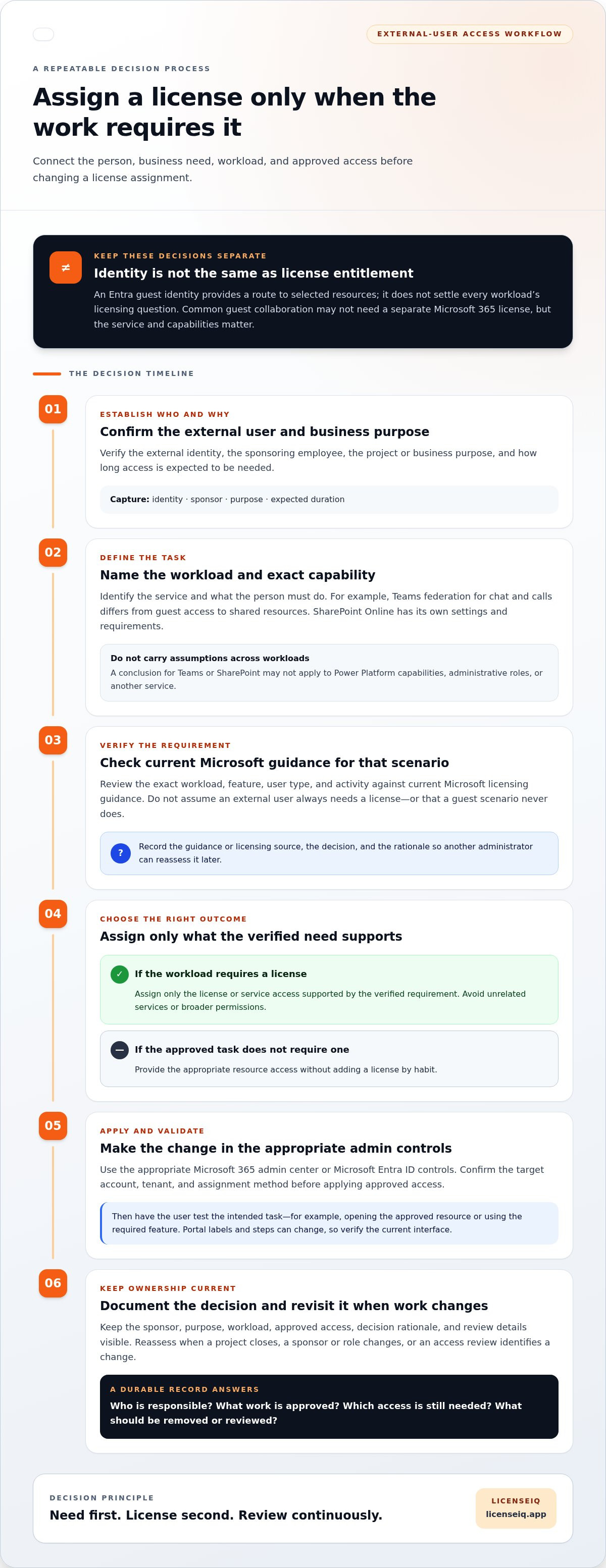
Use a documented decision process rather than a blanket rule. Before assigning anything, connect the person’s identity to a business purpose, a sponsoring employee, a specific workload, and the capability they need. Then verify whether that exact scenario requires a license under current Microsoft guidance. This makes decisions easier to review and helps prevent unnecessary spend and access problems.
In short: identify the user and sponsor, define the workload and required capability, verify current licensing terms, assign only if required, test access, and record ownership and review details.
Confirm the user, purpose, and service before assigning anything
Start with the request. Confirm the external identity, the employee sponsoring the collaboration, the project or business purpose, and how long access is expected to remain necessary. Then identify the target workload and precise task, such as joining a shared workspace or using a feature that may have separate licensing requirements.
Check current Microsoft licensing guidance for that workload and scenario. Don’t assume that a license is required simply because the user is external, or that one workload’s guest rules apply to another. Record the guidance or licensing source, the decision, and its rationale. That gives another administrator the context to reassess the request if the service, role, or requirements change.
Assign, test, and document access in the right place
Once the need is established, use the appropriate Microsoft 365 admin center or Microsoft Entra ID controls for the account and license assignment method. Microsoft’s guidance on managing licenses in Microsoft 365 admin center describes license assignment actions. Portal labels and steps can change, so verify the current interface before following a click-by-click procedure. Confirm that the action applies to the external identity and service in question.
- Confirm the target: Check the account identity and tenant before making a change.
- Apply the approved access: Assign only the license or service access supported by the verified requirement. Avoid adding unrelated services or broader permissions.
- Validate the result: Have the user test the intended task, such as opening the approved resource or using the required feature. If access fails, review permissions, service settings, and licensing before expanding access.
- Record accountability: Log the assignment method, sponsor or owner, business purpose, licensing source, review date, and any exception.
For example, if a project partner needs one defined capability in a workload, validate that requirement and test that capability. Don’t treat successful sign-in as proof that the correct access was granted or as justification for broader access.
Consistent records also make later reviews more useful. LicenseIQ provides visibility into Microsoft 365 user and license data, helping teams identify potential waste as part of broader oversight. Explore Microsoft 365 license governance to support a more informed administrator workflow.
Direct, group-based, or no assignment: compare the right approach
Not every invited guest needs the same license, and a guest invitation alone doesn’t establish that a license is required. Choose an assignment method only after confirming the person’s workload, required capabilities, and applicable Microsoft licensing terms. Some collaboration scenarios may allow access without an assigned Microsoft 365 license. Other scenarios may require a specific license or entitlement.
| Approach | Administrative control | Consistency and auditability | Best fit |
|---|---|---|---|
| Direct assignment | Precise control over one user | Easy to trace when documented, but records may become scattered | A documented, individual need with a defined end or review date |
| Group-based assignment | Access and assignment follow group membership and configuration | More consistent for repeatable scenarios; requires oversight of membership and group rules | Recurring collaboration with the same verified licensing need |
| No assigned license, where permitted | Access is controlled through the relevant service and tenant settings | Requires clear records of the permitted scenario and access owner | Guest collaboration that doesn’t require an assigned license for the intended capability |
The strongest option is the one that matches a verified need and can be reviewed later. When deciding how to manage license assignments for external users, separate the licensing decision from the mechanics of applying it. Group membership can make assignments easier to administer, but it doesn’t prove that each member is eligible or needs a license.
When is direct assignment practical?
Direct assignment can suit a narrow, time-bound case, such as one external specialist who needs a verified capability for a specific project. Document why the license is needed, who approved it, and when to reassess it. This method offers individual control, but each assignment creates a separate review task. As the number of assignments grows, one-user-at-a-time decisions can be harder to track consistently.
When do groups improve consistency and oversight?
Groups can support repeatable assignment when users share the same approved scenario and the licensing rules allow it. Microsoft Entra ID group-based licensing depends on tenant configuration and current eligibility requirements, so review Microsoft’s current documentation before relying on it. Keep group membership under review: adding someone to a group should reflect an approved access need, not serve as a shortcut around the licensing decision.
Use the no-assignment path only when current Microsoft guidance permits the intended access. For example, a guest sharing files may not need an assigned license for that collaboration, while a different workload or advanced capability could change the requirement. Verify service-specific terms instead of applying one workload’s answer across Microsoft 365.
Whichever approach you choose, record the rationale, assignment method, accountable owner, and review trigger. This keeps exceptions visible and makes it easier to spot stale assignments without treating every external identity as a standard license request.
Keep external-user assignments accurate as projects and access change
An assignment justified at the start of a project can become unnecessary when the work changes or ends. Set clear ownership and review triggers so access and licensing don’t depend on someone remembering an old request. Reassess after project closure, a sponsor’s departure, a role change, or a scheduled access review. A change in one area doesn’t automatically mean every account or license should be removed, but it should prompt a review.
Build clear ownership and review triggers
Every external user should have an internal sponsor who can confirm the continuing business need. Record the sponsor and review date alongside the original purpose and access decision. Use a consistent checklist to make each review quick and actionable:
- Sponsor: Is the accountable employee still in the role and responsible for the collaboration?
- Purpose: Is the project or business reason still active?
- Access: Does the user still need the same workload, resources, and permissions?
- License: Does the current service and capability still require the assigned license?
- Last-needed date: When is access expected to end or next be reviewed?
Document the outcome, including who reviewed it and what changed. This creates a decision trail for the next review instead of relying on individual memory. Align the review cadence with organizational policy and project milestones. For wider departure procedures, use this Microsoft 365 offboarding checklist as a broader reference.
Remove or change assignments without disrupting needed access
Before changing an assignment, confirm whether the user still needs access to a workload, shared resources, or project data. Check service dependencies and applicable data-retention requirements, then choose the action that fits the situation and your organization’s policy. A license change can affect service capabilities, so don’t treat it as interchangeable with an account or access change.
Keep the actions distinct: removing a license changes the user’s assigned entitlement; blocking sign-in prevents the account from signing in; deleting the account removes the identity. Each action has a different effect. For example, a project may have ended and a license may no longer be needed, while the organization still has a reason to preserve the account or data. An urgent access concern may instead call for a sign-in restriction while administrators assess the license and account separately.
Record what changed, why, who approved it, and whether access was validated afterward. A clear decision trail helps administrators adapt assignments as needs evolve, avoid unnecessary disruption, and identify unused assignments that need review. For additional lifecycle context, see the Microsoft 365 license management lifecycle guide.
For broader reviews, use LicenseIQ to improve visibility into Microsoft 365 users and license data and identify potential spend waste. This visibility supports governance decisions and helps administrators focus their reviews.
Improve assignment visibility with a repeatable governance process
Individual assignment decisions stay reliable when they feed into a consistent governance process. Set a policy for when a license is justified, who approves exceptions, which internal sponsor owns each external relationship, and how often records are reviewed. Make review part of project and access management, rather than a task that depends on one administrator’s memory.
A repeatable governance process is essential to how to manage license assignments for external users as needs change. It also connects external-user checks to wider Microsoft 365 oversight, including reviews for inactive users and potentially redundant assignments. Treat a potential issue as a prompt to investigate, not proof that a license or access is unnecessary.
Turn assignment decisions into ongoing financial oversight
Manual spreadsheets and notes can become stale as users, assigned licenses, and workload requirements change. A centralized view of user and license data can help administrators spot records that need attention and prioritize follow-up. Keep decisions accountable: confirm the business need with the sponsor, validate the service requirement, and document the outcome.
LicenseIQ provides Microsoft 365 license and user visibility, surfaces potential spend-recovery recommendations, and supports ongoing oversight. Its License Health Score and Spend Recovery Dashboard help organizations assess license health and review optimization opportunities. Automated governance workflows support ongoing governance, while administrators can use the user, license, and spend insights to guide their decisions.
Choose a repeatable next step for your Microsoft 365 environment
Start by documenting gaps in your current process. For each external user, identify whether there’s an accountable sponsor, a recorded purpose, a clear license rationale, and a scheduled review date. Note exceptions and decide who owns their reassessment. This creates a practical baseline before you expand reviews across teams or projects.
For broader visibility into Microsoft 365 license and user data, explore Microsoft 365 license visibility. Use the information to guide administrator reviews, validate recommendations, and update records as requirements shift.
Make visibility part of the operating rhythm. Clear records and repeatable reviews help administrators make informed assignment decisions, reduce avoidable waste, and preserve access that still has a business purpose.
Make your next review more deliberate
Use your next external-user review to test whether your governance process works in practice. Choose a collaboration, confirm who owns the relationship, and check whether the assignment decision and review date are easy to find. Capture any gaps, then turn them into clearer policy or ownership steps. A consistent approach to how to manage license assignments for external users helps administrators make informed decisions as business needs evolve.
For broader oversight, LicenseIQ scans Microsoft 365 licenses and users to surface optimization recommendations. Its License Health Score and Spend Recovery Dashboard help teams assess license health and investigate potential waste. These insights can inform administrator reviews and help teams prioritize follow-up.
Explore Microsoft 365 license visibility and governance with LicenseIQ to bring more clarity to your ongoing review process. Better visibility and clear accountability help your team make informed decisions as needs change.
Frequently Asked Questions
Does every external user need a Microsoft 365 license?
No. A guest invitation doesn’t automatically mean the person needs an assigned Microsoft 365 license. Basic collaboration may be available without one, while specific workloads, advanced features, or administrative tasks can have separate requirements. Assess the exact service and activity, then verify current Microsoft licensing terms. For example, someone invited to view a shared file may have different needs from a contractor using a specialized application capability.
Can an external user access Teams or SharePoint without an assigned Microsoft 365 license?
Often, yes, for common guest collaboration scenarios, but access depends on the workload, feature, and your tenant’s settings. Teams federation for chat and calls differs from guest access to resources in your tenant. SharePoint sharing also depends on how the resource and external access are configured. Confirm the person’s intended task and test the access granted. Don’t assume that success in one service proves eligibility in another.
How do I check whether an external user has a license assigned?
In the Microsoft 365 admin center, locate the external account in the user list and review its license details. You can also inspect the user’s license assignments in Microsoft Entra ID. Check both direct assignments and, where applicable, group-based assignments, since a license may be inherited through group membership. Record the account, assigned products, assignment source, and review status so a later administrator can interpret the results.
Can I use group-based licensing for external users?
Possibly, if the external identity and licensing scenario meet Microsoft’s current requirements and your tenant is configured appropriately. Group-based licensing can apply a consistent assignment to eligible members, but group membership alone doesn’t prove that each person needs that license. Before adding a guest, verify eligibility, intended service use, and the effects of membership. Review Microsoft’s current Entra ID documentation and periodically check that group rules still match the business need.
What happens if I remove a license but keep the external user account?
The account remains, but the user may lose access to capabilities that depend on the removed license. The outcome varies by workload, service configuration, and any other access granted to the account. Before changing an assignment, identify dependencies and consider data or retention requirements. Then test the intended access state. Removing a license doesn’t itself block sign-in or delete the identity, so handle those actions separately if policy requires them.
How often should administrators review external-user license assignments?
Set a regular review cadence that fits your organization’s policy and project cycles, then reassess sooner when a sponsor leaves, a role changes, a project closes, or access is updated. For each review, confirm that the user still has a business purpose, workload access remains appropriate, and the license decision is still valid. Record the outcome and next review date with the assignment so follow-up has a clear owner.


