

What if your Microsoft 365 budget is out of date before renewal even arrives? Knowing how to forecast microsoft 365 license costs means looking beyond the price per plan. Seat demand, user needs, plan mix, and renewal timing all affect the total, and each can shift before the next budget review.
That makes forecasting difficult: license assignments can change faster than planning cycles, and a price list can’t tell you how many seats your organization will need. Microsoft 365 price increases of up to 33% took effect July 1, 2026. The impact on your forecast depends on your plans, region, agreement, and renewal timing, so model the increase only where it applies.
This guide shows you how to build a transparent forecast with documented assumptions. You’ll model headcount, license mix, renewals, and price changes separately, then compare actual spend with the forecast to spot variances early. Read-only utilization insights can help you review assumptions without making budget decisions for you. LicenseIQ’s free scan costs $0 and requires no credit-card information. It can surface usage signals to consider alongside your financial inputs.
Key Takeaways
- Learn how to forecast microsoft 365 license costs with a seat-by-plan model based on verified unit costs and a defined forecast period.
- Use inventory and user segmentation to distinguish recurring license commitments from utilization signals and potential optimization opportunities.
- Compare baseline, expected, and downside scenarios to show how changing assumptions affect projected spend.
- Reconcile actual charges against the forecast regularly, tracking variances by seat volume, plan mix, contract changes, and timing.
- Use LicenseIQ’s read-only utilization scores and dollar-value recommendations as evidence for reviewing forecast assumptions, not as automatic budget decisions.
What a Microsoft 365 license cost forecast should include
A Microsoft 365 license cost forecast projects expected license spend over a defined period using documented inputs and assumptions. It estimates costs based on expected seat counts, plan mix, verified rates, and renewal timing. It is not simply the current invoice carried forward, nor a promise that actual spend will match the projection.
Keep the forecast focused on Microsoft 365 license costs, rather than every expense connected to Microsoft 365 or other SaaS. Separate the items that affect the projection:
- Recurring commitments: Assigned seats, plan types, contracted rates, and renewal terms.
- Planning assumptions: Expected hiring, departures, role changes, and possible plan changes.
- Utilization signals: Evidence about how assigned licenses are being used.
- Optimization opportunities: Potential changes to review, not automatic reductions in budget or spend.
This separation matters because usage evidence can prompt a review, but it does not cancel a commitment. Show the current expected cost in the forecast, and document potential changes separately until a decision is made and its timing is understood.
Choose a useful forecast period and baseline
Set the forecast horizon to match your budgeting and renewal cycle. Start with a baseline that records current assigned licenses by plan, applicable contract terms, and renewal dates. Include the date the data was captured and the source for each input, such as a billing record or license inventory. That gives reviewers a repeatable starting point and makes later comparisons more useful.
Cloud subscriptions differ from one-time purchases; cloud computing principles explain the broader model. For your forecast, focus on the commitments in your agreements and the periods when those costs apply. If licenses renew at different times, record each renewal date instead of treating every seat as if it renews together.
Separate confirmed costs from planning assumptions
Mark contracted rates and renewal dates as verified inputs. Check plan prices, currency, contract terms, and dates against current agreements. Keep hiring, departures, and role changes in a separate assumptions register, with an owner and expected timing for each. This makes it clear what is known and what may change, and helps finance revise the model without quietly rewriting the baseline.
Document plan mix as its own assumption. Different roles may need different license types, so record the reason for each planned allocation rather than applying one average rate to the whole organization. The guide to Microsoft 365 license types can help teams describe their plans consistently. A useful test for how to forecast microsoft 365 license costs is whether another reviewer can trace each projected figure to a verified input or an explicitly owned assumption.
Build the Microsoft 365 license cost model step by step
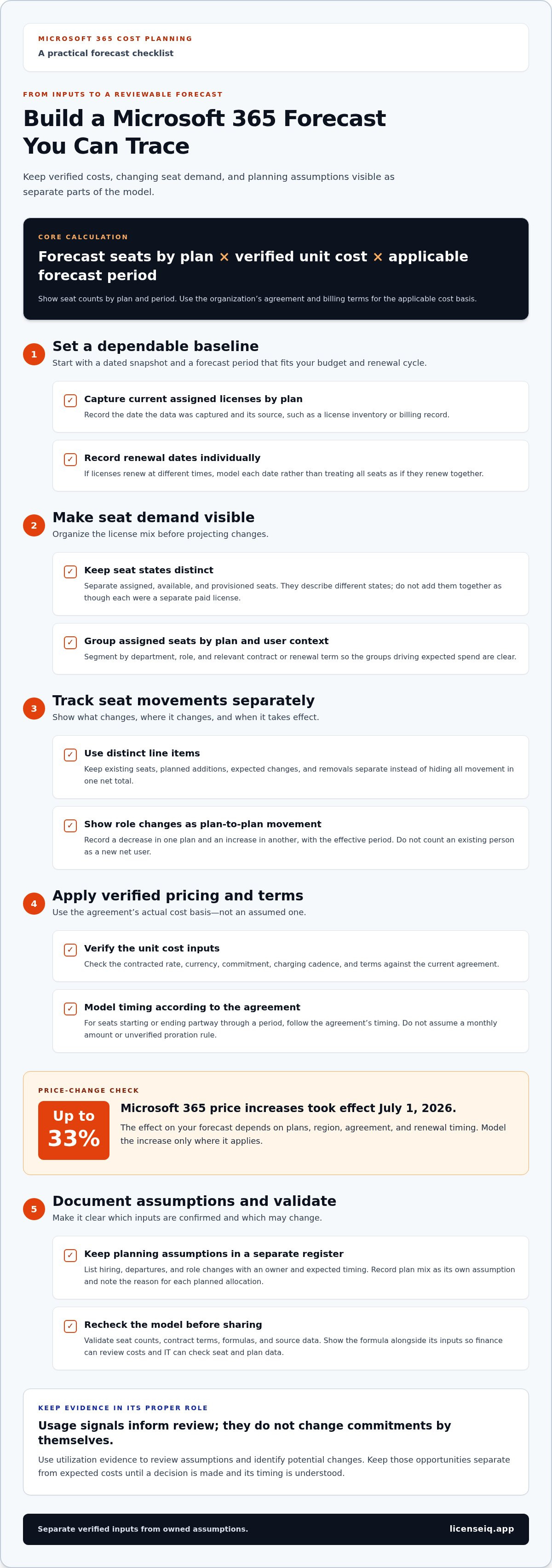
The practical question, how to forecast microsoft 365 license costs, is best answered with a model that finance and IT can review together. Keep the calculation simple: forecast seats by plan, multiplied by the verified unit cost and the applicable forecast period. Show how seat counts change over time instead of hiding every movement in one net total.
- Inventory: Capture the current seat position from a dated source, such as your license inventory.
- Segment: Group seats by plan, department, role, and relevant contract or renewal term.
- Price: Apply the verified unit cost and billing terms from the organization’s current agreement.
- Project: Add planned seats and changes in the periods when they are expected to take effect.
- Validate: Recheck counts, terms, formulas, and source data before sharing the forecast.
Inventory seats and segment the license mix
Separate assigned, available, and provisioned seats. These categories describe different states and should not be added together as if each represents a separate paid license. Group assigned seats by plan, department, role, and contract or renewal term, then map forecast demand to the plans your organization supports. This makes the license mix visible and shows which user groups drive expected spend.
Keep seat movements in distinct line items: existing seats, planned additions, expected changes, and removals. For example, if a role change shifts a user to another plan, show a decrease in one plan and an increase in another, with the effective period recorded. Don’t count the change as a new net user if the person is already in the starting inventory.
Calculate period costs and document assumptions
For each plan and forecast period, multiply the seat quantity by the verified unit cost and applicable billing term. Use the contract’s actual rate, currency, commitment, and charging cadence. Don’t insert list prices or assume a monthly amount when the agreement uses a different billing basis. If a seat starts or ends partway through a period, model the timing according to the agreement rather than applying an unverified proration rule.
Show the formula alongside its inputs. Record the source and owner for each assumption, including hiring, departures, role changes, and their expected dates. Finance can then review cost assumptions while IT checks seat and plan data, without either team having to reconstruct the calculation. The FinOps cloud cost forecasting best practices also emphasize a repeatable, reviewable approach.
Before finalizing the model, compare seat totals with the inventory and confirm that each line uses the correct rate and period. A read-only utilization view can add context without replacing financial inputs: LicenseIQ license utilization insights provide Health Scores and dollar-value recommendations for review.
Model plan mix, renewals, and price-change scenarios
A single forecast can hide the assumptions driving Microsoft 365 spend. Build a baseline, expected case, and higher-cost downside case to show how seat demand, plan mix, and renewal timing could change the result. Keep each driver visible. Decision-makers can then see whether a projected increase comes from workforce growth, a shift to different plans, or a contract change, rather than facing one unexplained estimate.
Compare workforce and plan-mix assumptions
Use documented hiring, departures, and organizational changes to vary expected seat demand across scenarios. Model plan mix separately: if a role change could lead to an upgrade or downgrade, show it as its own assumption rather than embedding it in headcount. Don’t prescribe a user’s required plan. The scenario should show the financial effect of the assumption while the organization validates the actual need.
For each case, state the assumptions and main uncertainty. The baseline can hold current demand and plan mix steady. The expected case can include approved or planned changes. The downside case can test a higher-cost outcome, such as more seats or a larger share of a higher-cost plan than expected. Calculate projected spend using your organization’s verified rates. The table should summarize your model, not introduce generic prices.
| Scenario | Assumptions | Projected spend | Key uncertainty |
|---|---|---|---|
| Baseline | Current seat demand and plan mix continue | Calculated from current verified rates and contract terms | Whether demand remains stable |
| Expected | Documented hiring, departures, and planned mix changes | Recalculate affected seats by plan and period | Timing or scope of workforce changes |
| Higher-cost downside | Higher seat demand or a more costly plan mix than expected | Recalculate using the same verified rate inputs | Whether the higher-demand case occurs |
Account for renewal and pricing uncertainty
Renewals are a separate cost driver from headcount. Map each license group to its contract terms and renewal date, then apply a rate change only to the relevant group and period. Microsoft 365 price increases of up to 33% took effect July 1, 2026. Confirm which plans and regions are affected by your agreements, and account for renewal timing before applying the change in your forecast.
Keep verified contract changes separate from assumptions about future pricing that haven’t been confirmed. If a renewal falls within the forecast horizon, show its impact from the applicable date instead of applying a new rate to every seat for the full year. Label scenario outputs as estimates, not commitments or guaranteed charges. This gives decision-makers a useful model and a clear record of what is known, assumed, or uncertain.
That separation is central to how to forecast microsoft 365 license costs responsibly: vary demand and plan mix deliberately, then apply renewal and verified pricing effects to the affected periods. Review the largest movements first. If a scenario changes materially, identify the assumption behind it so finance and IT can revisit that input without rebuilding the entire forecast.
Keep the forecast accurate with utilization evidence and variance reviews
A forecast stays useful only when you compare it with actuals. At a consistent interval, reconcile actual license counts and charges with the forecast for the same period. Use comparable dates and billing periods, then record differences by driver: seat volume, plan mix, contract changes, and timing. This shows whether a variance came from more users, changed plan assignments, a renewal, or a change taking effect earlier or later than expected.
Utilization data adds context, but it isn’t a budget decision. Treat inactivity or limited feature use as a prompt for review, not automatic proof that someone should lose or change a license.
Review utilization without confusing it with user need
LicenseIQ reports that 27% of licenses are assigned to users inactive for 30+ days. That can point teams toward accounts worth reviewing, but inactivity alone doesn’t establish whether a license is unnecessary. Check role requirements, business context, and applicable data-retention processes before deciding whether an assignment should change. Record the review outcome and any approved effective date in the forecast assumptions.
For more ways to assess potential changes, see the guide to Microsoft 365 license optimization. Utilization evidence identifies a question; your organization’s review determines whether a change is appropriate and when it can affect projected spend.
Set a repeatable variance-review cadence
Choose a review interval that fits your planning and billing cycles. LicenseIQ recommends scanning at least monthly; use that as a planning reference, not a universal rule. At each review, compare actual counts and charges with the latest forecast, explain material differences, and update assumptions only when there’s evidence to support the change.
Assign an owner and next review date to each changing assumption. A confirmed departure may affect seat demand, while a role change could affect plan mix. Record the reason, source, expected timing, and whether the change has been approved. This creates a traceable path from new evidence to a revised forecast without quietly rewriting earlier assumptions.
- Seat variance: Reconcile actual license counts against forecast seats.
- Plan-mix variance: Identify transfers between plans separately from headcount changes.
- Contract variance: Record renewal or rate changes against the affected license group.
- Timing variance: Note when an approved change took effect compared with the forecast date.
Use read-only utilization evidence to support this review without letting a scan make budget decisions. To assess Microsoft 365 license utilization for your forecast, start with LicenseIQ’s free scan. It costs $0, requires no credit-card information, and provides insights for human review.
Use LicenseIQ insights to inform a read-only Microsoft 365 forecast
A forecast depends on more than contract rates and seat counts. Utilization evidence can help teams identify assumptions that deserve a closer look. LicenseIQ scans a Microsoft 365 tenant and provides license-utilization Health Scores, AI-powered recommendations, and dollar-value recommendations. These results can help finance and IT review the model, but they don’t replace verified contract data or the organization’s decisions about future demand.
The connection is read-only. LicenseIQ never modifies, deletes, or creates anything in the tenant. Scan results can inform a forecast, but they don’t generate a guaranteed projection or promise savings. The tool provides evidence; your organization validates assumptions and decides whether any licensing changes are appropriate.
Use scan outputs as forecast evidence
A Health Score or recommendation can prompt questions about current assignments and future plan mix. Treat each finding as a review item, not an instruction to change a license. Confirm the user’s role, business needs, and relevant contract timing before updating a forecast assumption. If a change is approved, record its owner and effective date so the model reflects the decision, not just the initial signal.
LicenseIQ also provides downloadable reports. Use them to support finance and IT discussions alongside your seat inventory, agreement terms, and documented assumptions. A report isn’t a finished forecast: it doesn’t establish hiring plans, renewal dates, or your contract rates. Keeping those inputs separate helps reviewers distinguish utilization evidence from financial commitments.
For a practical review, teams can:
- Compare scan findings with current seat and plan assumptions.
- Route potential changes to the appropriate business and IT reviewers.
- Update the forecast only when an assumption has been assessed and approved.
Protect tenant boundaries and take the next step
LicenseIQ requests Directory.Read.All, Reports.Read.All, and Organization.Read.All permissions for its read-only connection. Customer data never leaves Microsoft’s cloud. Emails, files, and Teams messages are never accessed, and AI analysis doesn’t use customer data for training. Teams can review utilization evidence without treating the scanner as a tenant-management tool.
The free scan costs $0 and requires no credit-card information. It includes a full tenant scan, a Health Score, top three recommendations, and an AI scan summary. The scan takes 5 minutes, and Health Score calculation takes under 60 seconds. Use the results as another input to your process for how to forecast microsoft 365 license costs, while retaining human review for every budget assumption and licensing decision.
Run the free Microsoft 365 scan, $0 and no credit card required.
Make your next forecast review evidence-led
A useful forecast isn’t a file you build once and leave untouched. Use each review to replace stale assumptions with current evidence, record what changed, and make the next decision with greater clarity. That discipline turns how to forecast microsoft 365 license costs into an ongoing financial control, not just an annual budgeting exercise.
Start with a focused review of your tenant’s utilization signals. LicenseIQ’s read-only Microsoft Graph connection doesn’t modify, delete, or create anything in the tenant. Its downloadable reports and dollar-value recommendations can support internal discussions while your finance and IT teams retain control of assumptions and decisions. The free one-time full tenant scan costs $0 and requires no credit-card information; it includes a Health Score, top three recommendations, and an AI scan summary.
Use that evidence to sharpen the next forecast review, not to replace your organization’s judgment. Run the free Microsoft 365 scan, $0 and no credit card required, and take a clearer view of your license assumptions into the next planning cycle.
Frequently Asked Questions
How do I forecast Microsoft 365 license costs?
To forecast Microsoft 365 license costs, create a period-by-period view that follows your agreement dates. For each plan, map expected seats to the applicable verified rate, then show additions and removals in the periods when they take effect. Keep a bridge from opening seats to closing seats so reviewers can see what changed. Test alternative demand assumptions, then compare billed charges with modeled amounts to identify where the forecast needs attention.
What data do I need to forecast Microsoft 365 license costs?
Gather a dated seat inventory, plan assignments, available-seat counts, contract rates, billing terms, and renewal dates. Add workforce plans and known changes, such as a department opening or a role being consolidated. Record the source and owner for each input. If source systems show different counts, preserve both values temporarily and resolve the discrepancy before using either as the forecast baseline.
Can I forecast Microsoft 365 costs without knowing future prices?
Yes. Build the baseline with current verified contract information, and isolate future price uncertainty in a separate scenario. For example, show the impact of a renewal-rate change, but label the rate as an assumption until supported by applicable pricing or contract terms. This keeps the estimate useful without presenting an unconfirmed price as a known charge. Refresh the scenario when better information becomes available.
How often should I update a Microsoft 365 license forecast?
Update it when a meaningful input changes, and set a recurring review that matches your planning cycle. A monthly check can be a starting point, but organizations with stable assignments may choose a different cadence. Revisit the model after a hiring-plan revision, renewal notice, or significant reassignment. Keep a dated change log so reviewers can distinguish new information from assumptions that simply carried forward.
Should inactive Microsoft 365 accounts be removed from a cost forecast?
No. Inactivity alone isn’t enough to remove a seat from the forecast. Keep the assignment in the current view until the organization confirms the account’s status, business need, and any relevant offboarding or data-retention steps. If an authorized decision changes the assignment, record its effective date and reflect the impact in the period it applies. This avoids understating expected spend based on an unreviewed activity signal.
How should I model Microsoft 365 price increases in 2026?
Model a price increase as a separate scenario, applying it only to the license groups and periods where it’s relevant. Confirm which plans and regions are affected by your agreements, and account for renewal timing and contract terms. Until verified, label the increase as an estimate rather than a confirmed charge.
Can LicenseIQ forecast Microsoft 365 costs automatically?
No. LicenseIQ scans Microsoft 365 utilization and provides a Health Score, recommendations, and downloadable reports to support a human-led forecast review. It doesn’t replace assumptions about hiring, plan mix, or contract terms. Its Microsoft Graph connection is read-only and never modifies, deletes, or creates anything in the tenant. The free scan costs $0 and requires no credit-card information, giving teams utilization evidence to consider alongside financial inputs.


