

Migration go-live doesn’t finish the licensing work. Once users, identities, and workloads move to Microsoft 365, subscriptions assigned during the project may no longer match how people work. That’s why optimizing m365 licenses after cloud migration takes more than removing accounts that look inactive. You need clear evidence before changing access and a repeatable way to keep decisions aligned with user needs.
A safe review can uncover unused or over-licensed accounts without putting essential access or compliance controls at risk. This guide shows how to establish a post-migration baseline, match license tiers to roles and activity, document decisions, and keep utilization and spend visible over time.
You’ll work through account and usage reviews, role-based checks, and validation steps to take before making changes. LicenseIQ supports baseline reviews with read-only Microsoft 365 scans and a License Health Score, helping teams spot waste without changing tenant contents. The goal is to make migration the start of ongoing license governance, not a one-time cleanup.
Key Takeaways
- Migration completion doesn’t confirm that each user still has the right subscription. Treat license review and spend governance as ongoing post-migration work.
- Build a reliable baseline by inventorying subscriptions, mapping users to roles, reviewing activity, validating exceptions, and documenting decisions.
- Base license changes on role requirements and adoption evidence, with approval and service-impact checks before adjustments.
- Use a repeatable workflow to prioritize anomalies, validate account owners, record the rationale for decisions, and measure outcomes.
- For optimizing m365 licenses after cloud migration, LicenseIQ provides a read-only utilization baseline, Health Score, AI-powered recommendations, and downloadable reports. The one-time scan costs $0 and requires no credit-card information.
After an M365 migration, why do license costs still need attention?
Moving workloads to Microsoft 365 changes where services run. It doesn’t confirm that every user has the right subscription or uses every assigned service. Migration closeout tracks whether data and workloads moved successfully. License governance asks a different question: do current assignments still match each person’s role, activity, and service needs?
That distinction matters during a transition. Pilot accounts may remain active after testing, temporary overlap between environments can leave duplicate assignments, and employees may change roles or leave the organization. Teams may also need a different mix of services once new workflows settle in. Without a separate review, the original migration plan can become an inaccurate picture of current demand.
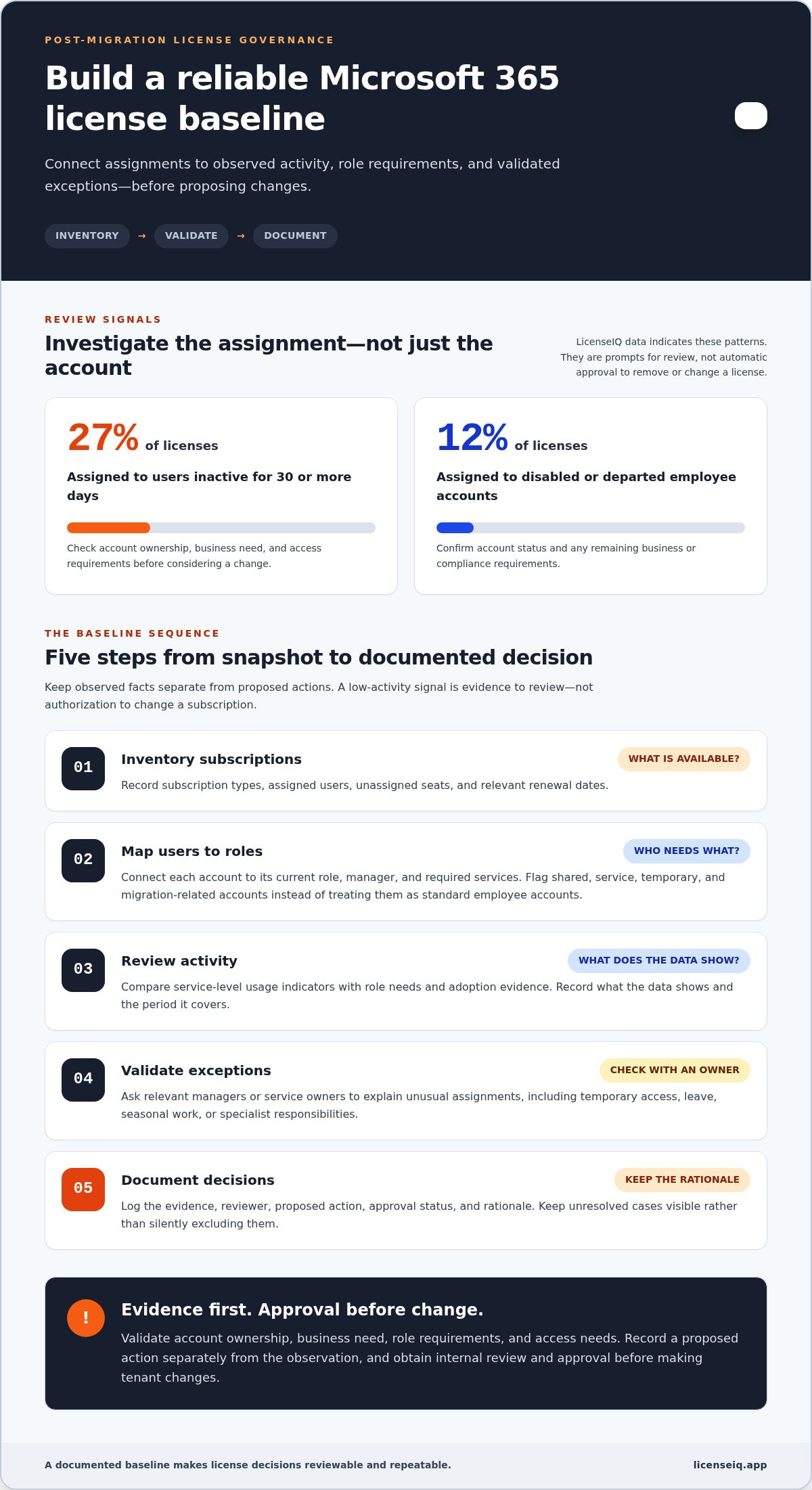
LicenseIQ’s data indicates that 27% of licenses are assigned to users inactive for 30 or more days, and 12% are assigned to disabled or departed employee accounts. Use these as signals for investigation, not as a prediction for every organization. An account’s status alone doesn’t establish whether its subscription can be removed. Confirm ownership, business need, and access requirements before approving a change.
What changes when workloads move from on-premises to Microsoft 365?
With locally managed software, entitlements may be tracked through agreements, installed products, or device-based deployment. Cloud services shift administration toward subscription assignments tied to user accounts. This makes it easier to adjust access, but it also makes ongoing oversight essential. Cloud computing provides useful background on this service-delivery shift.
Choose subscriptions based on role requirements, the workloads a person uses, and evidence of service adoption. Don’t assume an on-premises entitlement automatically converts, transfers, or expires when workloads move. Contract-specific rights and transition terms can vary, so review the relevant agreements before treating a legacy entitlement as available or ended.
Why a completed migration can leave licensing gaps
A migration plan captures needs at a particular point in time, but the final license picture can differ. A pilot user may keep a temporary assignment, for example, while an employee who changed roles still has the previous tier. Paid-but-unassigned seats are available capacity that may still contribute to spend. Assigned subscriptions with low observed activity are tied to accounts but may not be fully used. These are different findings and need different follow-up.
Start by separating inventory from action. Compare purchased seats, assignments, account status, role information, and observed service activity. Have the relevant owner validate exceptions, such as leave, seasonal work, or a role that relies on a particular service only occasionally. Record what needs review rather than treating low activity as automatic approval to downgrade. This evidence-first approach is central to optimizing m365 licenses after cloud migration, helping teams control spend while protecting access.
A focused Microsoft 365 license utilization review can help establish visibility into assignments and usage as part of post-migration governance. The next step is to build a baseline that connects each subscription to a user, role, and documented need.
How to establish a reliable M365 license baseline after migration
Start with a documented snapshot, not a downgrade list. A post-migration license baseline is a dated record of subscription assignments, observed usage, role requirements, and approved exceptions. It gives IT, finance, and business owners a shared view of what’s assigned and what needs investigation.
Keep observations separate from proposed actions. A low-activity signal is evidence to review, not authorization to change a subscription. Require internal owner review and approval before making tenant changes. This distinction helps protect access while giving teams a consistent basis for optimizing m365 licenses after cloud migration.
Build the baseline in sequence:
- Inventory subscriptions. Record available subscription types, assigned users, unassigned seats, and relevant renewal dates. Use the Microsoft 365 license types reference to keep tier terminology consistent.
- Map users to roles. Connect each account to its current role, manager, and required services. Flag shared, service, temporary, or migration-related accounts rather than treating them as standard employee accounts.
- Review activity. Compare service-level usage indicators with role needs and adoption evidence. Record what the data shows and the period it covers.
- Validate exceptions. Have relevant managers or service owners explain unusual assignments, including temporary access, leave, and specialist responsibilities.
- Document decisions. Log the evidence, reviewer, proposed action, approval status, and rationale. Keep unresolved cases visible instead of silently excluding them.
Build an inventory of users, assignments, and exceptions
Use a consistent inventory format across the tenant. For each subscription type, show the number available, assigned accounts, and unassigned seats. Add the assignment date or relevant renewal date where available. List migration service accounts, temporary accounts, and approved exceptions separately, with an owner and reason. This makes unusual records visible without confusing them with ordinary user assignments.
Use activity data without treating it as the whole decision
Usage reports can show whether services are being used, but they don’t explain why a user needs access. A person may use a specialized service infrequently yet still require it for their role. Compare activity with job responsibilities, business requirements, and manager input. Treat inactivity as a prompt to investigate, not proof that a license is unnecessary.
For an additional utilization view, LicenseIQ scans Microsoft 365 tenants in read-only mode. A scan takes 5 minutes, and the License Health Score is calculated in under 60 seconds. The one-time scan costs $0 and requires no credit-card information. Use the results as review evidence alongside internal role and adoption data, not as automatic change instructions. A Microsoft 365 license utilization scan can help establish that starting snapshot.
Once the baseline is approved, preserve it as the comparison point for future reviews. That record makes it easier to identify what changed, who validated it, and whether proposed adjustments still fit the organization’s needs.
How to compare license options without creating migration risk
License optimization should begin with evidence and approval, not automatic downgrades. Low activity can identify a question, but it can’t answer whether a user still needs a service for security, compliance, or a planned workflow. Compare each role’s requirements with the services assigned, then route proposed changes to the relevant owner for review.
Use a consistent comparison table so reviewers can see why an assignment is being questioned and what evidence supports the recommendation. Make the outcome clear: retain, investigate, or consider a change after approval.
| Current tier | User role | Observed needs | Adoption evidence | Review outcome |
|---|---|---|---|---|
| Assigned tier | Finance analyst | Core collaboration and finance workflows | Regular use of relevant services; confirm specialist access with the manager | Validate requirements before proposing a change |
| Assigned tier | Security administrator | Security and identity responsibilities | Feature activity appears low; role still carries operational responsibility | Retain pending security-owner review |
| Assigned tier | Recently changed role | New responsibilities may require a different service mix | Usage data reflects the previous role | Investigate and confirm current needs |
Compare subscription fit by role, not by headline tier
Group users by work requirements, not job title alone. Two people with the same title may rely on different services, while employees in different teams may share similar needs. For each group, list required workloads and features, then compare them with assigned services and adoption evidence. Flag possible over-licensing separately from possible under-licensing. Don’t recommend a specific downgrade until service needs and current agreement terms have been reviewed.
One analysis reports that 20% of E5 users never open Power BI or Defender tools. Treat that as an aggregate signal about feature adoption, not proof that any particular user can safely move to another tier. A feature with little recent activity may still support a security control, compliance requirement, or planned workflow. Confirm its purpose with the accountable owner before drawing a conclusion.
Protect access and business continuity during decisions
For every proposed change, record the user or group, business owner, evidence reviewed, expected service impact, decision, and approver. Check whether the change aligns with renewal timing and operational windows, then schedule it through your normal change-approval process. A review outcome is not an instruction to make an immediate or automatic tenant change.
This disciplined approach is central to optimizing m365 licenses after cloud migration: assess role fit, surface risks, and make decisions traceable. For broader cost-control considerations, see the M365 subscription cost reduction playbook. A read-only Microsoft 365 license review can also provide utilization evidence for internal discussions without changing tenant contents.
A practical post-migration license optimization workflow
A baseline becomes useful when it drives a review cycle. Set a regular cadence, give each finding an owner, and track decisions through to an outcome. Review licenses at least monthly. LicenseIQ Pro and Business can automate weekly or daily scans to support more frequent monitoring.
Recurring reviews connect user activity, license assignments, and spend decisions. That connection helps teams catch changes a one-time migration cleanup would miss, while keeping proposed actions subject to internal review.
- Establish the baseline. Save a dated snapshot of subscriptions, assignments, activity indicators, roles, and documented exceptions. Keep the source and review period attached to the record.
- Prioritize anomalies. Start with findings that may warrant prompt attention, such as departed accounts, paid but unused assignments, or a possible mismatch between a user’s role and assigned tier. Treat each as a review item, not an approved change.
- Validate owners. Assign a reviewer for every finding. Confirm account status with the user’s manager or service owner, and check whether low activity reflects an exception, critical service, or planned workflow.
- Approve proposed changes. Route each recommendation through the organization’s normal approval process. Record the approver, decision, rationale, and expected service impact before any tenant change is made.
- Measure outcomes. Compare later scan results with the baseline and approved actions. Check whether assignments changed as intended and whether access or service needs remain supported.
Prioritize findings and route them for approval
Use a shared review log rather than scattered email threads. For each anomaly, capture the account or group, evidence source, assigned owner, review date, and decision status. Establish an escalation path for exceptions involving security, compliance, or critical services. Keep these cases with the relevant service or control owner until they’ve reviewed the evidence and recorded a decision.
Make the rationale specific. “Low usage” alone doesn’t explain why a license should change. Note which activity was observed, which role requirement was checked, and what service impact the proposed action could have. If the evidence is incomplete, leave the finding open and state what information is still needed.
Track outcomes and keep the baseline current
After each review, update the baseline with the decision and its date. Keep unresolved findings visible, with the reason they remain open and the next review date. This prevents repeated investigation and helps reviewers distinguish accepted exceptions from overlooked records. Compare new scan results with the prior snapshot to identify emerging patterns as roles and service adoption change.
A LicenseIQ read-only tenant scan can surface utilization findings without changing tenant contents. The one-time scan costs $0 and requires no credit-card information. Start a read-only tenant scan to add utilization evidence to your review workflow.
Keep M365 license governance visible with LicenseIQ
A one-time cleanup can reveal post-migration issues, but ongoing visibility helps keep assignments aligned as roles and service usage change. LicenseIQ provides a read-only Microsoft 365 scan, a license-utilization Health Score, AI-powered recommendations, and downloadable reports. Use the results to establish a baseline, identify findings for internal review, and track license health over time.
The scan never creates, modifies, or deletes anything in your Microsoft 365 tenant. LicenseIQ uses read-only Microsoft Graph permissions: Directory.Read.All, Reports.Read.All, and Organization.Read.All. Customer data never leaves Microsoft’s cloud. LicenseIQ doesn’t access customer emails, files, or Teams messages, and customer data isn’t used to train AI.
What a LicenseIQ scan can show after migration
The Health Score summarizes license waste on a scale from 0 to 100. The scan can surface utilization findings and AI-powered recommendations, including executive summaries generated by Claude AI with dollar-value savings. Downloadable reports help teams share findings with IT, finance, and business owners, then record which items need validation or approval.
The free scan costs $0, requires no credit-card information, and includes the top three recommendations. This gives teams a focused starting point for review. Treat recommendations as evidence to assess, not automatic instructions to change assignments. A finding may need additional context from a manager or service owner, especially if a license supports a security requirement, specialist responsibility, or planned workflow.
Start with a no-cost baseline and choose an ongoing review cadence
Use a scan to capture a post-migration utilization snapshot, then compare findings with your approved license baseline and internal role requirements. For continued visibility, Pro and Business can automate recurring scans, including weekly or daily schedules, so teams can review changes rather than rely on a single cleanup.
Set a review cadence that fits your governance process. At minimum, revisit findings monthly, assign owners to anomalies, and document decisions and rationale. MSPs can use a multi-tenant dashboard to monitor and report across multiple tenants. Keep each organization’s review records distinct, and route proposed subscription changes through the appropriate internal approvals.
That turns optimizing m365 licenses after cloud migration into a repeatable governance practice: establish a baseline, review utilization, validate findings, and keep decisions visible. Start with the one-time scan, then use recurring monitoring to maintain oversight of license health and spend.
Run your free M365 license scan to establish a post-migration baseline and begin a consistent review process.
Make license governance part of your next operating cycle
Turn your post-migration baseline into a decision-ready view. Use it to identify subscription assignments that deserve closer review, then keep evidence and approvals visible as roles and service needs evolve. That’s how optimizing m365 licenses after cloud migration becomes a sustained governance practice rather than a one-time project task.
LicenseIQ can surface this view with a read-only scan, AI-powered recommendations, a Health Score from 0 to 100, and downloadable reports. It never changes tenant contents, and customer emails, files, and Teams messages are never accessed. Use the findings to inform your review, with internal owners making and approving license decisions.
Start with a baseline scan. Then set a recurring review cadence to keep utilization and spend in view as your environment changes.
Run your free M365 license scan for $0, no credit card required, and give your team a clear starting point for ongoing oversight.
Frequently Asked Questions
Can perpetual on-premises Microsoft licenses be converted into Microsoft 365 subscriptions?
No, a perpetual on-premises license doesn’t automatically become a Microsoft 365 subscription when workloads move. Rights attached to the original purchase depend on the applicable agreement, product, and any transition terms. Keep purchase records and agreement details with the migration closeout. Have your procurement or licensing owner verify whether an entitlement remains usable, can be reassigned, or is subject to specific conditions before changing your subscription plan.
What happens to on-premises licenses after moving workloads to Microsoft 365?
The migration itself doesn’t establish whether an on-premises entitlement remains active or usable. That depends on the organization’s agreement and the license terms, including any coexistence or transition rights. Maintain a separate record of legacy entitlements, the workloads they cover, and the systems still using them. This helps prevent teams from counting the same need twice or retiring a license before confirming its status.
How do I know which Microsoft 365 license each employee needs after migration?
Match each person’s current responsibilities to the services and features their work requires, then compare that with observed adoption and manager input. For example, an employee who uses email regularly may still need another service for a scheduled business process. Don’t base a decision on title or recent activity alone. A consistent role-based review is central to optimizing m365 licenses after cloud migration without overlooking essential needs.
Is a read-only Microsoft 365 license scan safe for my tenant?
A read-only scan reports findings without making tenant changes. LicenseIQ uses the Microsoft Graph permissions Directory.Read.All, Reports.Read.All, and Organization.Read.All, and never creates, modifies, or deletes anything in the tenant. It doesn’t access customer emails, files, or Teams messages, and customer data never leaves Microsoft’s cloud. A Global Administrator or a user with Reports Reader and Directory Reader roles can authorize the connection. Follow your organization’s access approval process.
How often should an organization review Microsoft 365 license usage?
Review license usage at least monthly, and revisit assignments after significant role or workforce changes. A monthly checkpoint helps catch drift before the next planning or renewal discussion. Teams with automated monitoring can review more frequently: LicenseIQ Pro and Business support weekly or daily scans. Assign an owner to assess new findings and record whether each needs action, more evidence, or no change.
Can a small business optimize Microsoft 365 licenses without a licensing specialist?
Yes, a small business can handle routine reviews with a clear inventory, role information, usage evidence, and an approval owner. Start with straightforward cases, such as a departed employee’s account, and document why each finding is retained or escalated. Route contract-specific questions or assignments affecting critical services to the appropriate internal licensing, procurement, or technical owner. Keep the process simple and repeatable rather than relying on memory.
Does Microsoft 365 license optimization require changing user accounts?
No, reviewing license fit doesn’t inherently require changing user accounts. A review can identify questions and proposed assignment changes while accounts remain as they are. If an approved decision calls for changing a license assignment, treat it as a separate administrative action with an owner, rationale, and access-impact review. Account lifecycle tasks, such as disabling a departed user, should follow your organization’s established identity and access process.


