

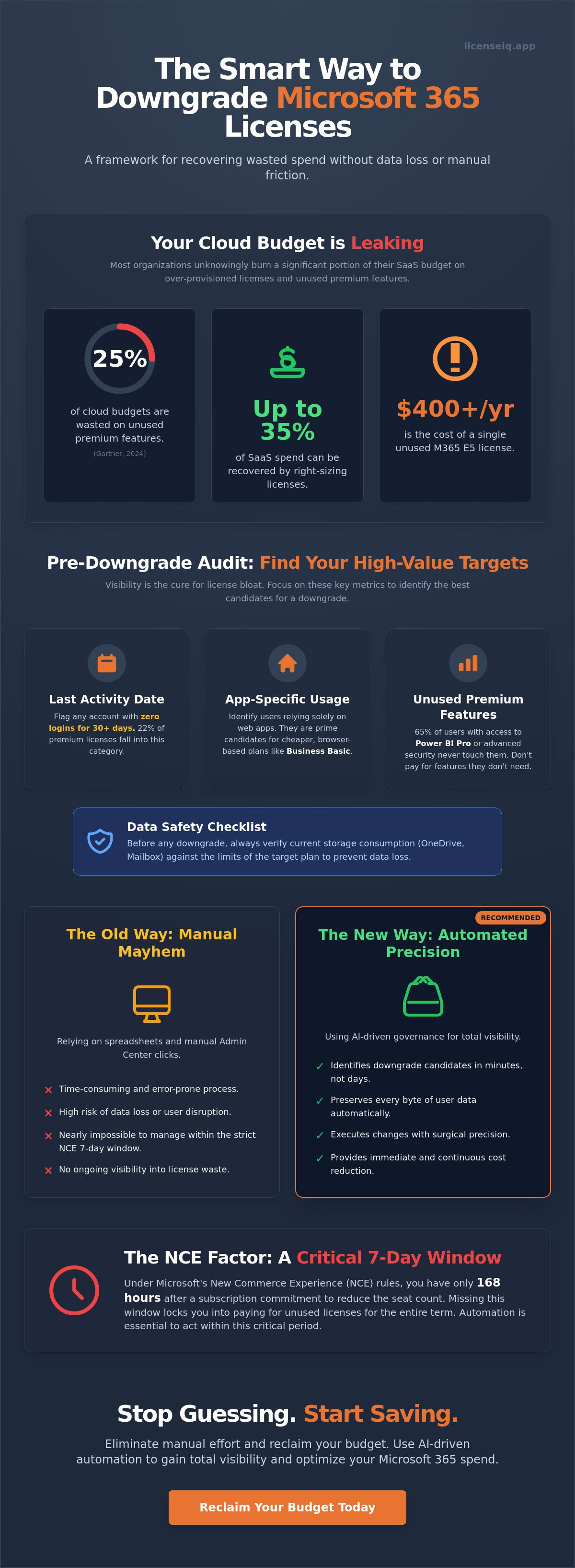
Most IT leaders are unknowingly burning 25% of their cloud budget on premium features that their users never touch, according to a 2024 Gartner report. You likely recognize that over-provisioning is a silent profit killer, but the technical friction to downgrade office 365 license tiers feels like a major liability. Between the strict 7-day NCE cancellation window and the fear of wiping a user's OneDrive history, it's often easier to just keep paying the premium price.
It's time to stop the leak. You deserve a process that prioritizes financial health without compromising your organization's data integrity. This guide provides the exact framework to execute license transitions with surgical precision while preserving every byte of user content. You'll learn to navigate 2026 Microsoft commerce rules, protect critical SharePoint files, and replace error-prone spreadsheets with automated spend recovery. We're moving from manual guesswork to total visibility and immediate cost reduction.
Key Takeaways
- Right-size your software stack to recover up to 35% of wasted spend by aligning license costs with actual user requirements.
- Identify high-value targets for optimization by auditing 30-day usage patterns across Teams, Outlook, and Word.
- Master the precise manual steps to downgrade office 365 license assignments within the Admin Center while ensuring total data preservation.
- Navigate the complex NCE 7-day rule to execute seat count reductions within the critical 168-hour commitment window.
- Eliminate manual effort by using AI-driven automated governance to uncover hidden costs and identify downgrade candidates in minutes.
The Financial Logic of Downgrading Microsoft 365 Licenses
IT leaders in 2026 don't just manage hardware. They manage margins. To downgrade office 365 license tiers is an act of right-sizing. This isn't about austerity; it's about surgical precision. You're aligning the cost of the Microsoft 365 suite with the actual daily requirements of your workforce. Research shows that typical organizations recover up to 35% of wasted SaaS spend through these optimizations. This capital flows directly back into your EBITDA, providing immediate relief to the bottom line.
You must distinguish between unassigning and downgrading. Unassigning removes a license entirely, which is ideal for offboarding. To downgrade office 365 license assignments means moving a user from a premium tier, like E5, to a leaner option like E3 or Business Basic. In 2026, manual waste is a leadership failure. Software Intelligence tools have replaced the messy spreadsheets of the past, making total visibility the new baseline for operational excellence.
Common Downgrade Scenarios in SMBs
Small and medium businesses often default to high-tier licenses during growth spurts. You'll often find power users on E5 plans who only touch Word and Outlook. Moving them to Business Standard saves immediate cash without affecting their workflow. Frontline or deskless workers are another goldmine. Transitioning them to F-series licenses provides the mobile access they need at a fraction of the cost. Finally, hunt for Ghost Users. These are paid seats assigned to contractors who left months ago or automated service accounts that don't need premium features.
The Cost of Inaction: How Much Are You Overpaying?
The math of neglect is brutal. A single unutilized E5 license costs upwards of $400 per year. In a company with 500 employees, even a 10% waste rate adds up to $20,000 annually. This License Sprawl usually stems from rapid hiring cycles or fragmented offboarding processes. Without visibility, you're essentially subsidizing Microsoft's bottom line at the expense of your own. You can quantify these losses and the potential for recovery by reviewing LicenseIQ's SaaS Spend Management ROI data. Visibility is the only cure for hidden costs. It's time to stop the leak and reclaim your budget for projects that actually drive growth.
Pre-Downgrade Audit: Identifying Your High-Value Targets
Visibility is the only cure for license bloat. You can't optimize what you can't see. Most IT departments discover that 22% of their premium licenses are assigned to users who haven't accessed a desktop application in over 30 days. This inactivity is your primary signal to downgrade office 365 license tiers and reclaim your budget. Start by pulling a usage report from the Microsoft 365 Admin Center to identify users with zero activity in Teams, Outlook, or Word during the last monthly cycle.
Analyze feature requirements with precision. High-cost licenses like E5 often include Power BI Pro and advanced security features that 65% of your workforce likely never touches. If a user only requires basic email and file storage, keeping them on a premium plan is a direct financial loss. Use a 'License Health Score' to rank users based on the gap between their assigned features and their actual behavior. This allows you to prioritize the most expensive over-licensed accounts for immediate action. Always cross-reference your list with HR data. This prevents you from accidentally downgrading active executives or employees currently on extended leave who still require their existing permissions.
Usage Metrics That Signal a Downgrade Opportunity
License Right-sizing is the process of matching user activity to the lowest possible cost tier.
- Last Activity Date: This is the most reliable indicator of a redundant license. Any account with zero logins for 30 days should be flagged for a tier drop or removal.
- App-Specific Utilization: Track whether users are opening desktop clients or relying solely on web-based versions. Users who only use the browser-based versions of Word and Excel are prime candidates for a move to Business Basic.
- Feature Overlap: Identify users who have access to advanced analytics or phone systems but never initialize those services.
Data Safety Checklist: Protect Your Assets
Data loss is the biggest risk during a license transition. Before you manually downgrade a license, you must verify current storage consumption against the limits of the target plan. Downgrading from an E3 or E5 plan to Business Basic reduces mailbox capacity from 100GB to 50GB. If a user's mailbox currently sits at 65GB, they will stop receiving emails the moment the change is applied.
Check OneDrive storage volumes as well. While premium plans offer 5TB or more, lower tiers often cap at 1TB. Archive any critical data that exceeds these limits before starting the migration. This proactive approach ensures a seamless transition without permanent data loss during the sync period. For organizations struggling to track these metrics across thousands of users, utilizing a specialized tool like LicenseIQ can provide the necessary transparency to automate these audits and uncover hidden costs instantly.
How to Manually Downgrade a License in the Microsoft 365 Admin Center
Manual license adjustments are the foundation of immediate cost recovery. To begin, log in to the Microsoft 365 Admin Center using Global Admin or Billing Admin credentials. Navigate to the Users tab and select Active Users. Locate the specific individual whose seat requires optimization. This manual process allows you to downgrade office 365 license assignments for specific high-cost users without impacting the rest of your tenant.
Inside the user's profile, select the Licenses and apps tab. Uncheck the box for the premium license, such as Microsoft 365 E5. Immediately select the new, lower-tier license to replace it. Save your changes. This sequence is vital. If you unassign a license without a replacement, the user may lose access to critical services like Exchange Online or SharePoint. Executing the swap in one session minimizes downtime to near zero.
After updating the user, you must address the financial leak. Unassigning a license does not stop Microsoft from billing you for that seat. You must navigate to Billing and then Your Products to finalize the reduction. Select the original high-tier subscription and decrease the total seat count to match your current needs. For organizations managing complex environments, LicenseIQ provides the visibility needed to identify these surplus seats before they inflate your monthly invoice.
Step 1: Unassigning vs. Deleting
Unassigning a license is a surgical administrative action. It's not a destructive one. When you uncheck a license, the user's account and data remain intact. Microsoft provides a 30-day grace period for data retention. During these 720 hours, the data is accessible if you reassign a compatible license. Don't confuse this with deleting a user, which initiates a permanent purge after the retention window closes. Always ensure the new license SKU is already purchased and available in your inventory before you begin the unassignment process. This prevents sync errors or mailbox access issues.
Step 2: Reducing the Subscription Seat Count
The most common mistake IT leaders make is forgetting to reduce the 'Seat Count' after unassigning a license. If your subscription shows 100 seats but only 95 are assigned, you're still paying for 5 ghost seats. Navigate to Billing > Your Products to modify the quantity of the original subscription. Under the New Commerce Experience (NCE), you typically have a 7-day window after a purchase or renewal to reduce seat counts. If you're outside this window, you're committed to the cost until the next renewal date. This makes timing and data-driven decision-making essential for financial health.
The NCE Factor: Navigating Commitment Windows and 7-Day Rules
The New Commerce Experience (NCE) fundamentally changed how IT leaders manage their software spend. It replaced legacy flexibility with rigid, enforceable terms. Under NCE, the ability to downgrade office 365 license counts is no longer a localized admin task you can perform at any time. It is a high-stakes financial event dictated by the calendar. You must understand that NCE prioritizes commitment over agility, making proactive planning the only way to avoid paying for "ghost" seats.
The 7-day rule is the most critical hurdle. You have exactly 168 hours from the moment of purchase or renewal to reduce your seat count. Once this window closes, you are financially locked into that quantity for the duration of the term. For many organizations, the 20% premium on monthly subscriptions is a necessary insurance policy. While annual commitments offer lower unit costs, they eliminate the ability to scale down mid-year. If your organization experiences a 10% reduction in force, an annual commitment forces you to pay for those empty seats for the remainder of the 12-month term.
Understanding the Cancellation Window
Visibility is your primary defense against wasted spend. You must identify the specific renewal date for every SKU in your tenant. These dates are rarely aligned; your E3 licenses might renew in March while your Power BI Pro seats renew in June. If you miss that 168-hour window, the financial commitment is absolute. Before you lock in your next term, consult this Microsoft 365 E3 vs. E5 Comparison to determine if your current seat count provides actual ROI or just unnecessary overhead.
Strategies for Mid-Term Downgrades
If you miss the window to downgrade office 365 license quantities, you must pivot to the "Swap" method. Stop purchasing new licenses for new hires. Instead, reassign the high-tier licenses from departed employees or those who don't utilize the full feature set. This prevents the accumulation of unassigned licenses that sit idle on your balance sheet. While you can try negotiating with your Cloud Solution Provider (CSP) for exceptions regarding accidental upgrades, these are rarely granted after the first 48 hours.
Manual tracking via spreadsheets is a guaranteed way to lose money. Most IT teams miss renewal windows because they lack a centralized alert system. Automated governance is the only reliable method to catch these 7-day windows before they shut. You need a system that monitors utilization and flags surplus seats at least 14 days before the renewal date, giving you time to make data-driven decisions.
Automating Spend Recovery: The Professional Alternative to Manual Clicking
Manual management is the enemy of operational efficiency. Clicking through the Microsoft 365 Admin Center to downgrade office 365 license assignments for hundreds of users wastes hours your team doesn't have. LicenseIQ eliminates this manual labor through Automated Governance Workflows. Our AI engine scans your entire tenant in minutes. It identifies "Downgrade Candidates" by analyzing 180 days of activity data across the entire suite, ensuring no one loses access to tools they actually use.
Visibility is your strongest tool for financial control. The Spend Recovery Dashboard translates underutilized features into hard currency. You see the exact dollar value available for reclamation immediately. The system identifies specific waste patterns:
- Users with premium licenses who only use basic web apps.
- Inactive accounts that haven't logged in for 90 days or more.
- Redundant service plans that overlap across different subscription tiers.
This shifts your strategy from reactive cleanup to a proactive stance. You stop chasing waste. You prevent it from occurring in the first place. Data replaces assumptions, and automation replaces the spreadsheet grind.
The LicenseIQ Health Score
Your license efficiency shouldn't be a mystery. The LicenseIQ Health Score provides a 0-100 rating that benchmarks your current utilization against industry standards. A low score often points to Redundant Licenses. These are seats paid for but never assigned, or premium tiers assigned to users who only need basic functionality. High-performing IT teams use this score to target waste with surgical precision. You can Run a SaaS License Health Check right now to uncover up to 35% in potential savings within your 2026 budget.
Setting Up Governance Guardrails
Automation ensures your optimization efforts stick over the long term. Set up governance guardrails to trigger alerts when a user's activity drops below their specific license threshold. If an E5 user hasn't touched advanced security or analytics features in 60 days, the system flags them for a downgrade office 365 license workflow. This ensures every new purchase is justified by actual usage data. You maintain a lean, compliant environment without the administrative overhead. To get started, Connect LicenseIQ to your tenant for a 5-minute audit and see your real-time utilization data.
Turn Visibility Into Immediate ROI
Efficient license management requires more than technical knowledge; it demands a proactive stance on fiscal health. You now have the framework to audit high-value targets and navigate the rigid 7-day NCE commitment window. While you can manually downgrade office 365 license seats through the admin center, manual intervention often fails to capture the 35% of SaaS spend that remains underutilized in most SMB environments. Real efficiency requires moving beyond spreadsheets toward automated governance.
LicenseIQ eliminates the guesswork by providing total visibility into your software stack. Our AI-native platform connects to your tenant in minutes to uncover hidden costs and deliver actionable spend recovery insights. It's a specialist tool designed specifically for SMB license governance. Stop overpaying for features your team doesn't use and start reclaiming your IT budget today.
Discover your M365 Health Score and recover up to 35% of your spend with LicenseIQ.
Your path to a leaner, more transparent software stack is just a few clicks away.
Frequently Asked Questions
Will I lose my emails if I downgrade from Microsoft 365 E5 to Business Basic?
No, you won't lose your emails, but you must manage storage thresholds carefully. An E5 license provides 100 GB of mailbox space, while Business Basic offers only 50 GB. If a user's mailbox currently occupies 65 GB, they'll stop receiving new messages after you downgrade office 365 license tiers until the size is reduced. Audit your storage utilization before making the switch to ensure service continuity.
Can I downgrade a license in the middle of an annual contract?
You can't reduce seat counts or lower license tiers mid-term under Microsoft's New Commerce Experience (NCE) rules. NCE policies provide a strict 72-hour window for changes after a purchase or renewal. Once that window closes, you're committed to that tier for the full 12-month term. Plan your optimization strategy 30 days before your anniversary date to capture these cost-saving opportunities and eliminate waste.
How long does it take for a license downgrade to reflect on my Microsoft invoice?
Changes typically appear on the next billing statement following the modification. Microsoft generates invoices on a monthly cadence for most enterprise agreements. If you adjust a seat on the 15th of the month, the prorated credit or adjusted rate reflects in the subsequent month's report. This predictable timing ensures 100% transparency in your SaaS expenditure and allows for precise financial forecasting for the next quarter.
What happens to a user's OneDrive files when their license is downgraded?
Files remain accessible if the total data doesn't exceed the new tier's limit. When you downgrade office 365 license assignments from E5 to Business Basic, the storage cap often drops from 5 TB to 1 TB. If a user has 2 TB of data, their OneDrive enters a "read-only" state for a 30-day grace period. You must migrate or delete excess data within this timeframe to prevent permanent access restrictions.
Is there a limit to how many times I can change a user's license tier?
Microsoft doesn't set a technical limit on how often you can reassign licenses within your available pool. However, your contract terms dictate how many licenses you actually own. Frequent manual switching often indicates a lack of visibility into user requirements. Use 90 days of activity data to assign the correct tier once, rather than reacting to monthly fluctuations in shadow IT activity or user requests.
How do I know which users are eligible for a downgrade?
Identify eligibility by analyzing feature utilization over the last 90 days. If a user hasn't accessed Power BI, specialized security tools, or advanced analytics, they're prime candidates for a lower tier. Industry data shows that 30% of enterprise software features go completely unused. Monitoring these specific metrics allows you to reclaim your budget and stop paying for dormant capabilities that don't drive business value.
Does Microsoft 365 offer a 'downgrade' button in the Admin Center?
No dedicated "downgrade" button exists in the Microsoft 365 Admin Center. You must manually unassign the current license and then assign the new, lower-tier license to the user profile. This sequence is critical to ensure the user doesn't lose access to their desktop applications during the transition. Managing this process for 500 or more users is inefficient, making automated management tools essential for operational accuracy.
Can I mix and match different license tiers within the same company?
You can absolutely combine various license tiers within a single tenant to optimize your software stack. Large organizations frequently deploy E5 for executive teams while using F3 or Business Basic for frontline workers. This hybrid approach ensures you only pay for the value delivered to each specific role. It's a proactive way to maintain compliance while aggressively reducing unnecessary overhead across your entire digital infrastructure.


