

What if a seasonal employee’s assignment ends, but their Microsoft 365 access and license remain active? Managing licenses for seasonal or temporary employees gets complicated when start dates shift, end dates change, and managers request more access than a role requires. A one-time license assignment won’t keep pace with those changes.
You need a repeatable process that gives each temporary worker the access required for their role, with clear checkpoints to review assignments and confirm end dates. Just as important, don’t remove a license before considering account access, business data, and continuity needs.
This guide explains how to build a time-bound Microsoft 365 licensing lifecycle, from provisioning and role-based access to scheduled reviews and responsible offboarding. You’ll learn how to make hiring changes visible, decide when licenses can be reclaimed, and reduce the chance that unused assignments linger after temporary work ends.
Key Takeaways
- Manage licenses for seasonal or temporary employees as a lifecycle, with ownership and checkpoints from onboarding through offboarding.
- Match access to each worker’s actual tasks and required Microsoft 365 services, rather than defaulting to a familiar license bundle.
- Record start dates, review dates, end dates, and responsible managers so changing assignments don’t disappear from view.
- Before reclaiming a license, confirm access decisions and review data and business continuity needs with the appropriate stakeholders.
- Use recurring visibility into assignment status, account activity, and exceptions to identify licenses that need review. Don’t assume every flagged assignment is waste.
Why managing Microsoft 365 licenses for temporary employees needs a lifecycle
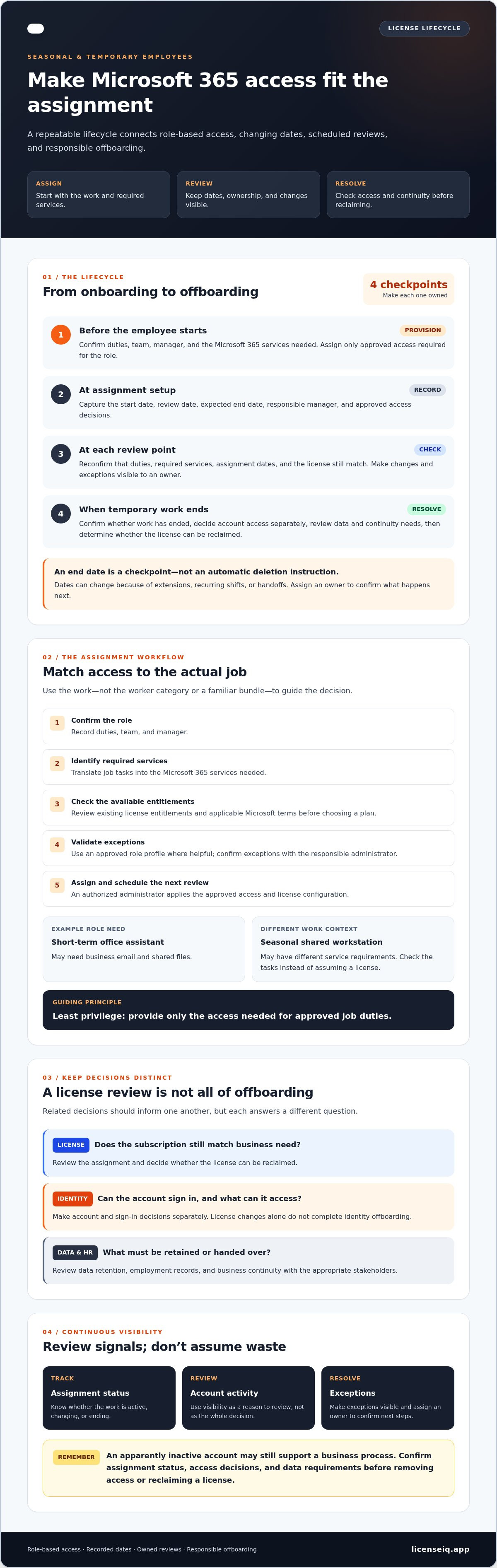
Temporary-worker license governance is the process of planning, assigning, reviewing, and reclaiming Microsoft 365 access around the dates and requirements of an assignment. That lifecycle matters because a hire’s start date or contract length doesn’t, by itself, determine which services they need. A short-term office assistant may need business email and shared files, while a seasonal worker using a shared workstation may have different requirements.
Managing licenses for seasonal or temporary employees means checking the work, not just the worker category. Define the tasks, identify the Microsoft 365 services those tasks require, and set a review point before access is assigned. This is a practical application of Software asset management (SAM), which treats software use and cost as ongoing areas of oversight rather than one-time purchasing decisions.
Keep related decisions distinct. License oversight tracks whether an assigned subscription still matches business need. Identity security determines whether an account can sign in and what it can access. Data retention and HR offboarding determine how information and employment records are handled. These processes should inform one another, but a license review alone doesn’t complete offboarding or protect data.
Which temporary worker groups need distinct license reviews?
Seasonal employees may return for a busy period, fixed-term hires may have a defined project end, and contractors may work under a separate manager or engagement process. Returning seasonal workers may seem familiar, but their duties, teams, or service needs could have changed. Use the worker group to route a review, not to assume a license. Base the decision on required Microsoft 365 services and document who confirms them. For recurring hires, reuse the workflow, not an old license or access profile. Check each worker’s needs again.
What can go wrong when assignments have no review date?
If an assignment ends without a review, a license may remain allocated after the business need has changed, creating avoidable spend. The account may also remain enabled, so access can persist unless sign-in and identity decisions are handled separately. Neither outcome should be assumed: an apparently inactive account may still support a business process, and a temporary worker’s data may need review. Confirm the manager, assignment status, and data requirements before deciding whether to remove access or reclaim a license.
A recorded end date gives HR, the manager, and IT a checkpoint, not an automatic deletion instruction. Dates change, and extensions, recurring shifts, or handoffs can affect the decision. Treat exceptions as visible items to resolve, and assign an owner to confirm whether the work has ended and what should happen next. This connects license-spend reviews to operational decisions without confusing cost control with account security or data governance.
How to assign the right Microsoft 365 access before a temporary employee starts
Start with the work, not a default license bundle. A hiring manager who asks for “the same setup as last season” may overlook changed duties or services the new employee won’t use. A consistent intake process helps IT provision only what the role requires and establishes who will review the assignment later.
Least-privilege access should guide every temporary-user assignment: provide only the access needed to perform approved job duties.
Match Microsoft 365 access to actual job duties
Ask the manager to describe the employee’s tasks and service needs. Will they use Exchange Online for business email, Teams to communicate, or SharePoint to work with team files? Check the organization’s existing license entitlements and applicable Microsoft terms before assigning anything. An approved role profile can speed up the decision, but validate exceptions with the responsible administrator. Don’t select a specific plan until its features and current licensing conditions have been checked.
Use this five-step workflow to make the decision repeatable:
- Confirm the role: Record the employee’s duties, team, and manager.
- Identify required services: Translate those duties into the Microsoft 365 services they need.
- Assign access: Have an authorized administrator apply the approved access and license configuration. Microsoft’s guide explains how to assign or unassign licenses in the admin center.
- Set review dates: Record the expected end date and a checkpoint before it, so changes can be reviewed in time.
- Document ownership: Name the manager who confirms business need and the administrator or workflow owner who handles provisioning and review.
Record ownership, dates, and approval before provisioning
Capture the role, start date, expected end date, reason for access, manager, and approval before provisioning the account. If the assignment changes, update the record instead of relying on an informal conversation. A review checkpoint before the expected end date gives the manager time to confirm an extension, changed duties, or a planned departure.
Dates should trigger a review, not an unexamined decision. A scheduled workflow can remind the owner or surface an assignment for confirmation, but it shouldn’t replace human approval when access needs, account status, or business circumstances are unclear. This is especially useful for recurring seasonal hiring: reuse the intake and approval process, then verify each person’s duties and access instead of automatically copying a previous setup.
A documented process also makes license oversight more transparent. For added visibility into Microsoft 365 license assignments, LicenseIQ’s license management platform can help organizations review license-level insights alongside their own provisioning approvals.
Temporary employee license options: compare role needs, duration, and workload
Choose a license by matching required services to the work, then plan how long the assignment needs access and who will review it. A short assignment isn’t automatically a light-access role, and a recurring seasonal position doesn’t automatically need the same setup each time. For example, a temporary employee who needs business email may have different requirements from a frontline worker who needs Teams and SharePoint but no mailbox.
Microsoft 365 F1 and F3 are intended for eligible frontline workers, while Business Basic may suit some small-team roles needing web and mobile Office apps, email, Teams, and SharePoint. These are starting points, not universal recommendations. Confirm the job’s feature requirements, frontline eligibility where relevant, your organization’s entitlements, and current Microsoft licensing terms with your administrator.
| Work scenario | Required services to confirm | Access duration | Review owner | End-of-assignment action |
|---|---|---|---|---|
| Short assignment | Email, Teams, or specific files and sites needed for the task | From approved start date through expected end date | Hiring manager and Microsoft administrator | Confirm the work is complete, review account and data needs, then decide access and license actions |
| Recurring seasonal work | Services required for this season’s duties, checked against the prior setup | For the current assignment, with a review before its end | Seasonal team manager or designated owner | Review the former worker’s access and data obligations before considering license reassignment |
| Temporary role with ongoing service needs | Services needed for continuing project work, collaboration, or information access | Through the approved assignment period, with extensions reviewed | Project manager and administrator | Confirm any extension or handoff; otherwise review account status, data, and license separately |
When does a temporary role need a full individual account?
An individual account may be appropriate when a worker needs personal access to email, collaboration, files, or other Microsoft 365 services, or when the organization needs clear identity and data ownership. Temporary status alone doesn’t make a shared account or borrowed credentials suitable. Ask the Microsoft administrator to confirm license eligibility, service terms, and the organization’s account policy before provisioning.
Can recurring seasonal teams reuse the same license?
Possibly, but don’t treat a returning worker or available license as automatic approval. Check current licensing terms and organizational policy, then confirm the prior user’s access and data obligations have been addressed. A license assignment and an account’s active status are separate decisions: unassigning a license doesn’t, by itself, determine whether the account should remain active. Shared credentials aren’t a safe shortcut for reducing license spend.
How to review, offboard, and reclaim licenses when temporary work ends
Use the expected end date to start a review, not to trigger automatic account deletion or license removal. Managing licenses for seasonal or temporary employees responsibly means confirming the work has ended, protecting required data, and documenting each decision before changing access.
- Confirm the end date: Check the assignment record and ask whether an extension or handoff is planned.
- Consult the manager: Confirm that no approved work remains and identify anyone who needs continued access to the employee’s files or communications.
- Review access and data: Check sign-in and access decisions separately from mailbox, OneDrive, Teams, and SharePoint data responsibilities. Follow organizational retention and continuity policies, and verify current Microsoft guidance before making changes.
- Decide license actions: Once requirements are clear, determine whether to remove the license and whether it can later be reassigned under your organization’s policy and applicable terms.
- Record the outcome: Document the decision, approver, date, and any exception or follow-up owner.
What should administrators check before reclaiming a license?
Confirm that the assignment has ended and the manager has no remaining work planned. Then identify who owns relevant mailbox, OneDrive, Teams, and SharePoint information, and whether records or files need to be retained or transferred. Removing a license doesn’t decide whether an account should remain active, and disabling sign-in doesn’t resolve data ownership. Treat these as separate administrative decisions under your organization’s policies.
For a broader sequence of account, access, and data tasks, use this Microsoft 365 offboarding checklist alongside your internal HR and IT process.
How can teams handle extensions and returning seasonal staff?
For an extension, record the revised end date, obtain manager approval, and update the review reminder. Don’t let an informal extension leave the original record in place. For a returning worker, reassess identity status, role, required access, and license fit. A prior account or assignment may not suit the new work, especially after a gap. Confirm account and data requirements before restoring access or assigning a license.
Keep the evidence in one auditable record, including the final access decision and any data-handling exception. To improve visibility into Microsoft 365 license assignments and identify items needing review, explore LicenseIQ’s license oversight. Automated governance can support documented HR and IT decisions, but it shouldn’t replace the people responsible for approving offboarding actions.
Make seasonal license governance continuous with Microsoft 365 visibility
A provisioning and offboarding process is stronger when teams can see which temporary-user assignments still need attention. Recurring reviews can surface records with missing end dates, overdue checkpoints, or unclear ownership. Treat these as prompts to investigate, not proof of waste. An active license may still support approved work, and an inactive account may have data or continuity needs that should be reviewed first.
What should a seasonal workforce license dashboard show?
Build a view that brings the key decision signals together. For each assignment, track:
- License assignment and user status: What is assigned, and whether the account is active or otherwise flagged for review.
- Review and end dates: When the next confirmation is due and when the assignment is expected to conclude.
- Accountable owner: The manager who confirms business need and the administrator responsible for follow-up.
- Exceptions: Extensions, missing approvals, data-handling needs, or other reasons an assignment needs human review.
Set review intervals around hiring cycles and assignment extensions, then adjust them when dates change. Keep potential license recovery recommendations separate from approved operational decisions. A dashboard can identify where to look; managers and administrators determine whether access or a license can be changed.
Where can automation help without replacing governance?
Automate reminders for upcoming end dates, flag records without a review owner, and route exceptions for confirmation. These repeatable steps reduce reliance on manual tracking, but they shouldn’t make access, data-retention, or reassignment decisions without the responsible people’s approval.
For organizations seeking Microsoft 365 license visibility, LicenseIQ’s platform includes a License Health Score and license-level recommendations to help identify assignments for review. Its automated governance workflows support oversight alongside documented HR and IT decisions. For broader approaches to reviewing assignments and spend, see the Microsoft 365 license optimization guide.
Managing licenses for seasonal or temporary employees becomes more reliable when each finding has an owner, a review date, and a documented outcome. If you’re exploring ways to strengthen that visibility, you can review LicenseIQ’s governance capabilities.
Build a repeatable license lifecycle
Managing licenses for seasonal or temporary employees works best as a continuing governance process, not a one-time setup. Match Microsoft 365 access to each worker’s actual duties, record assignment dates and accountable owners, then review access and data needs before making offboarding decisions.
Keep three checkpoints visible: provisioning before the employee starts, a review during the assignment, and a closeout when work ends. A date on the calendar should prompt confirmation, not trigger automatic account or license changes. Managers and administrators still need to decide whether work has ended, what data must remain available, and whether a license can be reclaimed.
Ongoing visibility can help teams identify assignments that need attention. LicenseIQ provides Microsoft 365 tenant monitoring and license-level recommendations, along with a License Health Score and automated governance workflows. Use recommendations to support, not replace, documented business decisions.
Ready to strengthen oversight of temporary-user assignments? Explore LicenseIQ's Microsoft 365 governance capabilities and build a clearer, more repeatable process for your team.
Frequently Asked Questions
How should a company manage Microsoft 365 licenses for seasonal employees?
Manage each assignment as a lifecycle, from role review through offboarding. Confirm the employee’s tasks and required services, record the manager, start date, and expected end date, then schedule a review before the assignment ends. Coordinate access and data decisions with the manager and Microsoft administrator. Reclaim or reassign a license only after checking applicable Microsoft terms and organizational requirements. This process makes managing licenses for seasonal or temporary employees more consistent.
Do temporary employees need their own Microsoft 365 license?
It depends on the employee’s duties, required services, identity needs, and your organization’s licensing terms. A short assignment doesn’t automatically mean a worker can use a shared account or another person’s license. Ask your Microsoft administrator to confirm the appropriate account and license for the role. Document who approved the access and when it should be reviewed, especially if the assignment’s duties or expected duration change.
Can a Microsoft 365 license be reused after a seasonal employee leaves?
A license may be reassigned after the organization checks applicable licensing terms and completes its access and data review. The end of an assignment doesn’t, by itself, determine what should happen to the user account, mailbox, or files. Coordinate with the manager and administrator, confirm retention and continuity requirements, and record the decision. Reassign the license only when the organization has confirmed it’s appropriate and the necessary review is complete.
When should a company remove a temporary employee’s Microsoft 365 license?
Schedule a review before the expected end date, then confirm with the manager whether the work has ended or been extended. Before changing the license assignment, coordinate account access, business data, and retention responsibilities with the relevant owners. If the end date changes, update the assignment record and approval. Avoid automatic removal unless the workflow accounts for exceptions and has been checked against current licensing requirements.
Is it safe to share one Microsoft 365 account among seasonal workers?
Shared credentials can weaken accountability and make it harder to manage access to work and data. Don’t use a shared sign-in as a shortcut to reduce license spend. First, ask an administrator to assess each worker’s identity, duties, service requirements, and applicable licensing terms. Then follow your organization’s security and access policies. If considering a shared approach, confirm that it’s permitted and suitable before implementation.
How can a company track Microsoft 365 licenses for temporary staff?
Maintain a current record linking each user to their role, manager, required services, start date, expected end date, and review status. Reconcile it against Microsoft 365 license assignments on a recurring schedule. Track extensions and exceptions, and separate potential license recovery from approved access or data decisions. Governance tools can improve visibility, but a manager or administrator should remain accountable for reviewing each flagged assignment and confirming what action is appropriate.
What happens to a temporary employee’s data when their Microsoft 365 license is removed?
The outcome depends on the account action, services involved, organizational policies, and applicable Microsoft terms. Removing a license and changing account access are separate decisions, and license removal alone doesn’t settle data ownership or retention. Before making changes, identify owners for relevant email and files, confirm retention and continuity needs, and consult current Microsoft guidance. Document the action, approver, and any follow-up needed to keep required information available.


