

What happens to a license when a user is converted to shared mailbox? The conversion changes the mailbox type, not the subscription assignment: Microsoft 365 doesn’t automatically remove the license. A paid license may remain assigned after a role change, but removing it too soon can affect features the organization still relies on. The key question isn’t just whether the mailbox is shared. It’s what the mailbox and associated account still need.
Before reclaiming the license, review the mailbox’s size, archive and retention settings, access needs, and other licensed services. This guide explains what conversion preserves, when an unlicensed shared mailbox may be sufficient, and which conditions can require licensing. Follow a safe sequence: confirm the conversion, check mailbox requirements and access, then handle licensing and account controls separately. This helps reduce avoidable spend without putting mailbox data or access at risk.
Key Takeaways
- Conversion changes the mailbox type, but the license remains assigned until an administrator removes it.
- Understand what happens to a license when a user is converted to shared mailbox, and treat mailbox, account, and license decisions separately.
- Review storage, archive, retention, and service dependencies before deciding whether to remove or retain licensing.
- Use a step-by-step review to confirm conversion, access, requirements, and the outcome without disrupting mailbox use.
- Record the licensing decision, access owners, retention needs, and review date so lingering assignments can be caught through ongoing governance.
What happens to the Microsoft 365 license after mailbox conversion?
Converting a user mailbox to a shared mailbox changes the mailbox type, but it doesn’t automatically remove the Microsoft 365 license assigned to the user account. License removal is a separate administrative action. Whether to remove it depends on the mailbox’s ongoing needs, including storage, archive, retention, and other licensed services.
That’s the direct answer to what happens to a license when a user is converted to shared mailbox: the assignment remains until an administrator reviews and changes it. The mailbox must have a license before conversion. Removing the license before conversion can disconnect the mailbox, which may be permanently deleted after 30 days unless a license is reassigned within that period.
Does converting a user mailbox automatically remove its license?
No. Treat conversion and license cleanup as separate steps in the admin workflow. After conversion, review the account’s assigned license and services before removing or changing anything. Tenant configuration and dependencies can affect the wider account, so don’t assume the mailbox is the only consideration.
The mailbox type, user account, and subscription assignment are three related but separate states. The mailbox becomes shared, the original account remains associated with it, and the license stays assigned until an administrator takes action. The account serves as the mailbox’s anchor, so don’t delete it as part of routine license cleanup. If the former user must no longer sign in, block sign-in separately.
What changes, and what stays the same, after conversion?
The mailbox takes on shared-mailbox behavior, and authorized colleagues typically access it through their own accounts rather than signing in directly. Existing email and calendar information, along with mailbox permissions, are retained during conversion. The underlying messaging technology is Exchange; for background on Microsoft Exchange Server, see its overview.
Mailbox data and license assignment are separate. Keeping the messages doesn’t mean the user’s license was removed, and changing the mailbox type doesn’t by itself disable sign-in, delete the account, or remove every service assigned to it. Review these states independently before deciding what to retain.
How a shared mailbox, user account, and license relate
Keep these three states separate. This makes it easier to review access and licensing without treating conversion as a complete account cleanup:
- Mailbox type: Determines whether the mailbox behaves as a user mailbox or a shared mailbox.
- Account identity: The user account remains associated with the mailbox and can be managed separately, including its sign-in status.
- License assignment: The subscription assigned to the account supports licensed services. It isn’t the same as mailbox permissions or mailbox type.
So, what happens to a license when a user is converted to shared mailbox is only one part of the review. Check access, account controls, and subscription assignment independently. For a straightforward explanation of plan differences, see this Microsoft 365 license types guide.
What does shared mailbox access mean for users?
Authorized colleagues access the shared mailbox through their own accounts and permissions. They don’t need to sign in as the former employee, and direct sign-in isn’t the intended access model. Each person accessing the mailbox needs their own account with a license that includes Exchange Online.
After conversion, review who has access and confirm permissions still match current responsibilities. Test the expected experience in the mail clients people use, too. A permission can be present while a user’s access or setup still needs attention. Microsoft’s official guide to converting a user mailbox explains the conversion process and related mailbox requirements.
Does the converted user account still exist?
Yes. Conversion doesn’t itself delete the account. The account remains linked to the shared mailbox, while administrators manage separately whether the former user can sign in and whether a license stays assigned.
For example, an organization may block the former employee’s sign-in while keeping the account and mailbox in place for delegated access. That is different from removing a license. Don’t delete the account as a shortcut for license cleanup: deletion can affect mailbox access and data. First verify the consequences for the mailbox, its delegates, and any data the organization needs to retain.
For ongoing oversight, LicenseIQ’s Microsoft 365 license insights can help surface assignments and potential waste for review, keeping mailbox changes visible alongside related license decisions.
When can you remove a shared mailbox license, and when should you keep it?
Remove a license only after checking what the mailbox and associated account still need. An unlicensed shared mailbox may be suitable when it’s under 50 GB and doesn’t rely on features that require a license. If the mailbox exceeds that limit, needs an archive or litigation hold, or depends on other licensed Microsoft 365 services, retain or change licensing to meet those requirements.
The main risk is making the decision based on mailbox type alone. Removing a license without checking dependencies can affect required functionality or retention protections. Microsoft’s official guide to converting mailboxes explains the conversion conditions. Verify current plan terms and your tenant’s configuration before making a change.
| Review license removal | Retain or change licensing pending review |
|---|---|
| Mailbox is under 50 GB and doesn’t need licensed features. | Mailbox is over 50 GB. Exchange Online Plan 2 raises the primary mailbox limit to 100 GB. |
| Archive, hold, and service requirements have been checked and don’t depend on the assigned license. | In-place archive or litigation hold is required. These scenarios need Exchange Online Plan 2, or Plan 1 with the Exchange Online Archiving add-on. |
| Other services assigned to the account aren’t needed, or have been addressed separately. | Microsoft 365 services, such as Defender for Office 365 or Purview eDiscovery, still depend on appropriate licensing. |
Which mailbox requirements can affect licensing?
Start with capacity, archive, and hold needs. A shared mailbox under 50 GB generally doesn’t need a license for its primary mailbox, but exceeding that limit changes the decision. An Exchange Online Plan 2 license increases the primary mailbox limit to 100 GB. Archive and litigation-hold needs have separate requirements, so don’t treat the primary mailbox limit as the only test.
Also distinguish Exchange requirements from licenses that support other services. A mailbox may meet the conditions for license removal while a dependent service assigned to the account still needs coverage.
What should you verify before removing a license?
Check the mailbox’s current size, archive status, retention policies and holds, and assigned service plans. Then confirm delegated users can still access the mailbox as intended after the change. Record the decision, its rationale, and a review date. This creates an audit trail and helps prevent license removal before its dependencies are understood.
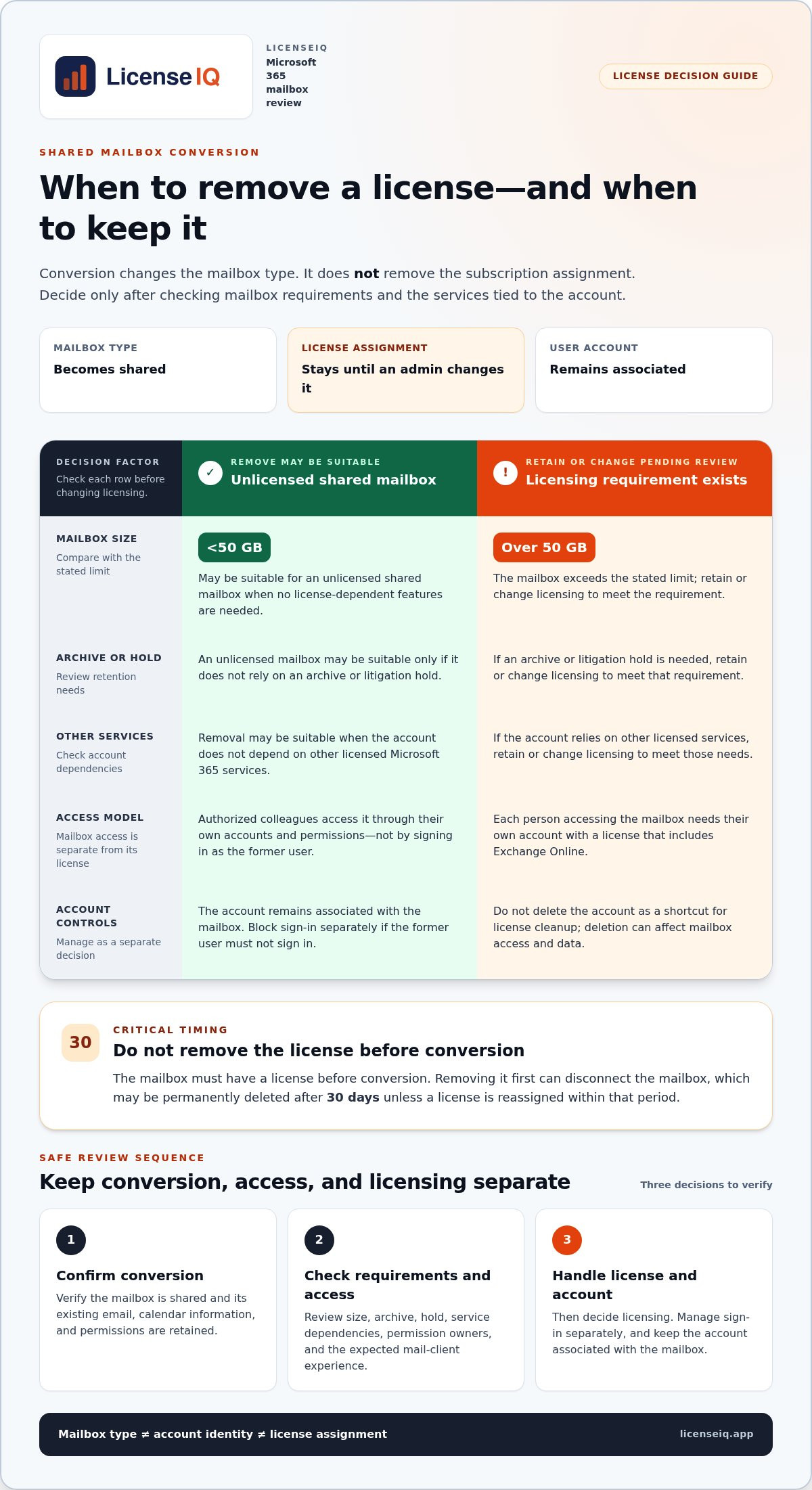
How to review a converted mailbox safely, step by step
Use a controlled review instead of automatically removing a license after conversion. Before making changes, capture the mailbox and account state, current license assignments, and access permissions. This gives you a reference point if the change affects a service or user workflow. For the wider employee departure process, see this Microsoft 365 offboarding checklist.
- Confirm conversion. Check that the mailbox is configured as shared. Record the associated account and its current sign-in status. Don’t assume conversion also changed the account or license.
- Inventory requirements. Review mailbox size, archive status, retention policies, holds, and services tied to the assigned license. Identify requirements that could be affected before changing an assignment.
- Review access. List the people with delegated access and confirm they still need it. Check permissions and the expected mail-client experience so you know what to validate after the licensing decision.
- Decide licensing. Compare the mailbox’s requirements with current Microsoft licensing conditions. Keep or change the assignment only after identifying required mailbox features and other dependent services.
- Validate and document. After the change, test access with an authorized delegate. Confirm required archive, retention, hold, and service features remain available. Record the final assignment, decision rationale, and review date.
What to capture before changing the license
Keep a concise record of the mailbox type, account status, assigned SKU and service plans, mailbox size, archive and retention configuration, and current delegates. This baseline makes the decision traceable and gives administrators a practical comparison if access or functionality changes. It also clarifies what happens to a license when a user is converted to shared mailbox: conversion and license cleanup are separate events.
Validate the outcome, not just the assignment
Use the Microsoft 365 admin center or PowerShell to review and manage the relevant settings, following current Microsoft guidance for the interface and commands. Then verify the mailbox from a delegate’s account, not by signing in as the former employee. If requirements may change, schedule a follow-up review rather than treating today’s decision as permanent.
For ongoing visibility into Microsoft 365 assignments and potential subscription waste, review LicenseIQ license governance insights.
Prevent licenses from lingering after shared-mailbox conversions
A conversion shouldn’t end with an assumption that the license is no longer needed or has already been removed. Add a documented post-conversion checkpoint to your governance process. Assign an owner to verify mailbox requirements and license state, then record a retain-or-remove decision based on current Microsoft requirements. This separates evidence-based license reclamation from automatic cleanup that could disrupt a needed service.
Track the details that make the decision clear later:
- Mailbox and account: mailbox type and associated account status.
- License: assigned license and relevant service plans.
- Ownership and access: review owner and delegated access owners.
- Requirements: mailbox size, archive, retention, and hold needs.
- Decision record: retain-or-remove outcome, rationale, and review date.
That record helps answer what happens to a license when a user is converted to shared mailbox across your tenant, not just for one mailbox. It also helps distinguish a valid license assignment from one that may have been overlooked.
What should a post-conversion governance checklist include?
Make the review an owned task in the conversion workflow. The named owner confirms the mailbox’s current requirements, checks assigned licensing, and documents why the license is retained, changed, or removed. Set a periodic review for shared mailboxes, especially when mailbox size, delegates, archive use, or retention needs change. Reassess against current Microsoft requirements instead of relying on an old decision.
How can license visibility support better decisions?
A mailbox inventory becomes more useful when reviewed alongside license assignments. This view can identify shared or otherwise changed accounts that still have licenses, giving administrators a focused list of candidates to investigate. A candidate isn’t automatically waste: service dependencies, access needs, and retention requirements determine whether the assignment is still justified.
LicenseIQ scans Microsoft 365 users and license assignments, and provides a License Health Score and spend-recovery recommendations. These insights can support ongoing review after mailbox or user changes, without presuming that a specific license should be removed. For a broader governance framework, read the Microsoft 365 license optimization guide, or explore LicenseIQ tenant insights for license oversight.
Turn mailbox changes into clear licensing decisions
The key takeaway is simple: mailbox conversion changes the mailbox type, not the license assignment. To decide what happens to a license when a user is converted to shared mailbox, review the mailbox’s size, archive and retention needs, dependent services, and delegated access before changing licensing. Keep the account, access controls, and subscription assignment as separate parts of the review.
A documented checkpoint helps prevent both lingering assignments and premature removals. Record the requirements, decision, owner, and review date, then revisit the mailbox if its access or retention needs change. Consistent visibility turns license reclamation into a governed decision, not a guess.
LicenseIQ provides tenant-wide visibility into users and license assignments, a License Health Score with spend-recovery recommendations, and automated governance workflows for ongoing oversight. Explore Microsoft 365 license governance with LicenseIQ and build a clearer view of assignments across your tenant. Use a repeatable review process to protect the access and retention your organization needs while making informed licensing decisions.
Frequently Asked Questions
Does converting a user mailbox to a shared mailbox automatically remove the license?
No. Mailbox conversion and license removal are separate administrative actions. The answer to what happens to a license when a user is converted to shared mailbox is that the assigned license remains until an administrator removes or changes it. First confirm the mailbox’s size, archive and retention needs, delegate access, and dependent services. Then document the licensing decision. Don’t assume the conversion itself reclaimed a subscription.
Can a shared mailbox keep a Microsoft 365 license?
Yes. A shared mailbox can retain an assigned license, but shared status alone doesn’t establish whether one is required. An unlicensed shared mailbox supports up to 50 GB of primary storage; above that, Exchange Online Plan 2 is required to raise the limit to 100 GB. In-place archive or litigation hold also has licensing requirements. Check the mailbox’s features and current Microsoft terms before removing an assignment.
When can you remove a license from a shared mailbox?
Consider removal only after confirming the mailbox doesn’t need licensed capacity, archive, retention, or other services tied to the assignment. An unlicensed mailbox can generally remain shared if its primary storage is under 50 GB and it doesn’t rely on features requiring a license. Check current Microsoft requirements for archive and hold scenarios, and verify delegated users retain access. Record why you removed or kept the license.
What happens to the mailbox data when you remove its license?
The outcome depends on the mailbox setup and applicable Microsoft service and retention rules, so don’t assume data is immediately deleted or permanently preserved. Confirm the mailbox was converted before removing its license, then review its size, archive, retention, and hold settings. Removing a license before conversion can disconnect the mailbox; Microsoft says it may be permanently deleted after 30 days unless a license is reassigned within that period. Validate access after any change.
Does converting a mailbox disable the user account?
No. Conversion doesn’t itself delete the associated account or change every sign-in setting. Manage sign-in controls separately from the mailbox and license. If the former user shouldn’t sign in, block sign-in while preserving the account state needed for authorized mailbox access. Don’t delete the account as a shortcut for license cleanup; first verify how deletion could affect delegates’ access and the mailbox data your organization needs to retain.
Do users need a license to access a shared mailbox?
Yes. Each person accessing a shared mailbox needs their own account with a license that includes Exchange Online. They access the mailbox through delegated permissions, not by signing in as the shared mailbox or former employee. Review who has access and confirm their permissions still fit their responsibilities. After a mailbox or license change, test access using an authorized delegate’s account and verify the expected mail-client behavior.
How do you find shared mailboxes that still have licenses assigned?
Compare shared-mailbox records with user and license assignments in Microsoft 365 administration tools. Reporting or PowerShell may help identify accounts to review, but validate commands and fields against current Microsoft documentation. Treat each match as a review candidate, not an automatic removal. Check mailbox size, archive, retention, delegate access, and dependent services first. LicenseIQ can also provide tenant insights into Microsoft 365 users and license assignments.


