

A license with no recent sign-in isn’t automatically safe to remove. Detecting unused microsoft 365 licenses means checking more than an activity report: assignment status, service usage, and the user’s or service owner’s needs all matter. Without that context, a cost-saving change could interrupt someone’s access or a critical service.
If you’re struggling to reconcile license assignments with user activity, you’re not alone. Admin screens and spreadsheets can make reviews slow, and incomplete evidence makes decisions risky. A reliable process brings those signals together and treats low activity as a reason to investigate, not an automatic reason to reclaim a license.
This guide explains how to find unassigned licenses, identify assigned licenses with little recent activity, and validate each potential recovery before making a change. You’ll review Microsoft 365 reporting options, learn what to check with account and service owners, and build a repeatable review process. The result is clearer visibility into subscription spend and more confidence that reclaimed licenses won’t disrupt work.
Key Takeaways
- Separate unassigned seats from licenses assigned to low-activity users. Each requires a different review.
- When detecting unused microsoft 365 licenses, combine assignment records with activity evidence instead of relying on a single metric.
- Use admin center reports for straightforward checks, and consider Graph PowerShell when you need more detailed usage data.
- Validate a potential recovery with the account or service owner, check dependencies, and follow your organization’s change policies before removing access.
- Make reviews repeatable by recording each license’s status, evidence, owner, decision, and next review date.
What Counts as an Unused Microsoft 365 License?
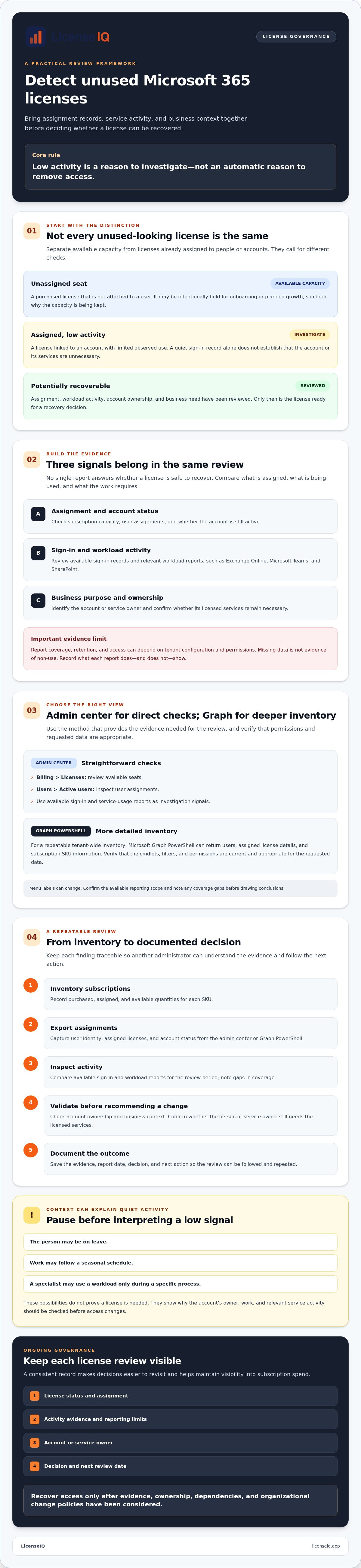
An available seat is a purchased license that isn’t assigned to a user. A potentially recoverable license is assigned but may no longer be needed after its activity and business purpose are confirmed. The distinction matters. An unassigned seat may be intentionally held for onboarding or planned growth. An assigned license belongs to an account, and removing it could affect access or services.
This is a practical Software Asset Management (SAM) question. Effective license oversight compares three kinds of evidence: what the tenant assigns, what activity reports show across workloads, and whether there’s a current business need. None of these answers the full question alone. That’s the central discipline behind detecting unused microsoft 365 licenses.
Unassigned license versus assigned license with low activity
An unassigned seat appears in the subscription’s available quantity and isn’t attached to a user. It may be spare capacity rather than waste, so check why the organization holds it before changing the subscription. An assigned license, by contrast, is linked to an account. If that account appears inactive, treat the finding as a prompt to investigate, not an instruction to remove the license.
Why Microsoft 365 activity needs context
People use Microsoft 365 services at different frequencies. Someone may rarely sign in but still rely on a particular workload for a periodic responsibility. Leave, seasonal schedules, and specialist roles can all explain gaps in activity. A single sign-in field may not show activity across every service, so check the relevant workload evidence and reporting scope before drawing conclusions.
For example, an account with no recent sign-in could belong to an employee on leave or a specialist who uses a service only during a specific process. Those possibilities don’t prove the license is needed; they show why you need to check ownership and business context. Confirm the account is still active, identify who owns its work, and ask whether its licensed services remain necessary.
Use the evidence to classify each finding:
- Unassigned: available capacity with no user assignment.
- Assigned, low activity: a license linked to an account with limited observed use.
- Potentially recoverable: a license whose assignment, workload activity, and business need have all been reviewed.
Only the final category is ready for a recovery decision. Low activity helps focus the investigation, but it doesn’t establish that access can be removed safely.
How to Detect Unused Microsoft 365 Licenses with Admin Tools
A focused review combines subscription capacity, user assignments, and activity evidence. Check license assignment and service activity separately. Neither check alone proves that a license is unnecessary. This distinction keeps the investigation useful without turning a low-activity flag into an automatic removal decision.
Check unassigned users and license assignments
Start in the Microsoft 365 admin center. Review available seats under Billing > Licenses, then inspect user assignments under Users > Active users. Menu labels can change. For a repeatable tenant-wide inventory, Microsoft Graph PowerShell can return users and their assigned license details alongside subscription SKU information. Verify that the cmdlets, filters, and permissions you plan to use are current and appropriate for the data requested.
Review sign-in and workload activity
Use available sign-in records and service-usage reports as investigation signals. If you’re reviewing a specific workload, look beyond general sign-in activity and check relevant Exchange Online, Microsoft Teams, and SharePoint reports where available. Report coverage, retention, and access depend on tenant configuration and permissions. Missing data isn’t evidence of non-use, so record what each report does and doesn’t show.
Follow this workflow to turn those sources into a reviewable inventory:
- Inventory subscriptions. Record purchased, assigned, and available quantities for each SKU.
- Export assignments. Capture user identity, assigned licenses, and account status from the admin center or Graph PowerShell.
- Inspect activity. Compare available sign-in and workload reports for the review period, noting any gaps in coverage.
- Validate. Flag findings for investigation, then check account ownership and business context before recommending a change.
- Document. Save the evidence, report date, decision, and next action so another administrator can follow the review.
The admin center is often enough for a one-time review of a small tenant or a straightforward count of available seats. Graph PowerShell is useful when you need a consistent export across many users, want to repeat the same checks, or need to compare assignment details at scale. It doesn’t replace workload reporting or owner validation. Software asset management helps organizations reduce waste and costs through disciplined tracking.
For teams that want ongoing visibility beyond periodic exports, LicenseIQ offers license intelligence, a License Health Score, and spend-recovery recommendations to help prioritize findings for manual validation. Learn more about automated Microsoft 365 license governance.
How to Tell Whether a License Is Truly Recoverable
A low-activity flag is a lead, not a decision. Before reclaiming a license, establish whether the account still has a business purpose, which services its assignment enables, and who can approve a change. Reviewing Microsoft 365 license types can help clarify what access or capabilities may be affected.
Consider the account’s status, available activity evidence, and business context together. This comparison can help determine the right next step:
| Finding | What it indicates | Review action |
|---|---|---|
| Unassigned seat | Purchased capacity isn’t attached to a user. It may be reserved for planned hiring or another need. | Confirm whether the organization still needs the capacity before changing the subscription. |
| Inactive account with a license | An assigned account shows little or no recent activity. It may belong to a former employee, someone on leave, or a process account. | Verify account status and ownership through approved processes. Ask the manager or service owner to confirm its purpose. |
| Low-usage assigned license | Based on available reports, the user appears to use only some of the services included in the assignment. | Compare service use with the person’s role and responsibilities. Confirm whether a different assignment would still meet their needs. |
Signals that justify a closer license review
A long period without activity in a relevant service can justify a closer look, but no single sign-in date or usage metric proves a license is unnecessary. Compare the assigned services with the user’s role and documented responsibilities. Check employment status, leave records, and account ownership only through your organization’s approved processes. Then ask the manager or account owner to confirm business need before changing access or assignments.
Dependencies to verify before reclaiming a license
Some accounts support more than one person or a shared business process. Check whether the account is tied to shared workflows, devices, or operational tasks. Ask the responsible administrator to assess mailbox and file access, retention needs, and other access implications. If the account supports a service rather than an individual, consult that service’s owner instead of relying on a line manager alone.
When detecting unused microsoft 365 licenses, make the decision traceable. Record the evidence reviewed, the reviewer, owner confirmation, decision, and planned follow-up. If approval or dependencies remain unclear, defer the change and assign someone to resolve the gap. A license is ready for recovery only when the organization has confirmed it can remove or change the assignment without disrupting needed access or work.
How to Validate Findings and Reclaim Licenses Safely
Detection is only the first step. Before changing an assignment, confirm the account, identify its owner, assess what depends on it, and secure the required approval. This sequence turns findings from detecting unused microsoft 365 licenses into controlled decisions rather than rushed access changes.
A review checklist before changing an assignment
- Verify identity. Confirm the account is correctly identified and that its status and current owner are clear.
- Confirm business need. Ask the manager or service owner whether the person or process still needs the assigned services. Resolve uncertainty before proceeding.
- Assess dependencies. Work with an administrator to review relevant mailbox and file access, retention requirements, connected services, and continuity needs.
- Approve the change. Follow your organization’s access, retention, and change-management policies. If the account belongs to a departing employee, use the Microsoft 365 offboarding checklist to coordinate license recovery with offboarding tasks.
Plan the assignment change through your normal change process. Choose a controlled time, notify the owner and affected administrators, and confirm the scope before applying it. Avoid changing the assignment while a dependent process is in progress if the service owner identifies a continuity risk. If ownership, approval, or data requirements remain unclear, pause and resolve them first.
Record the decision and confirm the result
Create an audit record before the change. Include the account, assigned license, activity evidence reviewed, owner confirmation, approval, responsible reviewer, and planned change date. Note any dependencies and how they were addressed. This record helps the next administrator understand the decision, even if the original reviewer is unavailable.
After an approved change, check that the intended assignment updated and ask the user or service owner to confirm that required access and workflows remain available. If something is affected, follow your organization’s change process to assess and address it. Record the outcome, including any issue, follow-up action, or decision to restore or retain access.
Close the review only when the result is documented. A consistent record of findings and outcomes helps refine future checks, clarify ownership gaps, and distinguish a genuinely recoverable assignment from one that only looked inactive. To support repeatable reviews, explore automated license governance workflows.
Keep Microsoft 365 License Waste Visible with Ongoing Governance
A one-time export captures a moment, not the current state of your tenant. People join, leave, take on new roles, and change how they use Microsoft 365. Without recurring reviews, assignments and business needs can drift apart, leaving potential waste hidden between audits. Ongoing governance makes detecting unused microsoft 365 licenses a repeatable process rather than a spreadsheet exercise that starts from scratch each time.
Build a repeatable license review cadence
Choose a review frequency that fits your organization’s rate of change and governance needs. You might also trigger a review after events such as a department restructure, role change, or employee departure. Set clear responsibilities: IT maintains assignment and activity evidence, finance reviews subscription visibility, and department managers confirm business need. Adapt these roles to your organization’s existing approval process.
Keep each review consistent. Use a shared record that captures:
- Assignment status and the relevant license details.
- Activity evidence, including the reporting period and any coverage gaps.
- Account or service owner responsible for confirming business need.
- Decision and approval, with the reason for retaining or changing an assignment.
- Review date and any planned follow-up.
Consistent records make trends easier to identify and decisions easier to revisit. They also help teams distinguish a one-off anomaly from a recurring issue. For a broader view of recovery methods, see this Microsoft 365 license optimization guide.
When automated license governance can help
Manual reviews can become difficult to sustain as users, roles, and assignments change. Tenant monitoring can surface assignment patterns and potential spend-recovery opportunities for review. Automation should focus attention, not make business decisions on its own. Keep owner confirmation and your organization’s approval controls in the process.
LicenseIQ supports ongoing Microsoft 365 tenant monitoring and provides a License Health Score with spend-recovery recommendations. Teams can use these signals to prioritize findings for manual validation, then document the decision and outcome through their governance process. Recommendations identify opportunities to investigate; they don’t guarantee savings or replace approval.
Build a clearer, repeatable view of your tenant with Microsoft 365 license insights.
Turn License Reviews Into Ongoing Control
Effective detecting unused microsoft 365 licenses starts with separating available seats from assigned accounts, then weighing activity evidence against real business need. A quiet account or low-usage report can prompt a review, but it doesn’t prove an assignment is safe to remove.
Use a consistent process: verify ownership, check dependencies, get approval, and record the outcome. Repeat reviews as roles and assignments change so potential waste doesn’t stay hidden between one-time exports.
LicenseIQ supports continuous Microsoft 365 tenant monitoring, with a License Health Score and specific spend-recovery recommendations to help teams prioritize what to investigate. Your organization remains in control of validation and decisions.
Explore Microsoft 365 license insights and build a clearer view of your subscription use. With reliable evidence and repeatable governance, you can pursue savings while protecting the access your people and services need.
Frequently Asked Questions
How do I find unused Microsoft 365 licenses?
Start by listing assigned and unassigned licenses in the Microsoft 365 admin center or with Microsoft Graph PowerShell. Then review available sign-in and workload reports to identify accounts for investigation. When detecting unused microsoft 365 licenses, keep unassigned seats separate from assigned licenses with low activity. Before changing an assignment, confirm the account owner, role, and dependencies, and document the evidence and decision.
Can Microsoft Graph PowerShell show unused Microsoft 365 licenses?
Microsoft Graph PowerShell can help you inspect user accounts, license assignments, and license details, subject to current permissions and tenant configuration. It shows assignment information, not definitive proof that a user is inactive or a license can be removed. Pair the inventory with relevant sign-in and workload activity, then validate business need with the account owner. Verify that the commands, filters, and permission scopes you use are currently supported.
Are unassigned Microsoft 365 licenses considered wasted?
Not automatically. An unassigned license may be reserved for a new employee or another planned need, so it represents available capacity rather than an assignment to reclaim from a user. It may still be worth reviewing against subscription commitments and procurement plans. Check expected hiring, upcoming role changes, and organizational plans before deciding whether to retain that capacity or adjust the subscription.
How can I tell if an assigned Microsoft 365 license is inactive?
Review available sign-in and workload activity over a period that fits the user’s work pattern, then compare the evidence with their role. Low activity can reflect leave, seasonal duties, or specialist tasks that happen infrequently. Check relevant services rather than relying on one sign-in field. Ask the account owner or manager to confirm business need before changing the license assignment.
What happens if I remove a Microsoft 365 license from the wrong user?
The user may lose access to services or capabilities included in the assignment. Depending on the workload and configuration, data access or business continuity may also be affected. Before making a change, verify the account owner, dependencies, retention requirements, and required approvals with the responsible administrator. Follow your organization’s change process, schedule an authorized change, and confirm that access and service status remain as expected afterward.
Do I need admin permissions to detect unused Microsoft 365 licenses?
You need authorized access to the tenant information required for the review, such as user, license, sign-in, or workload data. The roles and Microsoft Graph permission scopes vary by data and method, so verify the current requirements before running queries or connecting tools. Use least-privilege access and your organization’s security procedures. Don’t request broader permissions unless they’re needed and approved.
How often should I check for unused Microsoft 365 licenses?
Set a recurring review cadence that reflects how often your organization hires, offboards employees, and changes roles. Repeatable reviews can catch assignment changes that a one-time export misses, but the right interval depends on your governance needs and available evidence. Record the review date, findings, owner, and decision. Use those records to assign follow-up and improve the process over time.


