

License waste often starts long before renewal. A hire, role change, or departure can leave someone with the wrong access or a license they no longer need. Automated m365 license rightsizing connects identity lifecycle events to ongoing license governance, so provisioning and assignment follow clear rules instead of scattered manual checks.
Manual onboarding and offboarding can delay access, lead to inconsistent assignments, and leave unused licenses behind. Automation makes decisions more consistent, but it needs controls: match licenses to role requirements, route exceptions for approval, and keep changes visible to IT and finance.
This article explains how to automate provisioning and license assignment while managing cost, access, and operational risk. You’ll learn how to set role-based rules, build approval and review checkpoints, and monitor license needs as roles change. LicenseIQ scans Microsoft 365 users and licenses, then provides a License Health Score and dollar-value optimization recommendations to help teams prioritize reviews.
Key Takeaways
- Build role-based license rules around approved access needs, with a clear process for exceptions.
- Compare manual assignment, group-based licensing, and approval-led workflows to balance control and scale.
- Use automated m365 license rightsizing to connect identity changes with consistent assignments and ongoing reviews.
- Roll out changes in stages: document current assignments, map roles, test policies, and review results before expanding.
- Assign clear ownership across IT, HR, security, and finance so license rules keep pace with user needs and spend.
Why automate M365 user provisioning and license assignment?
Automated provisioning applies approved identity and license rules when a person’s status or role changes. It turns lifecycle events into consistent decisions rather than relying on ticket queues and individual judgment. This can reduce delays when new employees need access, prevent different assignments for people in similar roles, and prompt action when someone leaves.
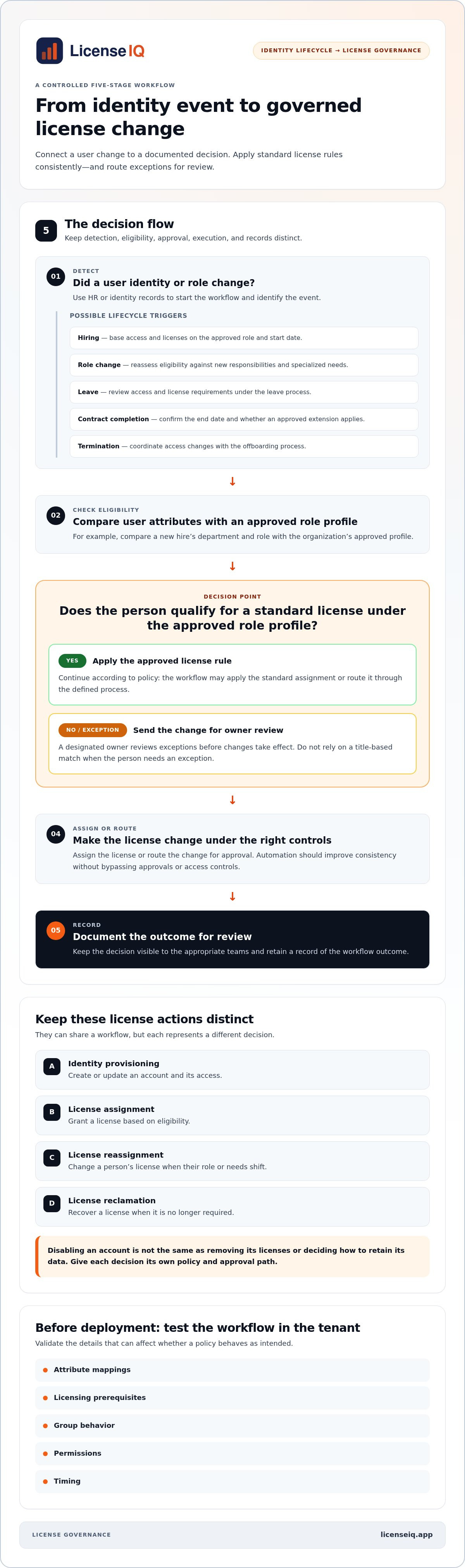
Keep the actions distinct. Identity provisioning creates or updates an account and its access. License assignment grants a license based on eligibility. License reassignment changes that license when a person’s role or needs shift. License reclamation recovers a license when it’s no longer required. These actions can share a workflow, but they aren’t interchangeable. Automation should improve consistency without bypassing approvals or access controls.
Which user lifecycle events should trigger license decisions?
For each transition, define the event, the decision it triggers, and who owns that decision. HR or identity records can start a workflow, while designated owners review exceptions before changes take effect.
- Hiring: Assign access and licenses based on the approved role and start date.
- Role changes: Reassess eligibility against new responsibilities, including temporary or specialized needs.
- Leave: Review access and license requirements under the organization’s leave process.
- Contract completion: Confirm the end date and whether access should continue under an approved extension.
- Termination: Coordinate access changes with the organization’s offboarding process.
Disabling an account is not the same as removing its licenses or deciding how to retain its data. Treat each as a separate decision with its own policy and approval path.
What does automated M365 license rightsizing mean?
Rightsizing aligns assigned licenses with current role requirements and observed needs. It doesn’t mean removing every license that appears unused or unassigned. Usage signals need context: a person’s responsibilities or an approved exception may justify a license that seems idle. Software asset management (SAM) provides the broader discipline of managing software assets and licenses in line with business needs and oversight.
Accurate lifecycle decisions help control license costs by keeping assignments aligned with changing roles and needs. Continuous visibility supports those reviews. LicenseIQ scans Microsoft 365 users and licenses, providing a License Health Score and dollar-value optimization recommendations. Teams can use these insights to prioritize reviews alongside identity-provider provisioning workflows, while approvals and changes follow their established controls.
How automated M365 license assignment works from identity event to governance
A controlled workflow connects a user change to a documented decision. It typically has five stages: detect an identity event, check eligibility, apply an approved license rule, assign the license or route the change for approval, and record the outcome. Keeping these stages distinct helps teams catch incorrect source data and exceptions before they create access or spend problems.
For example, a hiring record identifies a new employee’s department and role. The eligibility check compares those attributes with an approved role profile. If the profile qualifies for a standard license, the workflow routes or applies the assignment according to policy. If the person needs an exception, send the request for review rather than relying on a title-based match. Before deployment, test attribute mappings, licensing prerequisites, group behavior, permissions, and timing in the tenant.
Direct assignment versus group-based licensing
Direct assignment targets an individual user. It can suit one-off exceptions, but repeated manual changes are harder to keep consistent. Group-based licensing applies licenses to eligible users through group membership, making standard role patterns easier to manage at scale. Microsoft Entra ID supports group-based licensing, but validate the tenant’s configuration and dependencies. Microsoft 365 groups can organize collaboration and access patterns, but they aren’t automatically interchangeable with licensing groups. Choose the approach that fits the tenant and the volume of exceptions.
Where workflow engines and APIs fit
A workflow engine can coordinate each stage, while Microsoft Graph may provide an integration layer for supported identity or licensing operations. Validate the specific API capabilities, permissions, tenant configuration, and error handling before relying on an integration. A sound design keeps event detection, decision logic, approval, and execution distinct, and records the outcome for review. Because requirements can vary across environments, follow Microsoft’s guidance for Office 365 Government environments rather than assuming every tenant uses the same setup.
Automated m365 license rightsizing also needs ongoing governance, not just event-driven assignment. LicenseIQ scans Microsoft 365 users and licenses, then provides a License Health Score and dollar-value recommendations. Use these insights to inform policy reviews alongside identity-provider workflows. Explore Microsoft 365 license governance to see how ongoing visibility can support better-informed decisions.
Which M365 assignment model balances efficiency, cost, and control?
The right model depends on how stable roles are, how often exceptions occur, and how much review each change requires. Manual assignment provides close control but can lead to inconsistent decisions and administrative delays. Group-based assignment standardizes repeatable rules. Approval-led workflow automation routes changes for human review when needed. These approaches can also work together.
| Model | Consistency and scale | Exceptions and auditability | Ongoing administration |
|---|---|---|---|
| Manual assignment | Varies by administrator; difficult to scale across frequent changes. | Flexible for exceptions, but decisions can be harder to track consistently. | Requires repeated hands-on work and review. |
| Group-based assignment | Consistent for users who meet defined membership rules; scales well for stable roles. | Exceptions need a separate process; group and assignment changes should be recorded and reviewed. | Requires maintaining role mappings, group membership, and rules. |
| Approval-led workflow automation | Applies repeatable routing and rules; scales while preserving decision points. | Can route unusual cases for review and capture outcomes when designed to do so. | Needs clear ownership, tested rules, and regular maintenance. |
Automation doesn’t mean giving a workflow broad permissions and letting it make every change. Use staged permissions, review outcomes, and define how to reverse an incorrect assignment. License decisions are part of Software asset management (SAM), where cost control must sit alongside business risk. Savings should not override security, data-retention, or business continuity requirements.
How much automation should an SMB introduce?
Start with stable, low-risk roles and assignment rules that are already documented. Route unusual roles, sensitive changes, and workloads with additional review needs to an exception queue. Human approval is especially useful when source data is incomplete, a license change could disrupt critical work, or an accountable owner needs to make the decision. Expand automation after the initial rules produce reliable outcomes.
What controls prevent incorrect assignment or removal?
Limit workflow permissions to the actions required. Set approval requirements, retain change records, and review rules when roles or business needs change. Test with a small group before expanding. Before automating license removal, define rollback steps and an escalation path, including who can pause the workflow if an unexpected impact appears. Automated M365 license rightsizing works best when efficiency is measurable and consequential changes remain reviewable.
How to implement automated provisioning and license rightsizing safely
Start with a baseline, not a bulk change. Record current assignments, active user needs, known exceptions, and who owns each licensing decision. This gives IT, security, HR, and finance a shared reference for assessing whether the workflow improves accuracy without disrupting access.
Use this staged rollout for automated m365 license rightsizing:
- 1. Inventory: Document existing assignments, user status, known usage needs, and unresolved exceptions.
- 2. Map roles: Identify the services each role requires and the approved license options that meet those needs.
- 3. Design policies: Define eligibility rules, exception paths, decision owners, and approval requirements.
- 4. Test: Check rules against representative user records and confirm expected outcomes before making changes.
- 5. Approve: Have accountable owners review the rules and changes that could affect access or continuity.
- 6. Deploy: Start with a limited scope, monitor results, and expand only when the workflow behaves as intended.
- 7. Review: Reassess rules and outcomes as roles, services, and business needs change.
Build role and license rules from real requirements
Map each role to required services, approved license options, and the reason for each assignment. Job titles are a useful starting point, but they may not capture temporary duties, specialized access, or individual exceptions. Record those cases separately, including temporary assignments, their expiry or review conditions, and the person responsible for approval. For license-tier context, consult this Microsoft 365 license types reference. The broader Microsoft 365 license optimization guide provides additional context for planning optimization decisions.
Pilot, measure, and refine the workflow
Run a controlled pilot and compare each automated decision with a reviewed outcome. Track assignment accuracy, exception volume, review completion, failed assignments, access-impacting changes, reversals, and recovered spend. Investigate mismatches before expanding. A favorable spend result does not justify an assignment that compromises required access. Assign owners and review intervals for these measures so the pilot leads to ongoing governance rather than a one-time sign-off.
Tenant scanning and a License Health Score add visibility into license and user patterns, while dollar-value recommendations help teams prioritize reviews. Use these insights alongside, not in place of, your approval process. Explore automated license governance to see how ongoing visibility can support your rightsizing program.
Keep M365 license rightsizing accurate with continuous governance
Automation keeps assignments consistent only while its rules reflect current roles, user needs, and business priorities. Build a recurring process: monitor the tenant, identify meaningful changes, review recommendations, approve appropriate action, and measure the result. Repeat the cycle as people move roles, leave, or develop new access needs. Without regular review, a workflow can make outdated decisions faster.
What should teams monitor after automation goes live?
Review inactive accounts, unused or unassigned licenses, role changes, and unresolved exceptions. Track assignment accuracy and completed reviews alongside failed changes, access issues, and service-continuity signals. A license that appears unused may still support a business need, so investigate the context before changing an assignment.
Continuous license governance is the recurring cycle of monitoring assignments, reviewing changes, approving decisions, and measuring their impact.
Shared ownership keeps this cycle grounded. HR maintains reliable employment and role-change information. IT manages identity and assignment rules. Security reviews access implications. Finance assesses spend and validates reported recovery against actual changes. Define who owns each decision and how teams resolve conflicting information. That clarity turns findings into accountable action.
How LicenseIQ supports ongoing license oversight
LicenseIQ scans Microsoft 365 users and licenses to surface tenant insights, a License Health Score, and dollar-value optimization recommendations. Teams can use these signals to prioritize reviews and support ongoing financial oversight. Apply recommendations through established approval processes, with decisions documented and accountable owners involved. For additional lifecycle context, read the Microsoft 365 license management lifecycle guide.
Measure whether the governance loop is working. Compare assignment accuracy over time, track exception volume and review completion, and verify recovered spend against approved changes. If errors recur, update the source data, role mapping, or policy instead of treating each case as an isolated ticket. This makes automated m365 license rightsizing a maintained operating practice, not a one-time cleanup.
Bring clarity to M365 license governance.
Make license governance a repeatable operating practice
Effective M365 license management connects identity changes to approved assignment rules, then checks that those rules still match real user needs. Start with stable roles, test changes before scaling, and keep exceptions, approvals, and rollback procedures visible. That’s how automated m365 license rightsizing can improve consistency without sacrificing access control or business continuity.
Keep governance active after rollout. Assign clear ownership across IT, HR, security, and finance, and review license changes alongside user needs and spend. Tenant scanning can surface user and license insights. The License Health Score and Spend Recovery Dashboard help highlight optimization opportunities for review. Use these signals to guide decisions, not as a substitute for approval.
Build greater clarity into every assignment and review. Bring clarity to your M365 license governance with ongoing visibility into license health and potential spend recovery. Clear rules and regular oversight help your team adapt as roles and requirements change.
Frequently Asked Questions
What is automated M365 license rightsizing?
Automated M365 license rightsizing aligns assigned licenses with users’ current role requirements and observed needs through defined rules and review workflows. It can connect changes such as hiring or role moves to consistent eligibility checks, while routing exceptions for approval. The goal isn’t to remove every license that appears unused. Consider business context, required access, and continuity before changing an assignment.
Can Microsoft 365 automatically assign licenses when a user joins a group?
Yes. Microsoft Entra ID group-based licensing can assign configured licenses to eligible users when they join a licensing group. The group’s rules and tenant setup determine the result, so validate required subscriptions, available licenses, service plans, and assignment behavior before relying on it. Test with a limited group first, and define a separate approval path for users whose access needs don’t match the standard rule.
How do automated provisioning and license assignment work together?
Automated provisioning manages identity changes, such as creating or updating a user account. License assignment applies an approved license rule based on attributes such as role or group membership. A controlled workflow links the two: detect an identity event, check eligibility, apply or route the assignment, and record the outcome. Keep approvals and access controls in the process, especially for exceptions or changes that could disrupt work.
Is group-based licensing better than assigning licenses directly to users?
Neither method is best for every tenant. Group-based licensing can make consistent role rules easier to maintain at scale, while direct assignment can suit individual cases or exceptions. Groups still require accurate membership and a process for unusual needs. Some organizations use both: groups for stable, repeatable assignments and direct assignment or an approval workflow for cases that need individual review.
How can organizations prevent automation from removing a license someone still needs?
Require a needs check and approval before automating removal, especially when usage data is incomplete or the change could affect critical work. Set least-privilege permissions, test rules with a small group, and log proposed and completed changes. Define who can pause the workflow, how to restore an assignment, and how users can raise an exception. Review retention and service-continuity needs separately from license decisions.
What should an SMB automate first in its M365 licensing workflow?
Start with a stable, low-risk role that has clear eligibility rules and few exceptions. Document the required services, approved license options, rule owner, and exception process. Test the workflow against representative user records and compare its decisions with human-reviewed outcomes before expanding. Avoid starting with complex roles or automatic license removal. Tenant insights and a License Health Score can help identify areas for review.
How often should Microsoft 365 license assignments be reviewed?
Set a recurring quarterly review as a practical baseline, and also review assignments when a user is hired, changes roles, takes leave, completes a contract, or leaves. Check exceptions, inactive accounts, and licenses that appear unused or unassigned, but validate business needs before making changes. Assign clear owners across IT, HR, security, and finance so findings lead to documented decisions and follow-up.


