

The lower-cost option isn’t automatically the better fit. A Visio Plan 1 versus Plan 2 cost comparison comes down to whether browser-based diagramming meets your needs or you also require desktop access and more advanced capabilities. Match the plan to how your team creates, edits, and shares diagrams before weighing the subscription cost.
It’s easy to focus on the monthly price and overlook the features that shape day-to-day work. The right plan gives people the tools they need without paying for capabilities they won’t use.
This guide compares the plans’ costs and core features, explains which workflows suit each option, and offers a clear decision guide. You’ll be able to assess the trade-offs and choose the plan that fits your team’s requirements.
Key Takeaways
- Compare the plans by matching their capabilities to how your team creates, edits, and shares diagrams, not by subscription cost alone.
- Identify whether browser-based diagramming is enough or whether your workflows call for desktop access and more advanced capabilities.
- Assess the full Visio license setup by considering user needs and how licenses are assigned across your organization.
- Use license oversight to spot inactive users and redundant subscriptions that may be driving avoidable software spend.
- See how LicenseIQ’s governance workflows, spend dashboard, and license health scoring can support clearer license decisions.
Visio plan 1 vs plan 2 cost comparison
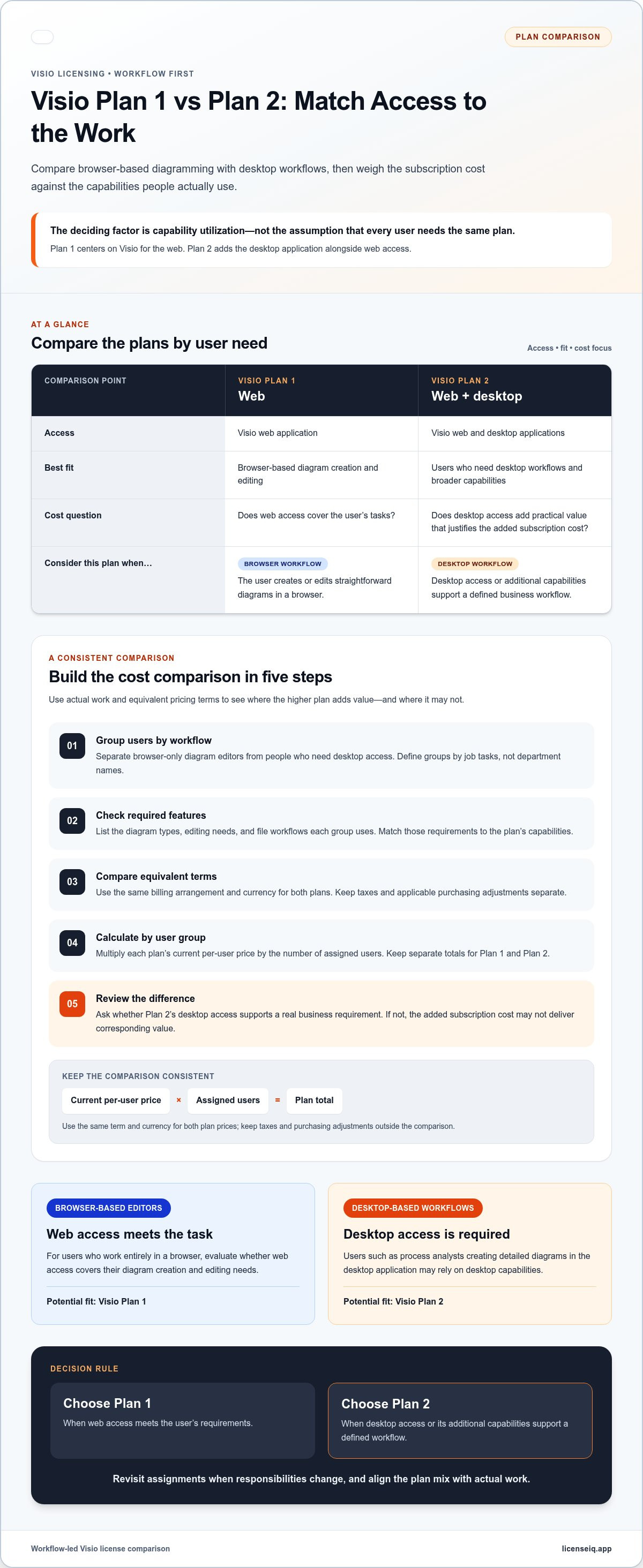
A Visio Plan 1 vs Plan 2 cost comparison starts with each plan’s actual workload. Plan 1 centers on Visio for the web. Plan 2 adds the Visio desktop application alongside web access. That distinction shapes the value calculation: users who work entirely in a browser may not need desktop capabilities, while users with desktop-based workflows may rely on them.
Don’t compare subscription costs without matching each plan to the people who will use it. For each person, note where they create diagrams, which tools they rely on, and how they share files. A browser-based user editing straightforward diagrams has different needs from a process analyst creating detailed diagrams in the desktop application. Comparing similar roles shows where a higher plan adds practical value.
Microsoft subscription prices can vary by billing arrangement and purchasing channel. Compare the current per-user price for each plan using the same term and currency, then calculate the total for the number of licenses you need. Keep taxes and any applicable purchasing adjustments separate so they don’t obscure the difference between the plans.
| Plan | Access | Best fit | Cost comparison focus |
|---|---|---|---|
| Visio Plan 1 | Web application | Browser-based diagram creation and editing | Assess whether web access covers the user’s tasks |
| Visio Plan 2 | Web and desktop applications | Users who need desktop workflows and broader capabilities | Measure the added value against the added subscription cost |
The table provides a starting point, not a blanket recommendation. Plan 2 can make sense when desktop access supports a required workflow. Plan 1 can be a more efficient fit when browser access meets the user’s needs. The deciding factor is capability utilization, not the assumption that every user needs the same plan.
Build a comparison with these steps:
- Group users by workflow. Separate browser-only diagram editors from people who need desktop access. Use job tasks, not department names, to define each group.
- Check required features. Identify the diagram types, editing needs, and file workflows each group uses. Match those requirements to the plan’s available capabilities.
- Compare equivalent terms. Use the same billing arrangement and currency for both plans. This keeps the price comparison consistent.
- Calculate by user group. Multiply each plan’s current per-user cost by the number of assigned users. Keep separate totals for Plan 1 and Plan 2.
- Review the difference. Ask whether Plan 2’s desktop access addresses a real business requirement. If not, the added subscription cost may not deliver corresponding value.
For example, an operations team might include browser-based editors and analysts who build diagrams on desktop. Assigning one plan to everyone could leave desktop users without the access they need or make the organization pay for capabilities that browser-only users don’t use. A role-based comparison makes the trade-off clear before renewal or license assignment.
Revisit the calculation when responsibilities change. A browser-only user who takes on desktop diagram work may need a different plan. Someone who no longer needs desktop tools may be reassigned after the organization reviews their access and usage. Track these changes against the license inventory to keep the plan mix aligned with actual work.
Choose Plan 1 when web access meets the user’s requirements; choose Plan 2 when desktop access or its additional capabilities support a defined workflow.
Visio license
A Visio license determines which Visio applications and capabilities an assigned user can access. For Microsoft 365 administrators, the key task is matching each license to actual work. The user who reviews a diagram occasionally may need a different setup from someone who builds complex diagrams regularly. Treat each assignment as an access decision, not merely a line in the subscription inventory.
Start with each person’s role and recurring tasks. Record whether they create, edit, review, or simply view diagrams. Then identify where they do that work: in a browser, on a desktop, or in both environments. A project coordinator who edits shared diagrams online, for example, has a different access pattern from an analyst who builds and revises diagrams with desktop software.
Next, distinguish license assignment from actual use. An assigned license gives a user access, but doesn’t prove they need every included capability. Compare the assignment with the person’s responsibilities, recent work, and workflow. This helps administrators spot mismatches, such as a desktop-capable plan assigned to someone who works only in a browser.
Use a repeatable review process for each Visio license:
- Identify the user. Match the account to a person, team, and business owner. Resolve duplicate or unclear records before changing access.
- Document the task. Note whether the user creates, edits, or reviews diagrams. Include a concrete example, such as maintaining a process map.
- Map the workflow. Record whether the work depends on browser access, desktop access, or both. Include collaboration and file-handling needs.
- Compare the assigned plan. Check that the plan’s access matches the documented work. Flag unused capabilities and missing access separately.
- Record the decision. Note why the license remains, changes, or is removed. Keep the business reason visible for the next review.
Keep a record of the reasoning behind license decisions. If someone shifts from creating desktop diagrams to occasional browser edits, review whether their current assignment still fits. If new responsibilities require desktop work, document the change before adjusting access. A decision trail reduces guesswork during audits, renewals, and role changes.
Review apparent exceptions carefully. Someone may seem inactive in Visio but still support a seasonal project or maintain a process diagram that is used infrequently. Ask the business owner to connect the license assignment to a current task. This helps preserve necessary access while identifying outdated allocations.
Keep Visio records connected to the broader Microsoft 365 inventory. A user can hold several subscriptions, so reviewing one product in isolation may miss overlapping access or broader allocation patterns. Consistent user records, named owners, and clear business reasons make those relationships easier to assess. They also help administrators explain why each assignment remains in place.
Set review points around meaningful events, such as a role change, project completion, or license renewal. These checkpoints make license decisions part of routine administration instead of a one-time cleanup. Use the same questions each time: what work requires Visio, which application access supports it, and who owns the decision?
For broader Microsoft 365 license oversight, the License Health Score can complement a structured review of user assignments and business need.
LicenseIQ: Automated Governance Workflows
LicenseIQ helps organizations identify inactive users and redundant Microsoft 365 licenses, including issues that can complicate Visio license decisions. Its Automated Governance Workflows support structured governance, while the Spend Recovery Dashboard helps surface subscription waste. The License Health Score gives teams another view of license status across their environment.
Turn to the LicenseIQ Platform when reviewing assignments becomes difficult to manage across Microsoft 365. Continuous tenant monitoring and spend recovery insights help administrators see where license usage may need attention. That visibility can support follow-up reviews of who needs Visio access and which plan fits their work, without replacing the workflow-based decision process described above.
To explore how LicenseIQ supports Microsoft 365 license oversight, visit licenseiq.app.
Build a License Decision That Holds Up
Make the choice part of an ongoing license governance process. A Visio Plan 1 vs Plan 2 cost comparison is most useful when its assumptions stay visible as teams, responsibilities, and diagramming needs change. Set a clear review owner and record the business reason behind each assignment. That creates a practical basis for future adjustments, rather than relying on outdated purchasing decisions.
LicenseIQ’s Automated Governance Workflows, Spend Recovery Dashboard, and License Health Score support broader visibility into Microsoft 365 license oversight. Use that visibility to keep review decisions connected to usage and organizational needs, so administrators can spot where assignments deserve attention.
For help strengthening your Microsoft 365 license oversight, contact LicenseIQ about licensing help. A consistent review process can help your team make clearer decisions as needs evolve.


