

An assigned Microsoft 365 license can keep consuming subscription capacity after a user stops working, because disabling an account doesn’t automatically release its license. To find orphaned candidates, compare sign-in and usage signals with account status and the license still assigned; 30 days of inactivity is one example threshold for standard users, not an automatic removal rule. That’s the core of how to find orphaned M365 licenses without mistaking a quiet account for a genuinely unused one.
It’s tempting to treat an inactive account as proof that its license is wasted. But seasonal work, occasional system access, or a role tied to a service account can make activity patterns misleading. This guide shows you how to validate candidates before changing assignments: review account status, interpret sign-in and usage data, and assess guest, service, and shared mailbox accounts. You’ll also see how to distinguish a license that can be recovered from an account or resource that still supports business operations. The result is a more controlled audit, with decisions based on evidence rather than inactivity alone.
Key Takeaways
- Validate inactivity against job duties and account purpose before changing a license assignment.
- Review sign-in and service usage together to distinguish genuinely idle licenses from accounts with occasional but essential activity.
- Check what remains connected to disabled or deleted accounts, including SharePoint permissions and document attribution.
- Assess guest, service, and shared mailbox accounts separately, since their access needs differ from standard user accounts.
- Use recurring governance reports to surface orphaned resources and make license reviews part of an ongoing process.
Filtering and validating inactive-license candidates
If you’re asking how to find orphaned m365 licenses, start by matching assigned subscriptions against account status and actual usage. Removing a Microsoft 365 license can stop access to the apps and services it enables. License removal alone doesn’t mean the account or its data has been deleted; assess affected workloads and retention settings before acting.
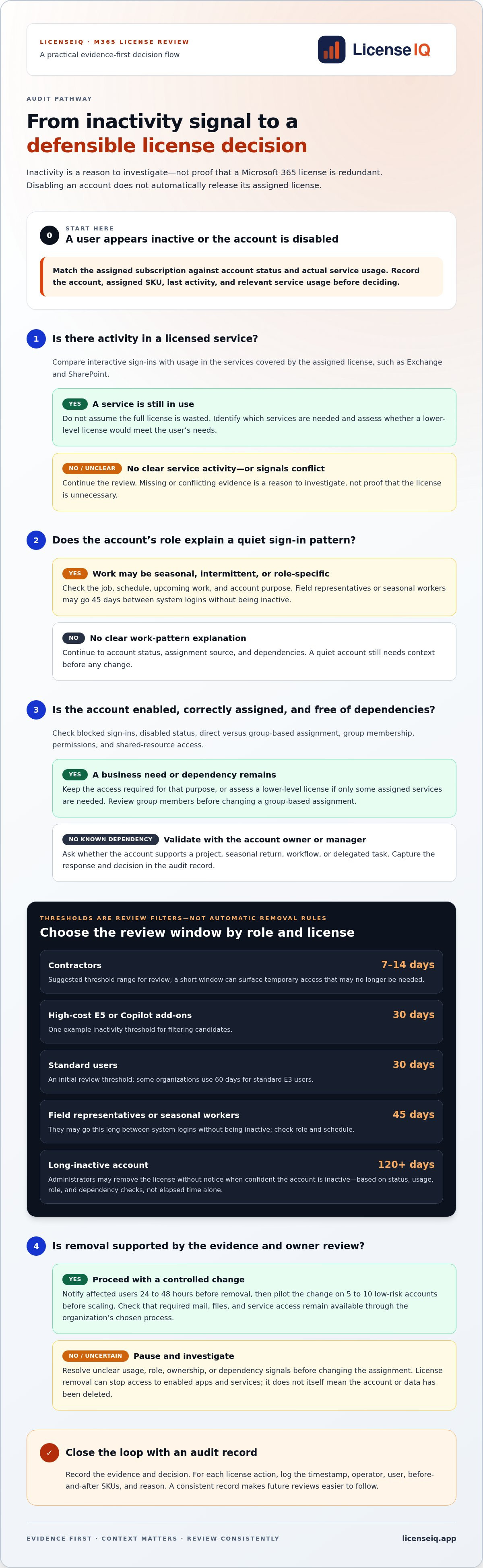
- Set a threshold by role and license value. Use inactivity to filter the tenant, not as an automatic removal trigger. A 30-day threshold is one example for high-cost E5 or Copilot add-ons. Some organizations use 60 days for standard E3 users, while 30 days can serve as an initial standard-user review threshold. Choose a consistent rule, then validate each candidate against its role and business purpose.
- Adjust the filter for work patterns. Contractors may be reviewed after 7 days, with 7 to 14 days as a suggested threshold range. A short window helps surface temporary access that may no longer be needed. Field representatives or seasonal workers may go 45 days between system logins without being inactive. Check role, schedule, and upcoming work before flagging them for action.
- Compare sign-in dates with usage evidence. Review interactive sign-ins alongside activity in the licensed services. A user may rarely sign in but still rely on a particular workload. Record the account, assigned SKU, last activity, and relevant service usage. Treat missing or conflicting signals as a reason to investigate, not proof that the license is redundant.
- Check account status and dependencies. Confirm whether the account is enabled, blocked, or tied to a recent departure. Inspect group-based assignments, permissions, and access to shared resources. A user who no longer needs a premium SKU might still need a lower-level license. Identify the required services before proposing a downgrade or removal.
- Validate with the account owner or manager. Send the candidate details to the person who understands its business purpose. Ask whether the account supports an upcoming project, seasonal return, workflow, or delegated task. Capture the response and decision in an audit record. This makes how to find orphaned m365 licenses a repeatable review based on evidence, not inactivity alone.
- Apply a review window before changes. For an account inactive for 120-plus days, administrators may remove the license without notice when they’re confident it’s inactive. Build that confidence from account status, usage, role, and dependency checks, not elapsed time alone. Keep a record of the evidence and action so future reviews can follow the same decision logic.
Orphaned users after disabling or deleting Active Directory accounts
Disabling an Active Directory account doesn’t automatically remove its Microsoft 365 license. Review account status, assignment source, and usage before reclaiming an assigned license.
-
Review Sign-In Activity for Underused Accounts
Open the Microsoft 365 admin center and review sign-in activity for each candidate. Compare the last interactive sign-in with activity in the services covered by the assigned license. An account with no interactive sign-in for more than 60 days is an example of an underused account, not automatic proof of waste. Check role and work pattern before flagging it.
Use inactivity as a trigger for review, not as proof that a license is unnecessary. A field employee may access systems intermittently, while a former employee’s account may still appear in SharePoint records. Document the evidence and send unclear cases to the manager responsible for the account.
-
Identify Licenses on Inactive or Disabled Users
Filter the user list for blocked sign-ins, disabled accounts, and assigned licenses. Open each account’s license details to identify its Microsoft 365 or Office 365 plans and enabled service apps. Disabling a user doesn’t automatically release the assigned license; an administrator must remove the license or delete the account to free it.
Check whether the license is assigned directly or inherited through a group. The account’s license details show the assignment source; the group’s membership and license settings can explain inherited assignments. Review all group members before making a change, since it may affect other users.
-
Check License Usage and Last Sign-In
Compare the user’s last sign-in with Microsoft 365 usage reports for services such as Exchange and SharePoint. A sign-in date alone can miss activity through a specific workload, so review service usage alongside the account’s status. Note which assigned apps show activity and which appear unused.
Focus on the services the user actually needs. If they use only some of the assigned services, assess whether a lower license would meet that need. Record the evidence and reasoning before changing the assignment, so another administrator can follow the decision.
-
Reclaim Unused Licenses Safely
Confirm account ownership and business dependencies before removing a license. Notify affected users 24 to 48 hours before removal, then pilot the change on 5 to 10 low-risk accounts before scaling. Check that required mail, files, and service access remain available through the organization’s chosen process.
For each action, log the timestamp, operator, user, before-and-after SKUs, and reason. If licenses are assigned through groups, review the group’s other members before changing its assignment. This creates a clear audit trail and helps administrators quickly reverse a mistaken change.
Third-party governance tools and orphaned-resource reports
Use governance reports to find gaps across licenses, groups, and Teams, then validate each result before removing access or resources. Regular reviews turn one-time cleanup into an ongoing operational control.
- Build a report around ownership and assignments. Use a governance tool or script to list licensed users, group assignments, Teams owners, and member counts. Include account status and last activity where available, so administrators can separate an unused license from an ownerless resource. Keep the report focused on fields that support a decision, rather than collecting data no one will review.
- Check Teams for missing owners and empty membership. A Microsoft Team with 0 members is an empty Team; an ownerless Team can still have members, such as when its owner leaves the company. The Teams admin center identifies teams with missing owners, but it doesn’t detect owners blocked from Microsoft 365 sign-in. Treat those as separate checks. Deleting a Team also deletes its associated Microsoft 365 Group, SharePoint Online site, and mailbox, so confirm the dependencies first.
- Use Microsoft Graph or Exchange PowerShell with appropriate access. A Graph PowerShell report can identify groups without owners, using Group.Read.All as the least-privilege permission listed for that task. Directory.Read.All is the most privileged permission listed. Running scripts across Teams and groups requires Global Administrator privileges or the Teams and Groups service admin role. In Exchange Online PowerShell, filter groups whose ManagedBy property is empty. Assign only the permissions required for the report.
- Customize output for review and action. Include the group name, owner status, member count, assigned license, and account state. Add a decision field such as “retain,” “assign owner,” or “investigate.” This makes it easier to navigate findings and distinguish an empty Team from a populated Team without an owner. Keep the original export so administrators can compare changes between review cycles.
- Schedule recurring reports and ownership follow-up. Schedule license and orphaned-resource reports for the first day of each month. Microsoft 365’s default ownerless-group policy sends weekly notifications for 4 weeks to up to 5 active members of an orphaned group. Track whether a member accepts ownership, then escalate unresolved groups through the organization’s governance process. Automate reminders where possible, but require human review before removing a group or its connected services.
When a Team has no members, consider whether it still serves a business purpose rather than relying on membership count alone. If the Team is no longer needed, its group-based Teams license can be removed or assigned elsewhere. Record the decision in the review output, and confirm that it is safe to remove the resource before acting, since associated services may be affected.
Orphaned-user findings can involve more than Teams ownership. An account may still have SharePoint site permissions or appear as the author of documents. Note these possibilities, then have administrators verify access and document ownership before closing the case. This helps distinguish an ownerless resource from content or access that still needs attention. Include the decision and follow-up status in the report so unresolved items remain visible in the next review.
Finding idle and misassigned licenses from sign-in and usage data
Compare license assignments with sign-in and service usage to find idle seats and mismatched plans. Distinguish available licenses from assigned ones before deciding what to change.
- Review available seats in the Microsoft 365 admin center. Navigate to Billing, then Licenses, and review purchased, assigned, and available quantities for each SKU. Available seats are unassigned, not orphaned user licenses. To identify assigned candidates, compare user assignments with sign-in and service usage reports. Export the results in a consistent format so administrators can match each SKU to its account and activity evidence.
-
Find Unused Licenses with Graph PowerShell
Connect to Microsoft Graph PowerShell and query users alongside subscribed SKUs. Compare each user’s assigned license details with sign-in activity and service usage reports. The user list shows who holds a license; usage evidence helps establish whether its services are being used. A missing sign-in alone does not prove that a seat is safe to reclaim.
Export account identifiers, assigned SKUs, and activity fields into one review file. Filter enabled and disabled accounts separately, then investigate mismatches before removing assignments.
-
Find Orphaned Licenses in Entra ID
In Microsoft Entra ID, compare account status with license assignments. Filter for disabled accounts that still have assigned SKUs, then check whether each assignment is direct or group-based. A disabled account can retain its license, so status alone does not reclaim the seat. Review group membership before changing group-based assignments.
Use sign-in and usage evidence to distinguish inactive accounts from accounts that still support a workload. If the user is deleted, check the Microsoft 365 license inventory for available capacity and review any remaining service dependencies. Entra ID helps identify the account and assignment; the Microsoft 365 admin center shows the tenant’s license allocation.
- Perform a controlled governance review. Match each candidate to its owner, required services, and business purpose. Record the decision and assignment source before making a change. If a license is no longer needed, remove the direct assignment or update the responsible group after reviewing its members. Don’t delete an account as a shortcut: account deletion and license removal are separate actions with different effects.
Guest, service, and shared mailbox accounts
Identify the purpose of guest, service, and shared mailbox accounts before treating an assigned license as waste. Their activity and access patterns differ from those of standard employee accounts.
- Review guest accounts and SharePoint access. Filter the organization’s user inventory for external guests, then check each account’s sponsor, recent purpose, and SharePoint permissions. External users can become orphaned users in SharePoint, even after their business relationship ends. Disabling or deleting an account in Active Directory doesn’t remove its SharePoint permissions or references in fields such as Created by and Modified by. Record the sites and content linked to each guest before changing access.
- Identify the purpose of every service account. Search account names, group memberships, and ownership records for accounts used by scripts, integrations, or scheduled processes. Ask the system owner which Microsoft 365 workloads the account connects to and whether the process still runs. A service account may show little interactive sign-in activity while still supporting an automated task. Don’t remove its license based only on a quiet sign-in history.
- Review service-account assignments and dependencies. Compare each assigned SKU with the account’s actual workload and permissions. Check whether a script or integration uses the account to access Exchange, SharePoint, or another service. Record the owner, purpose, and dependent process. If the process has been retired, confirm that its credentials and access are no longer referenced before removing the assignment or disabling the account.
- Assess shared mailboxes as a separate account type. List each shared mailbox, its business owner, assigned license, and current access delegates. Confirm whether teams still use it for a function such as customer inquiries or departmental correspondence. Review the mailbox’s operational needs and associated services before changing its assignment. A mailbox with few recent sign-ins may still receive messages or support a live business process.
- Record decisions and schedule follow-up. For every guest, service account, or shared mailbox, document the responsible owner, reason to retain or remove access, and next review action. Use Microsoft Graph or PowerShell reports to compare account status, assignments, and SharePoint references. Set a recurring governance review so changes in project ownership or external access don’t leave stale permissions behind. For structured account reviews, explore license governance workflows.
Also distinguish SharePoint references from current access. In SharePoint, an orphaned user is an account that remains referenced even though the user can no longer access SharePoint. If recovery is needed after the sole administrator has died, first check whether another Global Administrator exists, since they can assign the role to another user. Microsoft directs users seeking recovery in this situation to contact Global Customer Service for help taking ownership of the administrator account. The Microsoft Data Protection team is identified as having permission to reset an account on the backend.
A support request from a trial tenant should include the locked tenant’s account email, tenant domain, exact error messages, and details of the attempted action. A nonprofit portal account is not itself an Office 365 license.
LicenseIQ: Automated Governance Workflows
LicenseIQ helps turn validated audit findings into ongoing Microsoft 365 license oversight. Its platform scans licenses and users, then provides a License Health Score and dollar-value recommendations to guide optimization.
LicenseIQ’s Automated Governance Workflows help organize recurring reviews and follow-up on inactive-license candidates. The Spend Recovery Dashboard highlights optimization opportunities, and continuous tenant monitoring provides real-time spend recovery insights. These tools support informed decisions; administrators still assess account purpose and dependencies before changing assignments.
For a clearer view of Microsoft 365 license health and potential waste, visit LicenseIQ.
Make License Governance an Ongoing Practice
Knowing how to find orphaned M365 licenses is a starting point. The next step is to make license decisions visible, repeatable, and tied to ongoing oversight. That gives administrators a clearer basis for prioritizing work as account needs change.
LicenseIQ supports that process with Automated Governance Workflows, a Spend Recovery Dashboard, and a License Health Score. Together, these offerings help surface opportunities and organize governance decisions, so teams can act on clearer information rather than rely on scattered reviews.
Build a more consistent approach to Microsoft 365 license oversight. Contact LicenseIQ about license waste to explore the next step for your organization.
Better visibility creates room for better decisions. Start turning license governance into a routine your team can sustain.
Frequently Asked Questions
What is an orphaned user?
An orphaned user is an identity that remains referenced in Microsoft 365 resources after the person’s access or organizational relationship ends. The reference can persist in SharePoint permissions or document details, even though the person can no longer sign in. External guests can also become orphaned. This differs from an active account with low usage, and it doesn’t automatically mean the account holds a Microsoft 365 license.
What is an orphaned Microsoft 365 license?
An orphaned Microsoft 365 license is an assigned subscription that no longer has a current business user or purpose. For example, an account may remain licensed after its employee leaves, while a separate available seat is simply unassigned. The distinction matters: the first case may continue consuming an assigned subscription, while the second is unused capacity. Check assignment status and business ownership before classifying either as recoverable waste.
How to audit Microsoft 365 license assignments and automate orphan detection?
To learn how to find orphaned m365 licenses, compare assigned SKUs with account status, sign-in records, and service usage, then route candidates for review. A repeatable process for how to find orphaned m365 licenses also tracks assignment sources and review outcomes. LicenseIQ supports this work with its License Health Score and Automated Governance Workflows. The connection is read-only and never modifies, deletes, or creates anything in the tenant.


