

Every month, the average enterprise wastes over $12,000 on licenses assigned to users who haven't logged in for 90 days. It's a silent drain on your budget that often goes unnoticed until the annual renewal. You already know that manual reporting is a massive resource killer. Spending four hours on complex PowerShell scripts just to battle the 30 day log limitations in Microsoft Entra ID is an inefficient use of an IT leader's time. It leaves your financial health in the dark while costs continue to climb.
This guide provides the definitive blueprint to generate an inactive office 365 users report that identifies every stale account and calculates the exact dollar value of your wasted spend. You'll learn how to move beyond basic visibility to achieve total license optimization. We are showing you how to bypass standard data gaps and build a repeatable hygiene process that recovers thousands in capital by the end of 2026. From uncovering hidden costs to establishing a clean list of accounts, this is your roadmap to a leaner, more compliant software stack.
Key Takeaways
- Stop the financial leak where inactive accounts drain up to 35% of your annual SaaS budget.
- Learn to generate an inactive office 365 users report using the Admin Center to identify accounts with zero activity for 90+ days.
- Bypass the "30-Day Retention Trap" and standard data silos that hide the true cost of your software licenses.
- Deploy a four-step governance workflow to segment stale users and automate verification alerts for department heads.
- Transition to AI-driven governance for instant, dollar-value recommendations that eliminate manual reporting and maximize visibility.
What is an Inactive Office 365 Users Report and Why It Matters
Visibility is the cornerstone of efficient IT management. An inactive office 365 users report serves as a diagnostic audit of your digital environment. It identifies accounts that haven't engaged with Microsoft 365 services for 30, 60, or 90 days. This data isn't just a list; it's a roadmap for cost recovery. By uncovering these dormant seats, you transform blind spending into actionable intelligence. Precision in license management starts with knowing exactly who's using what.
In typical SMBs, inactive accounts represent up to 35% of wasted SaaS spend. This financial leak often goes unnoticed because individual charges seem small, but the cumulative impact is severe. Beyond the budget, these stale accounts create massive security vulnerabilities. They're prime targets for unauthorized access. Since no one monitors these accounts, a breach can go undetected for months. Regular inactivity audits are now mandatory for compliance. Standards such as SOC2 and ISO 27001 require consistent reviews of user access to ensure only active, authorized personnel have entry points into the system. Eliminating shadow accounts is a direct win for your security posture.
The consequences of such a breach extend far beyond data loss; they can inflict severe, long-lasting damage on a brand's public reputation. As companies tighten their internal security by managing user accounts, it is equally important to have a strategy for monitoring and protecting their external digital presence. For further reading on AI-powered reputation intelligence, ariaops.co.uk provides valuable insights.
Defining 'Inactivity' in the Microsoft Ecosystem
IT leaders often confuse the last sign-in date with actual productivity. A user might log in to verify their identity but never open a single application. This distinction is critical for true optimization. Service-specific inactivity occurs when an employee uses Teams daily but hasn't touched Outlook or OneDrive in months. You're paying for a full suite when they only need a fraction of it. You must also track the 'Never Logged In' category. These are licenses assigned during onboarding that the employee never activated. It's pure waste from day one that requires immediate remediation.
The Hidden Cost of Idle Licenses
Premium tiers like E3 and E5 quietly drain budgets when assigned to departed or inactive staff. Consider the math. An E5 license costs approximately $57 per user every month. If 10 premium users remain inactive for a year, your organization loses $6,840. Scale that across 100 inactive users; you're looking at $68,400 in preventable losses. Finance leaders should prioritize 'Health Scores' over raw user lists. A Health Score measures actual utilization against license cost, providing a clear metric for optimization. Using an inactive office 365 users report allows you to stop the bleed and reclaim your budget immediately. This proactive approach ensures every dollar spent contributes to actual business output.
- 30 Days: Early warning sign of shifting roles or project completion.
- 60 Days: High probability of a redundant license that needs reassignment.
- 90+ Days: Critical waste; these licenses should be reclaimed or deleted to protect the bottom line.
How to Generate the Report Manually: Admin Center & PowerShell
Manual oversight is the baseline for license reclamation. You can't optimize what you can't see. To stop wasting budget on dormant accounts, you must pull an inactive office 365 users report using built-in tools. Most organizations find that 15% to 20% of their assigned licenses haven't been touched in over 90 days. Gaining visibility into these accounts is the first step toward eliminating waste.
Using the M365 Admin Center (The Beginner Method)
The Microsoft 365 Admin Center offers a visual starting point for usage audits. Navigate to the Reports section, then select Usage. From here, click on the Active Users card. This dashboard provides a high-level view of service adoption across Exchange, OneDrive, and Teams. To find specific waste, customize the columns to include 'Last Activity Date' for each specific app. This reveals exactly when a user last interacted with the service.
The Admin Center has limits that IT leaders must recognize. Data often lags by 48 hours, making real-time decisions difficult. It also aggregates activity, which can hide granular details needed for Effective Microsoft 365 Licensing Optimization. If you're managing more than 250 seats, the manual UI becomes a bottleneck rather than a tool.
Leveraging PowerShell and MS Graph (The IT Pro Method)
IT professionals require the Microsoft Graph PowerShell SDK for deep, multi-tenant visibility. This method bypasses the UI's latency and allows for bulk data extraction. First, install the module using the Install-Module Microsoft.Graph command. You'll need to authenticate with the User.Read.All and AuditLog.Read.All permissions to access sensitive sign-in data.
Run the Get-MgUser cmdlet with the -Property SigninActivity parameter. This specific attribute contains the LastSignInDateTime, which is the definitive metric for an inactive office 365 users report. Use a script to filter for users where the last sign-in date is older than 90 days. This creates a clean list of candidates for license removal.
Once you've filtered the data, export the results to a CSV file using Export-Csv. This document serves as your audit trail for the finance department. Manual reporting works for small environments, but it's a reactive process. If you want to move from manual exports to proactive cost control, automated license management provides the real-time visibility your finance team demands to maintain a lean software stack.
The 3 Critical Limitations of Manual M365 Reporting
Manual license management is a reactive process that often results in significant financial leakage. IT teams frequently rely on the native admin center to generate an inactive office 365 users report, but these tools provide a fragmented view of the environment. They lack the depth required for true cost optimization. Relying on basic exports means you're making decisions based on incomplete, and often misleading, data points.
Log Retention and Data Gaps
The 30-day retention trap is the first hurdle for any administrator. Standard Entra ID reports only store sign-in data for 30 days for users with P1 licenses. While P2 licenses extend this to 90 days, it's still insufficient for identifying long-term inactivity trends. If an employee hasn't accessed their account in 31 days, they disappear from the immediate view of standard logs. This creates a visibility gap where users who are "partially active" appear as fully utilized. They might only use free features like Teams chat while holding a $57 per month Microsoft 365 E5 license.
According to Microsoft's official guidance, administrators must proactively monitor these accounts to maintain security, yet manual methods don't distinguish between human interaction and service-level logins. Protocols like IMAP or POP3 often trigger "last logon" updates during background syncs. This creates false activity signals for roughly 15% of dormant accounts. You see a recent timestamp, but the user hasn't actually opened an application in months.
The Disconnect Between IT and Finance
A list of names in an inactive office 365 users report doesn't help a CFO understand the monthly burn rate. Manual reporting separates technical activity from financial reality. IT sees a username; Finance sees a SKU. Mapping these identities to specific costs like Business Premium or E3 requires hours of manual spreadsheet manipulation. This data silo problem prevents organizations from seeing the total waste. In a typical 500-seat environment, this lack of visibility leads to an average of $2,400 in monthly overspending on unused features.
Manual reporting also introduces the risk of accidental deletion. Without clear context on why a user is inactive, IT might deprovision a critical service account or a legal-hold mailbox. The burden of running these scripts monthly is a poor use of resources. Senior engineers spend 10 to 12 hours every quarter just cleaning up data that should be automated. This manual approach lacks the historical context needed to predict future license requirements. It's a snapshot in time rather than a strategic overview of your software spend.
Accuracy issues further complicate the process. Exchange "Last Logon" timestamps are notoriously unreliable. These attributes often update during mailbox moves or system maintenance tasks. This results in a 20% inaccuracy rate in most manual reports. You aren't seeing actual utilization. You're seeing system noise that keeps expensive licenses assigned to empty desks.
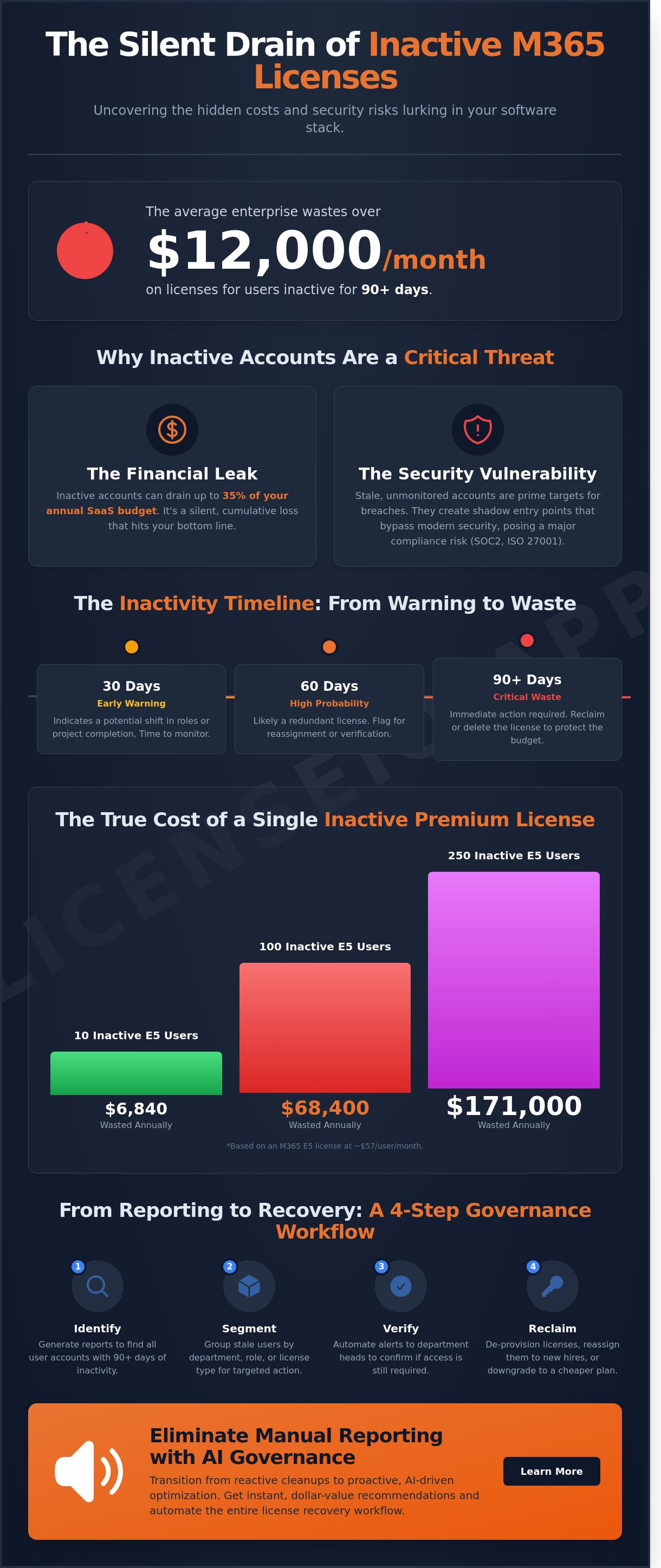
From Reporting to Recovery: A 4-Step Governance Workflow
Data without action is overhead. To stop the financial bleed, you need a repeatable governance workflow that turns insights into savings. Manual tracking is no longer viable for organizations managing more than 250 seats. Instead, follow this structured four-phase approach to regain control over your environment.
- Phase 1: Identify. Generate your inactive office 365 users report to segment your workforce. Categorize users into "Inactive" (zero activity for 90+ days) and "Stale" (no activity for 30 to 60 days). This distinction prevents you from cutting access for employees on short-term leave.
- Phase 2: Notify. Automate alerts directly to department heads. IT shouldn't make the final call on business needs. Force managers to justify the cost of "Stale" users. If they don't respond within 72 hours, move the user to the next phase.
- Phase 3: Reclaim. Unassign the license. Convert the account to a "Shared Mailbox" or move it to an unlicensed state. This keeps the data accessible for compliance purposes while stopping the billing cycle immediately.
- Phase 4: Optimize. Don't just sit on a surplus of licenses. Use the data from your inactive office 365 users report to downsize your Microsoft contract. Organizations often reduce their total seat count by 18% during their next renewal by acting on these insights.
Automating the Offboarding Process
Manual reclamation is slow and prone to human error. Automation ensures that inactivity triggers a workflow the moment a user hits a specific threshold. Establish a 14-day "Cooling Off" period after unassigning a license. This buffer allows for instant restoration if a user returns, preventing operational friction. To maintain total data integrity, follow the LicenseIQ offboarding checklist. It ensures you preserve critical files and emails before the account hits the 30-day deletion mark.
Continuous Monitoring vs. One-Time Audits
Quarterly audits are obsolete in high-turnover remote work environments where 4.2% of the workforce may shift monthly. A one-time cleanup leaves money on the table for 89 days of the year. Visibility must be constant. Establish a "License Health Score" that updates in real-time based on actual login events and app utilization. Be careful with Service Accounts. These accounts often show zero interactive login activity but remain mission-critical for API integrations. Flag these as "Exempt" in your monitoring tool to avoid breaking your tech stack during a cleanup.
Stop paying for digital ghosts and start optimizing your SaaS spend. Start your first automated audit with LicenseIQ today.
Eliminate Manual Reporting with LicenseIQ AI Governance
Manual audits consume hours of IT labor and produce data that expires instantly. LicenseIQ replaces this friction with a direct connection to your tenant. In 300 seconds, the platform scans every user and license to surface hidden inefficiencies. You get an immediate dollar-value recommendation for every account identified as dormant. This is not just a list; it is a financial roadmap. Most organizations achieve up to 35% savings on their annual subscription costs without writing a single line of PowerShell code.
Traditional methods rely on a static inactive office 365 users report that is often outdated the moment it hits your inbox. LicenseIQ shifts your strategy from reactive cleanup to proactive optimization. It monitors utilization patterns continuously, ensuring you never pay for a seat that is not providing clear ROI. By automating the entire governance lifecycle, you eliminate the risk of human error and ensure your software stack remains lean and compliant.
Real-Time Spend Recovery Dashboard
Visibility is the primary weapon against wasted capital. The LicenseIQ dashboard centralizes your financial health, visualizing "Wasted Spend" in a single, high-impact view. You can drill down into specific user profiles to see exactly when they stopped engaging with the suite. This transparency allows you to compare your current licensing state against an Optimized Health Score. It transforms complex data into actionable intelligence, highlighting exactly where your budget is leaking.
- Identify licenses that have seen zero activity for 30, 60, or 90 days.
- View the exact monthly cost of every unassigned or underutilized seat.
- Track recovery progress in real-time as you reclaim resources.
AI-Native Governance for SMBs
Automation should not be reserved for enterprise giants with massive IT departments. LicenseIQ leverages the Model Context Protocol to automate tedious license management tasks for SMBs. You can set custom thresholds for inactivity based on your specific business needs. Once a user crosses that line, the platform handles the reclamation workflow automatically. This AI-native approach ensures your M365 environment scales with your actual needs, not your projected headcount.
Stop chasing ghosts in your tenant. It is time to gain total visibility and stop the drain on your corporate resources. Start your 5-minute M365 audit with LicenseIQ today and turn your inactive office 365 users report into immediate savings.
Stop Wasted Spend and Automate Your M365 Governance
Generating an inactive office 365 users report is the first step toward reclaiming your IT budget. Manual PowerShell scripts and Admin Center exports provide a starting point, but they often miss the deep utilization insights required for true optimization. These manual methods create visibility gaps that lead to over-provisioning and consistent financial leakage. By 2026, high-growth organizations will replace these fragmented audits with real-time AI governance to ensure every license delivers measurable value.
The financial impact is significant. Most enterprises currently waste up to 35% of their M365 subscriptions on dormant accounts or misaligned tiers. It's time to eliminate this waste. LicenseIQ connects to your tenant in under 5 minutes, delivering AI-native spend recovery recommendations that turn raw data into immediate savings. You can transition from passive monitoring to proactive financial control today. Our system acts as a vigilant digital auditor, ensuring your software stack remains lean and fully optimized.
Discover your M365 Health Score and recover wasted spend in 5 minutes with LicenseIQ.
Your path to a leaner, more transparent IT infrastructure starts with one click. Take control of your digital resources and ensure your organization stays ahead of the curve.
Frequently Asked Questions
How do I find inactive users in Microsoft 365 Admin Center?
You find inactive users by navigating to the Reports section in the Microsoft 365 Admin Center and selecting Usage. From this dashboard, you can generate an inactive office 365 users report to view engagement dates across Exchange, Teams, and SharePoint. The system provides a 180-day window of activity data. Use these metrics to pinpoint accounts that haven't accessed core services within your specific audit timeframe.
What is the difference between 'Last Sign-in' and 'Last Activity'?
Last Sign-in records the specific date a user authenticated their credentials, while Last Activity tracks actual engagement like sending emails or editing files. A user might sign in automatically through a background process without performing any productive work. Focusing on activity logs ensures you don't waste budget on users who authenticate but show zero utilization. This distinction typically identifies 15% more reclaimable licenses than sign-in data alone.
How long does Microsoft keep user activity logs?
Microsoft retains user activity data for exactly 180 days within the standard Admin Center usage reports. If you need to track utilization patterns beyond this 6-month window, you must export data to a separate storage account or use a dedicated SaaS management platform. Accessing this 180-day snapshot allows IT leaders to maintain total visibility into consumption trends. It's the primary window for identifying long-term patterns of waste.
Can I automate the removal of licenses from inactive users?
You can automate license reclamation by using PowerShell scripts or specialized third-party optimization tools. While the native Admin Center lacks a "one-click" automation toggle for inactivity, many IT teams deploy 90-day triggers to strip licenses automatically. This proactive approach reduces manual administration by approximately 30 hours per month for mid-sized firms. Automation transforms license management from a reactive chore into a precise, scheduled financial operation.
Is it safe to remove a license from an inactive user?
It's safe to remove a license because Microsoft preserves all associated user data for a 30-day grace period. During this window, you can reassign the license to restore full access and data visibility instantly. If you must retain data longer without paying for a seat, convert the mailbox to a shared mailbox before removing the license. This strategy secures your corporate data while achieving a 100% cost reduction for that user.
Does an inactive user still cost money?
An inactive user costs the full monthly subscription price as long as a license remains assigned to their profile. Microsoft bills for the allocation of the seat, not the actual usage of the software. If a premium E5 license costs $38 per month, leaving it on an inactive account wastes $456 annually. Generating an inactive office 365 users report exposes these hidden costs, allowing finance teams to eliminate unnecessary spend immediately.
How do I find users who have never logged into Office 365?
You find users who have never logged in by filtering the Active Users list and sorting by the Last Sign-in column. Accounts displaying a "Never" status or a blank date field represent immediate opportunities for license reclamation. In typical enterprise environments, 5% of assigned licenses belong to users who never completed their initial onboarding. Removing these seats provides instant ROI and improves the overall hygiene of your identity directory.
What is a good threshold for defining an inactive user?
A 90-day window is the industry standard threshold for defining an inactive user in a corporate environment. This duration accounts for standard vacations, short-term medical leave, and typical project cycles. If a user hasn't engaged with M365 services for 3 consecutive months, the probability of them needing that license tomorrow is less than 10%. Setting a 90-day limit balances operational continuity with the need for aggressive cost optimization.


