

A Visio license should follow the work, not the org chart. Managing Visio license assignments effectively means matching the license type to each role, setting an expected end date for temporary needs, and reviewing usage before reclaiming a seat. Project and Visio needs often fit a three- or six-month window, so schedule a review at the relevant point.
That structure helps IT teams avoid two common problems: assigning the same license level to users with different needs and leaving access in place after a project ends. Role-based assignments give administrators a clear reason for each license. Activity evidence, including last sign-in, can help identify accounts that may no longer need one.
This guide explains how to map Visio access to job responsibilities, record end dates, and establish a consistent inactivity review process. You’ll also learn how to reclaim and reassign eligible licenses while keeping assignments within your organization’s contracted entitlements. The result is a clearer view of who needs Visio, why they need it, and when each assignment should be reviewed.
Key Takeaways
- Match each license assignment to the user’s role and the Visio capabilities their work requires.
- Record an expected end date for temporary requests, then schedule a review at the three- or six-month mark.
- Use last sign-in and other activity insights to assess whether an assignment is still needed before reclaiming it.
- Return eligible unused licenses to your inventory pool and reassign them within your contracted entitlements.
- Use LicenseIQ’s Automated Governance Workflows and License Health Score to support ongoing oversight and spot potential waste.
Time-bound license requests and expected end dates
To manage Visio assignments, an administrator needs authorized access to the Microsoft 365 admin center and permission to manage user licenses. The request also needs a named user, a business reason, and an available license entitlement.
Common mistakes include choosing the wrong plan, assigning a license to the wrong account, or leaving temporary access active. Match the requested plan to the user’s work, verify the account, and record a review date.
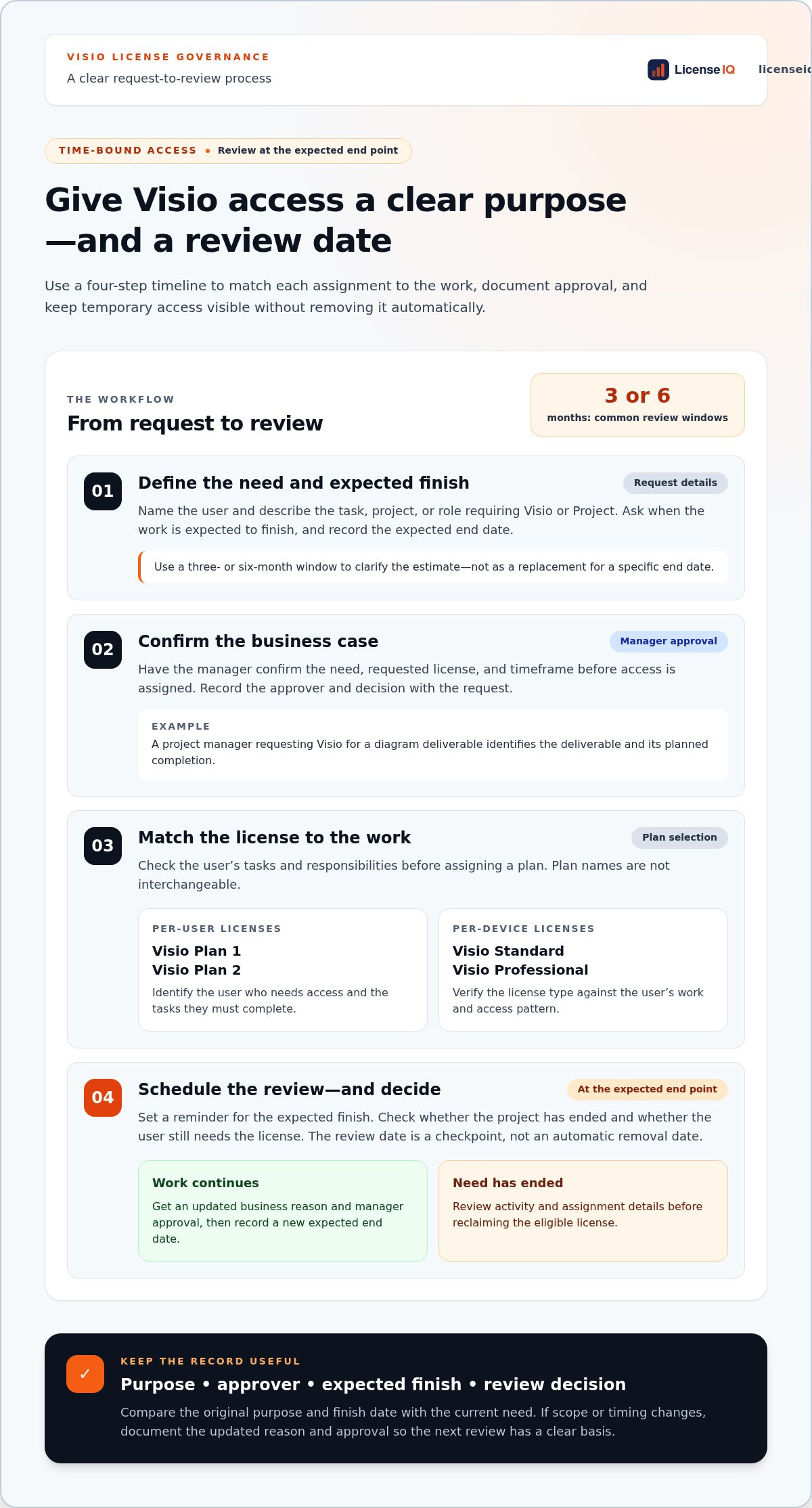
- Ask for the business need and expected end date. Have the requester describe the task, project, or role that requires Microsoft Visio or Project. Ask when the work is expected to finish rather than leaving the assignment open-ended. Many temporary needs fall within a three- or six-month window. Use the expected end date to set a review point, not as an automatic removal date.
- Require manager approval before assigning access. Ask the manager to confirm the business need, requested license, and timeframe. For example, a project manager requesting Visio for a diagram deliverable should identify the deliverable and its planned completion. Record the approver and decision with the request. This gives IT a traceable reason to compare against later usage and project status.
- Choose the Visio plan according to the work required. Visio Plan 1 and Plan 2 are per-user licenses, while Visio Standard and Visio Professional are per-device licenses. For a Plan 1 or Plan 2 request, identify the user who needs access and the tasks they must complete. Don’t treat the plan names as interchangeable. Confirm the requested level against the user’s responsibilities before assigning it.
- Schedule a review for the expected end point. Add a reminder at the three- or six-month mark to check whether the project has ended and the user still needs the license. If the work continues, obtain an updated business reason and manager approval, then set a new expected end date. If the need has ended, review activity and assignment details before reclaiming the seat. This keeps temporary access visible without disrupting active work.
A specific timeline makes a request easier to evaluate and gives the later review a practical reference point. Record the work the license supports, the expected finish, and any milestone that could signal a change in need. Many Project or Visio needs fall within a three- or six-month window, so use that range to clarify the requester’s estimate, not as a substitute for an end date. If the work has no clear completion point, ask what event would show that access is no longer required.
At review, compare the original purpose and expected finish with the requester’s current explanation. If the deliverable or role has changed, ask the manager to confirm that the same license remains appropriate before extending the assignment. Record the revised timeframe with the approval so the next review has a clear basis. When the work is complete, document the decision and check the assignment. This creates a consistent record from the initial need through renewal or removal, while allowing legitimate work to continue when its scope or timing changes.
License assignment based on user profiles and job roles
Build a role-based license matrix before assigning seats. Map each Microsoft 365 profile to its work, required Visio capabilities, and license type.
-
Assign Licenses Through Entra Groups
Create Microsoft Entra groups around stable job profiles, such as process designers or occasional diagram reviewers. Assign the appropriate Visio license to each group, then add users whose responsibilities meet its criteria. Review group membership before applying changes, especially when employees hold multiple roles. Confirm that the group’s license choice matches available entitlements, and deliberately remove conflicting assignments.
-
Account for Guests, Contractors, and Shared Devices
Classify each guest or contractor by the work they perform and the identity they use. Visio Plan 1 and Plan 2 are per-user licenses, while Visio Standard and Visio Professional are per-device licenses. For shared devices, assess whether a device-based license fits the usage model. Don’t assume a shared workstation makes a per-user license unnecessary; match the assignment to the license type and actual access pattern.
- Define profiles by tasks, not job titles alone. Two people with the same title may use Microsoft Visio differently. A project coordinator might only review diagrams, while a process analyst creates and edits them regularly. Record the specific tasks each profile involves, then map those tasks to the required Visio plan. This prevents a broad department label from driving every purchasing decision.
- Separate occasional, standard, and advanced needs. Create profile criteria for users who view or work with diagrams occasionally, users who create diagrams as part of routine work, and users with more demanding requirements. Compare those criteria with the capabilities needed for each role before assigning Plan 1 or Plan 2. Keep the criteria short enough for managers and IT administrators to apply consistently.
- Review exceptions before changing assignments. A user may move teams, support a temporary initiative, or need access beyond their usual profile. Document the reason, approver, and review point so the exception doesn’t become an invisible, permanent assignment. Check the user’s current group membership and direct license assignments together. Otherwise, an old assignment can remain after the person’s role changes.
Use the matrix to document decisions before assigning licenses. Revisit it when responsibilities change, a team adopts a new diagramming workflow, or Microsoft Visio access no longer matches the role. A clear profile model makes assignments easier to explain and helps administrators spot mismatches before they persist.
Reclaiming and reassigning unused licenses
Removing a license ends the user’s entitlement to licensed Visio access, but doesn’t determine what happens to stored files. Review file location, ownership, and organizational access policies separately before changing an assignment.
-
Identify Unused Licenses
Review assignment records alongside usage insights, including last sign-in activity, before deciding a Visio license is unused. A quiet account may still support an active project, so compare activity with the user’s role and current work. Organizations may reclaim unused Project and Visio licenses within the first 30 to 60 days after implementing a structured process. Record the evidence and decision for each seat.
- Unassign the license and confirm the inventory change. Remove the assignment only after the review supports reclaiming it. Then confirm the license appears as available in the admin portal and update your inventory record. In one reported example, unassigning a Visio license left two available licenses in the portal. That status helps administrators distinguish reclaimed capacity from licenses still assigned to users.
-
Reassign Reclaimed Licenses
Return reclaimed licenses to an inventory pool, then match an available seat to a user with an approved need. Reassigning from that pool can avoid buying additional seats when assignments remain within contracted entitlements. Check the license type and recipient before applying it. A Visio Plan license is per user, while a perpetual Visio Standard or Professional license is per device.
- Check transfer limits for perpetual licenses. Visio Standard and Visio Professional perpetual licenses can be reassigned after deactivation, with a 90-day wait between transfers. Deactivate the license on its current device before planning another assignment. Track the transfer date so administrators don’t attempt a reassignment inside the waiting period. This differs from simply removing a user-based subscription assignment.
- Close the audit trail after reassignment. Record the former user, new assignee or device, license type, action date, and reason. Confirm the new assignment aligns with contracted entitlements and that the user can access the required Visio work. If the license supports a temporary need, retain its expected review date. This makes the next reclamation review easier to verify.
Usage activity and inactivity thresholds
Use activity evidence to trigger a review, not an automatic removal. Visio assignments need context because an account with little activity may still support scheduled work.
- Set a review threshold that fits the workload. In customer environments, 40-60% of assigned Microsoft Project and Visio licenses show no usage activity for periods of 90-365 days. Treat that range as a review signal, not a universal cutoff. A role that uses Visio for monthly planning may show different patterns from one that creates diagrams daily. Define when a review begins, then apply the same rule to comparable roles.
- Compare assignment details with usage insights. Review who holds each license, the assigned plan, and recorded activity, including last sign-in. A last sign-in is evidence, not the whole decision. Compare it with the user’s responsibilities and current projects. For example, someone who signs in to Microsoft 365 regularly may still have no recent Visio activity. Keep the investigation focused on the workload tied to that license.
- Use evidence before changing access. Managing Visio license assignments effectively starts with interpreting activity alongside role and project context. Check whether an apparent gap reflects the user’s actual work, then seek manager input before removing a license. Low recorded activity alone doesn’t prove that access is unnecessary. Record the evidence and the reason for retaining or reclaiming the assignment.
- Distinguish prolonged inactivity from planned gaps. Some organizations find hundreds of Microsoft Project and Visio licenses assigned to users who haven’t accessed the workload for months. Identify those accounts, then check for leave, seasonal duties, or paused projects. Document the reason for retaining or reclaiming each license. This prevents an inactivity rule from interrupting work that resumes after a planned gap.
- Document each decision and refine the review process. Managing Visio license assignments effectively also means recording activity evidence, manager input, the decision, and the next review point. If a license remains active despite low usage, note the business reason. If there is no activity and the need has ended, follow the reclamation process. Compare outcomes across roles, then adjust thresholds that generate unnecessary reviews or miss unused assignments.
Make the review trail clear enough for another reviewer to understand how you reached the conclusion. Capture the license assignment details and usage insights considered, including last sign-in activity, then relate those signals to the user’s responsibilities and known work. If the evidence is incomplete or inconsistent, keep the assignment under review rather than treating uncertainty as proof that access is no longer needed. A brief note on what remains to be checked preserves context while the decision is open.
Apply the same reasoning when a user has little recorded activity but a plausible ongoing need. Ask whether the activity evidence reflects the work associated with the license, and consider relevant manager input before deciding whether to retain or reclaim it. Record the conclusion plainly: what evidence supported it, what business context mattered, and when to revisit the question. This makes later reviews easier to compare and helps distinguish a considered exception from an overlooked assignment. Revisit the threshold if repeated reviews show it doesn’t fit the work patterns of comparable roles.
How do you assign Visio licenses to users in the Microsoft 365 admin center?
Use the Microsoft 365 admin center to select a user, choose an available Visio license, and verify the assignment. Follow these steps to keep the account, license type, and business need aligned.
- Sign in with an account that can manage licenses. Open the Microsoft 365 admin center and use an account with the required administrative permissions. If the license controls aren’t available, ask your organization’s administrator to grant the appropriate role. Avoid sharing administrator credentials; each change should remain attributable to an authorized account.
- Open the user’s account record. In the admin center, go to Users, then Active users, and select the correct person. Search by the user’s name or sign-in address, then verify the account details before making changes. This helps prevent assigning a Visio license to someone with a similar name.
- Open the user’s license settings. Select Licenses and apps in the account details. Review the available license choices and confirm that the organization has an unassigned entitlement for the intended Visio plan. If the expected option isn’t available, pause rather than selecting a different plan without approval.
- Select the license that matches the approved request. Choose Visio Plan 1 or Plan 2 when the assignment is for an individual user. These plans are per-user licenses. Confirm that the selected plan fits the user’s actual work and approved request. Don’t select a different product or plan just because it appears in the same list.
- Review service settings before saving. Check the selected license and any displayed app or service options. Align the settings with the user’s approved access needs. Then save the change and wait for the admin center to show the updated assignment. If an error appears, read its details and resolve the listed issue before trying again.
- Confirm access and record the change. Return to the user’s license settings and verify that the intended Visio plan appears as assigned. Record the user, license type, approver, and assignment date in your tracking process. If access doesn’t appear, recheck the account and license status before making another change.
For broader visibility across Microsoft 365 license assignments, review license assignment insights.
LicenseIQ: Automated Governance Workflows
LicenseIQ provides Automated Governance Workflows to help teams apply consistent oversight to Microsoft 365 license assignments. Turn to it when manual reviews make it difficult to track usage, identify inactive users, or spot redundant licenses across the tenant. The LicenseIQ Platform scans licenses and users, while its License Health Score and Spend Recovery Dashboard surface optimization insights and recommendations.
These tools support ongoing visibility once administrators establish role profiles, review dates, and activity thresholds. Use the insights to prioritize assignments for review and make informed reclamation decisions. LicenseIQ helps identify potential waste; administrators remain responsible for following their organization’s approval and entitlement processes when changing assignments.
Visit licenseiq.app to explore how LicenseIQ can support license oversight.
Make License Oversight Part of the Operating Rhythm
Make license governance a repeatable operating practice, not a cleanup task triggered by budget reviews. Assign clear ownership for decisions, preserve the reasoning behind exceptions, and use those records to improve future access reviews. This helps keep licensing decisions connected to real work as roles and projects change.
For broader visibility, LicenseIQ offers Automated Governance Workflows, a Spend Recovery Dashboard, and a License Health Score. These tools help teams maintain a consistent view of license health and potential recovery opportunities. They complement the administrative process, while your organization remains in control of assignment and approval decisions.
Managing Visio license assignments effectively is an ongoing discipline. Start by identifying where manual oversight creates blind spots, then decide what clearer governance should look like for your team.
Contact LicenseIQ to discuss license management and take the next step toward more transparent oversight.
Frequently Asked Questions
How do you remove, reassign, or reclaim a Visio license when an employee leaves?
Coordinate the license change with your offboarding process. Before disabling the employee’s account, identify business files, shared diagrams, or workflows colleagues still need. Arrange continued access through your organization’s file ownership and retention procedures, then remove the departing employee’s license. Reassign an eligible seat only after confirming the new user’s role and entitlement. Record both actions so account closure and license inventory remain aligned.
How can admins track Visio license usage and identify inactive users?
Compare license assignments with user activity and account status, then investigate mismatches before reclaiming seats. For example, flag a disabled account that still holds a Visio license separately from an enabled user with little recent Visio activity. LicenseIQ can scan Microsoft 365 licenses and users through a read-only connection; it doesn’t change tenant data.


