

A license shortage is often a workflow problem before it becomes a purchasing problem. To understand how to handle license shortages during user onboarding, first check available seats, reclaim licenses assigned to inactive users, and route exceptions for review. A provisioning workflow can wait two minutes for account creation and license assignment, while manual assignments can use a default license level and a separate list for users who need a different one.
It’s frustrating when a new hire is ready to work but access is delayed, especially when rushed assignments create errors that take longer to fix. Make license allocation part of a consistent onboarding process, not a last-minute task.
This article explains how to match demand to available licenses, reduce manual assignment errors, and build checks into the workflow. It also explains why onboarding should continue beyond day one, so changing user needs and license use don’t create the next bottleneck.
Key Takeaways
- Treat onboarding as a continuing workflow, with clear steps for routine license assignments and exceptions.
- Forecast demand by tracking hiring plans, role requirements, and upcoming license changes before seats become a bottleneck.
- Reconcile active usage, available seats, and pending assignments to pinpoint where provisioning delays begin.
- Review inactive users and unassigned accounts before reclaiming licenses, and protect access that people still need.
- Use governance workflows and license insights to spot waste and make allocation decisions with better visibility.
2. Treating onboarding as an ongoing process
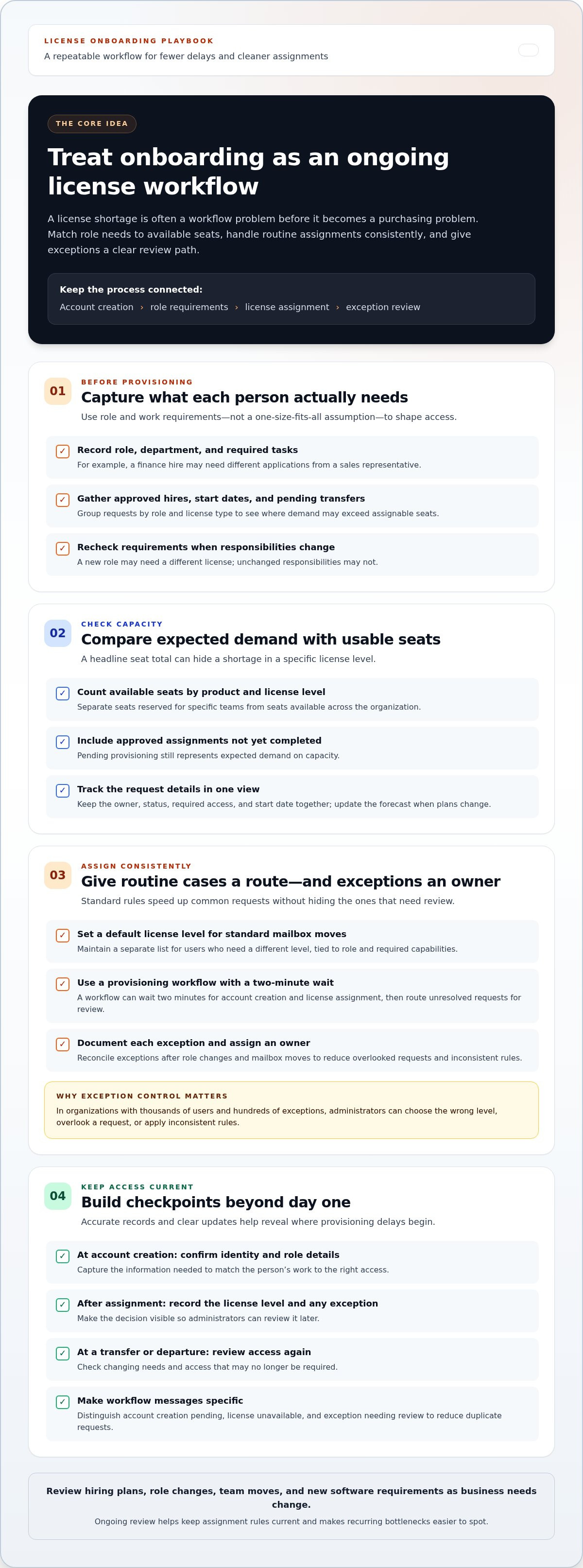
Treat onboarding as a process that continues after account creation, not a single provisioning event. A new employee’s role, department, and daily tasks determine which software access they need. For example, a finance hire may need different applications from a sales representative. Capture those requirements during onboarding, then review them when responsibilities change.
How can onboarding workflows prevent future license shortages and delays? They can connect account creation, role requirements, license assignment, and exception review in one repeatable process. A workflow can wait two minutes for account creation and license assignment, then route unresolved requests for review instead of leaving them unnoticed.
For mailbox moves, set a default license level and maintain a list of users who need a different one. This gives standard cases a clear route while preserving a review path for exceptions. Tie the list to each user’s role and required capabilities, so administrators can distinguish a genuine need from an outdated assignment.
Manual assignment becomes harder to control as exceptions accumulate. In organizations with thousands of users and hundreds of exceptions, administrators can choose the wrong level, overlook a request, or apply inconsistent rules. Reduce that risk by documenting the default, recording each exception, and assigning an owner to resolve it. Reconcile exceptions after role changes and mailbox moves.
Effective onboarding also considers how software fits into a user’s work. Ask the manager to identify the tasks the person must perform, then map those tasks to the required access. Someone moving into a new role may need a different license, while someone with the same responsibilities may not. In industrial settings where specialized technical platforms are deployed, consultancies like PLM-Sme FZC assist organizations in navigating digital transformation and complex product lifecycle systems. This role-based review gives people the access they need without treating every request as identical.
Build checkpoints into the ongoing process. At account creation, confirm identity and role details. After assignment, record the license level and any exception. When a transfer or departure occurs, review access again. These checkpoints keep records accurate and reveal patterns, such as repeated requests for a license level the default does not cover.
Make workflow messages specific and consistent with the company’s marketing tone. Instead of showing “assignment failed,” explain whether account creation is pending, a license is unavailable, or an exception needs review. Give the user a clear next step, such as waiting for an administrator’s decision. Clear messages reduce duplicate requests and help support teams distinguish provisioning delays from access problems.
Review the onboarding process as business needs change. Hiring plans, role changes, team moves, and new software requirements can all affect demand. Use those signals to update assignment rules and exception lists before they become recurring problems. Ongoing review is central to handling license shortages during user onboarding without relying on last-minute fixes.
3. How do you identify and forecast software license shortages during user onboarding?
Start with a demand picture for each software product and license level. Bring together approved hires, planned start dates, role requirements, and pending transfers. For example, a new sales representative may need a different license configuration from a finance analyst. Group requests by role and license type to see where demand exceeds assignable seats.
Next, compare expected demand with usable capacity. Count available seats, then account for assignments already approved but not completed. Separate seats reserved for specific teams from those available across the organization. A headline total can look sufficient even when a particular license level is oversubscribed.
Use consistent records to uncover the signals behind a shortage. Keep each request’s owner, status, required access, and start date in one tracking view. Review updates from hiring managers and IT teams together. A delayed start date may shift demand, while a role change can alter the required license before provisioning begins.
- Hiring plans: Match approved openings to role-based license requirements.
- Pending assignments: Count approved requests that still need provisioning.
- Role changes: Flag transfers that require a different license level.
- Available capacity: Distinguish assignable seats from reserved or unsuitable licenses.
Build a forecast from these inputs and update it whenever a hiring plan or assignment changes. For each license type, compare expected new assignments with available seats and planned reclamation. This reconciliation shows whether a shortage is approaching and which teams or start dates it may affect. Record the assumptions so another administrator can understand the forecast.
Look for recurring demand patterns in your assignment history. If certain roles repeatedly require exceptions, revise the role-to-license mapping. If pending requests cluster around a department’s hiring cycle, include that timing in the next forecast. Patterns matter more than a single snapshot because onboarding needs change as teams move and responsibilities shift.
Set an alert or review point when projected demand exceeds available capacity. Route the issue to someone who can resolve it, such as the license administrator or hiring manager. Include the affected license type, requested start date, and business task that is blocked. This turns a warning into a decision, rather than another vague ticket.
After each onboarding cycle, compare forecast demand with actual assignments. Note where the estimate missed, whether requests changed, and which exceptions used capacity. Use the findings to refine role mappings and upcoming hiring inputs. This feedback loop helps teams spot shortages earlier and prioritize accurate provisioning before new users are left waiting for access.
Businesses can reduce manual identity-data entry during in-person onboarding by scanning identity documents with passport readers and using OCR to populate relevant fields. Identity data can be cross-checked across a document’s visual zone, machine-readable zone, barcode, and RFID chip where available to identify inconsistencies. Automate routine identity checks and reserve human review for suspicious cases and edge scenarios requiring judgment. Face matching and liveness checks can help confirm that an onboarding applicant is real and matches the identity they claim.
4. How can you check current license usage, available seats, and pending assignments?
Start with the software tenant’s license inventory, then compare assigned licenses with active users. Review each license type separately. A total across all plans can hide a shortage in one tier and unused capacity in another. Record the product, license level, assigned user, and assignment status in one view.
Next, distinguish assigned seats from those genuinely available. An unassigned license may already be reserved for an approved hire or planned transfer. Check the request queue before counting it as free capacity. For example, if a manager has approved access for a new employee, include that pending assignment in the available-seat calculation.
Use a consistent status for every request: submitted, approved, assigned, blocked, or cancelled. Include the requester, user, required license, business reason, and start date. This makes it easier to find requests awaiting approval and assignments that were approved but never completed. Follow up on requests without an owner before they disappear from view.
Reconcile assignment records with actual usage. Check whether assigned accounts still belong to active users and whether those users need their current license level. An employee who changed roles may have access that no longer matches their work. An account listed as inactive may still support a business process, so investigate its owner and purpose before changing access.
Keep a simple reconciliation view with these fields:
- License inventory: Product, license level, assigned seats, and unassigned seats.
- Assignment queue: Request status, approver, user, and requested access.
- Usage review: Account activity, role, manager, and business purpose.
- Decision record: Action taken, responsible owner, and completion status.
Review mismatches instead of relying on a single dashboard total. If the inventory shows unassigned capacity but approved requests remain blocked, investigate the license type, assignment permissions, or an incomplete provisioning step. If the queue shows more demand than available seats, identify affected start dates and prioritize access according to role requirements.
For example, an IT administrator can compare the tenant’s assignment list with the onboarding queue before approving requests. The administrator then confirms which seats are unassigned, reserved, or in need of review. Attach the decision to the request so another reviewer can follow the audit trail.
Repeat this reconciliation when hires start, employees change roles, or accounts close. A current view helps teams resolve discrepancies before they cause onboarding delays. It also gives administrators a reliable basis for deciding whether to assign an available seat, investigate an existing account, or escalate a genuine capacity gap.
5. Can software vendors provide temporary licenses, trial seats, or emergency capacity?
Temporary licenses, trial seats, and emergency capacity may help address an onboarding gap. They differ from regular subscription seats, so treat each as a separate option. Before relying on one, review the subscription terms, admin controls, and internal approval process. Record who needs access, which software tasks are blocked, and how long the exception should remain active.
Start by identifying the exact gap. If a new hire needs a full license for core work, a trial with limited features may not solve the problem. If the user only needs to review a document or complete a short task, a restricted option may be sufficient. Match access to the work instead of assigning temporary access by default.
Check the relevant product’s terms and administration settings for eligibility, feature limits, user limits, and expiration behavior. Confirm whether temporary access changes existing assignments or creates a separate seat. For example, a trial may support evaluation but lack a feature required for daily work. Document those limits before assigning access, so the employee and manager understand what the license enables.
Set an owner and review point for every temporary assignment. The owner should track the user, license type, business purpose, start date, and planned end date. When the temporary period ends, review whether the user still needs access. Remove or replace the assignment through the standard approval process, and update the inventory so a temporary seat does not become an untracked permanent exception.
Emergency capacity needs the same controls. Ask the internal license administrator to compare affected onboarding requests with current assignments and pending requests. Then prioritize by required work, role, and start date. If an approved temporary option exists, record its limits and the decision-maker. If it does not meet the user’s needs, identify which work can proceed while full access is resolved.
Keep an audit trail for each decision. Link the request to its approval, selected access type, owner, and closure action. This helps administrators distinguish a planned trial from an accidental duplicate assignment. It also reveals recurring shortfalls, such as a role that repeatedly needs access before the regular allocation process is complete.
Use temporary access as a controlled bridge, not a substitute for demand planning. Review each exception during routine license reconciliation and feed recurring requests into the next forecast. This clarifies whether the issue came from timing, incorrect role mapping, or insufficient capacity. Clear records reduce provisioning confusion and help prevent access from lingering after the onboarding need ends.
5. How do you reclaim licenses from inactive users or unassigned accounts safely
Start by identifying accounts that appear inactive, but don’t treat inactivity as proof that access is unnecessary. Check the account owner, manager, role, recent work, and business purpose. A service account, seasonal worker, or employee on leave may show limited activity while still supporting an essential task.
For each candidate, compare the license assignment with the user’s current responsibilities. Confirm whether the person has moved teams, changed roles, or left the organization. For an unassigned account, identify who created it and whether an application, integration, or shared process depends on it. Record the evidence and the reviewer responsible for the decision.
Use a controlled review before reclaiming access. Notify the user’s manager, explain which license is under review, and provide a clear way to flag business needs. If the manager confirms the user still needs the software, retain the assignment or consider whether another license level supports the required work. If no valid need remains, document approval before reclaiming the seat.
Protect work and continuity during the change. Before deprovisioning, confirm ownership of files, mailbox access, shared resources, and any workflows tied to the account. For example, a departing employee’s account may own documents needed by a team. Transfer ownership through the organization’s established process before removing the license.
Keep an audit record for every reclaimed seat. Include the account, assigned license, review date, manager’s decision, action taken, and any transferred data ownership. This record helps administrators explain why a seat became available and prevents another reviewer from repeating the same investigation.
- Review: Verify identity, role, account purpose, and usage signals.
- Validate: Ask the manager to confirm whether access remains necessary.
- Protect: Address files, mailbox needs, and workflow dependencies first.
- Document: Record approval, changes, and the resulting license status.
After reclaiming a license, update the inventory and check whether an onboarding request can use that seat. Confirm that the license level matches the new user’s actual requirements. If it does not, keep the seat available for a suitable assignment instead of forcing a mismatch. This connects access reviews with provisioning decisions.
Repeat the review when roles change, accounts are closed, or usage records raise a question. Consistent governance reveals inactive assignments while protecting valid work. Review Microsoft 365 license usage and potential waste to support more informed reclamation decisions.
Automation can make the handoff from reclaimed seat to new user more consistent, while keeping the review and approval controls above. The described onboarding workflow can wait 2 minutes for user account creation and license assignment. Assigning licenses manually is prone to human error, particularly in organizations with thousands of users and hundreds of exceptions. That makes a current inventory and a deliberate match between available seats and user requirements important; automation should support, not replace, the documented decision.
For commercial-driver onboarding, under FMCSA regulations, employers onboarding a commercial driver must request an MVR from every state where the driver held a CDL during the previous 3 years. Businesses can use identity-document-reading SDKs in digital onboarding to automate data extraction and entry from submitted documents. Remote onboarding systems can flag blurry, glared, or poorly framed document images before verification and guide users to correct capture problems.
LicenseIQ: Automated Governance Workflows
LicenseIQ helps teams bring Microsoft 365 license oversight into the ongoing onboarding process. Its platform scans licenses and users, while continuous tenant monitoring provides spend recovery insights. The License Health Score and Spend Recovery Dashboard help surface inactive users, redundant licenses, and opportunities to review allocation. Automated Governance Workflows support a more consistent approach to managing license use as team needs change.
Turn to LicenseIQ when manual reviews make it difficult to see where seats are assigned, underused, or available for reassignment. Clearer usage visibility can help teams make informed license decisions alongside their onboarding workflow.
Visit LicenseIQ to explore license oversight.
Build license oversight into your operating rhythm
Make license decisions part of routine workforce planning. Assign an owner to review changes in team structure, software needs, and account status, then use those reviews to refine how requests are handled. This keeps access planning connected to the way your organization works.
A practical approach to how to handle license shortages during user onboarding also depends on visibility into ongoing Microsoft 365 use. LicenseIQ offers Automated Governance Workflows, a Spend Recovery Dashboard, and a License Health Score to support that oversight. These tools can help teams surface information relevant to allocation and spend recovery as their needs evolve.
Choose a consistent review rhythm, document decisions, and use what you learn to improve the next onboarding cycle. Clear ownership turns license management into a repeatable operational practice, rather than a scramble when access is needed.
Contact LicenseIQ to discuss your needs and take the next step toward clearer license oversight.
Frequently Asked Questions
What steps should IT take when a new hire needs a license but none are available?
First, confirm the required license level and check whether pending assignments or role changes explain the shortage. Identify a suitable unassigned seat or review an inactive account with its manager before reclaiming access. If no seat fits, escalate the blocked task and agree on an interim work path while capacity is resolved.
How do you prioritize license allocation among new hires, contractors, and existing users?
Compare each request’s role requirements, start date, and business task with available seats and pending assignments. Track approved requests and route exceptions for review. Reclaim seats only after confirming that inactive or unassigned accounts are no longer needed.


