

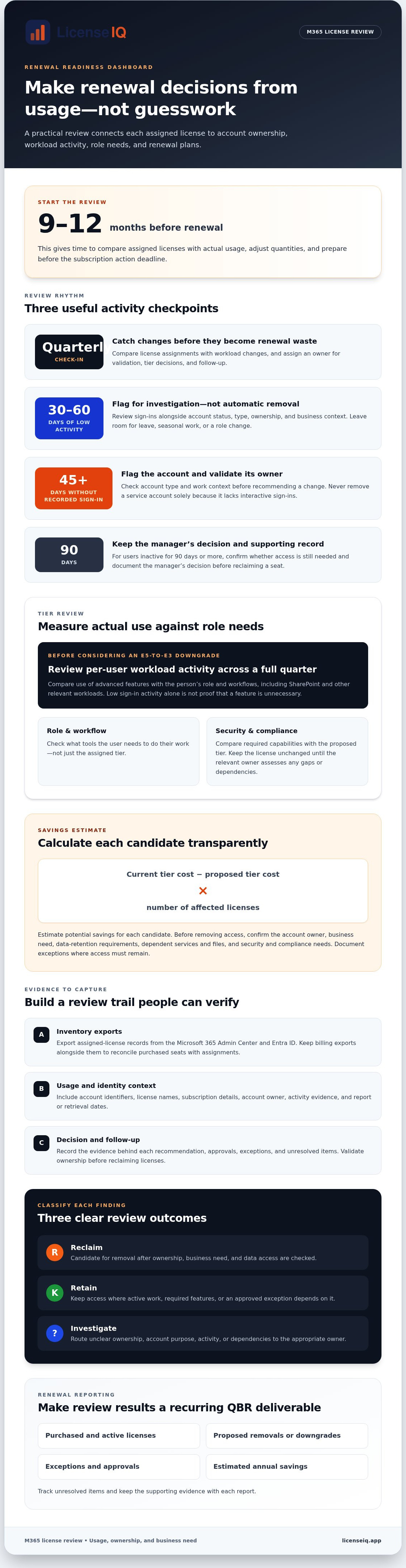
A useful M365 license audit starts 9 to 12 months before renewal, giving you time to compare assigned licenses with actual usage and adjust quantities before the subscription action deadline. To learn how to audit M365 licenses before renewal, review each tier against users’ roles and workflows, flag inactive accounts, and document licenses to keep, downgrade, or remove. A quarterly check-in helps catch changes before they become renewal waste.
License counts alone don’t show whether people have the right tools. A higher tier may include features a user doesn’t rely on, while a downgrade can disrupt a workflow if you overlook how that person works.
This guide lays out a practical review: export your license inventory, identify inactive and duplicate accounts, assess tiers and add-ons, then prepare clear findings for renewal. You’ll know what to examine and what evidence to capture, so decisions are based on usage and business needs, not guesswork.
Key Takeaways
- Build a per-user license inventory and compare assigned tiers with workload activity before renewal decisions.
- Flag inactive, duplicate, disabled, and former contractor accounts, then validate account ownership before reclaiming licenses.
- Use exported inventory and sign-in data to connect each license assignment with a user and a business need.
- Compare role requirements with tier features, and use LicenseIQ’s governance workflows to support ongoing license oversight.
What Is a Step-by-Step M365 License Review Process?
Microsoft 365 prices depend on the assigned plan and subscription terms; estimate savings by comparing current charges with the cost of retained or lower-tier licenses. Before removing a license, assess effects on service access, data retention, security, and compliance.
- Set the review scope and export your assigned licenses, accounts, and subscription details. Group users by license tier and workload, then flag duplicate assignments and accounts that need owner validation. Keep this inventory as a baseline for comparing proposed changes with actual software use.
- Review per-user workload activity across a full quarter before considering an E5-to-E3 downgrade. Compare actual use of advanced features with the user’s role, including SharePoint and other workloads relevant to their tasks. Record the reports and evidence behind each recommendation, rather than treating low sign-in activity as proof that a feature is unnecessary.
-
Estimate Savings and License Removal Risks
Estimate potential savings for each candidate by multiplying the difference between the current and proposed tiers by the number of affected licenses. Before removing access, confirm the account owner, business need, and data-retention requirements. Check which services and files depend on the license, including SharePoint access, and assess security and compliance needs. Document any exceptions where access must remain.
- Review security requirements before approving a downgrade. Compare the user’s required security and compliance capabilities with those included in the proposed tier, then document any control gaps or dependencies. Keep the license unchanged until the relevant owner has assessed the impact. This helps avoid weakening an approved security approach or interrupting a critical workflow to reduce costs.
-
Set Recurring Reviews and License Ownership
Schedule a quarterly review, using a 90-day check-in to compare assignments with workload changes. Assign an owner for account validation, tier decisions, and follow-up actions. Make the results a recurring QBR deliverable: show purchased and active licenses, proposed removals or downgrades, exceptions, and estimated annual savings. Track approvals and unresolved items in each report.
Identifying inactive accounts while checking account types and owners
Treat inactivity as a signal for review, not an automatic reason to remove a license. Compare sign-in activity with the account type, ownership, and business need before taking action.
-
Check Account Types and Owners
In Microsoft 365 Admin, review licensed accounts alongside their status and assigned owner. Separate employee, contractor, seasonal, service, and shared accounts because each can have different access needs. Match each account to a manager or system owner, then record its purpose and last known use. Never remove a service account solely because it lacks interactive sign-ins.
-
Find Inactive and Never-Activated Seats
Filter for users with no sign-ins or little activity during the past 30 to 60 days. Flag accounts without a recorded sign-in for 45 or more days, then check account status and work context. Identify never-activated seats separately: confirm whether the person started, whether access was issued, and whether the license remains necessary.
- Validate likely inactivity before reclaiming a seat. Review activity across 30, 60, or 90 days, and ask the manager to confirm whether the user still needs access. For users inactive for 90 days or more, retain the manager’s decision and supporting record. This helps distinguish a genuine departure from leave, seasonal work, or a role change.
- Compare account names, email addresses, and owners to find duplicate users. Then inspect each assignment for overlapping Microsoft 365 license features: compare plan entitlements and assigned add-ons, and identify capabilities repeated across subscriptions. Remove duplicate accounts or redundant assignments only after confirming which account and features support active work.
- Classify findings as reclaim, retain, or investigate, and record the reason for each action. Disabled users, former contractors, and never-activated accounts can be candidates for removal, but check ownership and data access first. If renewal is within 30 days, prioritize unassigned seats and clearly inactive accounts, then route unresolved cases to their enterprise owners.
For a consolidated view of inactive users and redundant licenses, explore Microsoft 365 license insights.
Exporting license inventories from the Microsoft 365 Admin Center and Entra ID
In the US, find the renewal date, cancellation deadline, and auto-renewal setting in your subscription details and signed agreement. Compare renewal offers by matching terms, license tiers, seat quantities, and add-ons against current needs.
-
Export License Records from Admin Centers
Export assigned-license records from the Microsoft 365 Admin Center and Entra ID. Keep billing exports alongside them to reconcile purchased seats with assignments. Include account identifiers, license names, and subscription details in your working inventory. Save each export with its retrieval date, so reviewers can distinguish current records from older snapshots during renewal planning.
-
Review Usage and Last Activity
Use Microsoft 365 usage reports to compare licensed accounts with reported activity and last sign-in information. Review the reporting period and account identity before treating a quiet account as unused. For example, a licensed account with no recent activity needs owner context before any downgrade decision. Record the report date and evidence supporting each proposed change.
-
Map Assigned Licenses and Add-Ons
Build a user-by-user map of each Microsoft 365 license and separately assigned add-on. Match the inventory to account identifiers in Entra ID, then flag duplicate or overlapping entitlements for review. This answers which licenses each person holds and helps reveal add-ons assigned beyond their role. Keep the assignment record distinct from purchased quantities.
- Compare your inventory with the renewal offer and signed agreement. Check seat quantities, license tiers, add-ons, subscription term, renewal date, cancellation deadline, and auto-renewal status. Terms depend on the subscription arrangement, so follow its stated dates and settings rather than assuming one US-wide deadline. For each proposed downgrade, record the user, current assignment, alternative, usage evidence, and approver.
- Store dated exports, usage reports, and the agreement together as the internal license record. Reconcile any difference between purchased and assigned seats before approving renewal quantities. If an inventory question remains, trace it from the Microsoft 365 Admin Center export to the corresponding Entra ID account, then record the answer and source report for the next review.
Matching license tiers to user roles and workflows
Match each assigned tier to the work it supports, not just headcount. Comparing licenses by role can show where advanced features justify the subscription and where they may not.
-
Identify User Roles and Workflows
Group users by role and document the workflows each license must support. For example, distinguish employees who create and manage content from colleagues who mainly use standard collaboration tools. Review relevant activity over a full quarter before deciding whether advanced features are needed. Include security and compliance requirements in each role profile, so a lower tier doesn’t remove capabilities the workflow depends on.
-
Match License Tiers to User Needs
Compare each role profile with the features included in its assigned tier. For an E5 user, review advanced feature use across a full quarter before considering E3. Then assess whether Business Standard supports the person’s actual workflow. A hypothetical organization with 5,000 users could identify 1,000 E3-to-Business Standard downgrade candidates, but each assignment still needs individual validation.
- Compare license counts by role with the admin center inventory. Separate active users, exceptions, and proposed changes, then record the reason for each recommendation. A role may need an advanced security feature even if its users rarely access other premium tools. Check specific feature dependencies before changing the subscription.
- Estimate savings using the actual subscription terms and the number of affected users. Treat the estimate as an illustration, not a forecast for your organization. The result depends on assigned tiers, eligible users, and the price difference in your agreement.
- Take the next step by turning role-to-tier findings into a repeatable approval process. Assess license health across user roles to make tier decisions easier to review.
LicenseIQ: Automated Governance Workflows
LicenseIQ is a practical next step when manual reviews leave license assignments, usage, and potential savings difficult to track. The LicenseIQ Platform scans Microsoft 365 licenses and users, then provides a License Health Score and specific dollar-value recommendations. Its Spend Recovery Dashboard highlights optimization opportunities, while Automated Governance Workflows support ongoing license oversight.
Use these insights to prioritize inactive accounts, redundant licenses, and tier assignments that may not fit users’ roles. Continuous tenant monitoring and real-time spend recovery insights help teams keep findings visible between renewal reviews. LicenseIQ can help businesses save up to 35% on software subscriptions through actionable insights.
Visit LicenseIQ to explore license optimization.
Make Your Next Renewal a More Informed Decision
License decisions can keep drifting after renewal unless someone owns the next review. Set a clear internal owner, preserve the rationale behind changes, and use those records to guide future planning. Knowing how to audit M365 licenses before renewal is a practical starting point for building that discipline into ongoing operations.
When manual tracking makes follow-through difficult, LicenseIQ’s License Health Score, Spend Recovery Dashboard, and Automated Governance Workflows can help surface optimization opportunities and support continued oversight. Use the insights to focus attention on assignments that need review, while keeping final decisions connected to user needs and business requirements.
Take the next step toward clearer license governance. Contact LicenseIQ about your license review, and move forward with a more deliberate renewal process.
Frequently Asked Questions
How do you run the review, tier by tier?
Compare users within each tier, then group findings by decision: retain, downgrade, remove, or investigate. For each proposed change, document the relevant workflow, feature dependencies, and approving owner. This makes exceptions visible instead of letting one unusual user determine the license level for an entire department. Review unresolved cases before changing assignments or renewal quantities.
What Are the Hidden Costs of Not Auditing Your Licenses?
Unreviewed assignments can leave you paying for accounts that no longer support active work, redundant add-ons, or tiers with features users don’t need. Changes can also have operational costs: removing access without understanding a workflow may interrupt work or create security and compliance gaps. Track recurring spend and the consequences of changing access, not just the number of seats.
What Metrics Should You Track Before Renewal?
Track purchased and assigned license counts, active and inactive accounts, tier distribution, add-on assignments, and the number of proposed changes. Add a decision status and owner for each exception. To measure financial impact, compare the current subscription spend with the projected spend after approved changes, using the actual terms in your agreement.
What goes in a Microsoft usage review template?
Include the user or account identifier, department, manager, assigned license and add-ons, activity evidence, and relevant workflow needs. Add fields for the recommendation, business reason, security or compliance impact, approver, and completion status. Use a notes field for exceptions, such as a service account whose purpose isn’t reflected in ordinary sign-in activity.
What is a usage review worth at renewal?
The value of an audit is the recurring spend you can support with evidence, balanced against the access and workflow needs that must remain covered. Compare current subscription charges with the approved renewal configuration rather than treating every recommendation as a saving.


