

A workstation client isn’t the policy that reclaims a license. Whether you need one depends on how your environment collects software usage data. Automated license reclamation applies defined inactivity criteria, notification steps, and access rules to that data. The key is knowing what your integrations can observe and how your policy handles exceptions.
It’s reasonable to want clear oversight before changing anyone’s access. This article explains how license reclamation works, what workstation clients and integration tasks do, and how notifications give users a chance to explain why they still need access. You’ll also learn how to shape policies around usage criteria, users, and applications, so the process is visible and controlled rather than a blanket license removal.
Key Takeaways
- Set inactivity criteria by application, user group, or organizational unit; a 60-90-day period without a login is one example to consider.
- Notify users and managers during a pilot, and provide users a response window to explain why they still need access.
- Reconcile license entitlements, installations, and usage data to identify where licenses may be right-sized.
- Use integration tasks to connect usage data with ITSM, HR, or identity systems, then apply reusable policies across applications.
Automated user notifications and reclamation workflows
A reclamation workflow connects usage signals to notifications, review, and a license decision. Its controls help software asset management teams respond to inactivity without overlooking a valid business need.
Inactivity-Based Reclaim Triggers
An inactivity-based trigger flags a license when recorded use falls below a policy threshold. One example is no login for 60-90 days, with criteria set by application, user group, or organizational unit. The threshold helps teams target review rather than treat every assigned license alike.
Before taking action, notify the inactive user and manager, then allow time for a response. The user can explain why continued access is needed, and the manager can review that explanation and approve keeping the license. If the user chooses to retain a SaaS license, that choice does not deactivate their application access.
Supported Tools and Platforms
Automated reclamation can use ITSM, HR, and identity-system integrations to support license changes. A workstation client isn’t always required: the workflow depends on how the platform receives reliable usage data. When administrators import data from another source, they may need to map or adjust it to match Software Usage record attributes.
This distinction matters when setting a trigger. Confirm that the source records the application activity your policy measures, then direct notices to the right user and manager. For example, an application-specific policy should use that application’s usage data, not a broad sign-in signal that may miss relevant activity.
Automated and Manual Management
Automated license reclamation applies consistent criteria and routes notifications, while manual management depends on staff finding inactive accounts, contacting users, and tracking decisions. Automation can reduce repetitive review, while human approval remains useful for exceptions and business context.
A typical workflow identifies an inactive assignment, notifies the user and manager, records a justification or approval, then reclaims or retains the license. Reviewers should assess the usage evidence and response before taking action. This staged process supports compliance and helps limit the impact of reclaiming access that is still needed for work.
What is license harvesting?
Automated software license reclamation identifies licenses with little or no recorded activity, then supports a decision to retain, adjust, or reclaim them. It compares license entitlements, software installations, and usage data. This reconciliation gives teams a clearer view of assigned software assets and supports compliance.
Monitoring starts with records from the relevant application and license inventory. A system compares observed activity with assigned entitlements, then flags potential idle licenses for review. For example, if a user has an assigned application license but the usage record shows no activity, that assignment is a candidate for investigation, not proof that access is unnecessary.
That distinction matters because a quiet account can have a valid business reason. Someone may use an application only for periodic tasks, or activity data may not capture every relevant use. Consider the application’s purpose, available usage evidence, and the user’s role before deciding whether to keep or right-size a license.
Automation makes monitoring repeatable. Instead of relying only on staff to compare spreadsheets, a workflow can match entitlement records with installation and usage information, identify exceptions, and route candidates for review. The result is a structured view of which licenses appear active, which need investigation, and where assignment data may need correction.
Harvesting can also inform right-sizing, not just removal. If usage and entitlement records show that an assigned license exceeds a user’s needs, the team can assess a suitable adjustment under its policy. Reliable matching is essential: inconsistent user records or incomplete activity data can make an apparent idle license misleading. A software asset team can use software license intelligence to bring usage and entitlement signals into clearer view.
Enabling the reclamation integration task
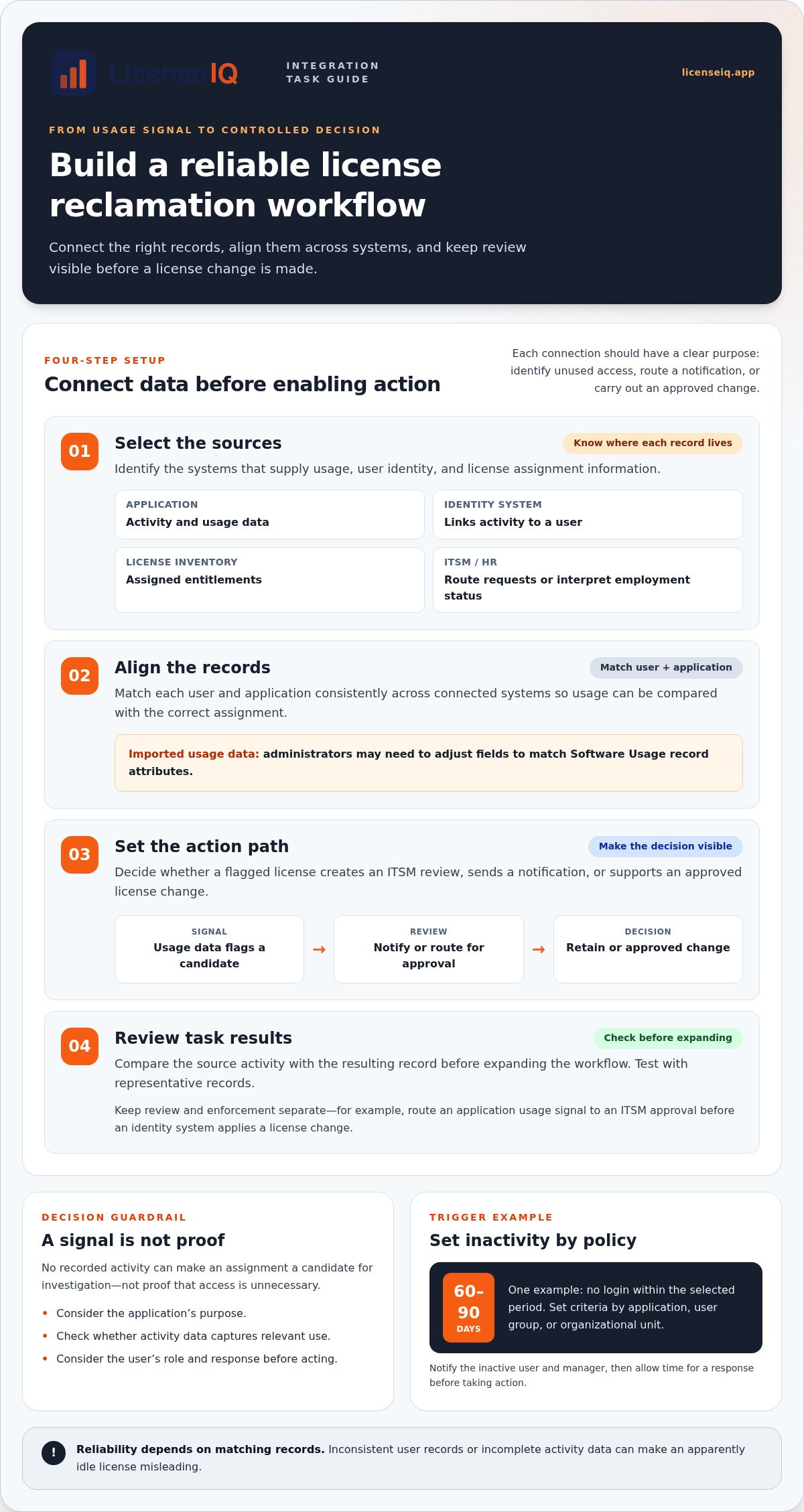
An integration task connects usage signals to a controlled license decision. Connect the relevant data source, align records, and define how approved actions flow to ITSM, HR, or identity systems. Each connection should have a clear purpose: identifying unused access, routing a notification, or carrying out an approved license change.
Start by identifying the system that holds each required record. An application can provide activity data, while an identity system links that activity to a user. ITSM can route the resulting request or action. HR data can help interpret employment status, so a license assigned to a departing user follows the organization’s established process.
Before enabling changes, map the task’s inputs to the records its workflow needs. Confirm that user identities match across sources and that application names refer to the same software asset. When importing usage data, administrators may need to adjust fields to match Software Usage record attributes. Mismatched records can obscure whether a license is genuinely unused.
- Select the sources. Identify which system supplies usage, user identity, and license assignment information.
- Align records. Match each user and application consistently across connected systems.
- Set the action path. Decide whether a flagged license creates an ITSM review, sends a notification, or supports an approved change.
- Review task results. Compare the source activity with the resulting record before expanding the workflow.
Keep review and enforcement separate. For example, an application usage signal can create an ITSM item for approval before an identity system applies a license change. This separation makes the decision visible and gives reviewers a clear record of why action was taken.
Finally, test the integration task with representative records before relying on its output. Check that an active user remains assigned, an unused license reaches the intended review path, and a completed approval produces the expected downstream update. A task is useful only when its data and action remain traceable across connected systems.
Automated license reclamation policies
A reclamation policy turns usage signals into consistent decisions. Organizations define which licenses qualify for review, what notice users receive, and who approves the final action. Reusable policies can apply across applications while preserving application-specific criteria.
For U.S. organizations, vendor agreements and subscription terms govern license entitlements and permitted changes. An inactivity trigger alone doesn’t establish the right to remove or alter a license. Match each policy to the relevant agreement, assigned entitlement, and internal approval process.
Set the policy around the application and the business context. No login for 60-90 days is one example inactivity threshold, not a universal rule. A pilot can focus on 1-2 high-spend applications and use 6-12 months of usage data to identify patterns before broader rollout.
- Choose scope. Select an application, user group, or organizational unit and define which license assignments the policy covers.
- Set criteria. Specify the activity signal and inactivity threshold, then account for roles with occasional application use.
- Define review. Route notices to users and managers, provide a response window, and record approval or justification.
- Set the outcome. Decide whether an approved case retains, downgrades, or reclaims the license, consistent with its entitlement.
- Review results. Compare policy decisions with usage records and exceptions, then adjust criteria before expanding scope.
Timing matters. Teams may need seat estimates six weeks before a renewal or true-up, so policy reviews should inform that planning rather than happen separately. A documented exception path also helps prevent a short-term absence or infrequent task from triggering an unsuitable change.
Use the pilot to assess both reclaimed assignments and disputed cases. If users repeatedly justify continued access, review the application’s threshold or exception criteria. If records don’t reflect actual use, fix the data inputs before scaling. Automated license reclamation works best when each trigger, review, and outcome is traceable to a policy decision.
LicenseIQ: Automated Governance Workflows
LicenseIQ helps organizations identify and recover wasted spend on Microsoft 365 licenses through software intelligence and actionable usage insights. Its Automated Governance Workflows support consistent governance, while the Spend Recovery Dashboard highlights potential savings opportunities. The License Health Score and LicenseIQ Platform give teams a clearer view of license and user data, helping them prioritize which assignments to review.
Turn to LicenseIQ when manual analysis makes it difficult to see inactive users, redundant licenses, or where further review may improve license allocation. The platform continuously monitors Microsoft 365 tenants and provides real-time spend recovery insights. Its recommendations can help businesses save up to 35% on software subscriptions, based on identifying inactive users and redundant licenses.
For a clearer view of Microsoft 365 license use, visit LicenseIQ.
Make license governance an ongoing practice
Treat automated license reclamation as part of ongoing governance, not a one-time cleanup. Clear ownership and documented exceptions help teams keep decisions accountable as application use and business needs change. Review outcomes regularly, then refine policies whose criteria no longer reflect how people use software.
LicenseIQ supports this work with Automated Governance Workflows, a Spend Recovery Dashboard, and a License Health Score. Together, these offerings help teams bring governance processes and license insights into view. Use them to focus attention on assignments that warrant review and make resource decisions with better visibility.
Ready to discuss how license governance could fit your organization’s needs? Contact LicenseIQ to discuss reclamation. A clear, measured approach can help your team move forward with confidence.
Frequently Asked Questions
Do I need to install a client component on the workstations?
Not always; the answer depends on where the application’s usage data comes from. For Microsoft 365, LicenseIQ connects to the tenant for a read-only scan, rather than requiring a workstation client. Because it’s read-only, LicenseIQ doesn’t change tenant settings or reclaim licenses; it provides usage insights for review.
What are idle licenses?
Idle licenses are assigned entitlements with little or no recorded activity during the period being assessed. The assignment can remain active even when its user rarely opens the application. For example, an account with no recent sign-in may be a review candidate, but that alone doesn’t prove the license is unnecessary. Check the role and business need before deciding.
When should I use a reclamation policy instead of a background agent?
Use a reclamation policy to define decision rules, review steps, and outcomes across users or applications. A background agent is more relevant when endpoint-level activity is the core requirement. These approaches address different needs: one governs what happens to a license, while the other may supply local usage data. Choose based on the evidence your workflow needs.
What usage thresholds and inactivity rules trigger license reclamation?
There’s no single threshold for every application. A no-login period of 60-90 days is one example, but policy criteria can vary by application, user group, or organizational unit. An application used for occasional tasks may need a different review rule than one used daily. Treat the threshold as a signal for review, not automatic proof that access can be removed.
What U.S. software licensing rules and vendor policies affect license reclamation?
Vendor agreements and subscription terms govern license entitlements and permitted changes. An inactivity trigger alone doesn’t establish the right to remove or alter a license, so align reclamation policies with the relevant agreement and internal approval process.


