

A Copilot license delivers value when it goes to someone who can use it. Assigning Copilot licenses to the right users means choosing between individual and group-based assignment, then confirming that the tenant and each user meet the requirements for the specific product. If a newly purchased license does not appear immediately, allow time for it to synchronize.
It is easy to focus on the assignment itself and miss the checks that should come first. A clear process helps match licenses to users, prevent assignment problems, and base decisions on actual need.
This guide explains how to assign licenses to individuals or groups, what to check at the tenant and user levels, and how to troubleshoot a license that is not visible yet. Follow the steps to make assignments with better oversight and fewer surprises.
Key Takeaways
- Use individual assignment when a license is intended for a specific person; use group-based assignment to manage access through established team or role groups.
- Check tenant readiness and each user’s license eligibility before assigning access to prevent avoidable assignment issues.
- Prioritize users by role, expected use, and business value, then review assignments as needs change.
- Review data access, permissions, and security controls before enabling Copilot for a user or group.
- Use governance workflows to make license oversight and assignment reviews more consistent.
Assigning licenses to individual users
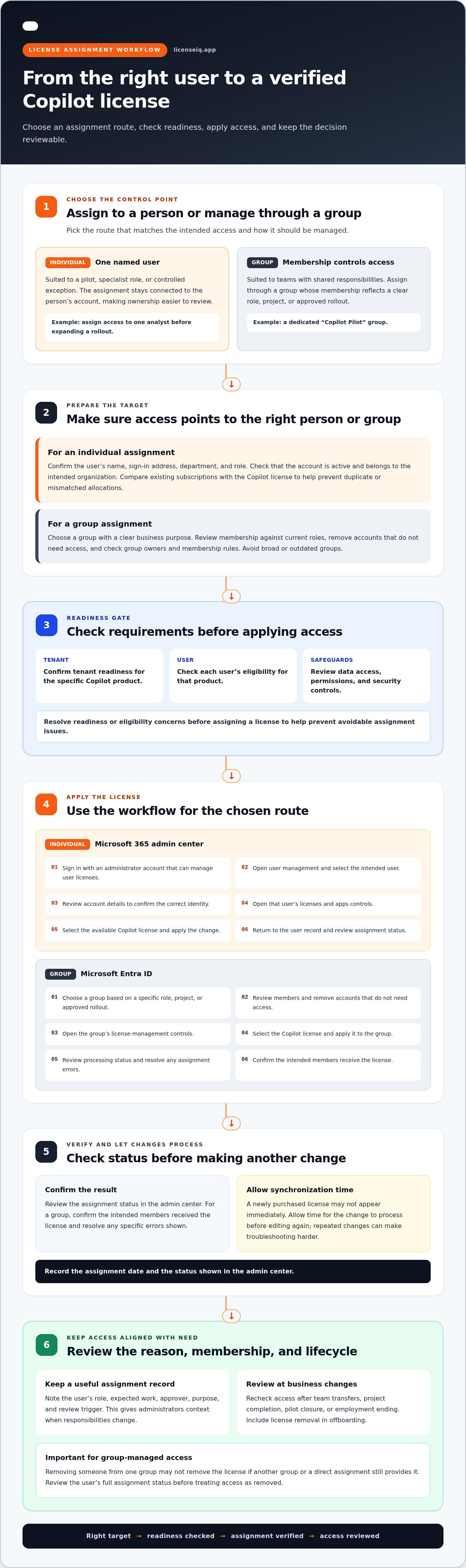
Individual license assignment gives one named user a Copilot license directly. In Microsoft 365, an administrator selects the user account and applies the available license. This approach suits a pilot, a specialist role, or a controlled exception. For example, an organization might assign access to one analyst before expanding a rollout. Each assignment stays connected to the person’s account, making ownership easier to review.
Before changing an account, identify the intended user by their work identity. Confirm their name, sign-in address, department, and role. Similar names can lead to an assignment going to the wrong account. Check that the account is active and belongs to the intended organization, then compare the user’s existing subscriptions with the Copilot license. This helps prevent duplicate or mismatched allocations.
Use this sequence in the Microsoft 365 admin center:
- Sign in with an administrator account that can manage user licenses.
- Open the user-management area and select the intended user.
- Review the account details to confirm the correct identity.
- Open the licenses and apps controls for that user.
- Select the available Copilot license and apply the change.
- Return to the user record and review the resulting assignment status.
Tie each change to a business reason. An assignment record can note the user’s role, expected work, approver, and review trigger. For example, a finance analyst may use Copilot for recurring document analysis. Recording the rationale gives administrators context if the employee changes roles and helps distinguish a deliberate assignment from access left in place after a transfer.
After assigning the license, verify that the user can access the intended Copilot experience. Synchronization can take time after purchase. If the license does not appear immediately, review its assignment status and allow time for the change to process before editing the account again. Repeated changes can make troubleshooting harder. Record the assignment date and the status shown in the admin center.
Individual assignments also need lifecycle controls. When a user changes teams, compare their new responsibilities with the original reason for access. Include license removal in the offboarding process when employment ends. For a temporary pilot, record a review point before assigning access. These checks keep exceptions visible and help prevent unused licenses from accumulating unnoticed.
For an orderly process, track each user’s assignment, purpose, status, and next review action. A license health review can help administrators spot assignments that no longer match current usage. Use that review alongside account-level checks, not as a substitute for confirming the intended user. Clear records make individual decisions easier to audit and help teams decide whether direct assignment or group management fits future changes.
Group-based license assignment
Group-based assignment applies a license through group membership rather than assigning it to each user individually. In Microsoft Entra ID, administrators can associate a license with a group and manage access by updating membership. This works well for teams with shared responsibilities. For example, a defined Copilot pilot group can include employees approved to use Copilot, making the group the control point for license allocation.
Start with a group whose membership reflects a clear business purpose. A department group may be too broad if only certain roles need Copilot. A dedicated group, such as “Copilot Pilot,” makes membership easier to review. Confirm that it contains the intended users before applying a license. Check membership against current roles, not just department names, to prevent access from spreading through outdated or overly broad rules.
Use this workflow to prepare a group assignment:
- Choose a group based on a specific role, project, or approved rollout.
- Review the group’s members and remove accounts that don’t need access.
- Open the group’s license-management controls in Microsoft Entra ID.
- Select the Copilot license and apply it to the group.
- Review processing status and resolve any assignment errors shown.
- Confirm that the intended members receive the license.
Group membership controls the assignment. When an approved employee joins the group, the license can be assigned through that membership. When someone leaves, the group no longer supplies the license. However, another group or a direct assignment may still provide the same license. Review the user’s full assignment status before treating group removal as license removal.
Plan for exceptions before rollout. A contractor may belong to a project group but not qualify for the same access as employees. A manager may need Copilot when the wider department does not. Keep exceptions in a separate, documented process rather than broadening the main group. Review group owners and membership rules, too. Unclear ownership can leave access unchanged after teams reorganize.
Check assignment results after applying the license. A group may show errors if a member’s account or existing license state prevents processing. Resolve the specific issue, then review that user again. A newly purchased license may also take time to synchronize across systems. Avoid repeated group edits while the change is processing, as they can complicate troubleshooting.
Set a recurring review around business events, such as team transfers, project completion, and pilot closure. Compare each member’s role with the group’s stated purpose. A license assignment oversight process can help teams keep group membership and license use visible as needs change. Group-based assignment works best when membership rules stay precise and someone owns each review.
Tenant and per-user license requirements
A tenant requirement is a condition the organization must meet before assigning a Copilot license. A per-user requirement applies to the specific account receiving access. Check both before making an assignment. Requirements depend on the Copilot product and subscription, so identify the exact offer first. Similar product names can have different licensing paths. When assigning Copilot licenses to the right users, start with the product rather than an assumed prerequisite.
Review tenant readiness in the Microsoft 365 admin center. Confirm that the organization is in the intended tenant and that an administrator can manage its subscriptions. Compare the available product names with the Copilot experience employees will use. For example, an internal request may say “Copilot” without naming the specific offer. Resolve that ambiguity before selecting a license.
Next, review prerequisites associated with the selected offer. Some Copilot plans require an eligible Microsoft 365 subscription alongside the Copilot license. Compare the tenant’s existing subscription with the stated requirement. A tenant might have Copilot licenses available while an underlying subscription or account issue prevents access. Separate these checks so administrators can identify where the blockage occurs.
Check account identity and status to assess per-user eligibility. Confirm that the employee has an active work account in the intended tenant, then review the account’s existing subscriptions and service access. An account in another tenant will not receive the intended access through the planned assignment. An inactive account can also prevent access from reaching the intended user.
Use this sequence for a clean pre-assignment review:
- Identify the exact Copilot product and subscription.
- Review tenant prerequisites in the Microsoft 365 admin center.
- Confirm the user’s account belongs to the intended tenant.
- Compare assigned subscriptions with the product’s prerequisites.
- Apply the license and inspect its assignment status.
- Resolve displayed errors, then review the status again.
A service plan is a component within a subscription that controls access to a particular service. Review the relevant service plans linked to the user’s subscription. If a required component is disabled, the license may appear assigned even though the intended experience is unavailable. Check the component settings before making broader changes to the user’s subscriptions.
Record the product reviewed, tenant readiness, account, prerequisite status, and assignment result. If a newly purchased license is not visible immediately, allow time for synchronization across systems. Then refresh the status and investigate any displayed error. This helps distinguish tenant-level issues from individual account mismatches. A consistent approach to assigning Copilot licenses to the right users makes failed assignments easier to diagnose without unnecessary changes.
How can organizations prioritize Copilot licenses based on role, usage, and business value?
Rank employees by how directly Copilot supports their work. Start with specific tasks, not job titles alone. A communications specialist who drafts recurring content may benefit more than someone with the same title but different duties. Map each candidate’s work to tasks Copilot can assist with, such as summarizing documents or preparing meeting follow-ups.
Usage priority reflects whether people apply Copilot to relevant work. Before expanding access, run a controlled pilot with representative roles. Ask participants to record the tasks they tried, how often they used Copilot, and where it saved effort or improved their workflow. Include users who rarely engage. Their feedback can reveal barriers, unclear use cases, or training needs that activity data alone may not show.
Business value connects expected benefits to an organizational goal. Define the intended outcome before assigning access. For example, a customer-support team might assess whether Copilot helps prepare clearer case summaries, while a finance team might test whether it helps organize recurring report drafts. These are hypotheses to evaluate, not guaranteed results. Agree on what evidence would count as useful before starting.
Use a consistent review for each candidate or role:
- Task fit: Identify recurring work Copilot can support, such as document drafting.
- Usage evidence: Review pilot participation, task relevance, and user feedback.
- Business outcome: Link the use case to a team objective or workflow.
- Readiness: Consider data access, training needs, and manager approval.
Group candidates into practical priority tiers. High priority means a defined use case, a clear business sponsor, and evidence from actual work. A middle tier may include promising roles that need guidance or a narrower pilot. Defer assignments when a candidate lacks a relevant task or the team cannot explain the expected value. These tiers support decisions without relying on unsupported usage thresholds.
Revisit priorities as work changes. A project manager may need Copilot during a document-heavy launch, while another role may have little current use. Reassess when teams reorganize, workflows shift, or a pilot ends. Record the business reason, decision owner, and review trigger for each assignment. This helps administrators compare planned value with observed use.
Treat usage as one signal, not the only decision rule. Low activity may reflect limited training or a poor fit between the tool and assigned tasks. High activity alone does not establish business value. Consider usage alongside role context, user feedback, and the team’s stated outcome. This creates a defensible prioritization process and directs licenses toward work with a clear purpose.
What security, privacy, and data-access risks should be checked before assigning Copilot licenses?
Data access means the information an account can open across connected work systems. A Copilot license does not replace permission controls. Before enabling access, review the user’s existing permissions in SharePoint, Teams, and OneDrive. For example, a staff member who can open a shared folder may bring its contents into their work with Copilot. Check that this access still matches their role.
Oversharing occurs when users can access more information than their tasks require. Review broad SharePoint groups, inherited permissions, and old project sites. A former project member may retain access to documents after changing teams. Check site owners and membership before adding users to a Copilot rollout group. Tighten access where the business purpose has ended.
Sensitive information includes records that require restricted handling within the organization. Identify repositories containing personnel files, customer details, financial documents, or confidential plans. Review permissions on those locations and confirm that only appropriate roles can access them. For example, a general department group should not automatically include people who do not need access to a restricted HR library.
Identity security means protecting accounts from unauthorized use. Review each proposed user’s account status, sign-in controls, and authentication setup. Remove stale accounts from assignment groups, and address shared-account practices that obscure individual responsibility. A named employee account gives administrators a clearer record of who received access than a shared team login.
Prompt privacy concerns what users enter into Copilot requests and how they handle generated responses. Set clear internal guidance before rollout. Tell users to avoid entering sensitive data into prompts unless their work process permits it. Remind them to verify generated content and follow existing rules for storing or sharing documents. Copilot access does not replace a privacy review of the underlying workflow.
Use this pre-assignment review for each proposed user or group:
- Confirm the user’s role and business need.
- Review permissions across SharePoint, Teams, and OneDrive.
- Inspect shared sites for outdated membership or broad access.
- Identify sensitive repositories and confirm their access boundaries.
- Check account ownership, status, and sign-in protections.
- Document the approver, rationale, and review trigger.
Keep the review active after assignment. A role change, project closure, or SharePoint restructuring can alter access without changing the Copilot license. Revisit permissions when those events occur and remove unnecessary access through the relevant identity or content controls. This keeps license management distinct from data protection while ensuring both remain visible. The result is a more deliberate rollout based on each user’s actual access and work responsibilities.
LicenseIQ: Automated Governance Workflows
LicenseIQ’s Automated Governance Workflows help organizations structure recurring license oversight. After reviewing Copilot assignments, teams can use workflows to support consistent governance as roles, usage, and access needs change. The Spend Recovery Dashboard helps surface Microsoft 365 license spend for review, while the License Health Score provides a focused view of license health. Together, these offerings can help decision-makers identify where closer review may be useful, rather than relying on scattered assignment records.
Turn to LicenseIQ when manual reviews make it difficult to maintain visibility across Microsoft 365 licenses. The LicenseIQ Platform brings its license-focused capabilities together to support spend oversight and governance. Visit LicenseIQ’s platform to learn more.
Make License Governance a Continuous Practice
Copilot licensing is not a one-time allocation decision. As teams, responsibilities, and work patterns shift, build regular license reviews into your governance routine. This keeps assigning Copilot licenses to the right users connected to current business needs rather than outdated assumptions.
LicenseIQ supports this ongoing oversight with Automated Governance Workflows, a Spend Recovery Dashboard, and a License Health Score. These offerings help teams structure governance, review Microsoft 365 license spend, and bring license health into view. Use them to make resource reviews part of operational planning rather than a task that surfaces only during renewal discussions.
If your organization needs a clearer process for managing Microsoft 365 license oversight, contact LicenseIQ for licensing help. Start with the visibility your team needs, then build a governance routine that can adapt as requirements change.
Frequently Asked Questions
How can admins monitor Copilot license utilization and adoption?
Admins can monitor utilization by comparing assigned licenses with available activity reports and reviewing trends over time. Track adoption separately by checking whether users apply Copilot to relevant workflows, then gather feedback about useful tasks and barriers. A license assignment shows access, not whether the tool supports daily work. LicenseIQ provides a Microsoft 365 adoption dashboard and license-utilization insights.


